

How Offline Payments Work
Accepting offline payments helps minimize revenue loss during internet outages and keeps checkout lines moving. When offline mode is active, Vori stores card transaction details securely in a queue. Once the internet is restored, these payments can be processed manually.- To the customer, the checkout experience stays the same. After selecting Card and confirming the total, they complete payment as usual.
-
As offline payments are queued on the lane, the badge count in the Orders tab will increase.

During offline mode, terminals can only verify that a card appears valid (e.g., not expired, part of a known card network). Final approval happens later, once the internet is restored—so some payments may still be declined.
Process Offline Payments from the Orders Tab
Once the internet is restored, follow these steps to process queued payments from the Orders tab.- Tap the Orders tab in the POS app.
- Tap Process, then tap Process again to confirm.
- Wait for the confirmation message at the top of the screen.
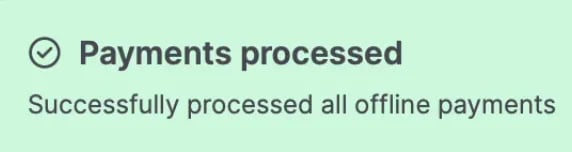
Offline payments won’t appear in reporting (such as the End-of-Day report or sales dashboards) until they’re processed and the POS is connected to a live internet connection.
If a customer’s card is declined after they’ve left the store, the store may not be able to recover the funds. Use offline payments only when necessary.
Process Offline Payments from the End-of-Day Report
Managers can also process offline payments as part of the End-of-Day workflow.- Log in as a manager on the POS app.
- Switch to Reporting mode.
- Select End of Day.
- Tap Process Payments.
- Once payments have been processed, tap Continue to print the End-of-Day Report.
The POS must be connected to a live, hardwired internet connection to process offline payments. Processing will not work over WiFi or a mobile hotspot.
Any declined offline payments will appear in the End-of-Day Report.
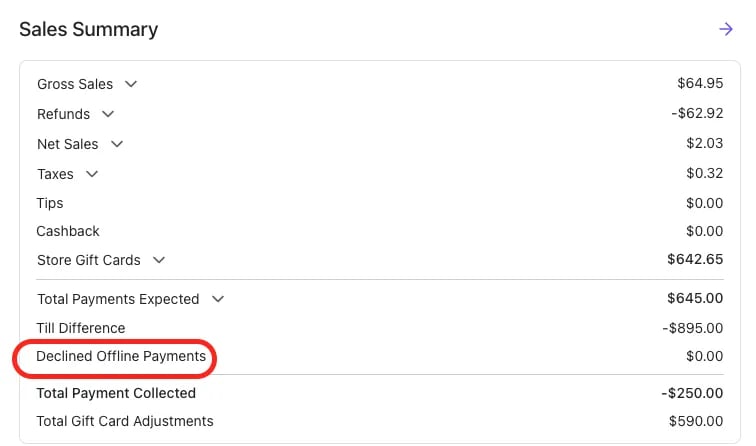
Important Considerations
If a customer’s card is declined after they’ve left the store, the retailer may not be able to recover the funds. Use offline payments only when necessary.
There may be a slight delay with the first offline payment as the system attempts to reconnect before switching to offline mode. This delay helps prevent unnecessary offline transactions due to brief network drops.
If existing offline transactions are over 48 hours old, the payment terminal will not allow additional offline payments. The terminal will display a Payment Error with the message: “VALIDATION: Transactions cannot be stored. There are stored transactions that are older than 48 hour(s) and must be forwarded. (StoreAndForward Error)” To resolve this, restore the internet connection and process the queued offline payments.