

Overview
- Vori partners directly with IGA to bring national digital offers into participating stores.
- Unlike traditional coupons that require cashiers to scan barcodes or shoppers to clip coupons in an app, these offers apply automatically at checkout when the basket qualifies.
- It’s fast. It’s accurate. And it protects the checkout experience.
Before You Start
- Ensure your store is officially registered with IGA and opted into the National Digital Ad program.
- Confirm you are using the POS for transactions to enable automatic redemption.
- Admin access to Back Office is required to view active offers or print shelf tags.
Step-by-Step Instructions
1. View Active Network Offers
You can manage and monitor active national offers directly from your Back Office Offers Dashboard to see which products are currently discounted.- Log in to the Vori Back Office.
- Navigate to the Coupons page in the side menu under Marketing.
- Use the Coupon Type filter and select Network to view only IGA-syndicated offers.
- Click on any offer to view specific details, including the discount amount, valid dates, and qualifying products.
You have the option to delete any IGA coupon if you don’t want to run the special. Click into the coupon details, hit the three dots in the right-hand corner, and click “delete coupon.”
2. Promote Offers with Shelf Tags
Drive awareness on the floor by printing tags on Vori operating system in minutes.- From the homescreen of Vori operating system, click on Tags.
- If the offer just took effect in your account, the tags for the offer should be at the top of the queue.\
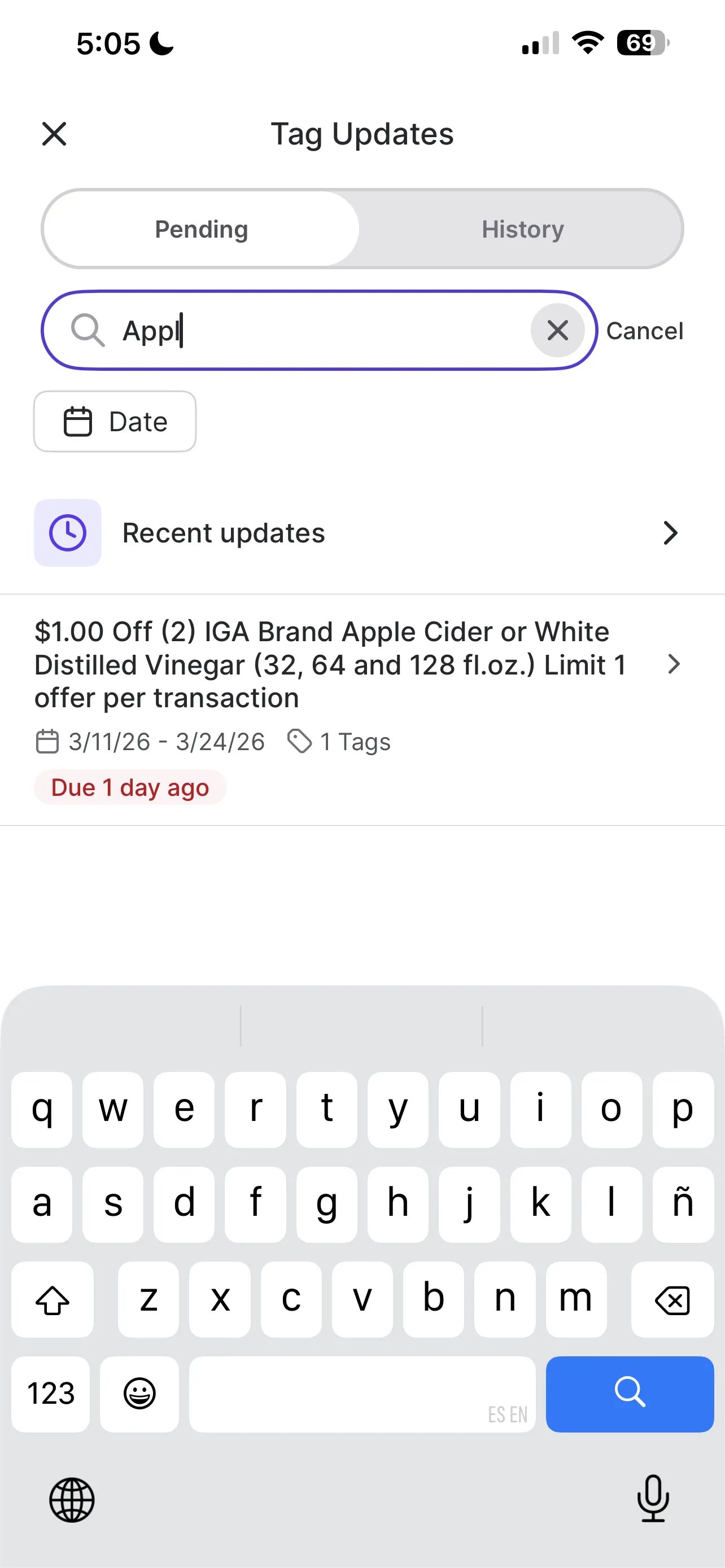
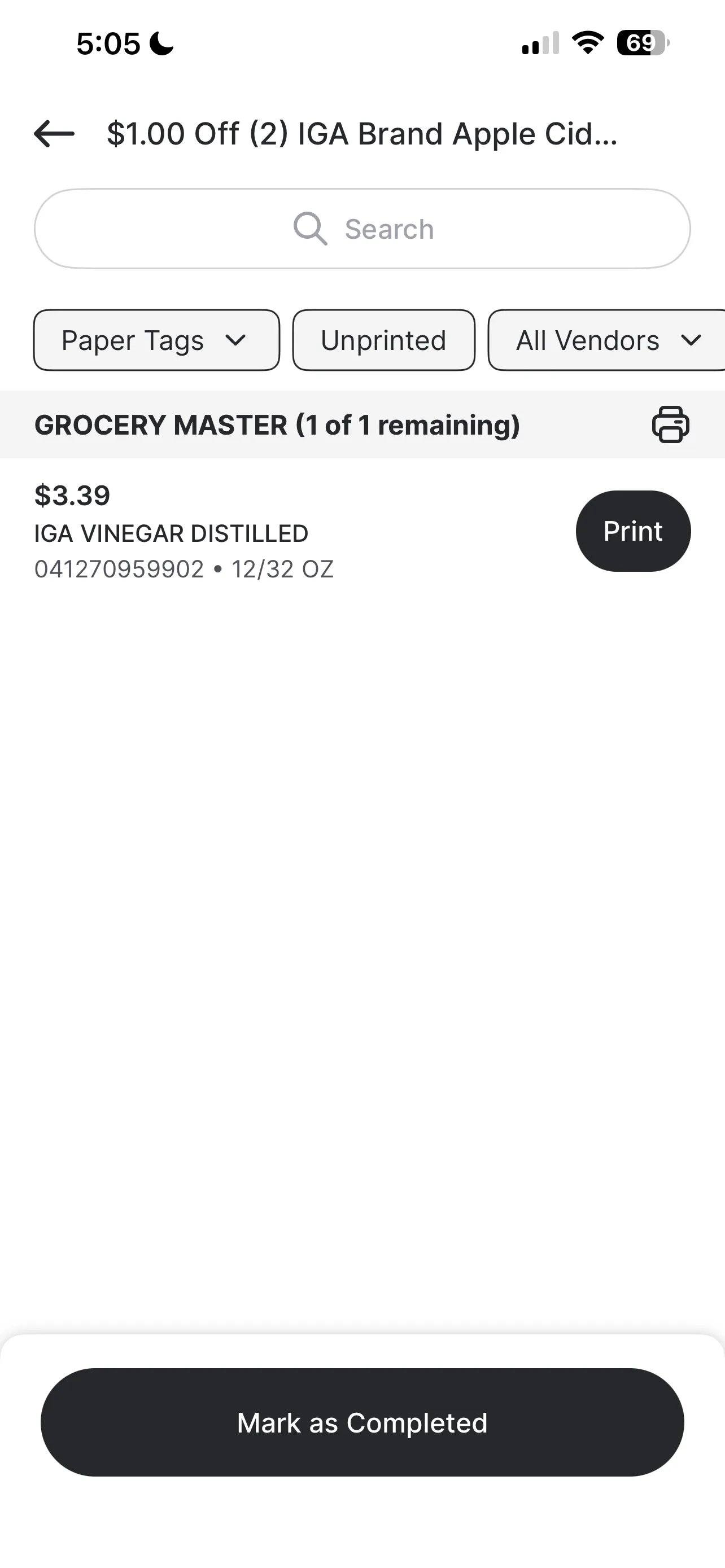
- If not, you can search for the name of the item that is on promo to print the tag.
- Ensure you have the large yellow promo tagsloaded and configured in the Zebra printer, and hit print to print the promo tag.\
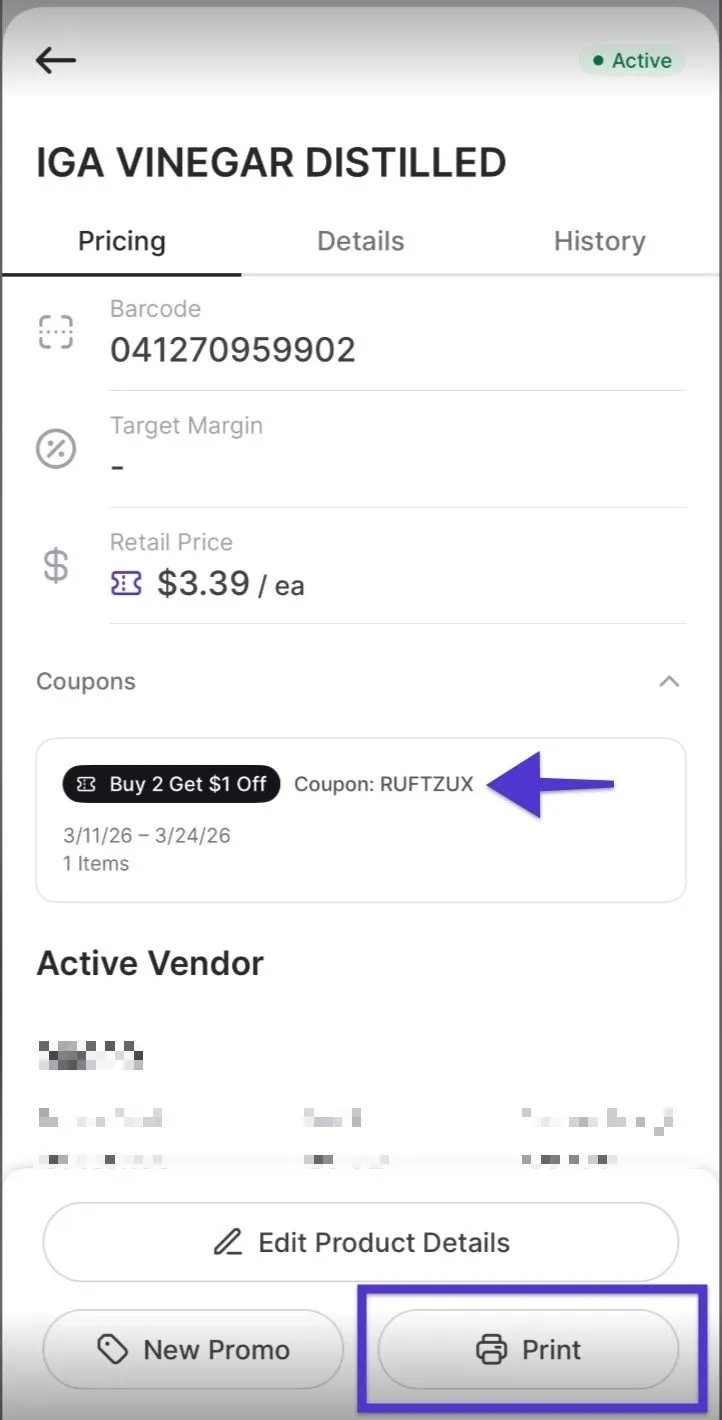
- Place the tag on the shelf next to the qualifying product to alert shoppers to the savings!
3. Automatic Redemption at Checkout
There is no manual work required by your cashiers to apply these discounts.- Scan the qualifying products into the basket at the POS.
- If the basket meets the offer criteria (e.g., “Buy 2, Get $0.50 Off”), the coupon will auto-apply instantly.
- The discount will appear as a separate line item on the POS screen and the printed receipt.
Troubleshooting & Tips
- Visibility: If you have a question about a specific offer, scan the product using the handheld. The product detail page will show any active promotions and offers currently linked to that item.
- Offer Exclusions: If a store decides not to participate in a specific national offer, Admins can manually deactivate it. To do this, open the offer in the specifc coupon and select Delete Coupon to remove it from your system.
- Can I add a product to an IGA network offer? IGA network offers are funded by consumer brands and managed by IGA. The list of products on offer cannot be changed. If you would like items added to the offer, please reach out to IGA directly to request approval.
- What if I decide to bring in a new item that’s a part of an existing IGA offer? If you bring in a new item that’s part of an existing IGA offer, add it to your product catalog in Back Office first, then contact Vori Support (support@vori.com). We’ll refresh your IGA offers so the new product is automatically included.
- Stacking Savings: National IGA offers can stack on top of your existing store promotions. For example, if you have a store-wide sale on pasta, a national IGA coupon for that same pasta will provide even deeper savings to the shopper.