

You can only add a tare container to an item that is sold by weight.
Adding a tare container via item options
- Add a sold-by-weight item to the basket.
- Tap the item.
- Tap … More.
- Tap + Add Taxes & Modifiers.
- Tap Tare.
- Select one of the preset containers, or enter a custom weight.
- Tap Apply Changes to finish.
Adding a tare container via quick action
A quick action lets you apply a tare in a single tap from the register screen. If the Tare quick action isn’t on your register, you can add it as a quick action in Back Office.- Add the sold-by-weight item to the basket.
- Tap the Tare quick action.
- Select one of the preset containers, or enter a custom weight.
- Tap Apply Changes to finish.
Entering a custom weight for a tare container
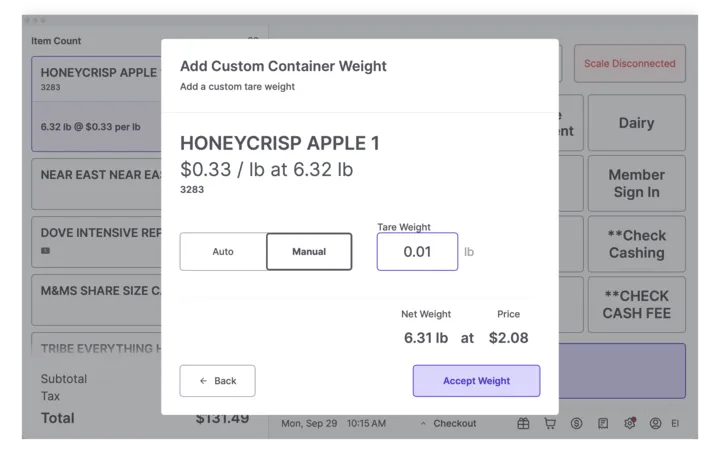
- In the tare menu, tap Custom Weight.
-
Choose one of the following weight entry options:
- Auto - Applies a tare weight based on the active weight on the POS scale. Use this when the product has been removed and only the empty container is on the scale.
- Manual - Prompts you to enter the tare weight with the 10-key. Use this when a shopper brings their own container and knows its weight.
-
Tap Accept Weight to finish.
Confirming a tare container was applied
Once a tare weight is applied, the item’s tile in the basket shows the new weight with the tare deducted.When a tare container is applied to a weighted item, the Reweigh button won’t appear on the item tile. The tare already accounts for the container weight, so reweighing is disabled to prevent conflicts.
Changing a tare container
If a tare container is already applied, the Tare option is greyed out.
- Remove the existing tare container.
- Reopen the tare menu.
- Select a new tare container, or enter a custom weight.
- Tap Apply Changes to save.