See which tags need to print, review templates before you print, and print a whole batch of retail or promo tags in one run.
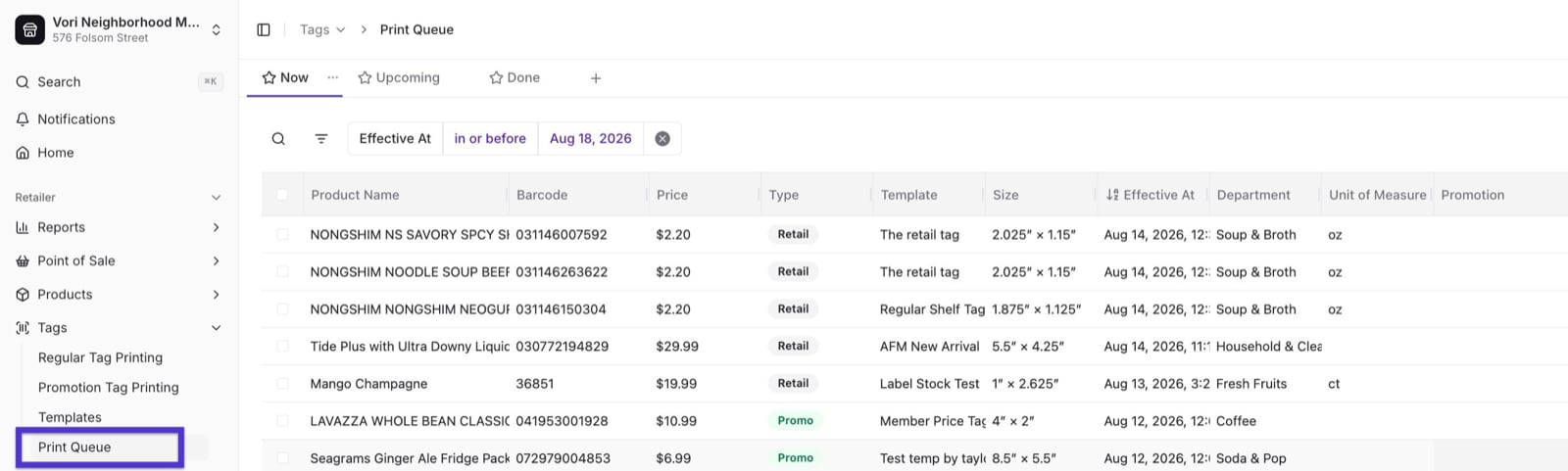
The print queue is where every tag waiting to print shows up — automatically. When a product’s price changes, Vori queues up the tag it needs so your shelf never falls out of sync with your POS.
Vori watches for changes on a product and queues a new print job when they happen. By default, that’s a price change, a product name change, or a barcode change. A template can also be configured to watch additional fields, like unit volume or country of origin.This works the same way whether the change came from Back Office or from the handheld — both feed the same print queue, so nothing falls through because of where the change was made.
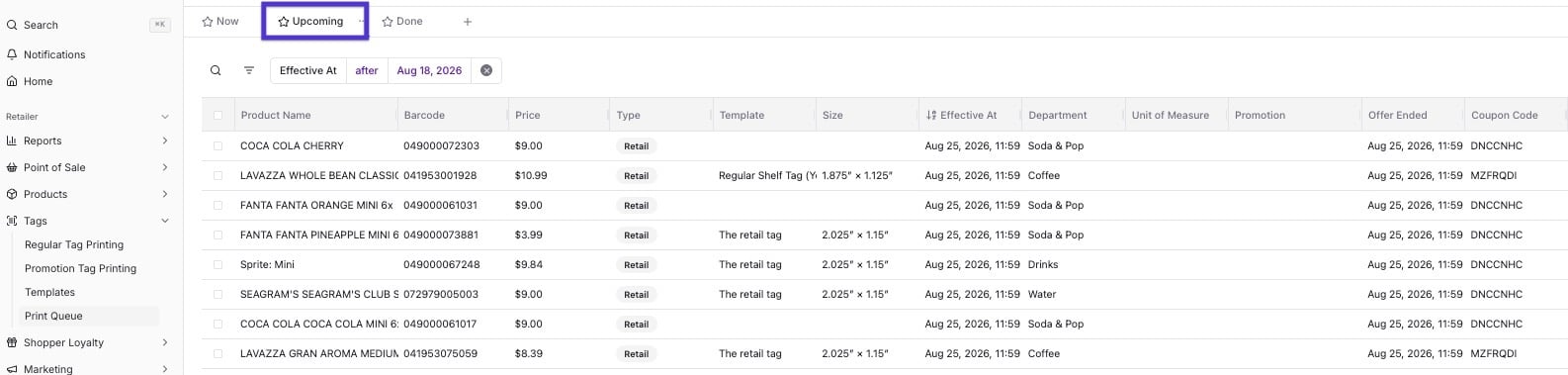
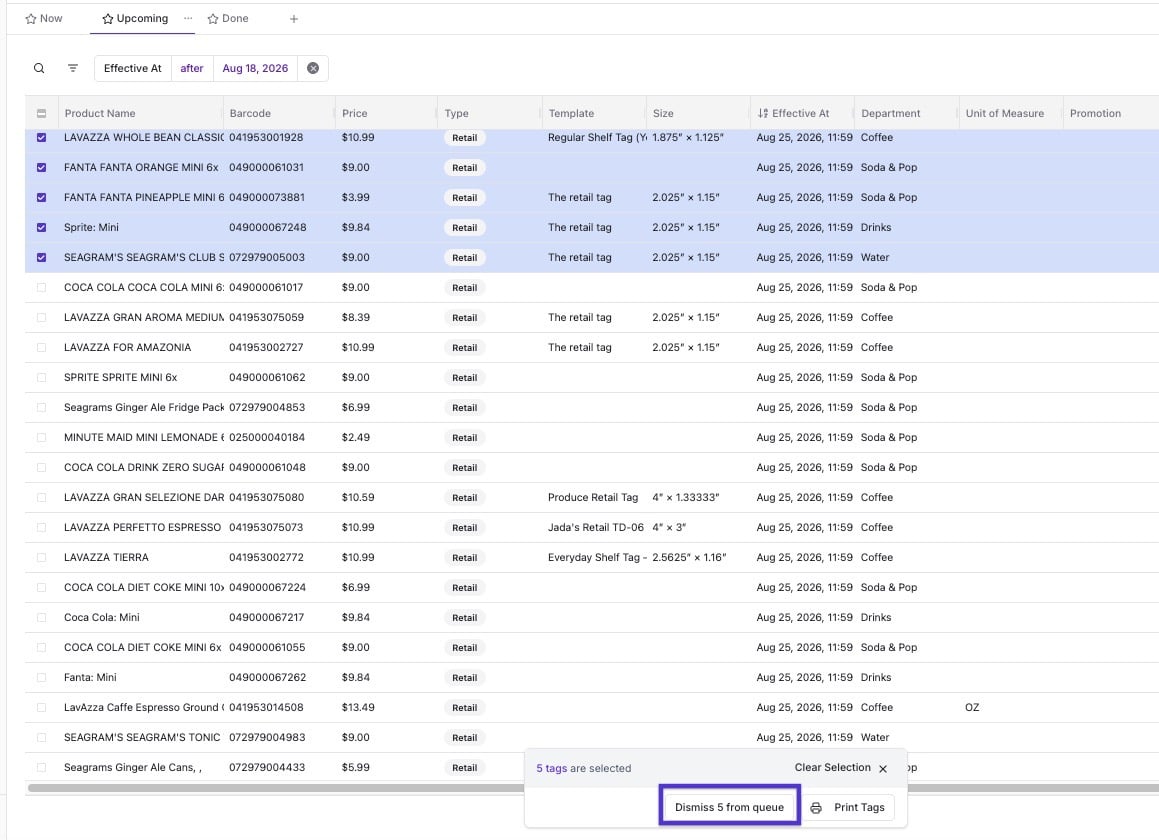
Upcoming — tags for price or promotion changes that take effect in the next few days. Print these ahead of time so tags are already hung when the new price goes live, instead of scrambling on the morning the ad starts.
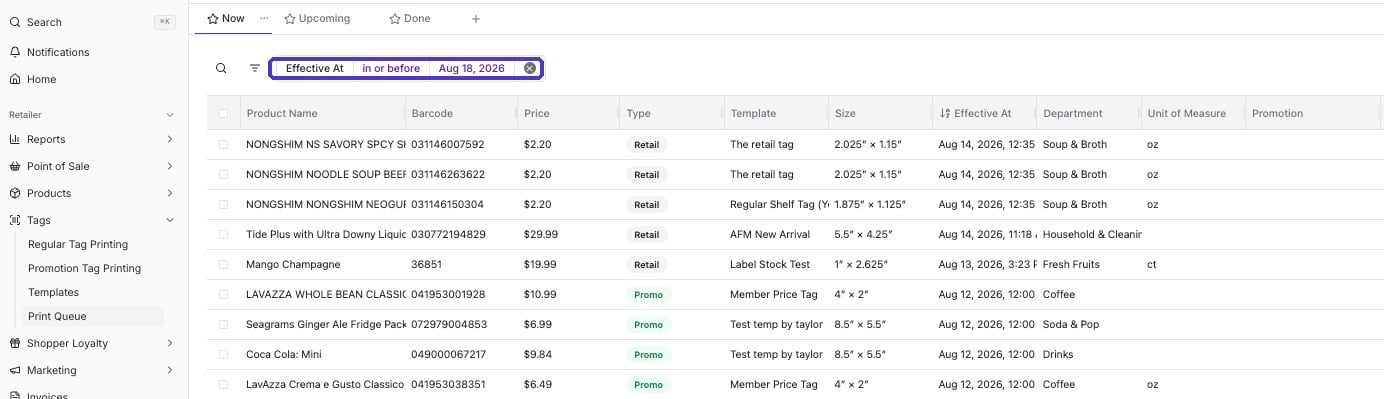
Each view filters by Effective At — the date a tag’s price or promotion takes effect. Narrow either view to a specific date to pull up just the batch you’re working on, instead of scanning the full list.
Jobs in the queue are grouped by label size, not by template. If two different templates share the same physical stock dimensions, Vori groups them into the same print run so you’re not reloading the same sheet stock twice.
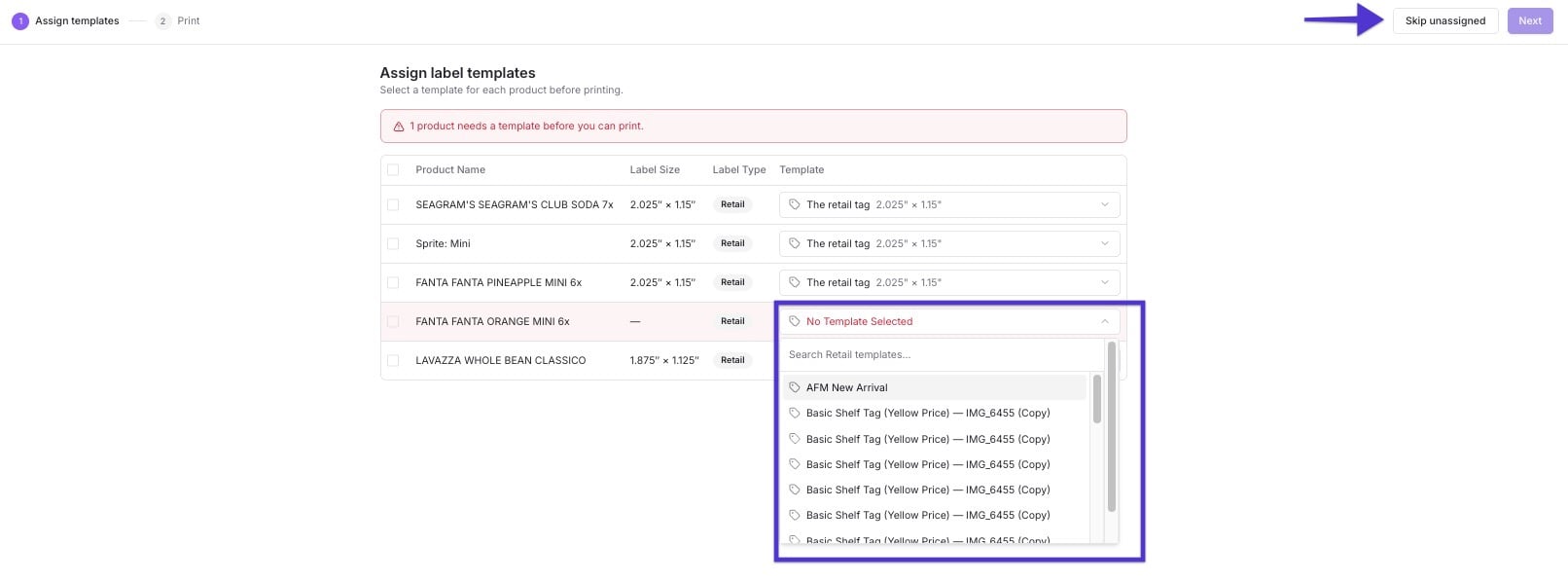
Before a job prints, Vori shows you a review screen listing every item and the template it’s about to use.
If any items are missing a template, Vori flags them and lets you search for and assign one right there, in the moment — no need to back out to Assign Tags to Products first.
If you’d rather print everything else now and deal with the flagged items later, select Skip unassigned to move on without them — they stay in the queue until they’re assigned.
If you want to use a different template for this run only, you can override it — this doesn’t change the product’s saved default template. See Assign Tags to Products to change the default itself.
Not every queued tag needs to print — a price might get corrected before the change ever reaches the shelf, or you may only need a subset of what a filter turned up. Select the tags you don’t need and choose Dismiss from queue to clear them out without printing them.
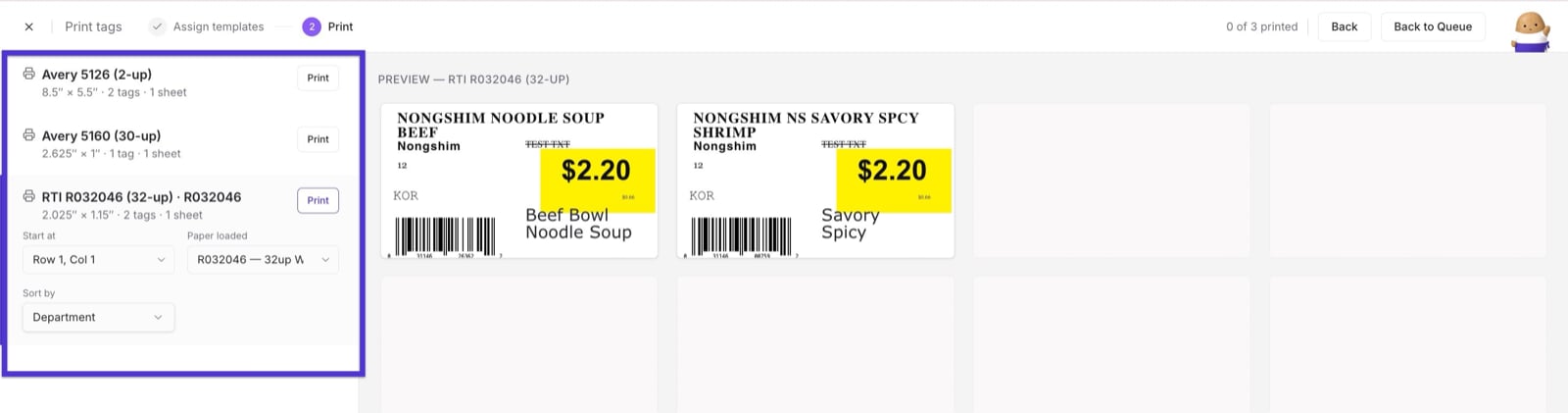
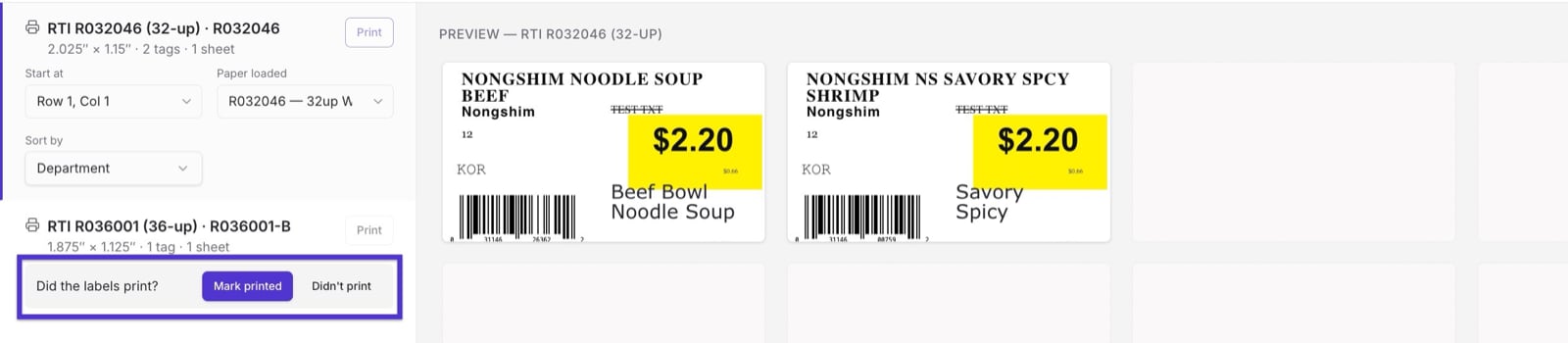
Set a starting row and column — useful if you’re printing onto a partially used sheet and don’t want to waste the remaining labels.
Switch stock color variants at the same label size, if you loaded a different color of the same stock.
Sort the list alphabetically, by department, or by aisle. Sorting by aisle uses each product’s shelf location — see Assign Tags to Products to set that field.
Vori generates a print-ready file sized and cut to match the stock you chose for that template. From there, you print using whatever local printer and driver you already use — Vori doesn’t require specific printer hardware.
The mobile print queue on the handheld pulls from this same queue, so a tag you print from your phone or scanner on the floor clears out of the desktop queue too, and vice versa.