

Introduction
If you’re switching to Vori from Clover, your onboarding contact needs your existing product file to build out your catalog. Clover exports this as a single spreadsheet with a few tabs, and you’ll send those tabs to Vori as CSV files.How to export your product file from Clover
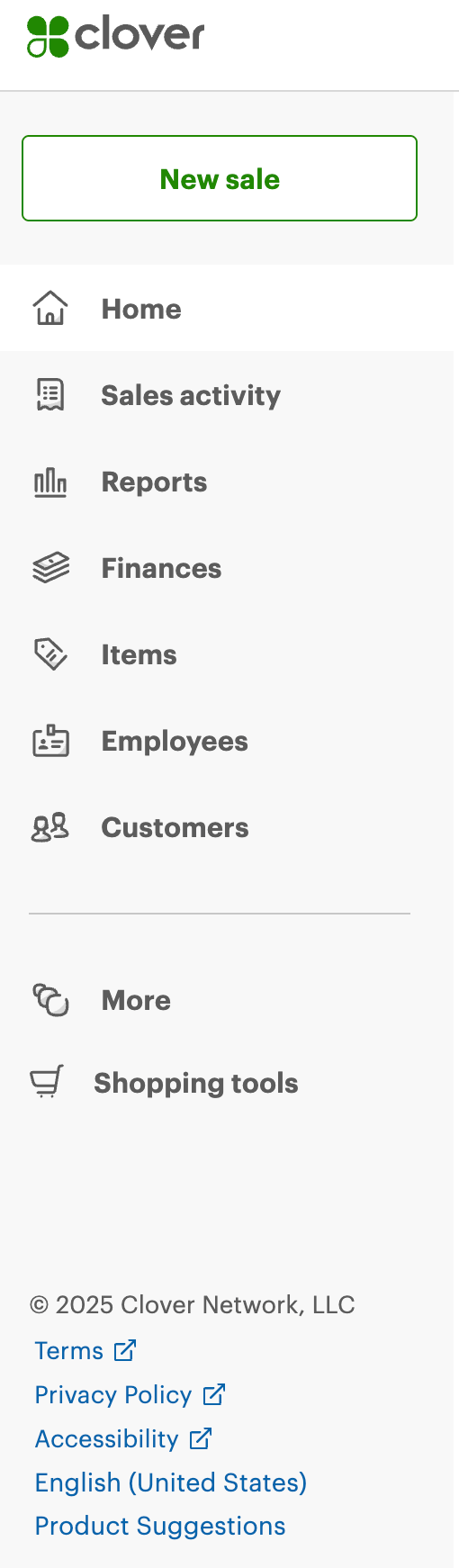
- Log in to Clover and go to Items > Item list in the left-hand menu.
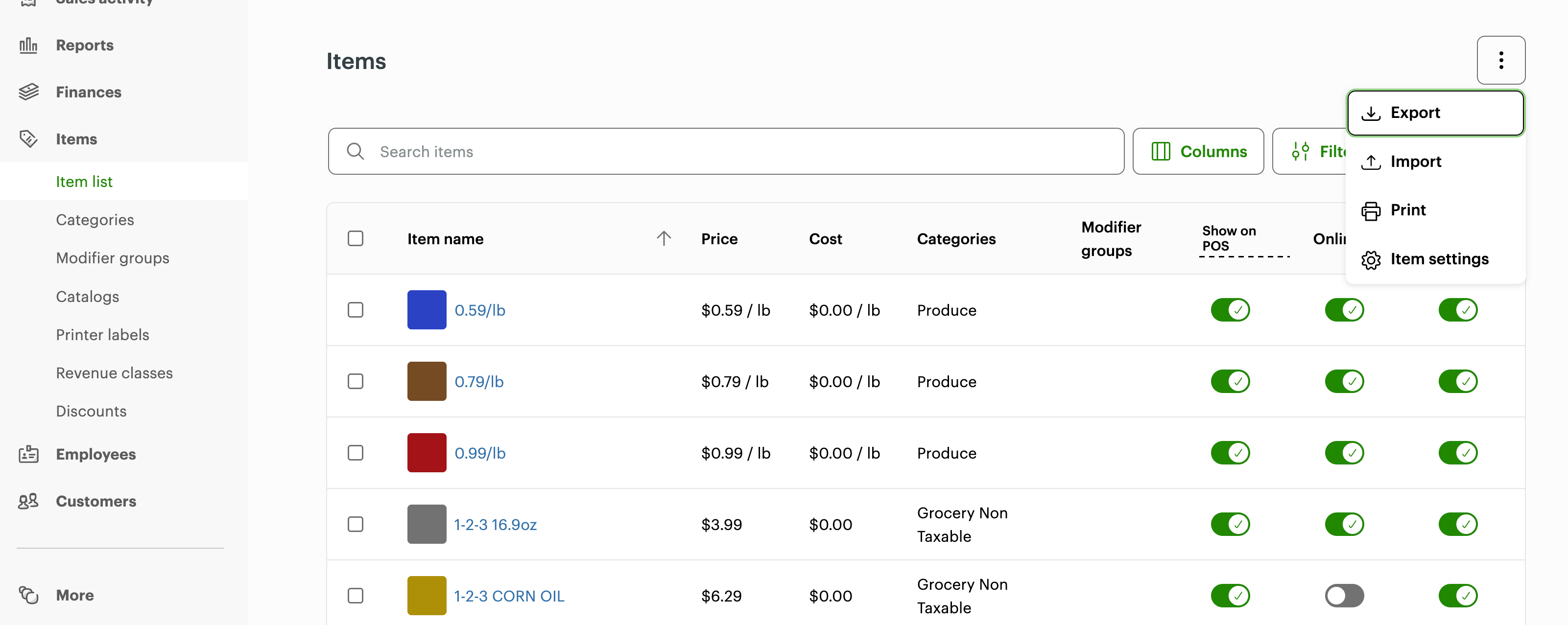
- In the Item list, click the ⋮ (three dots) in the top-right corner, then choose Export.
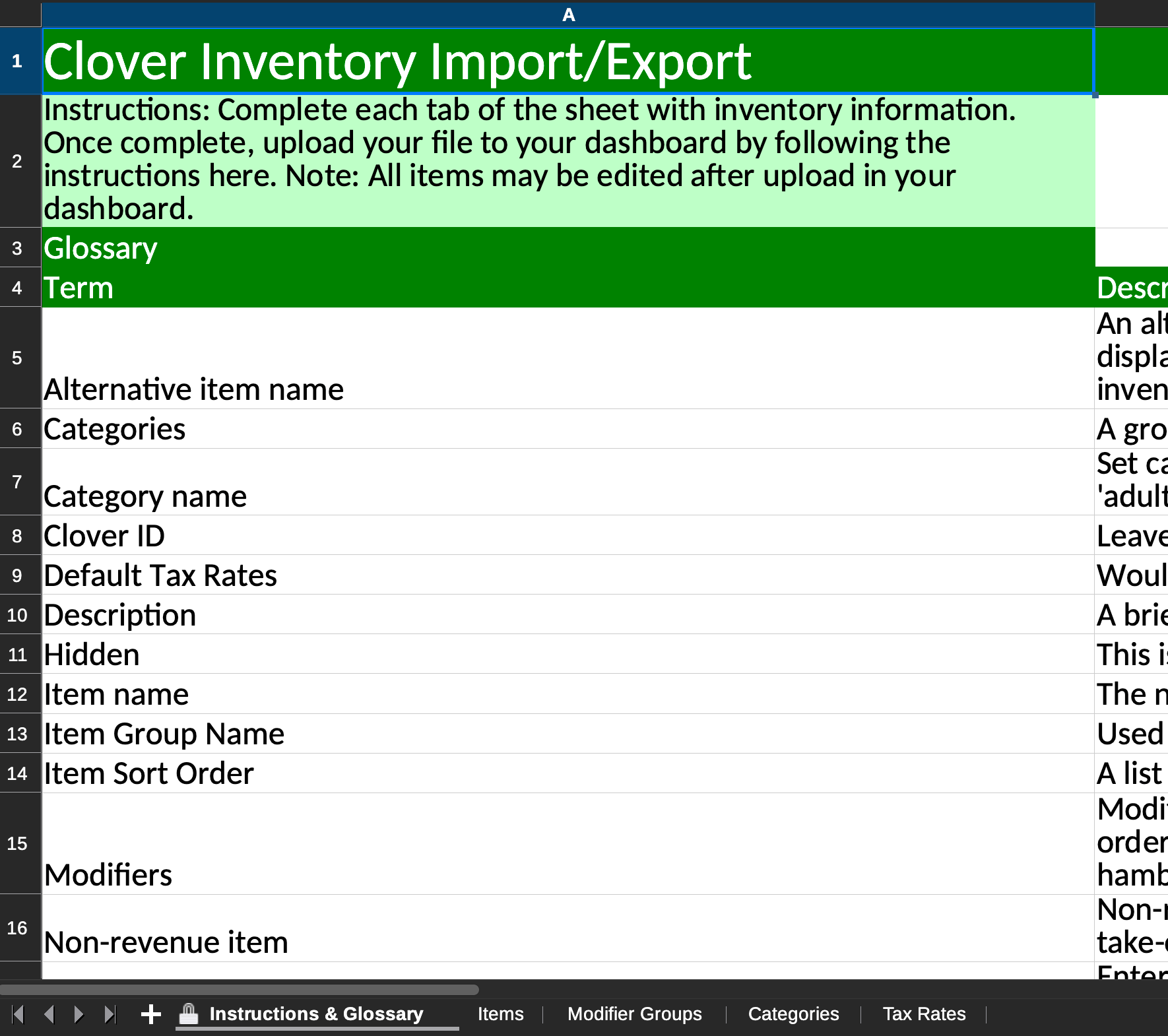
- Clover downloads an Excel file with several tabs: Items, Modifier Groups, Categories, and Tax Rates. Some tabs may be empty depending on your setup — that’s expected.
- Save each tab you need as its own CSV file.
- Send the exported file(s) to your Vori onboarding contact.