

POS Admin Password
When the POS computer restarts, it prompts you for an admin password to launch the application. This password is the same for all registers in your store. The admin password for the POS is: 654321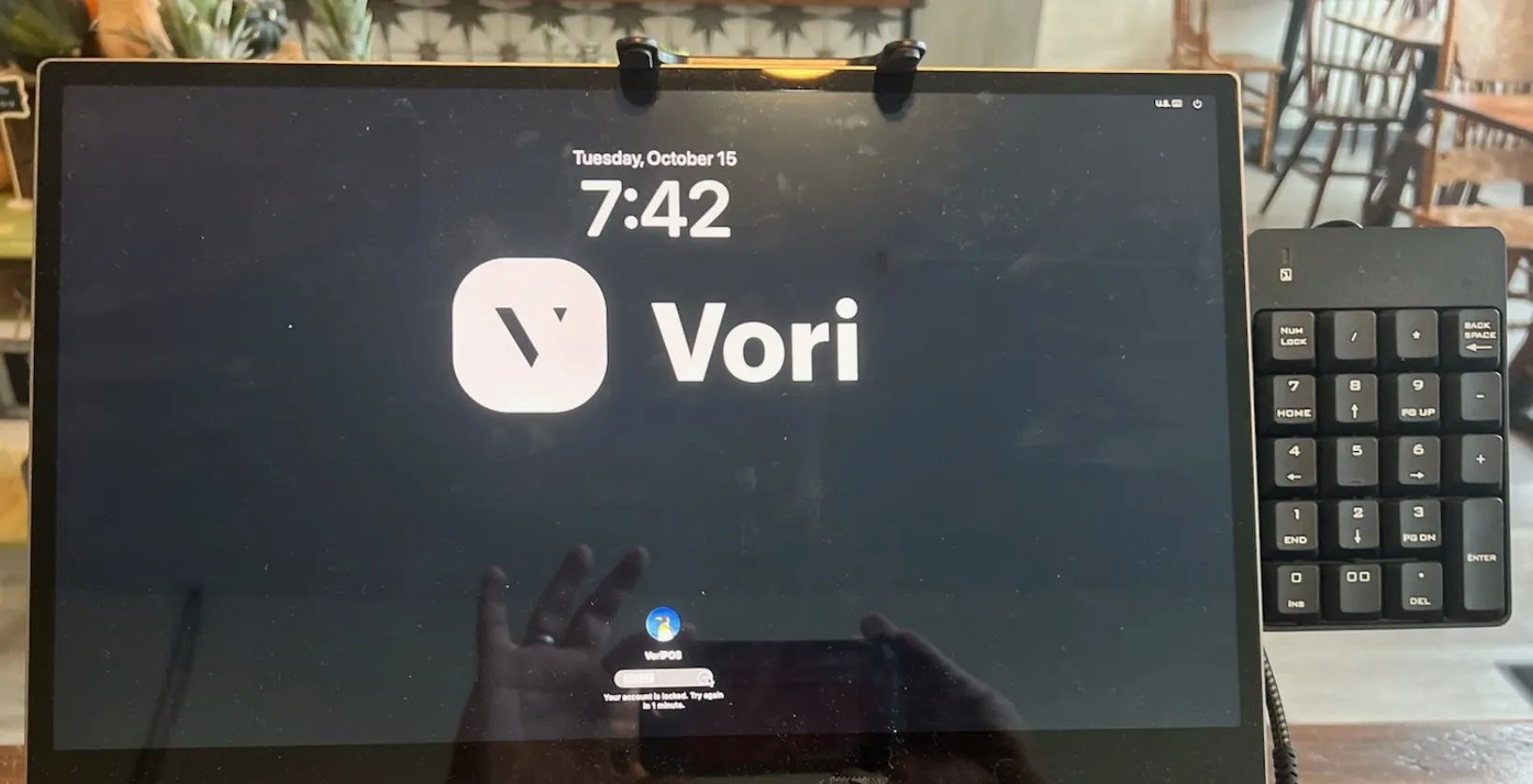
How to Log In
When the computer finishes booting up, you will see a login prompt at the center or bottom of the screen.- Ensure the cursor is in the password field.
- Type 654321 using the on-screen or physical keyboard.
- Press Enter or click the login arrow.
- The application will load automatically.
Returning to the Correct Screen
You do not need an email address to log into the physical POS terminal. If you accidentally select a different user profile or see a prompt asking for an Email ID or Username, you are on the wrong screen.- Look for a Back button or a Cancel option on the screen.
- Click Back until you return to the simple password-only prompt.
- Enter 654321.
Troubleshooting
If you are unable to log in using the admin password, these steps can help you solve common hardware and entry errors.Check Your Password and Keyboard
First, confirm the password is being entered correctly and that your keypad is ready.- Check Num Lock. If you are using a physical keyboard, ensure the Num Lock key is on. An indicator light usually turns on when active.
- Check for Spaces. Ensure there are no accidental spaces before or after the numbers.
- Restart Again. If the screen is frozen, a quick restart of the terminal often clears the error.
Reset the 10-Key Keypad Connection
Sometimes the keypad connection can get stuck in an error state. Resetting the physical connection often resolves communication issues.-
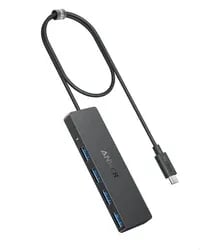
Locate where your 10-key keypad connects to the POS terminal.
-
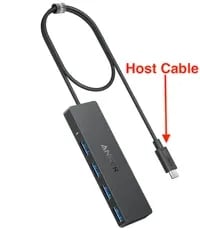
Unplug the host cable from the port.
- Wait 10 seconds.
- Plug the cable firmly back into the port.
- Try entering the admin password again.
This process forces the POS terminal to re-establish communication with the connected keypad. This can clear temporary glitches that garble input.