

Accounts
To represent a bill correctly, map these under Accounting → GL Account Mapping:
This is what keeps department margin honest end to end: purchases raise the department’s inventory asset, and sales relieve it against that department’s COGS account. Both sides use the same department accounts, so the balance reflects what’s actually on the shelf.
Vendors
Your accounting-system vendors and Vori vendors have no shared identifier, so they’re linked once per vendor. The first time you review an invoice from a vendor that isn’t linked yet, Vori searches your accounting system for likely matches. You either:- Select the matching vendor, or
- Create a new vendor — Vori shows you the vendor’s details, you confirm them, and Vori writes the new record. This autofills from the invoice, so a contact name, phone number, or email on the invoice carries over. The vendor code is internal to your store, so you set that.
How invoices reach Invoice Review
Invoices move from your staff to your accountant in one direction. Your staff process the invoice under Invoices (receiving, cost changes, inventory). When they commit it, its status there changes to Done, and it appears on Accounting → Invoice Review under Needs Review. There is no separate notification. The Needs Review count is your queue.
If you aren’t connected to an accounting system, Pending Export is called Ready to Export, and invoices move to Done when you download the CSV.
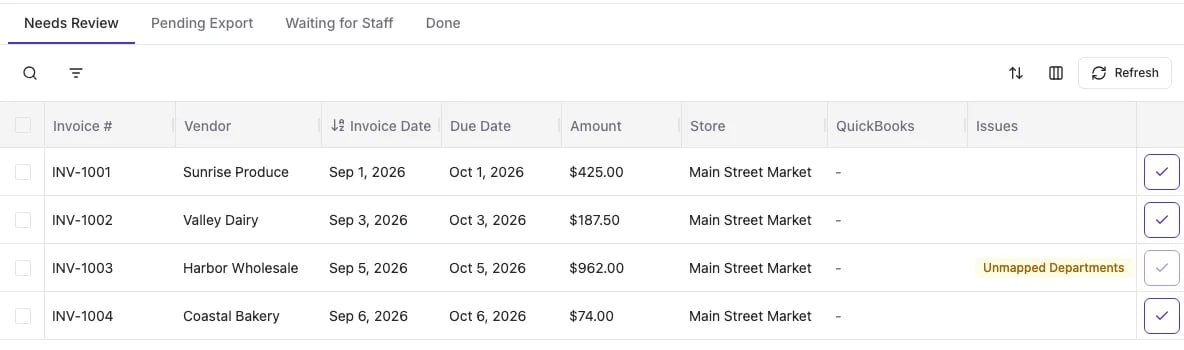
A Done under Invoices means your staff finished the invoice. A Done tab on Invoice Review means the bill is in your accounting system. An invoice can be Done for your staff and still wait in Needs Review for you.
Approve an invoice
Open an invoice to see its detail: line items, costs, and the account each line is coded to, with department subtotals. You can approve invoices two ways:- One at a time. Click the check mark at the end of the row. It’s active only when the invoice is ready to post. Hover over a gray check mark to see what’s blocking it.
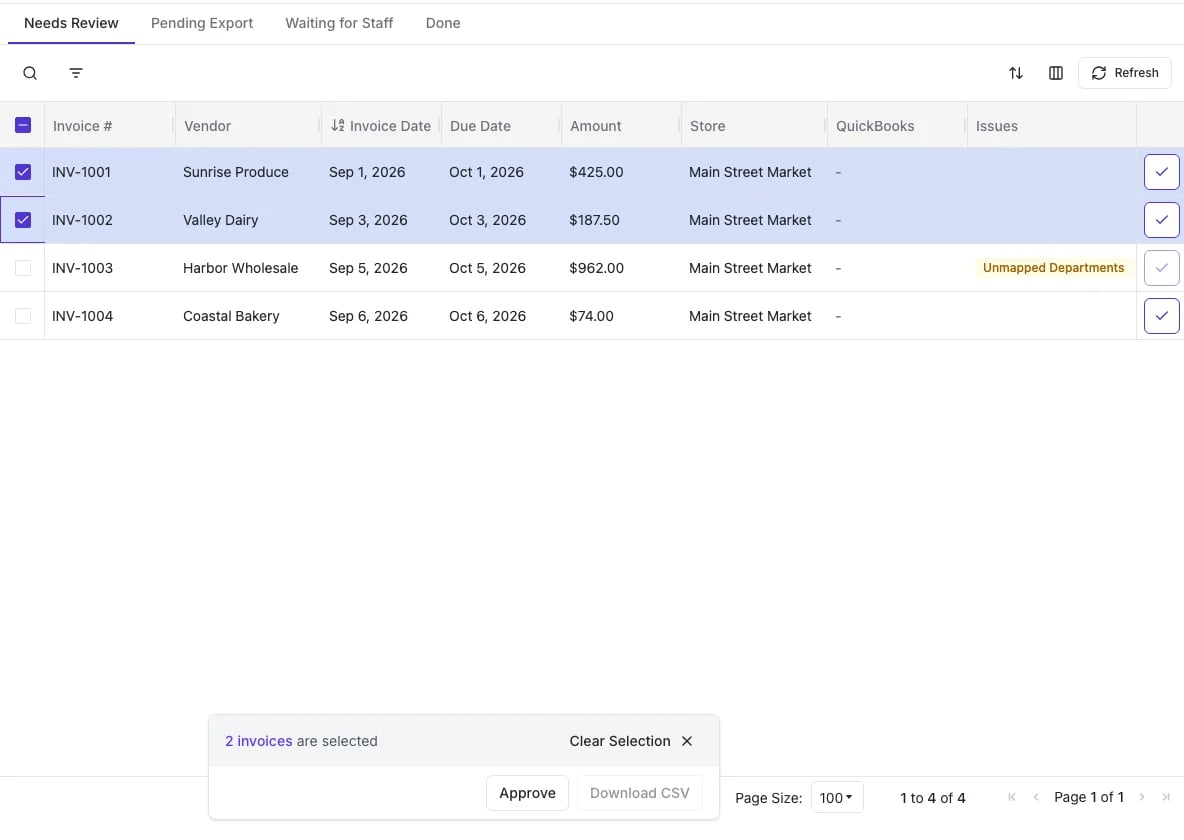
- In bulk. Select several invoices, then click Approve in the toolbar. Invoices whose vendor isn’t linked yet are skipped, and Vori tells you how many.
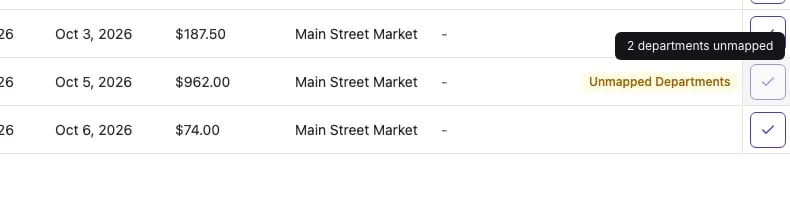
- Unmapped (unassigned) items — lines that aren’t a sellable unit, so they weren’t mapped during cost changes. Common examples are freight, bottle deposits, pallets, or a line that just says taxes. Map it once for that vendor and Vori follows the same pattern next time.
- Unmatched vendor — the vendor exists in Vori but isn’t linked to your accounting system yet. Search for it or create it, as above.
- QuickBooks Online and Xero confirm the bill within moments.
- QuickBooks Desktop receives the bill the next time the Web Connector runs on your accounting computer.
What the bill contains
An invoice is summarized by department rather than passed through line by line, so a delivery covering produce, deli, and bakery becomes a bill with three lines. Department-level purchasing detail reaches your books without item-level clutter.
Example bill
A produce vendor delivers to two departments on one invoice, with freight billed separately on the same document. Bill header
Bill lines
The three lines are debits, and the total is credited to your AP account. The bill appears in AP aging with a due date of 2026-03-19, and you pay it in your accounting system.
No COGS is recorded yet. Cost moves from inventory to COGS when the item sells, through the daily journal entry.