

Why You’re Seeing This Local Network Prompt
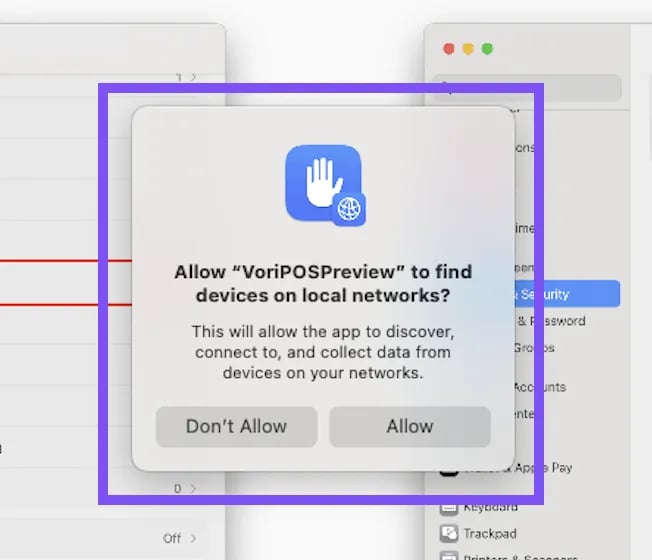
After the VoriPOS app is updated, you may see a system message when opening the POS app:You may also see a one-time permission prompt that looks like this:To process payments, Local Network access must be enabled for VoriPOS.
Once enabled, VoriPOS will launch automatically. If it’s already enabled, try disabling and re-enabling it.
That pop-up will only appear once. If you don’t see it again and are still stuck on this screen, it may be a macOS issue. You’ll need to manually toggle the Local Network permission off and back on.
How to Enable Local Network Access
Follow these steps on the POS iPad:- Select the Open Privacy & Security button.
- The Settings app should come up with Privacy & Security selected in blue on the left-hand navigation.
- Find and select Local Network on the right side.
- Next to VoriPOS, select the toggle to turn on.
- Once enabled, the VoriPOS app will launch automatically.
If Local Network access was already on, try toggling it off, then on again.