

Before you print
Before you begin, follow these steps to ensure your promotion tags print correctly:- Create the promotion. A tag is only generated once an item is on an active promotion. To set one up, see Create and Manage Promotions in Vori OS.
-
Sync your device. Tap the sync status card (for example, “Synced 20 minutes ago”) to pull in the latest promotions and price updates from Back Office.
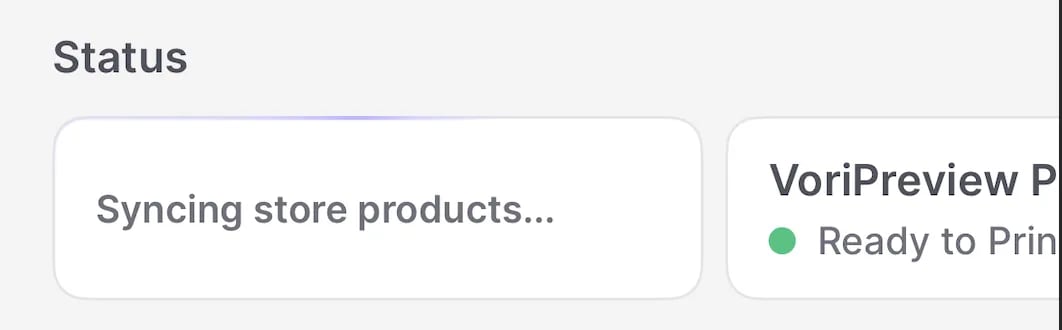
- Connect your printer. Make sure your Zebra printer is connected.
Load the yellow promotion labels
Promotion tags print on the tall yellow label roll, which uses different printer settings than retail tags. Load the roll and update the settings before you print:- On the Zebra printer, open the label roll compartment and replace the current roll with a roll of yellow promotional labels.
-
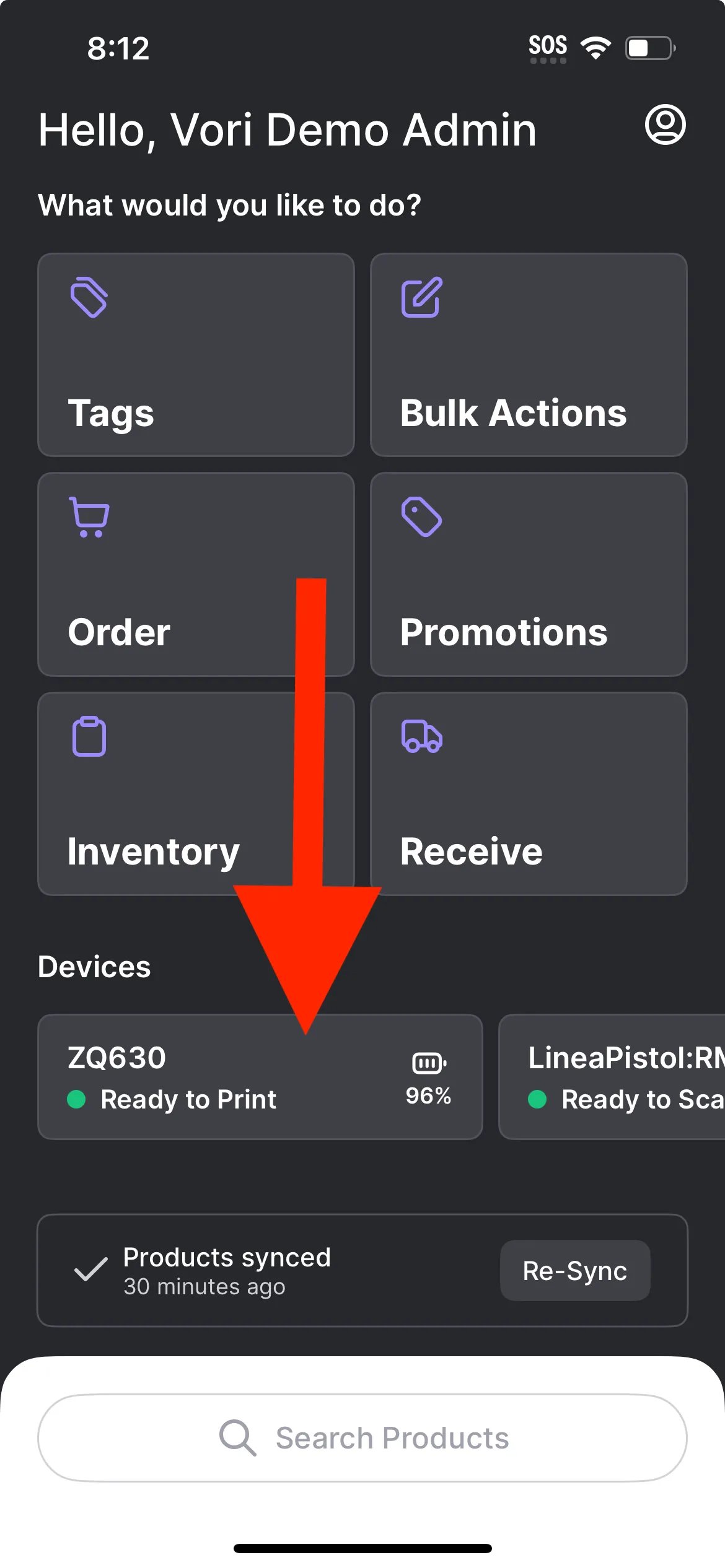
In the VoriOS app, tap the Zebra printer’s device tile to open its label settings.
-
Scroll to the Promotion Label section and set:
-
Label to
Promotion (yellow box). -
Media Type to
Black Mark.
-
Label to
- Run Calibrate Media to align the paper.
When you switch between promotional and regular labels, VoriOS reminds you to swap the physical label roll in the printer.
Print promotion tags
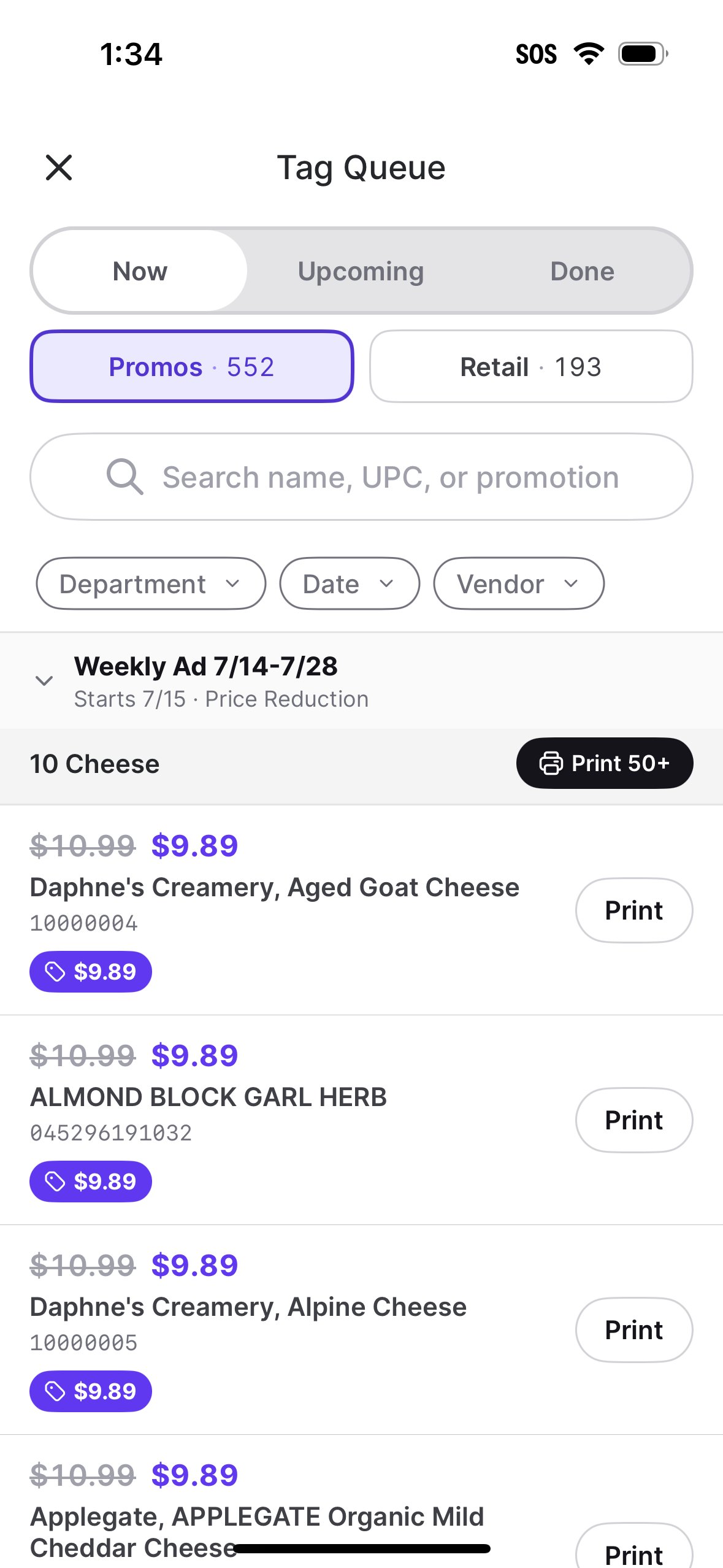
- Tap the Tags module.
- Under Now > Promos, search or filter for the promotion.
-
Expand the promotion name.
- You can choose to Print tags individually or Print #+ to print the whole group at once.
To reprint a promo tag, go to the Done section, find the item, and tap Reprint.
Print a promo tag from the product page
When you are already walking the floor, print a single tag straight from the product.- Search for or scan the product.
- Tap the product to open its details page.
- Tap the active promotion tile under the Pricing tab.
- Tap Print Promo Tag.