

Option 1: PLU-Only Setup in Back Office (Recommended)
This is the fastest way to set up items if you already know your scale’s PLU numbers. The POS will recognize the PLU embedded in the scanned barcode and pull the correct price automatically.- From Back Office, select Products > Product Catalog.
- Click New Product in the top right corner.
-
In the Barcode field, enter the 5-digit PLU (e.g.
03452). ✏️ Note: Only 5-digit PLUs are supported for this method. - Fill in the remaining required details (Name, Department, etc.).
-
Set the Retail Price to the price per pound.
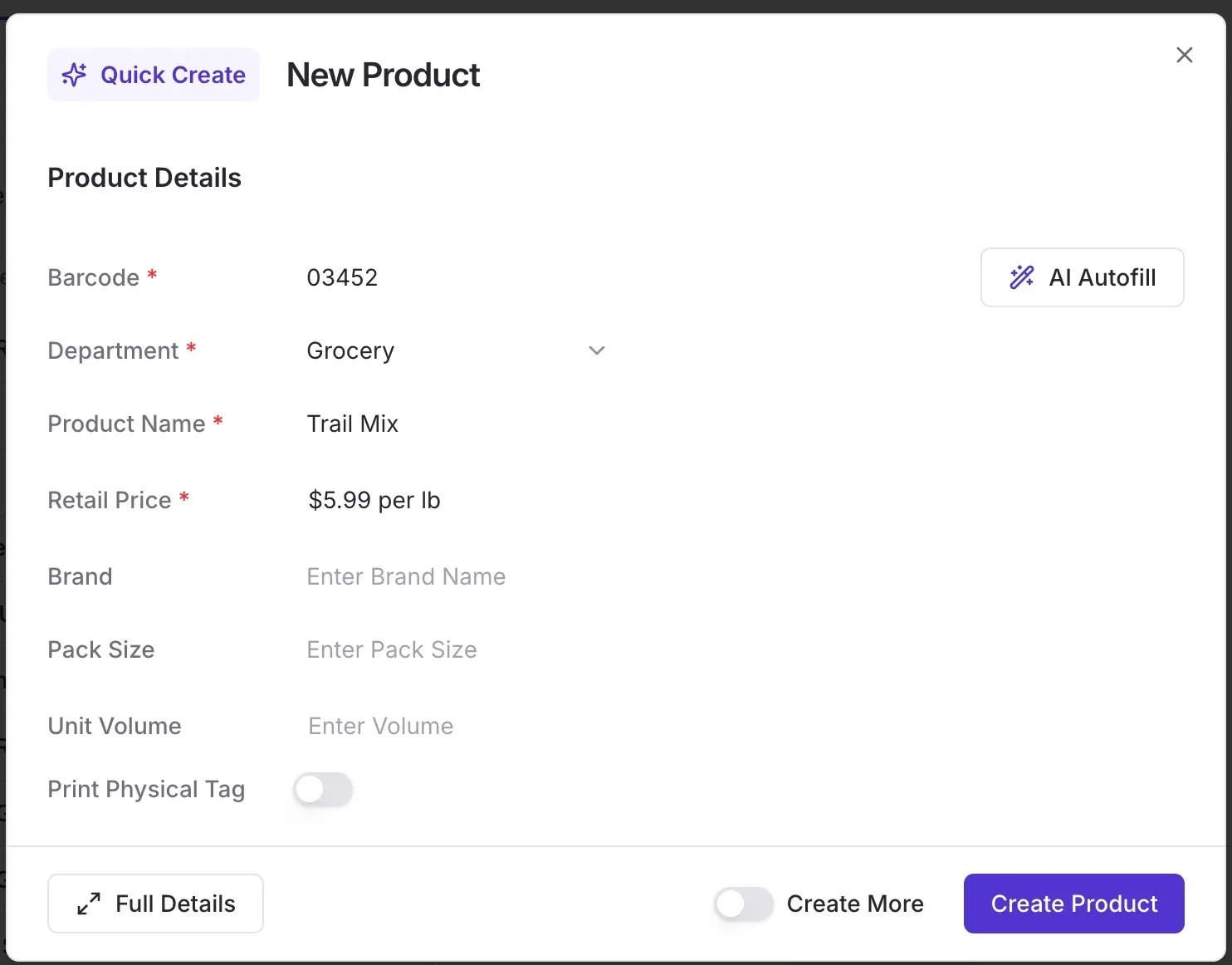
- Click Create Product.
Option 2: Full Type-2 Barcode Setup in Back Office
If you prefer to enter the complete 12-digit string, follow this specific format to ensure the backend recognizes it correctly.- From Back Office, select Products > Product Catalog.
- Click New Product in the top right corner.
-
In the Barcode field, enter the 12 digits using this structure:
- 2: Always start with the number 2.
- PLU: Add the 5-digit PLU (use leading zeros if needed, e.g.
00850). - 00000: Add five zeros.
- Check digit: Add the final check digit (e.g.
200850000001).

- Fill in the remaining required details (Name, Department, etc.).
- Set the Retail Price to the price per pound.
- Click Create Product.
Set Up in VoriOS
You can also register these items directly from your mobile device while on the floor.-
Open VoriOS and tap the product Search bar.
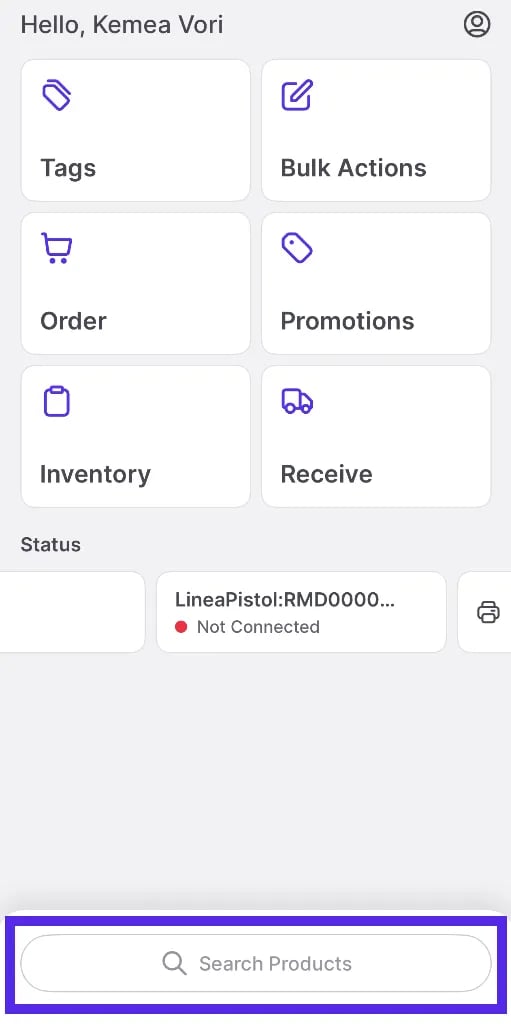
- Scan the barcode or enter the number manually.
-
Select Create New Product.
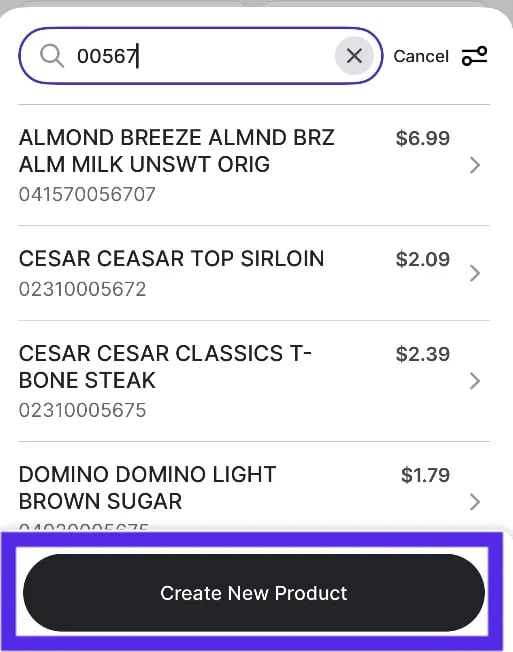
- In the Barcode field, ensure the 5-digit PLU or the full 12-digit Type-2 string is entered.
- Fill in the remaining required details (Name, Department, etc.).
- Set the Retail Price to the price per pound.
- Tap Save.
Troubleshooting
- Type-2 UPC not scanning properly? Double-check the barcode format. Ensure you started with 2, followed by the correct PLU, five zeros, and the correct check digit.
- Price not reading correctly at the POS? Verify the embedded price in the printed barcode label. Confirm the product is set up with a Retail Price (even though the scanner overrides it, a base price is required).
- Item shows as a PLU on the handheld? Even if you set up the full 12-digit barcode, the handheld may only display the PLU portion. This is normal behavior, and the item will still scan and price correctly.
- Items priced over
$100? Review the full guide: Manage Type 2 UPCs for Items Over$100to ensure scale labels scan correctly at the POS when an item price exceeds$100.