The product uploader adds or updates products in bulk from a single CSV file. Vori decides what to do with each row based on its barcode — a barcode that’s new to your catalog creates a product, and a barcode that’s already there gets its values overwritten with whatever’s in your file. For the full field list, including optional vendor, pricing, and compliance columns, see Build Your Product List (APL) From Scratch.

Fill Out the Template

Open the Store Product Uploader Template and make your own copy before editing — don’t work directly in the master file. Add a new row for every product you’re introducing, and edit the row for any product you want to update. At minimum, each row needs: ✏️ Note: Departments are case-sensitive, and the uploader can’t create new ones. Set up the department in the Back Office first, and make sure your file matches its name exactly. When your rows are ready, export the sheet as a CSV.

Upload the CSV

In the Vori Back Office, go to Products > Product Catalog, click Upload, and drop in your CSV file. Product Catalog page with the Upload button highlighted in the top-right corner Vori tries to map your columns automatically — confirm Barcode, Product Name, Department, and Retail Price are matched correctly, and set any irrelevant column to Skip this column. If you’re updating existing products, export your product catalog first and include each product’s Vori ID to make sure updates land on the right row. 🚨 Warning: Rows with a barcode that already exists in your catalog will overwrite that product’s data, including its retail price. Review carefully before uploading against a live catalog. Once you click Next, Vori sorts every row into a tab so you can see exactly what’s about to happen:

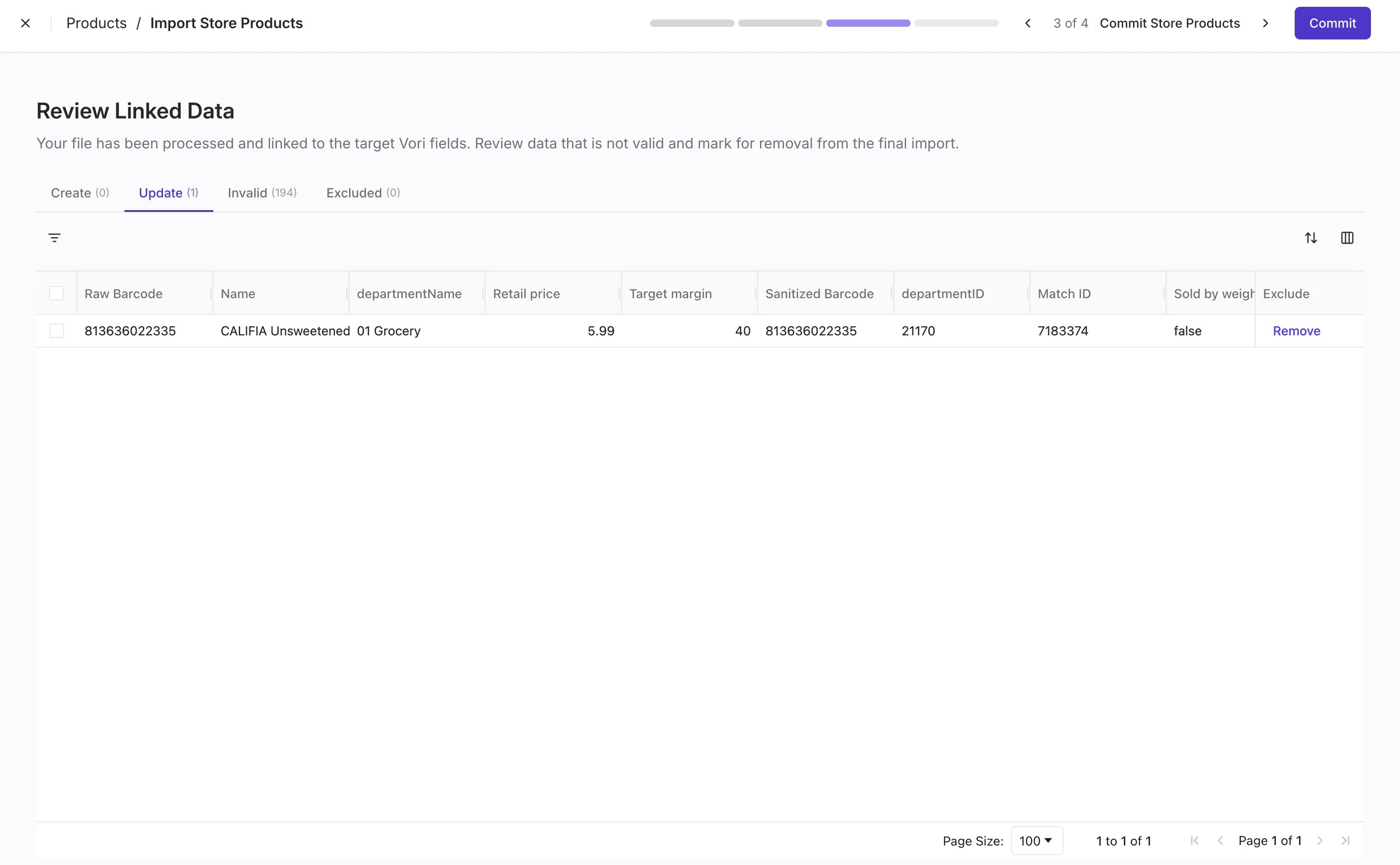
  • Create — new products
  • Update — existing products about to be overwritten
  • Invalid — rows with errors that won’t import
  • Excluded — rows you’ve chosen to skip
Review Linked Data step with Create, Update, Invalid, and Excluded tabs showing each row sorted before import Open the Update tab and check every row — this is your last chance to catch something before it overwrites live data. Use Exclude on any row you’d rather skip, then click Commit. Your changes appear in the Product Catalog right away. 💡 Tip: Only want to add new products without touching existing ones? Filter your CSV down to barcodes that aren’t in your catalog yet before you upload.