

Why Link Vendor Products?
A single item on your shelf—like “Lemon Iced Tea Mix”—might be purchased from multiple sources. You might buy it primarily from Vendor A, but occasionally pick it up from Vendor B when stock is low. By adding a Vendor Product for each supplier, you tell the system:- Who you buy it from.
- The Code the vendor uses to identify it.
- The Wholesale Cost and Case Size.
Add a New Vendor Link
You can manually add a vendor connection to any product in your catalog in just a few clicks.- Navigate to the Product Catalog page and select Open next to the product name you wish to update.
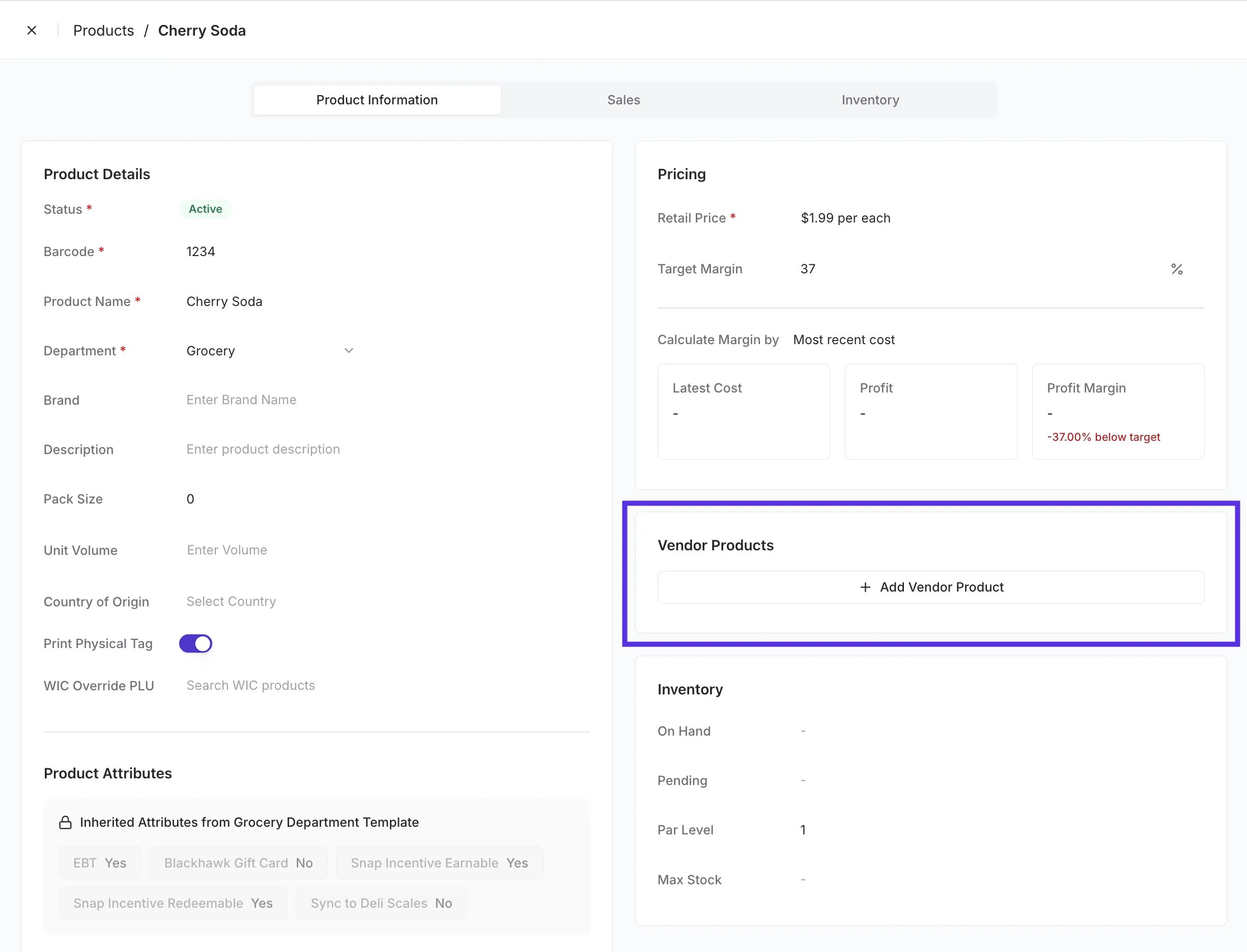
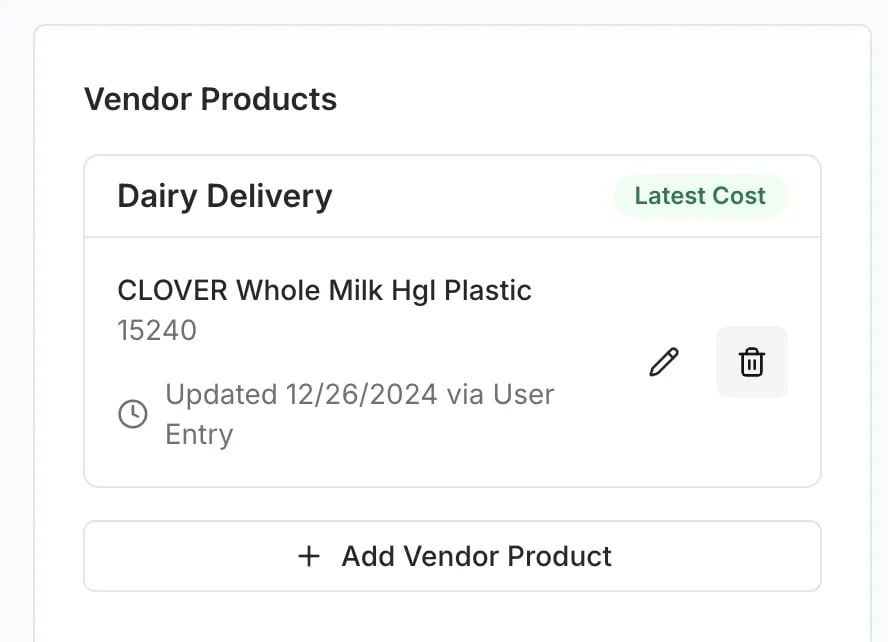
- From the Product Details page, scroll to the Vendor Products section on the right side of the screen.
-
Click + Add Vendor Product.
- Select the Vendor from the dropdown menu.
-
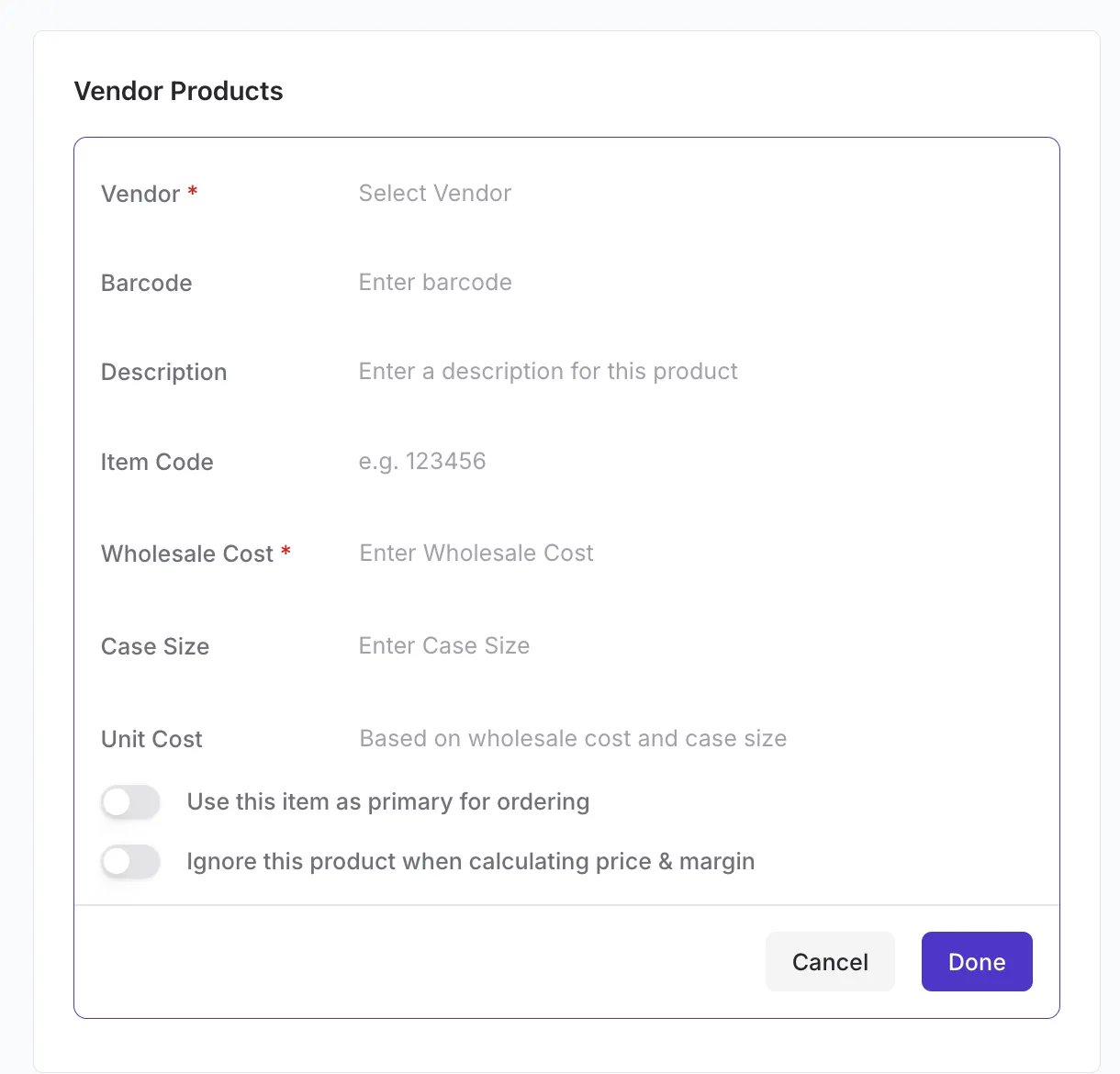
Enter the key details:
- Barcode: UPC number.
- Description: Name of the product.
- Vendor Item Code: (Optional but recommended) The code the supplier uses on their invoice.
- Wholesale Cost: The price you pay. Ensure you select the correct unit (per case vs. per each vs per lb).
- Case Size: How many units are in the case.
-
Review the Unit Cost (automatically calculated, if applicable).
- Click Done.
-
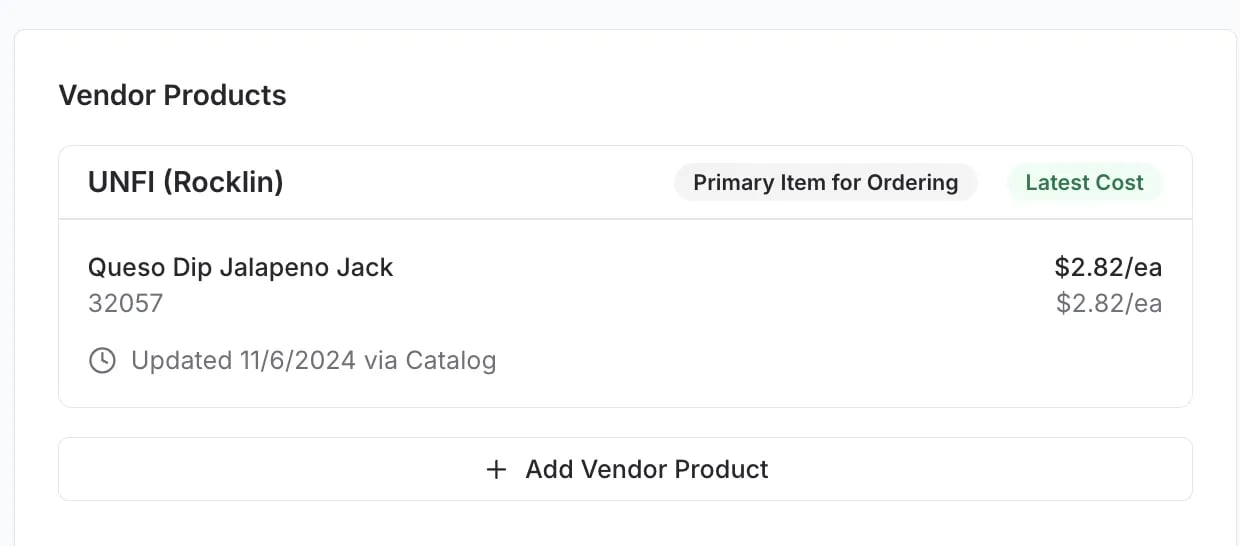
The new vendor will now appear in the list. If this is the most recently updated cost, it may automatically become the “Active Cost” for margin calculations.
Edit or Remove a Connection
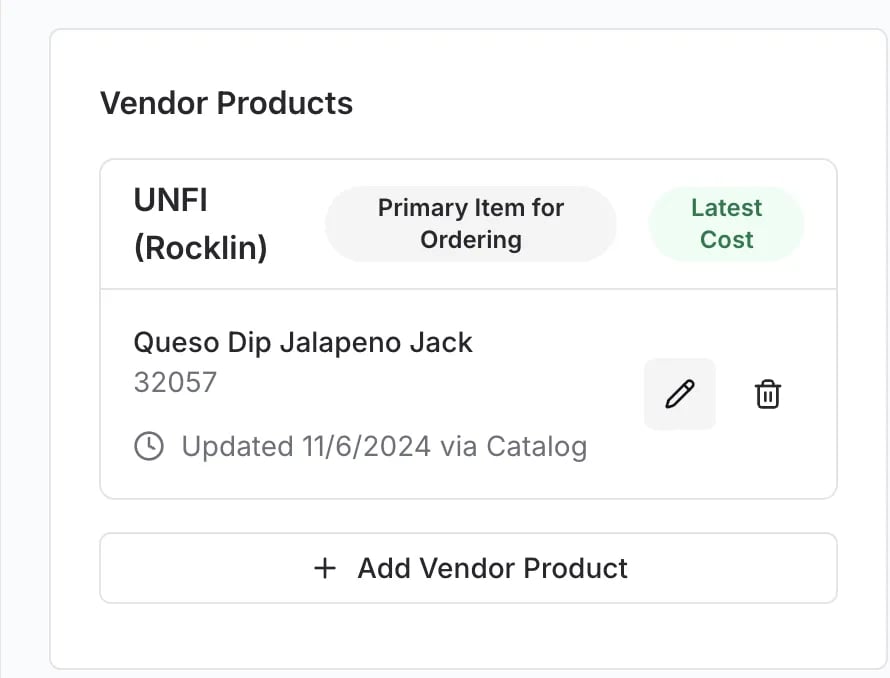
Prices change, and suppliers rotate. You can easily keep your links up to date. To Edit from the Product Detail Page:- Hover over the Vendor Product data.
-
Click the Edit (pencil) icon.
- Update vendor product details, including barcode, description, cost, case size, item code, and related information.
- Click Done to save.
- Click the Edit (pencil) icon.
-
Click the Trash Can icon in the bottom corner of the pop-up.
-
Confirm the deletion.
 vv
vv