

Introduction
When a device at the register stops working, this is the first place to look. This guide walks through the initial steps to try for each piece of Vori Point of Sale (POS) hardware, from the cashier display to the scanner scale, before you reach out for help. Work through each device’s steps in order, and move to the next step only if the issue isn’t fixed. Most hardware problems clear up within the first step or two.Download and print the guide
Keep a copy at every lane so your team can troubleshoot on the spot.Hardware Troubleshooting Guide (PDF)
Download the one-page guide. Print it single-sided and post it at each register or in the back office.
Start here: restart the POS app
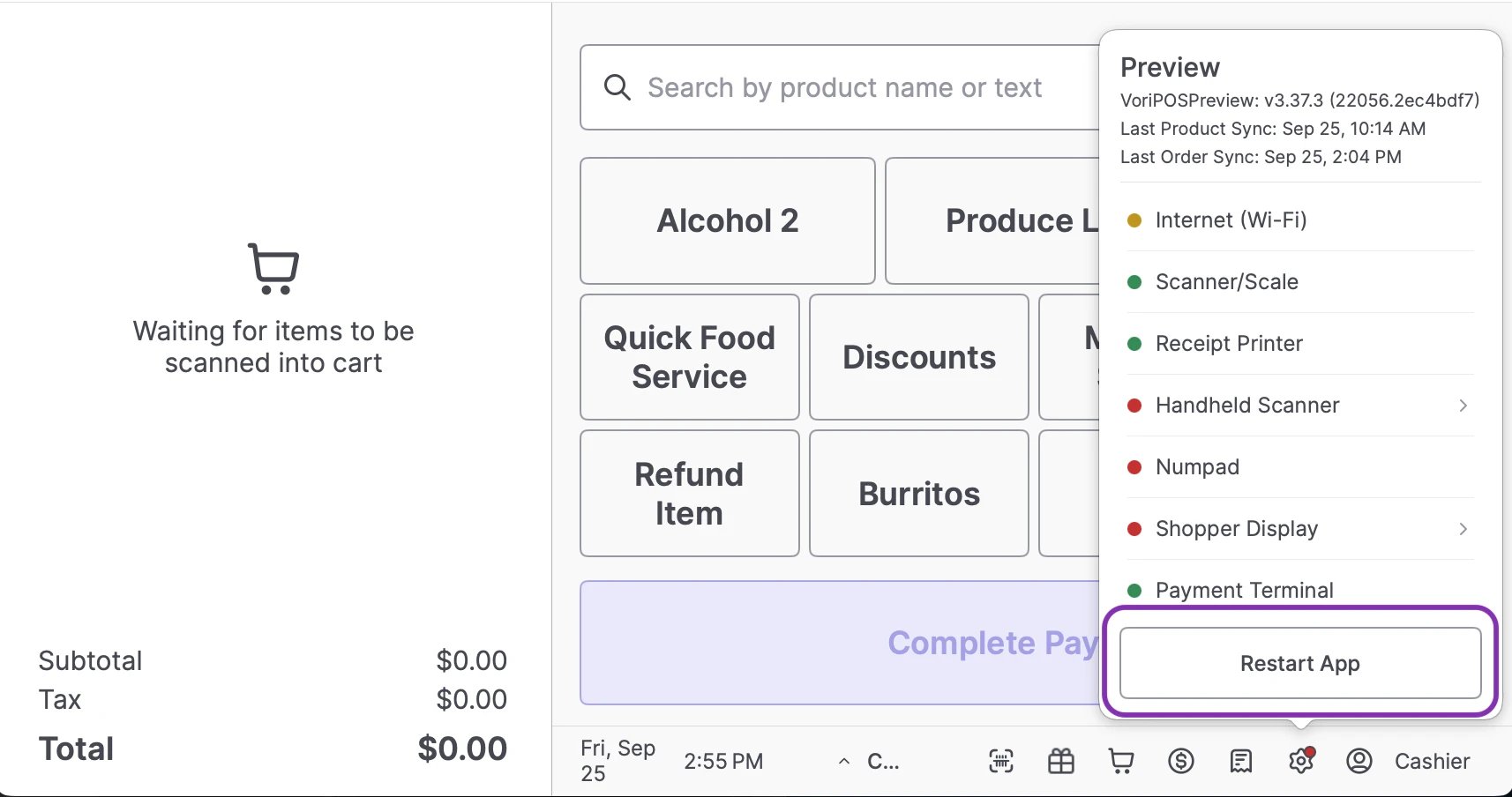
For any device that stops responding, restart the POS app first:- Tap the gear icon in the bottom-right of the cashier screen.
- Tap Restart App.
- Log back in and test the device.
Cashier display
The large monitor facing the cashier, showing the cart and quick-action buttons.
- From the Back Office, restart the lane remotely: go to Point of Sale > Lanes, find the lane, and select Restart POS.
- If the screen is black or unresponsive, check that the display and power cables are firmly seated behind the display.
Shopper display
The horizontal touchscreen facing the shopper, showing the logo, cart, and rewards login.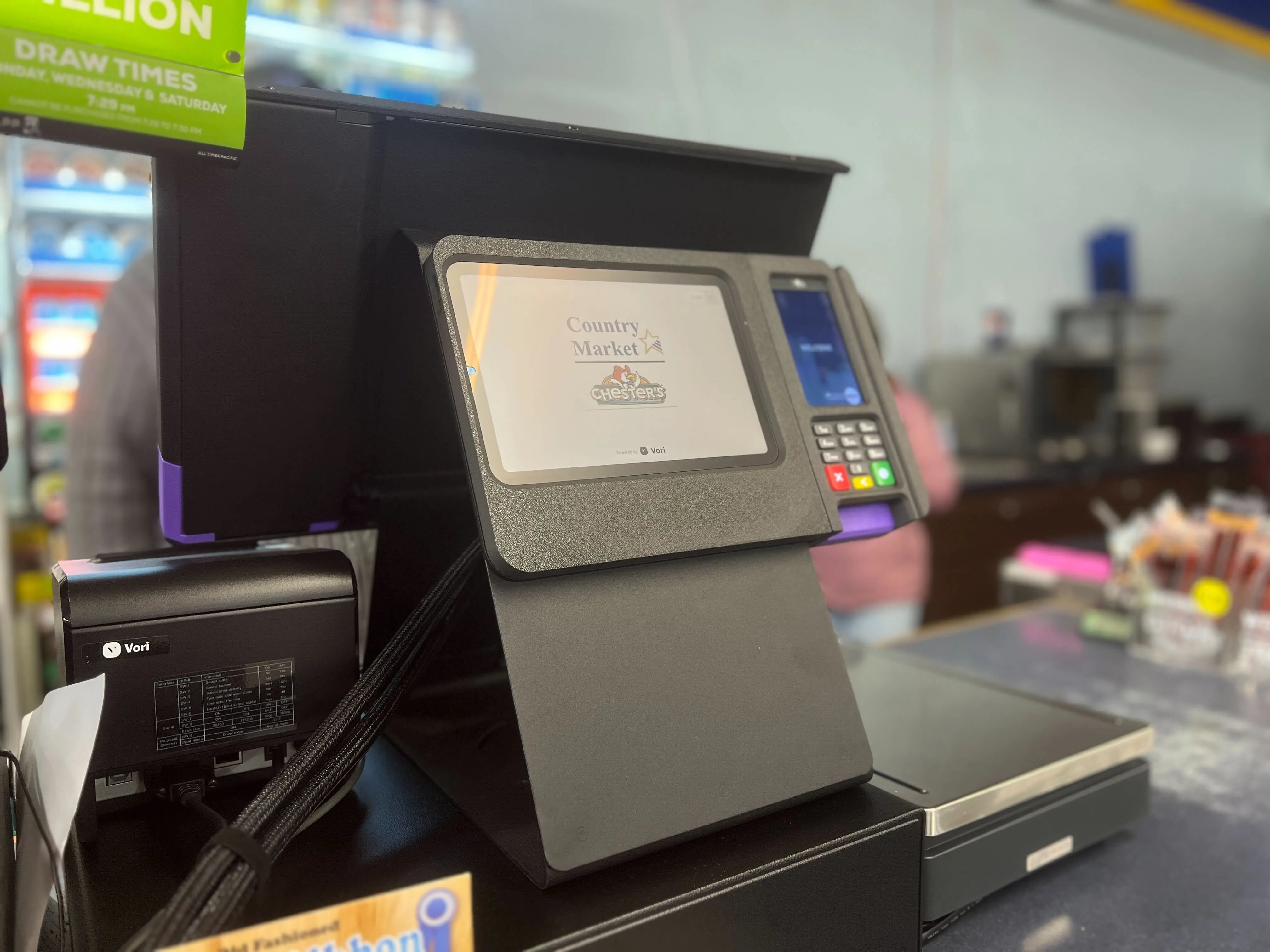
- Restart just the display: tap the gear icon, then Shopper Display > Restart Shopper Display. The POS keeps running.
- If it’s still down, confirm the display’s cables are firmly plugged into the lane computer under the counter.
Payment terminal
The small vertical device with a keypad and card slot.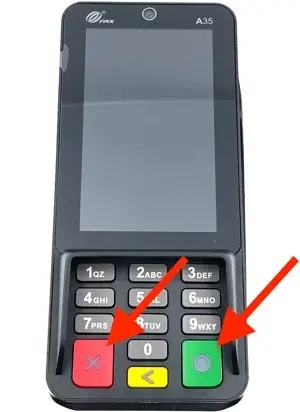
- Tap the gear icon and find Payment Terminal and Internet in the connections list.
- If the terminal is frozen, hold the red + green keys until Reboot appears, tap OK, then wait about a minute for the Welcome screen.
Never reboot or power-cycle the terminal mid-payment. It can leave a transaction in an unknown state.
10-key cashier keyboard
The physical number keypad used to ring up and log in.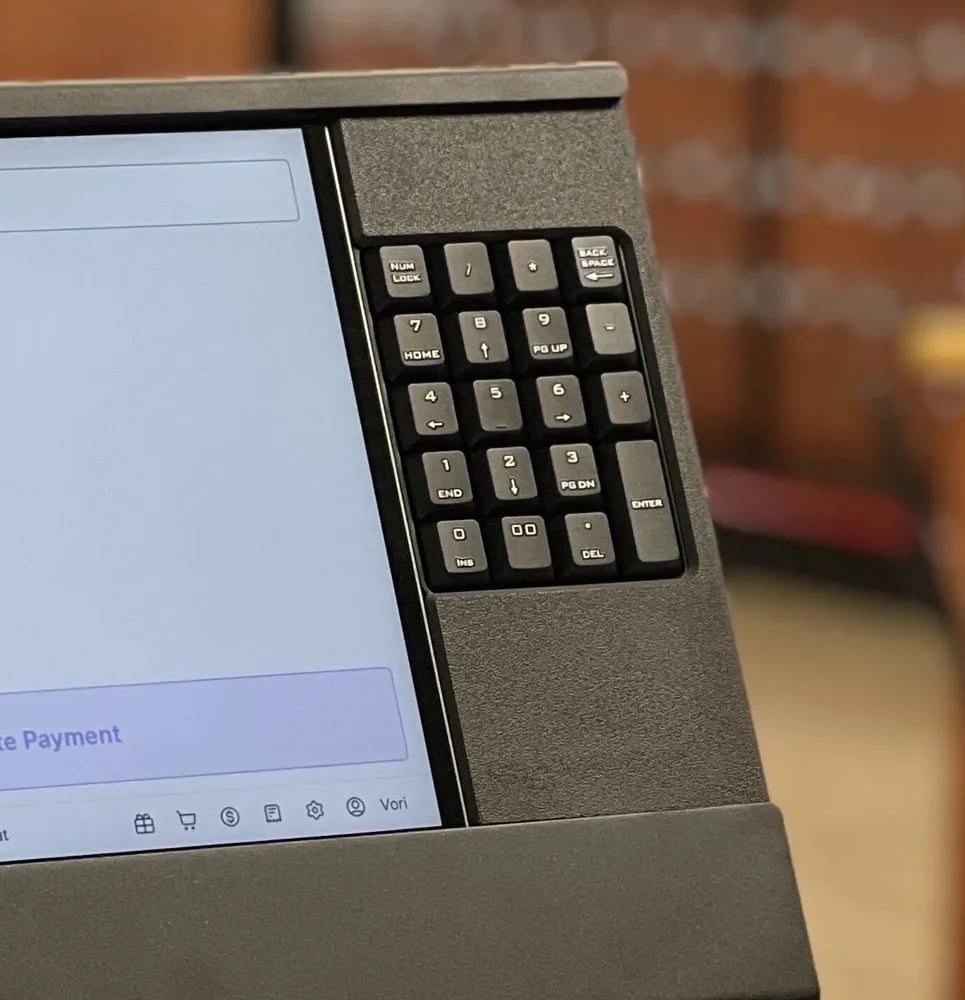
- Reseat the keyboard’s cable where it connects to the lane computer (and any hub or adapter in between): unplug it, wait about 10 seconds, then plug it back in firmly.
- Restart the lane computer and test again.
Handheld scanner
The cordless barcode scanner that sits on a charging cradle.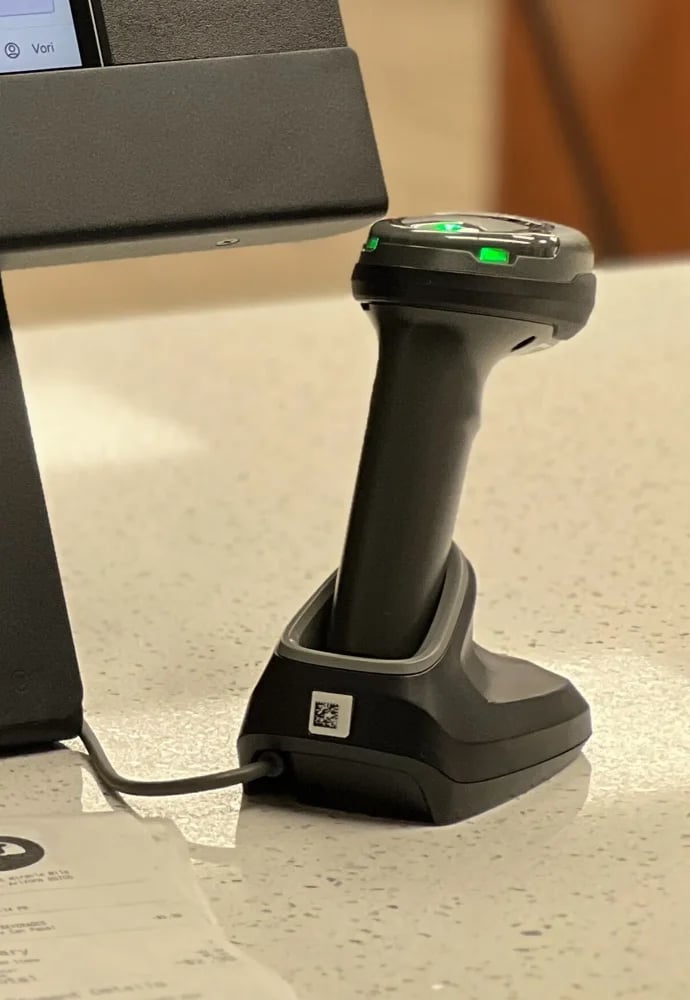
- Confirm it’s charging on the cradle: a flashing green light means charging, and solid green means full.
- Restart the POS app: tap the gear icon, then Device Status > Restart App, and test again.
- Reseat the cradle’s cable where it connects to the lane computer.
Scanner scale
The flatbed scanner with a built-in weigh plate and vertical tower.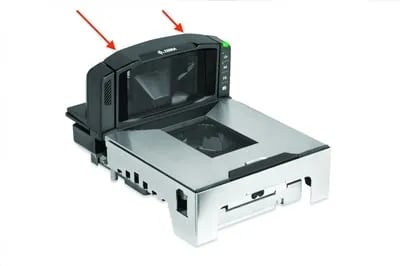
- Check the live weight in the top-right of the cashier screen.
0.00lbis normal. - If the scale isn’t ready, clear the plate of any items, paper, or cables resting on it or leaning against the tower, then zero it.
Receipt printer
The thermal printer that prints shopper receipts at the lane.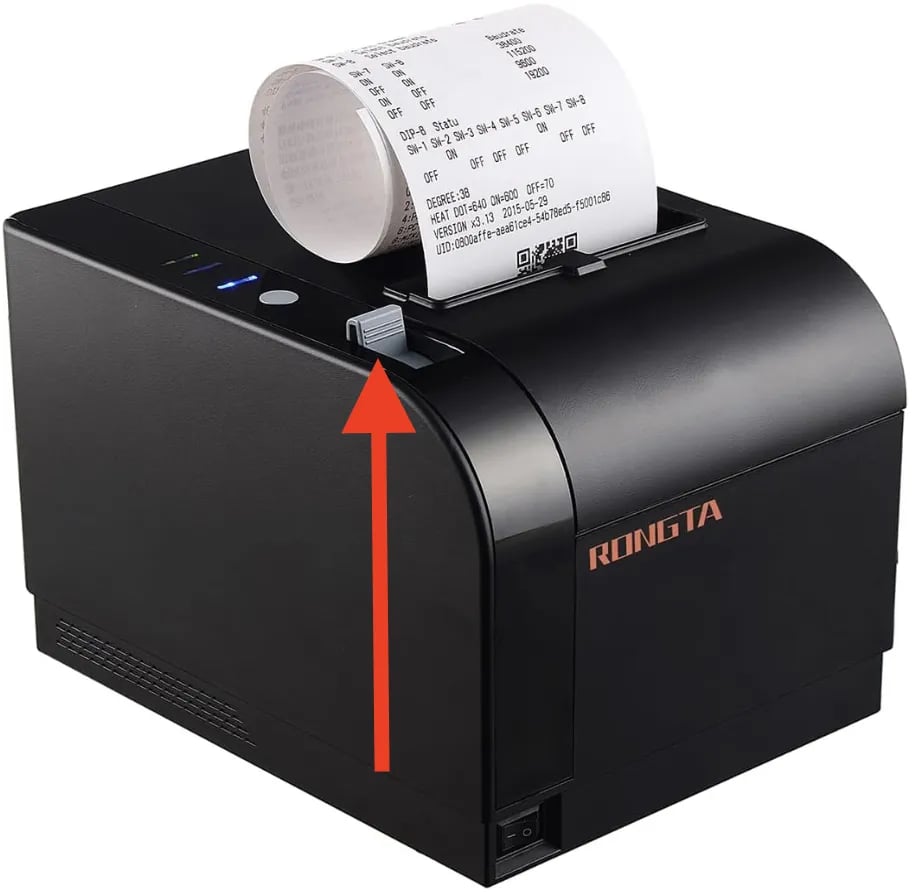
- Check for paper: pull the grey tab to open the paper compartment, load a roll if empty, then close the hatch fully.
- Check power: the status light in the top-left should be lit. If not, make sure the switch on the front-left of the printer is on.
- Restart the POS app and test again.