

Restart the POS App
- On the main cashier screen, select the gear icon in the bottom right corner of the screen. This will open the Device Status window.
- Select Restart App on the Device Status window.
- Attempt to log back into the POS app using the 10-key to confirm it’s working.
Restart the USB Hub
-
Locate the POS computer under the counter.
- The POS Computer is a Mac Mini locked within a security mount.
-
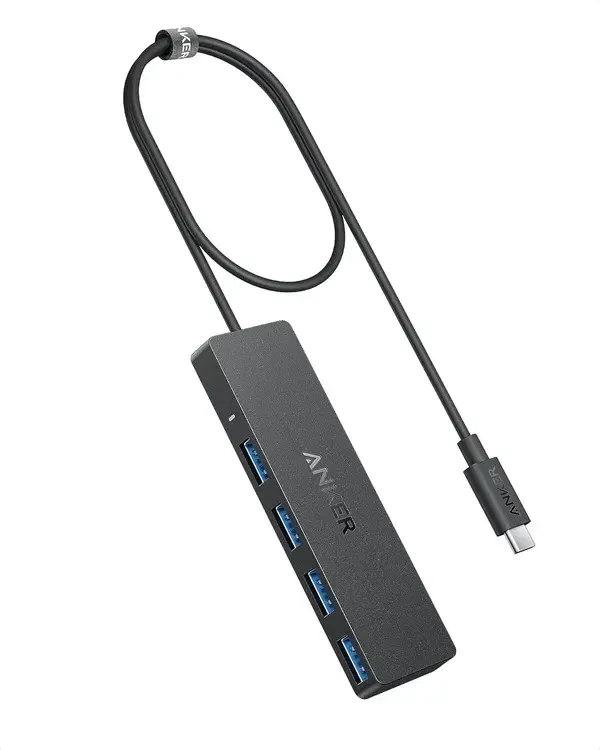
Locate the USB hub, which is plugged into one of the back ports of the POS computer.
-
The USB hub should have several USB cables plugged into it.
-
The USB hub should have several USB cables plugged into it.
-
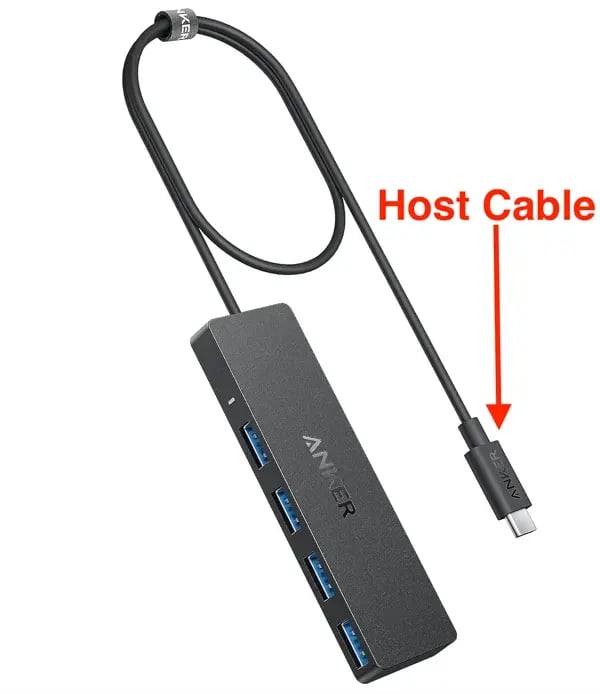
Unplug the host cable of the USB hub from the Mac Mini, then wait 10 seconds.
-
The host cable is the main cable that connects all other peripherals to the Mac Mini. It is the only cable that is permanently attached to the USB hub.
-
The host cable is the main cable that connects all other peripherals to the Mac Mini. It is the only cable that is permanently attached to the USB hub.
- Plug the USB hub’s host cable back into the Mac Mini.
- Test the 10-key to confirm it is communicating.
Confirm the 10-key is plugged in
-
Look back under the counter to confirm all cables plugged into the USB hub are securely inserted.
-
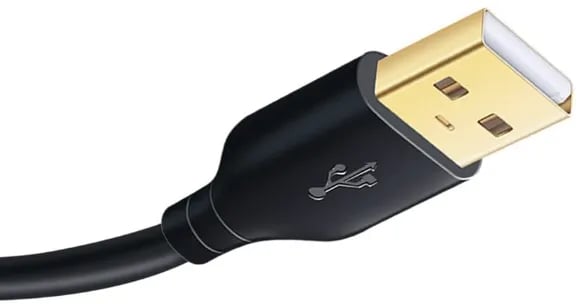
There should be 2 to 3 USB-A cables leading into the USB hub.
- Receipt Printer
- 10-Key
- OPTIONAL: Handheld barcode scanner (not included in all POS installs)
-
There should be 2 to 3 USB-A cables leading into the USB hub.
- If any cables are not secured into the USB, have the store user plug them back in.
- Test the 10-key to confirm it is communicating.
Restart the Mac Mini
-
On the cashier screen, use 3 fingers to swipe from the lefthand side of the screen towards the center.
- If done correctly, this will minimize the POS app and display the home screen.
-
On the home screen of the Mac Mini, tap and hold on the icon in the top left corner of the screen.
-
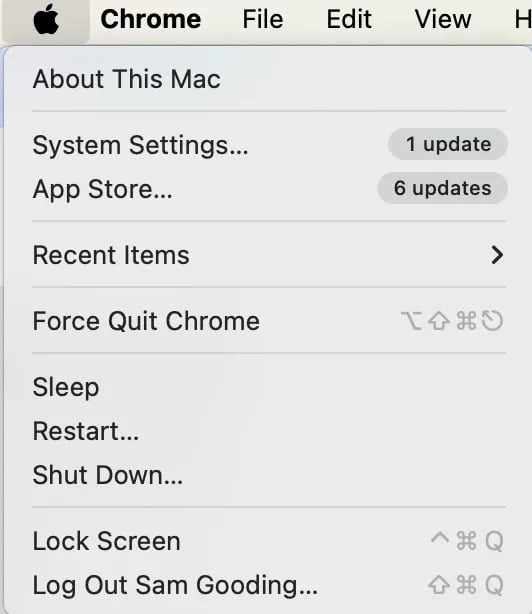
A dropdown menu should appear below the icon.
-
A dropdown menu should appear below the icon.
-
Drag down to Restart on the dropdown menu, and let go to select it.
-
A new popup window should appear in the center of the screen.
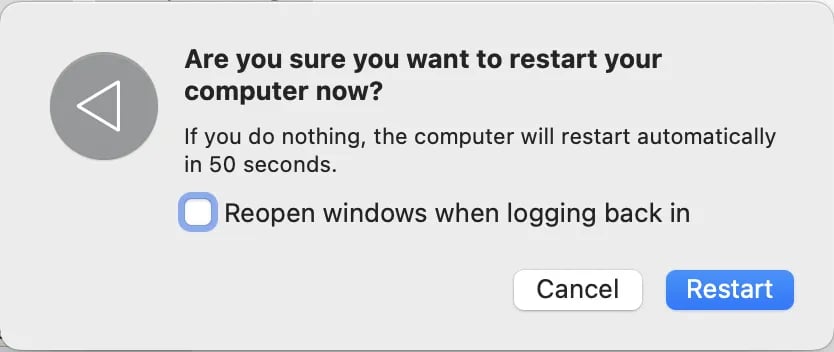
-
A new popup window should appear in the center of the screen.
-
Tap the Restart button on the popup window.
- IMPORTANT: The Reopen windows when logging back in toggle should be left blank.
-
Once the system restarts, enter the admin password when prompted.
- The password is 654321.
- Log back into the VoriPOS app to confirm the 10-key is working.