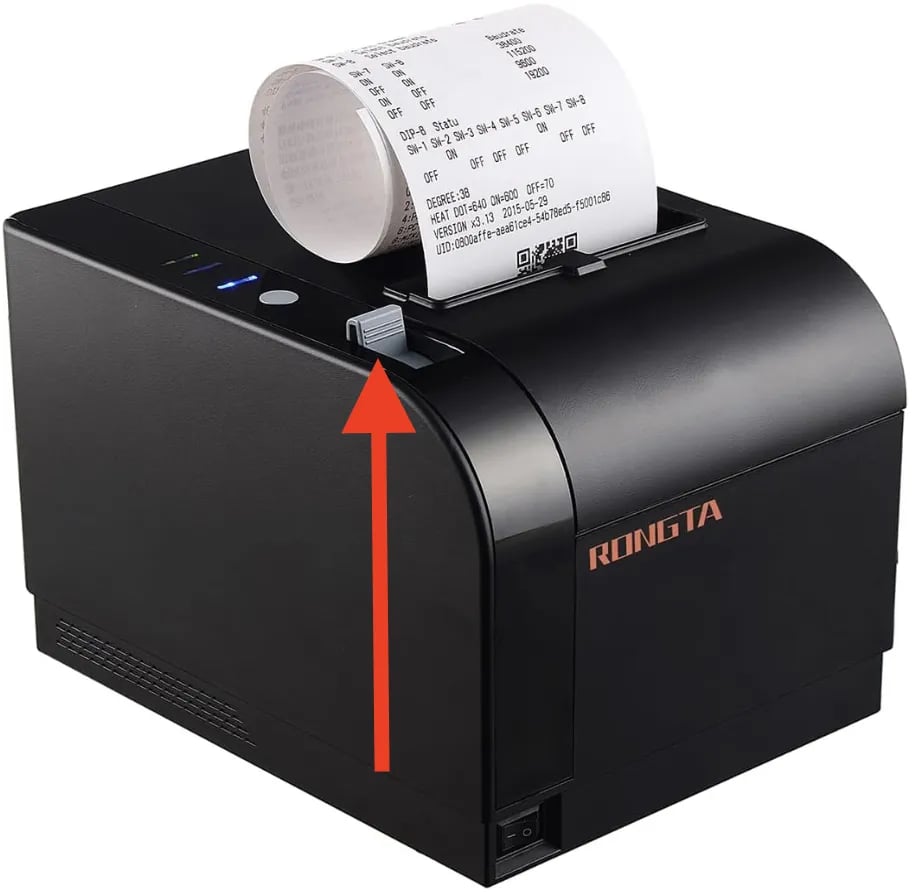
Check for a paper roll in the receipt printer
- On the top left of the receipt printer, pull the grey tab to open the paper roll compartment
- If the receipt printer does not have paper loaded, load in another roll and full close the top hatch.
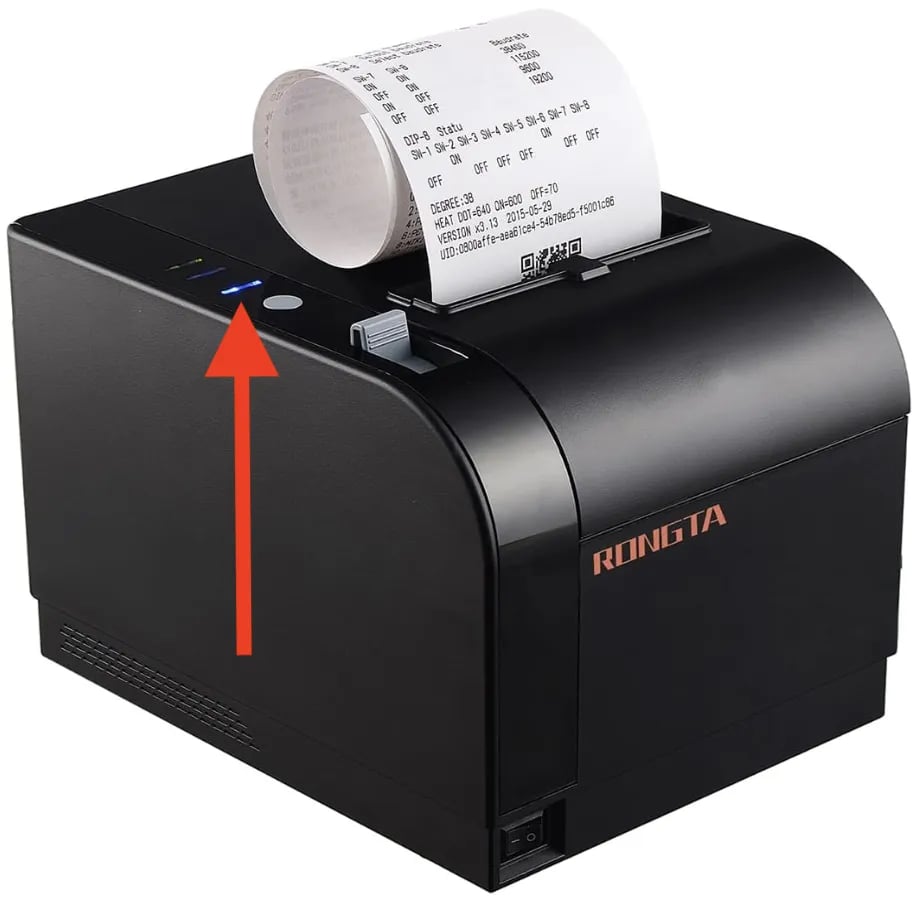
Check that the receipt printer is powered on
- Check if the status LED on the top left of the receipt printer is lit
- If the status LED is not lit, check that the power switch on the front left of the receipt printer is in the On position.
- If the power switch is in the On position, check that the receipt printer’s power cable is fully inserted on both ends.
- If the status LED is not lit, check that the power switch on the front left of the receipt printer is in the On position.
Restart the POS App
-
On the main cashier screen, select the
⚙️icon in the bottom right corner of the screen.- This will open the System Status window.
-
Select
**Restart App**on the System Status window. - Log back into the POS app.
Restart the receipt printer
- Flip the power switch on the front left of the receipt printer to the off position.
- Wait 10 seconds.
- Flip the power switch back to the on position.
Check the receipt printer communication cable’s connection
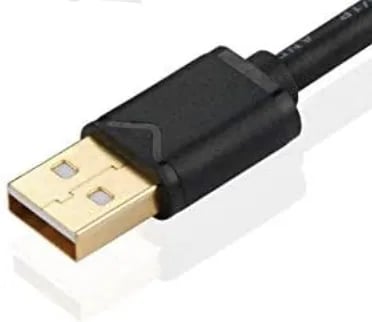
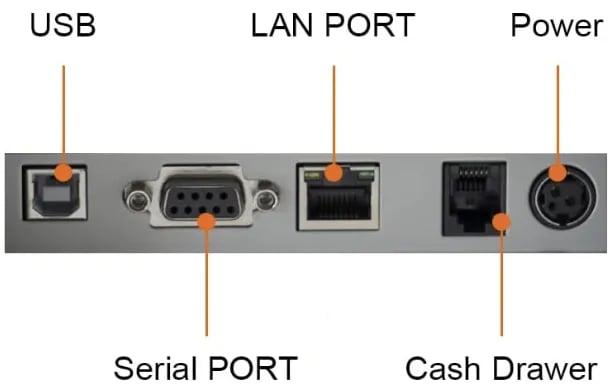
- On the back of the receipt printer, check that the communication cable is securely plugged into the Serial Port.
- Underneath the POS counter, check that the head of the communication cable is securely plugged in.