

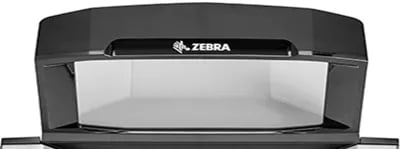
View the Connection Status
To identify the issue, review the live weight display in the top right corner of the cashier screen.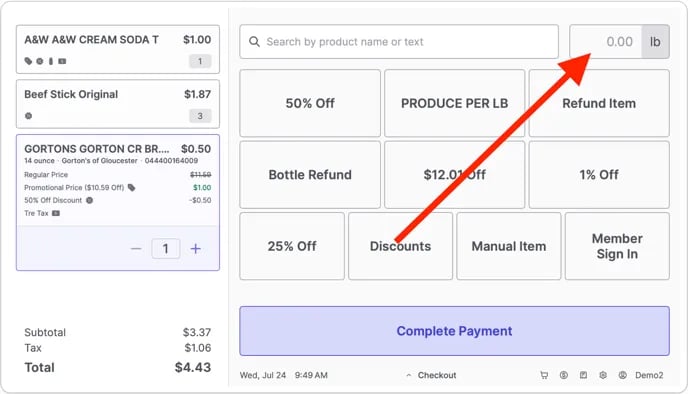
- Numerical display (e.g., 0.00lb). The scale is communicating normally.
- Scale not ready. The POS is detecting interference. The system will block use until the weight becomes stable.
- Scale disconnected. The POS is unable to communicate with the scale.
Troubleshoot “Scale Not Ready”
This error message displays when the scale detects fluctuating weight or debris.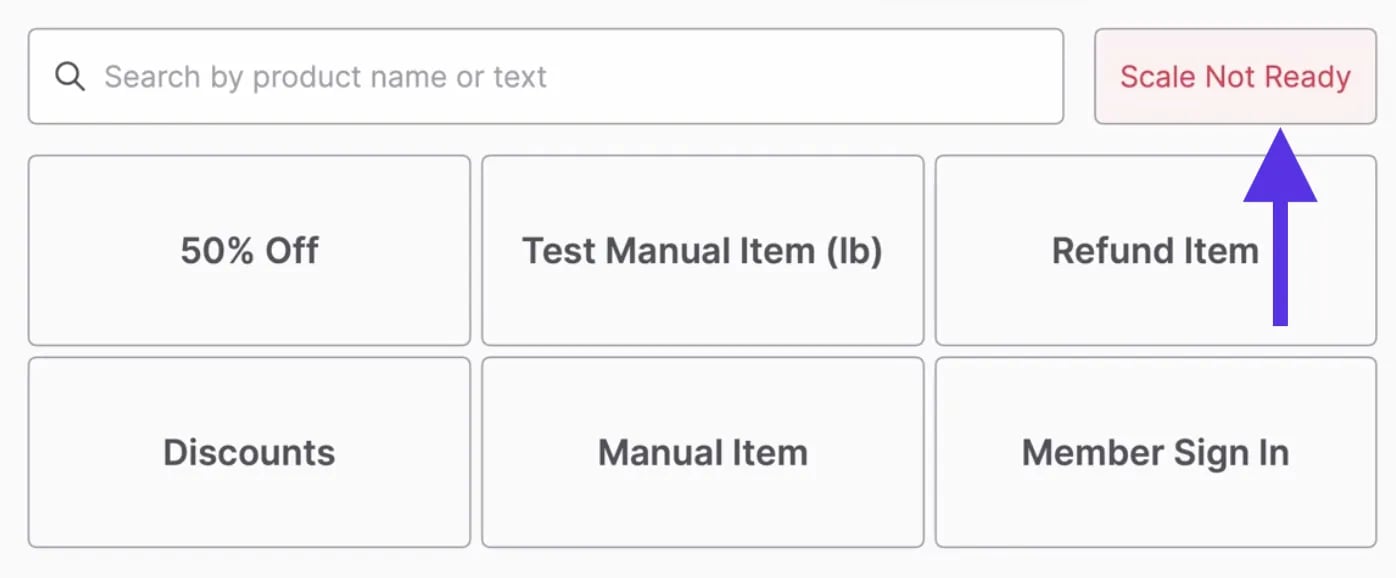
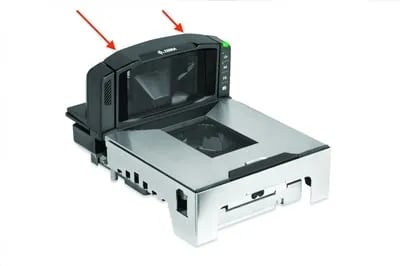
>0< symbol).
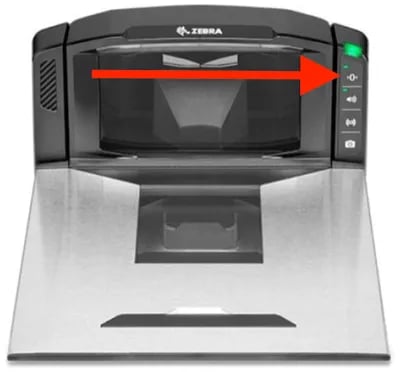
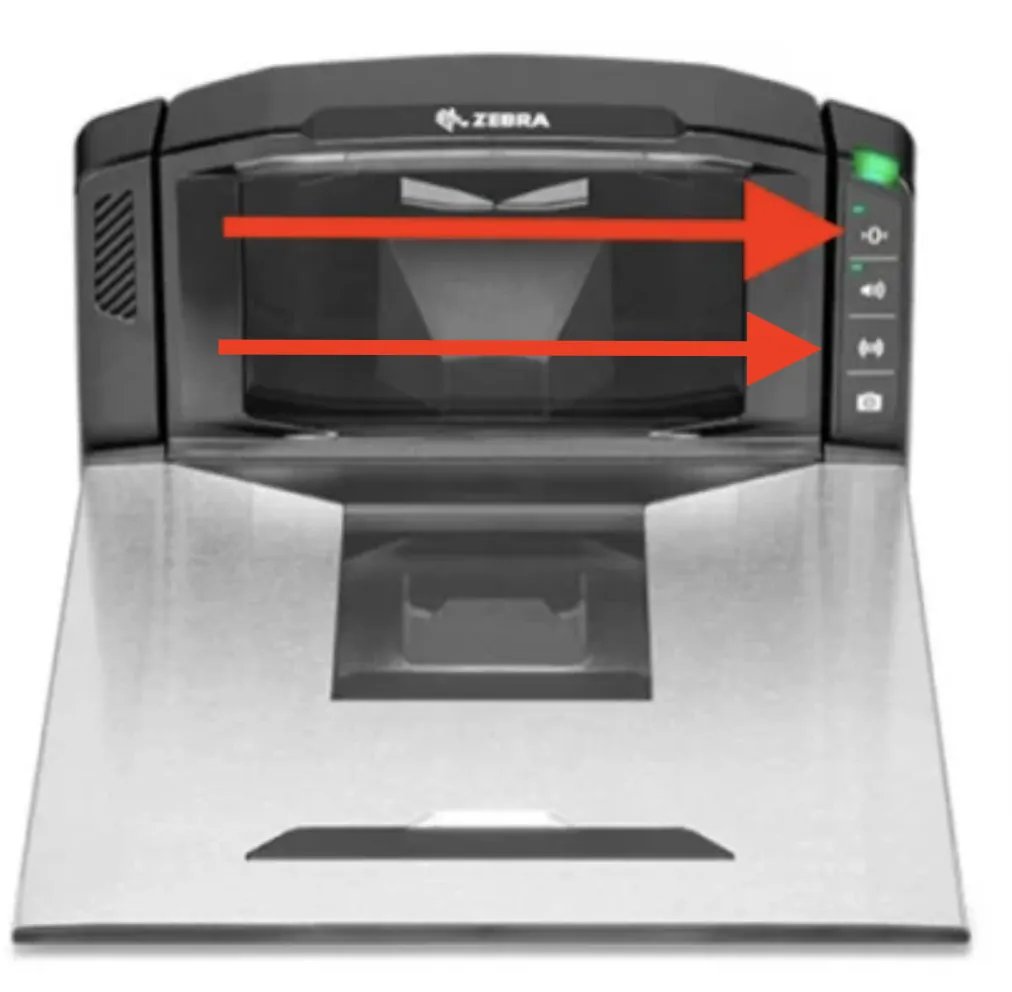
- Locate the button panel on the right side of the scanner tower.
-
Press and hold the Zero (
>0<) button and the EAS (((o))) button simultaneously. -
Hold until the scanner emits a reboot tone.
Troubleshoot “Scale Disconnected”
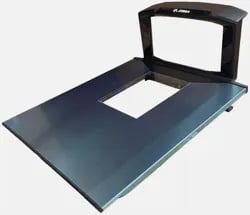
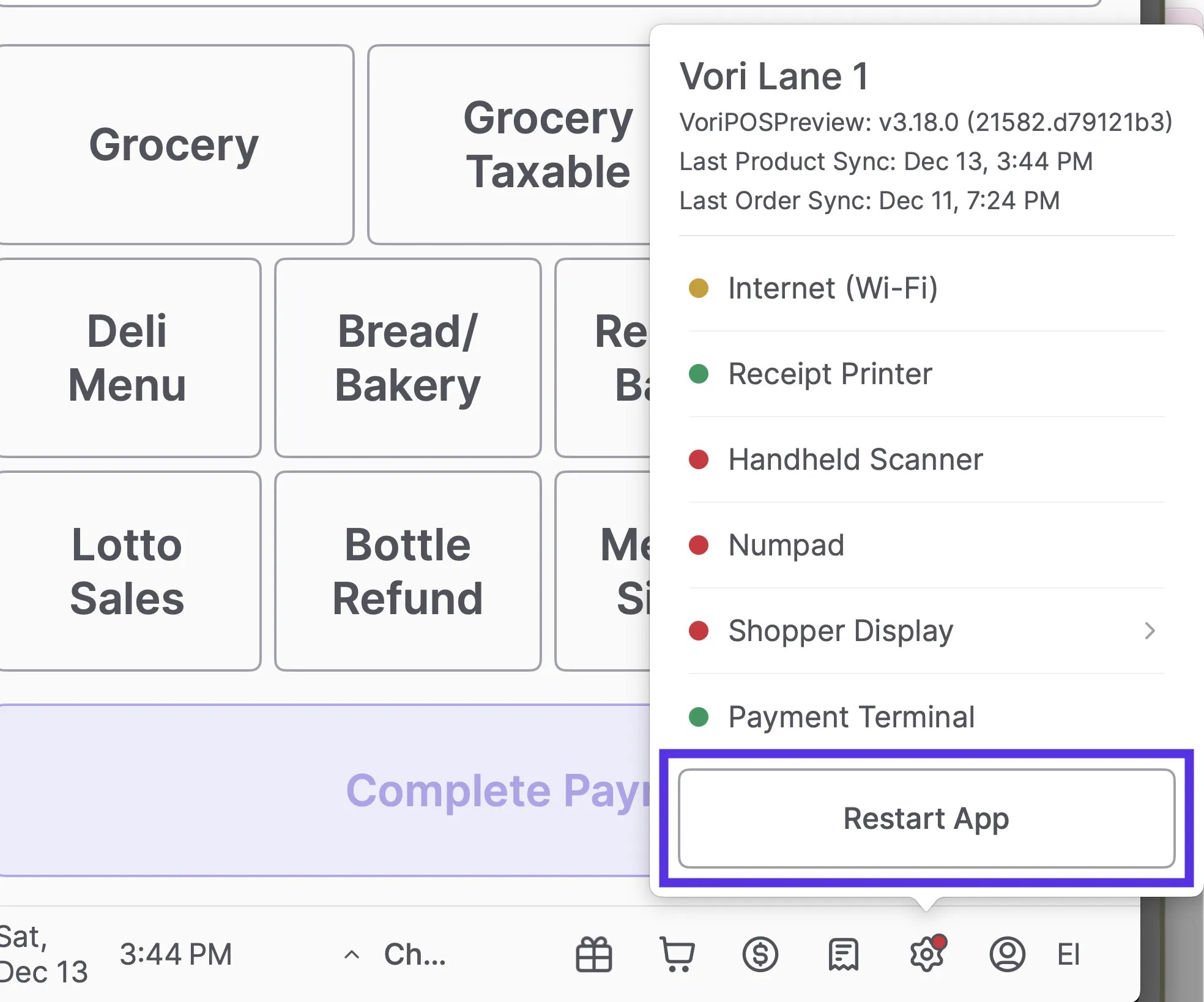
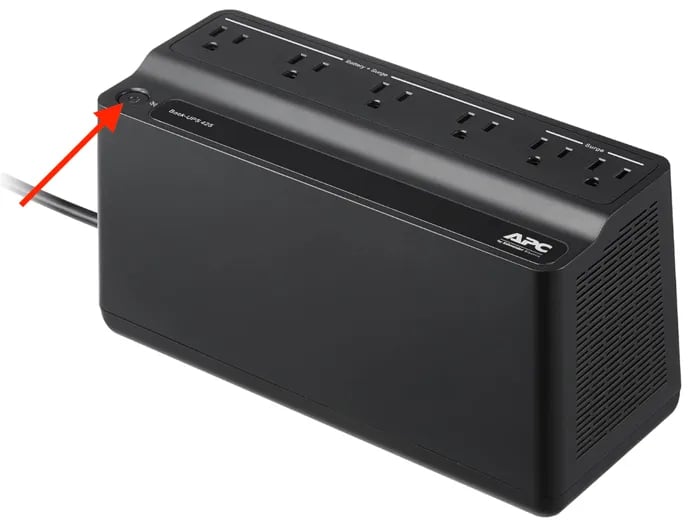
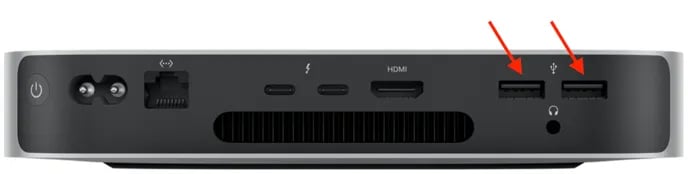
If the live weight display shows the error message “Scale disconnected”, the POS cannot communicate with the hardware. 1. Check the power Verify the scale is turned on (check for lights or startup beeps). If the scale is off, check that the power cable is securely connected at the wall and the base of the scanner.\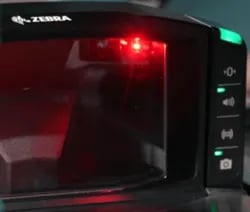
Scale is Making an Unusually Loud Beep
The scale cycles through different decode tones, and it may land on one that is jarring or disruptive during checkout. This is not a malfunction — the tone can be changed in a few seconds. To change the decode tone:- Locate the Volume button on the scanner scale’s button panel.
- Press and hold the Volume button for 3 seconds.
- After 2 seconds, the scale will play the current tone.
- At 3 seconds, the scale will switch to a new tone.
- Release the button once you hear a tone that works for your store.