

Introduction
TeamViewer is a secure remote support tool that allows Vori’s Support team to access a store’s computer with permission. Downloading and launching the Quick Support version of TeamViewer enables one-time access—no account or installation required. This article outlines the steps for both Mac and Windows computers.Directions for Mac
- Click this link to open the TeamViewer download page.
-
Go to TeamViewer Quick Support, select
Download. 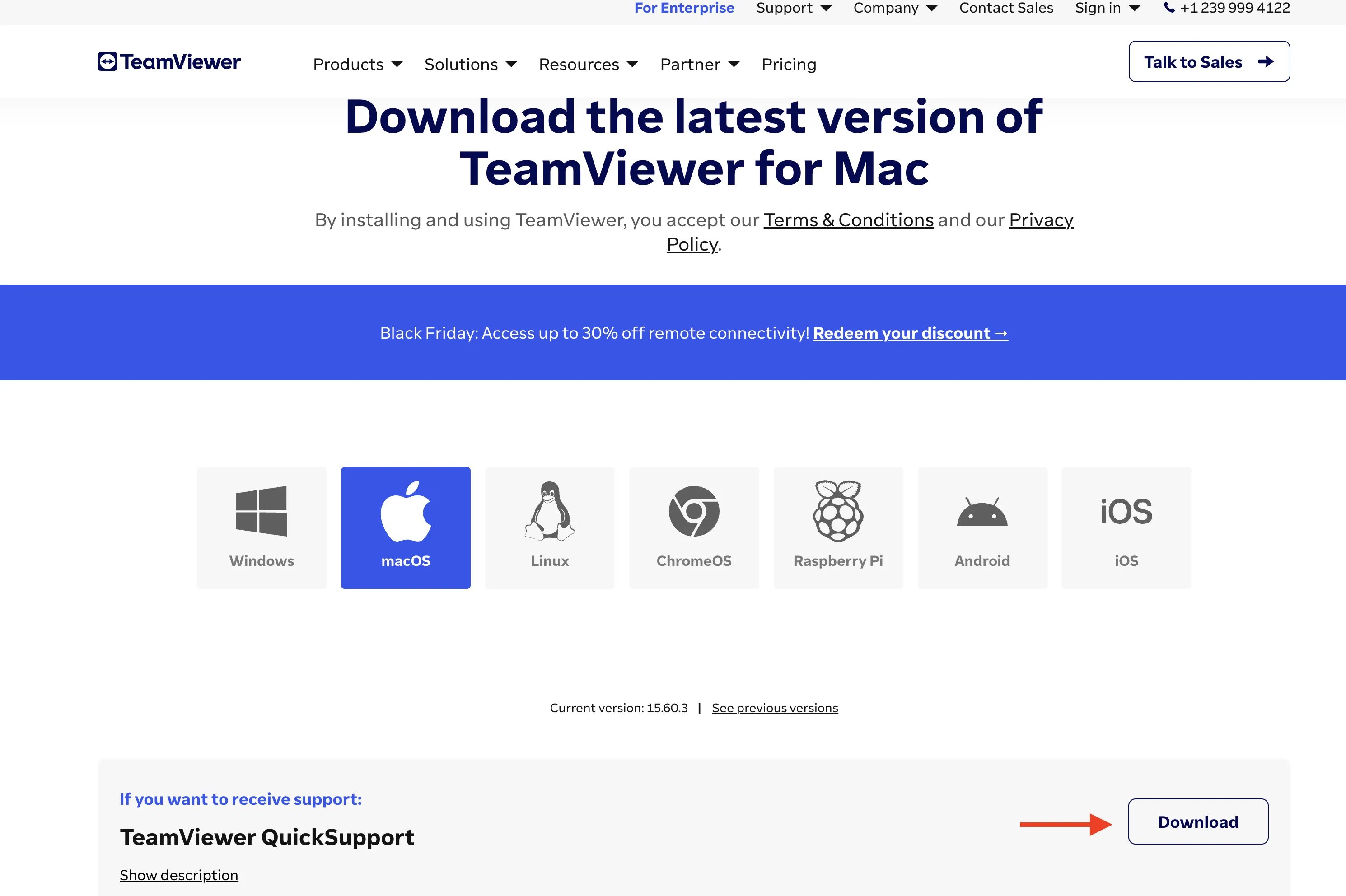
- Open the downloaded file.
-
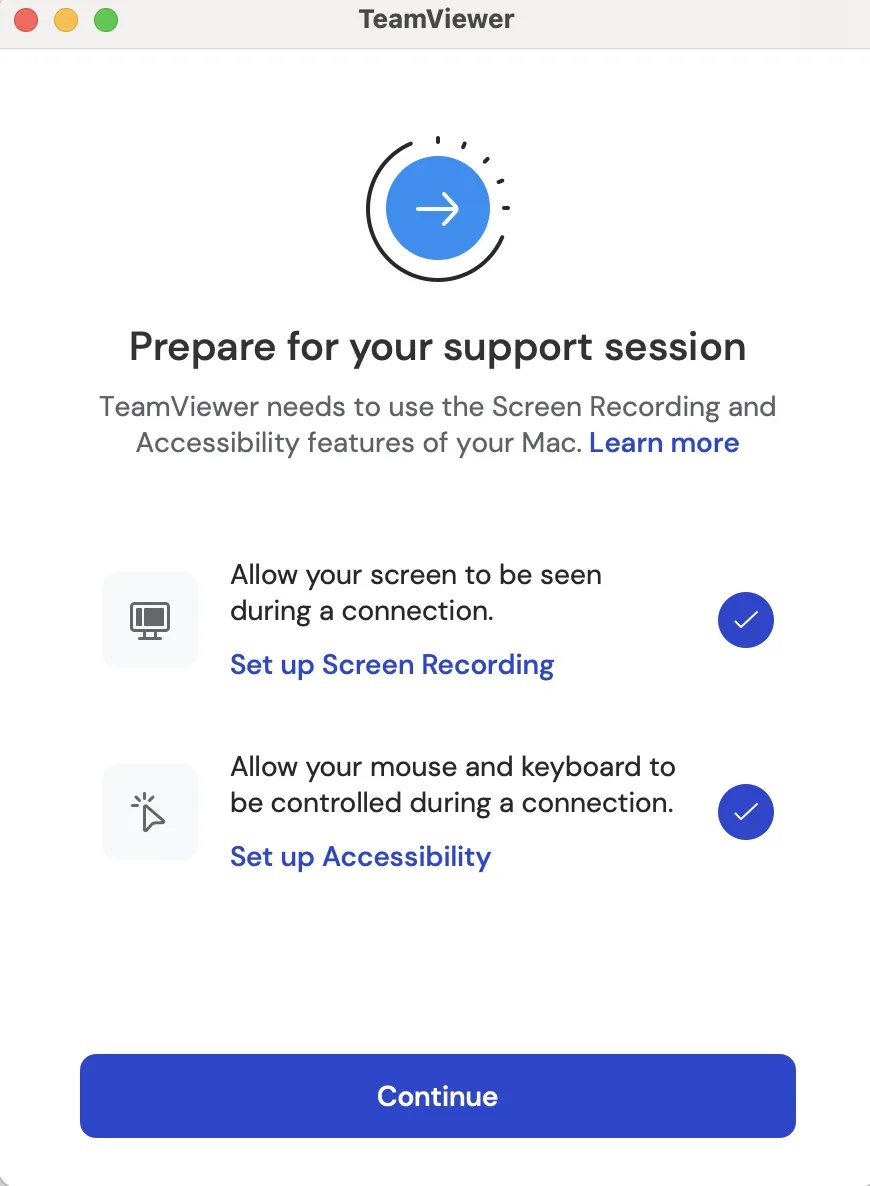
Allow permissions for Set up Screen Recording and Set up Accessibility, then continue.
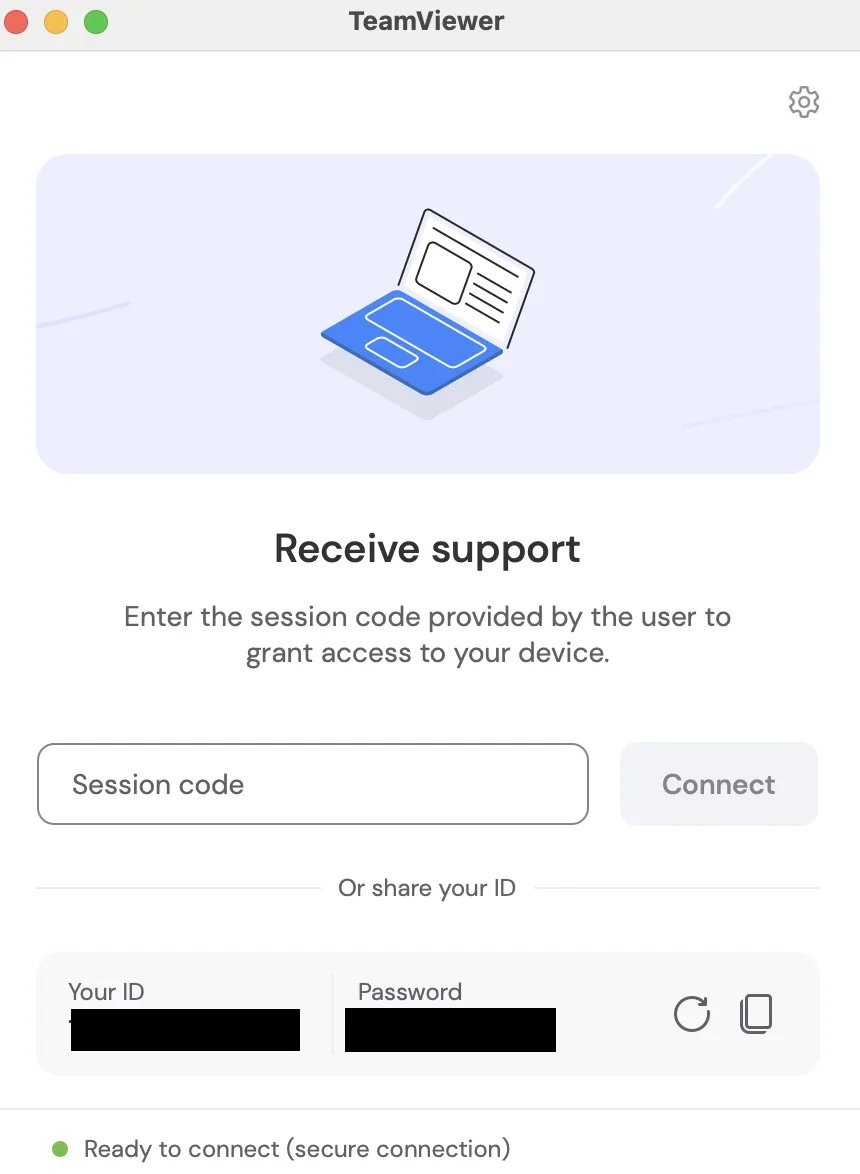
- Under Receive support, locate the Your ID and Password fields.
-
Provide both the ID and Password to Vori Support.
Steps for Windows
- Click this link to open the TeamViewer download page.
-
Go to TeamViewer Quick Support, select
Download (64-bit). 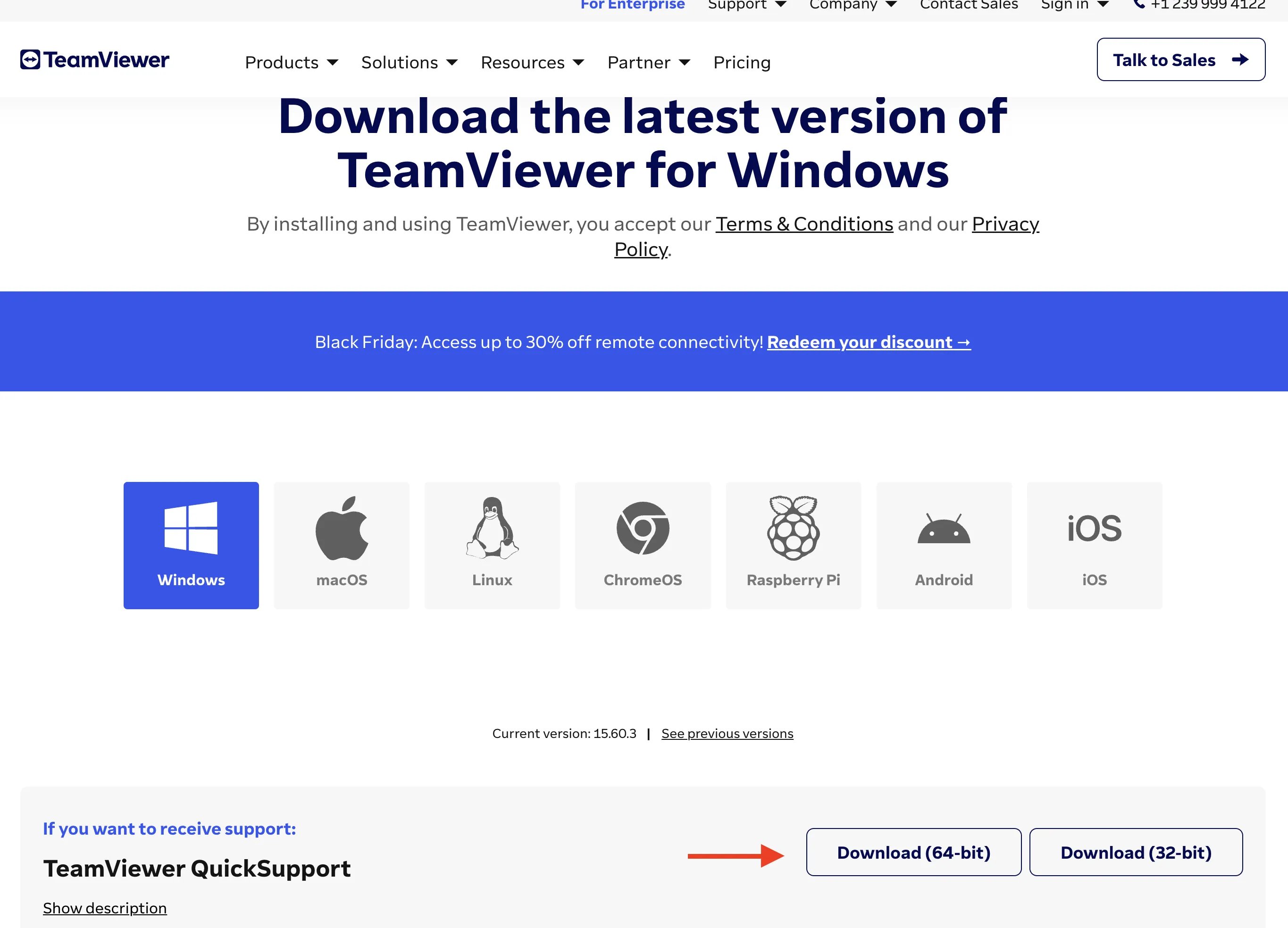
- Open the downloaded file.
- Approve all required permissions.
- Under Receive support, locate the Your ID and Password fields.
-
Provide both the ID and Password to Vori Support.
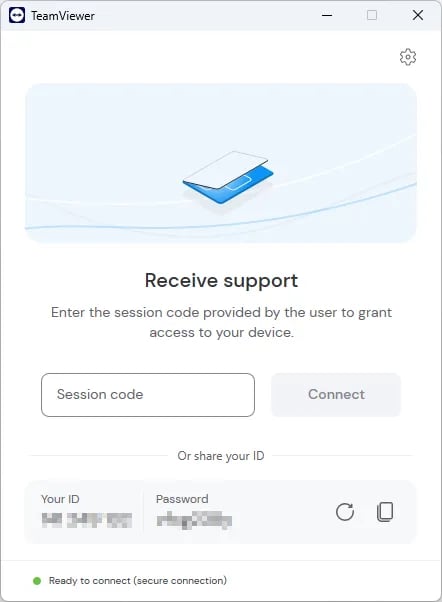
TeamViewer QuickSupport allows Vori to view and troubleshoot issues live. No persistent access is granted once the session ends.