

Introduction
Live chat is the fastest way to get help from the Vori support team. This article explains how to access live chat through Back Office, the Vori Help Center, and the store handheld devices. It also covers what to expect when starting a live chat, including how the chatbot works and when live agents are available.Where to Access Live Chat
A. From Back Office (app.vori.com)
- Log into app.vori.com.
- On the lefthand menu, click
Help.- A Live Chat window will appear on the righthand side of the screen.
B. From the Vori Help Center (help.vori.com)
- Open help.vori.com from any web browser (desktop or mobile supported).
- On the bottom right corner, click the blue chat icon.
Live Chat can be accessed from anywhere in the Vori Help Center, even from inside this article!
C. From the store handheld device
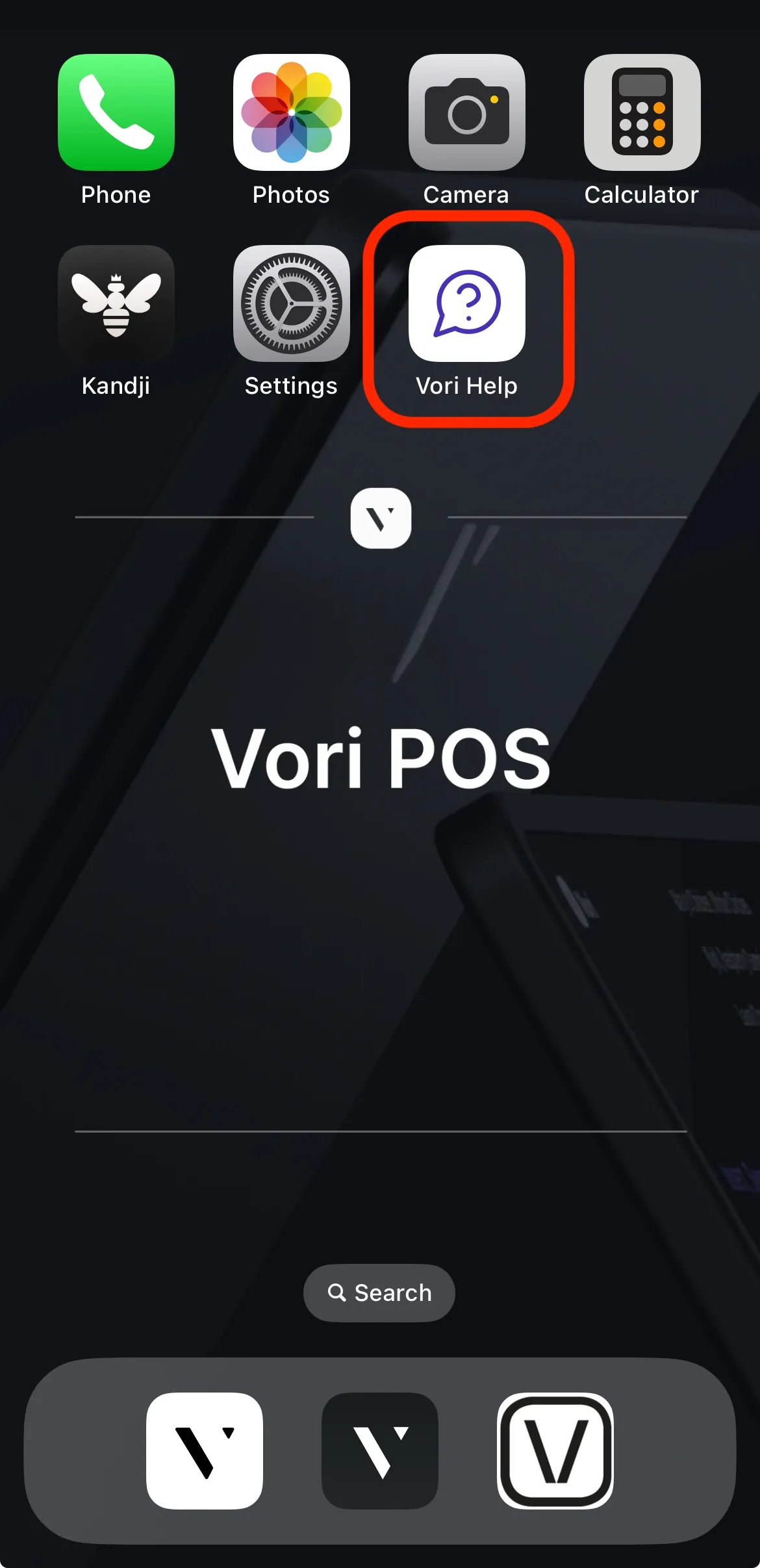
- On the main screen of the store handheld device, tap the Vori Help app icon.
- On the newly opened page, click the blue chat icon on the bottom right corner of the screen.
How to Use Live Chat
After the Live Chat window is opened, users can either: A. Start a new chat by selecting the plus (+) chat icon in the top-right corner of the window. B. Continue an existing conversation by clicking into any open chat with a support agent or the Vori chatbot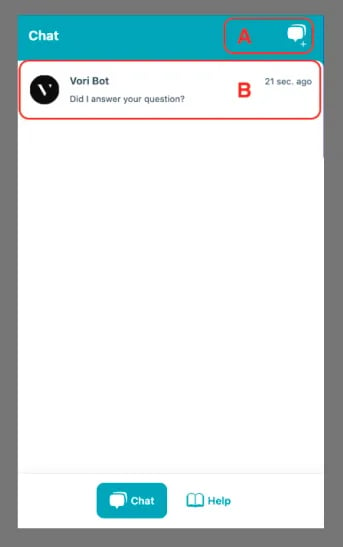
How to Connect to a Support Agent over Live Chat
If a support request needs to be escalated to a support agent, there are two ways to request a transfer:- Ask for a human - Enter a phrase such as “get me a support agent” or “I want to talk to a human” in the chat to immediately request human support.
-
Select 👎 then ‘Transfer’ - If the chatbot’s response doesn’t answer the question, select 👎 in the chat window. Then select
Transferwhen prompted to request a support agent.
- Monday–Friday: 8:00 AM ET – 7:00 PM PT (full coverage across both coasts)
- Saturday–Sunday: 8:00 AM – 5:00 PM PT
If a support agent is requested when Vori’s support hours are closed, you will receive a response once support hours resume.