

Where to find Product Attributes
- Go to Products > Product Catalog.
- Click a product to open its details page.
- Scroll to the Product Attributes section, below Product Details.

Locked and linked attributes
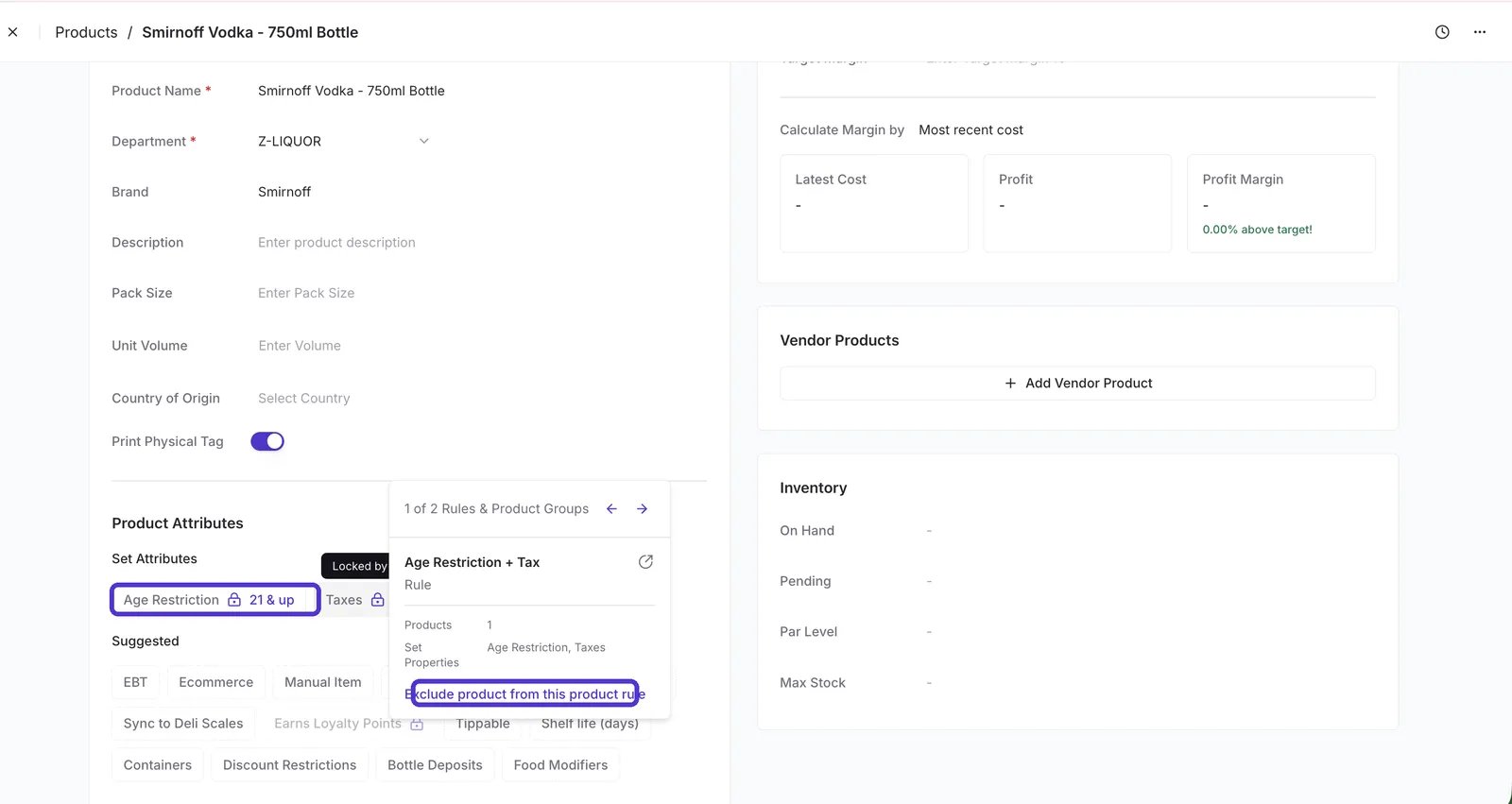
- 🔒 Lock icon — a Product Rule sets this attribute, so you can’t change it on the product. Hover over the lock to see which rule controls it. To make a one-off exception, select Exclude product from this product rule.
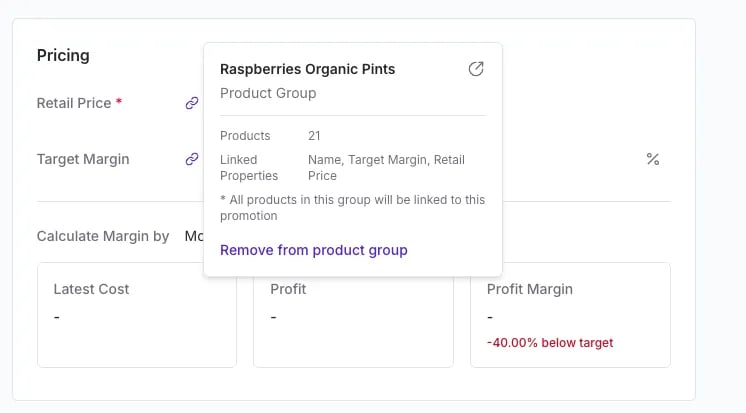
- 🔗 Link icon — a Product Group keeps this attribute in sync across every product in the group. Changing it here changes it for the whole group. Hover over the link to see the group and its linked properties, or to remove the product from the group.
On/off attributes
Each of these attributes is either on or off for the product.Attributes with values
These attributes take a specific value or a list of values.Discount Restrictions options
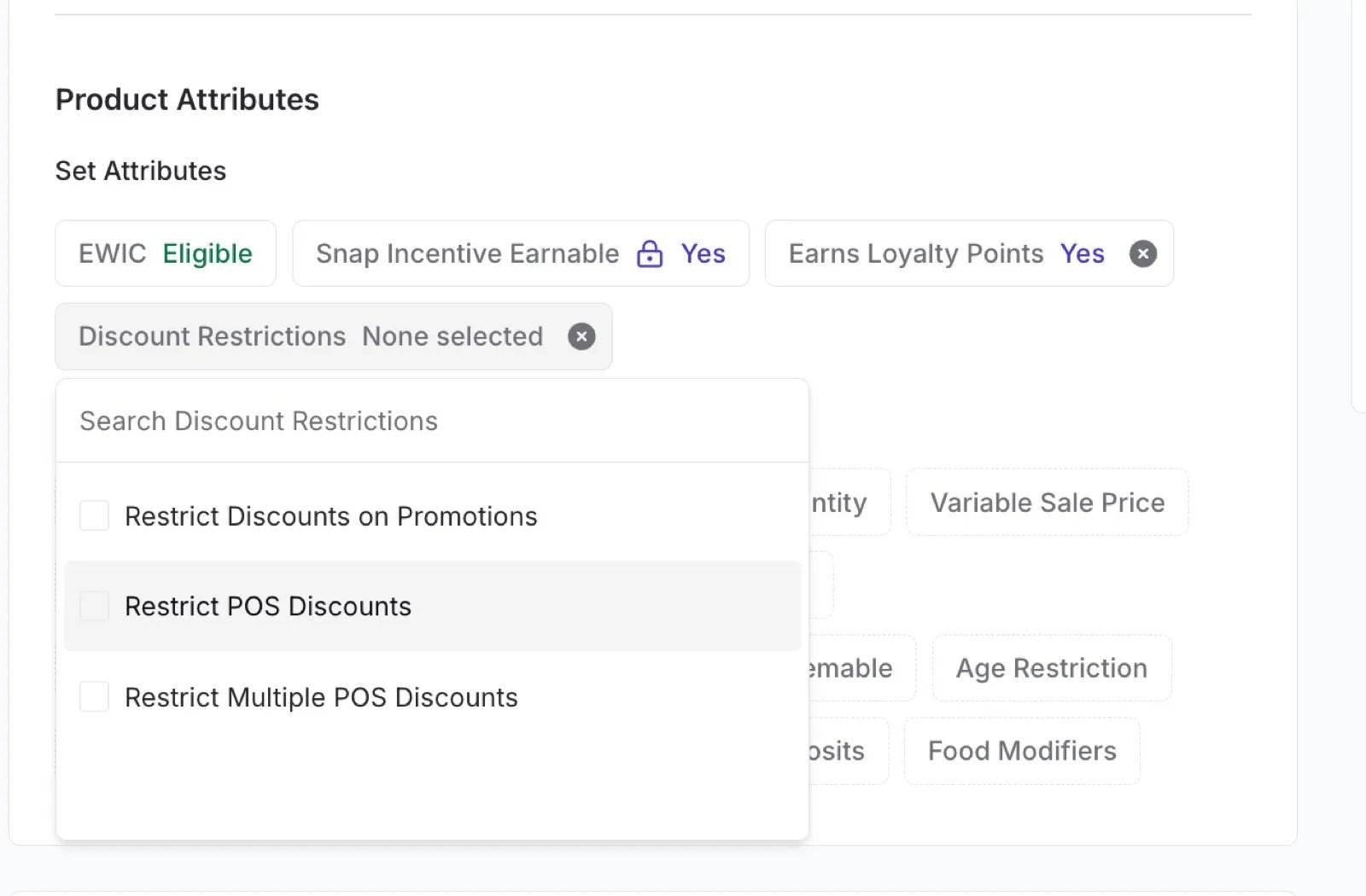
- Restrict Discounts on Promotions — if the item is already on promotion, the cashier can’t add another discount on top of it.
- Restrict POS Discounts — blocks all POS discounts on the item.
- Restrict Multiple POS Discounts — allows one POS discount on the item, but not two stacked together.
Set attributes for many products at once
Editing attributes one product at a time works for exceptions. For whole departments or product lines, use:- Product Rules — apply attributes automatically to every product that matches a condition, like Department is Beer. Best for taxes, EBT, age restrictions, and loyalty exclusions.
- Product Groups — keep attributes identical across a set of products you pick, like every flavor in a yogurt line.