What are Product Rules?
A Product Rule is a “when this, then that” instruction. You define a condition (the when), such as the department is Beer, Wine & Liquor, and the properties that should apply (the then), such as age restriction is 21 and up. Every product that matches the condition picks up the property automatically. This works much like department inheritance did, but with more ways to target products and combine settings. The rules you’ll most often want to set up before going live are:- Age restriction — flag alcohol and tobacco departments for ID verification.
- Taxes — apply the right tax rate across a department.
- EBT — mark a department as eligible or ineligible for Electronic Benefit Transfer (EBT).
- Loyalty exclusions — remove loyalty eligibility from departments that shouldn’t earn points.
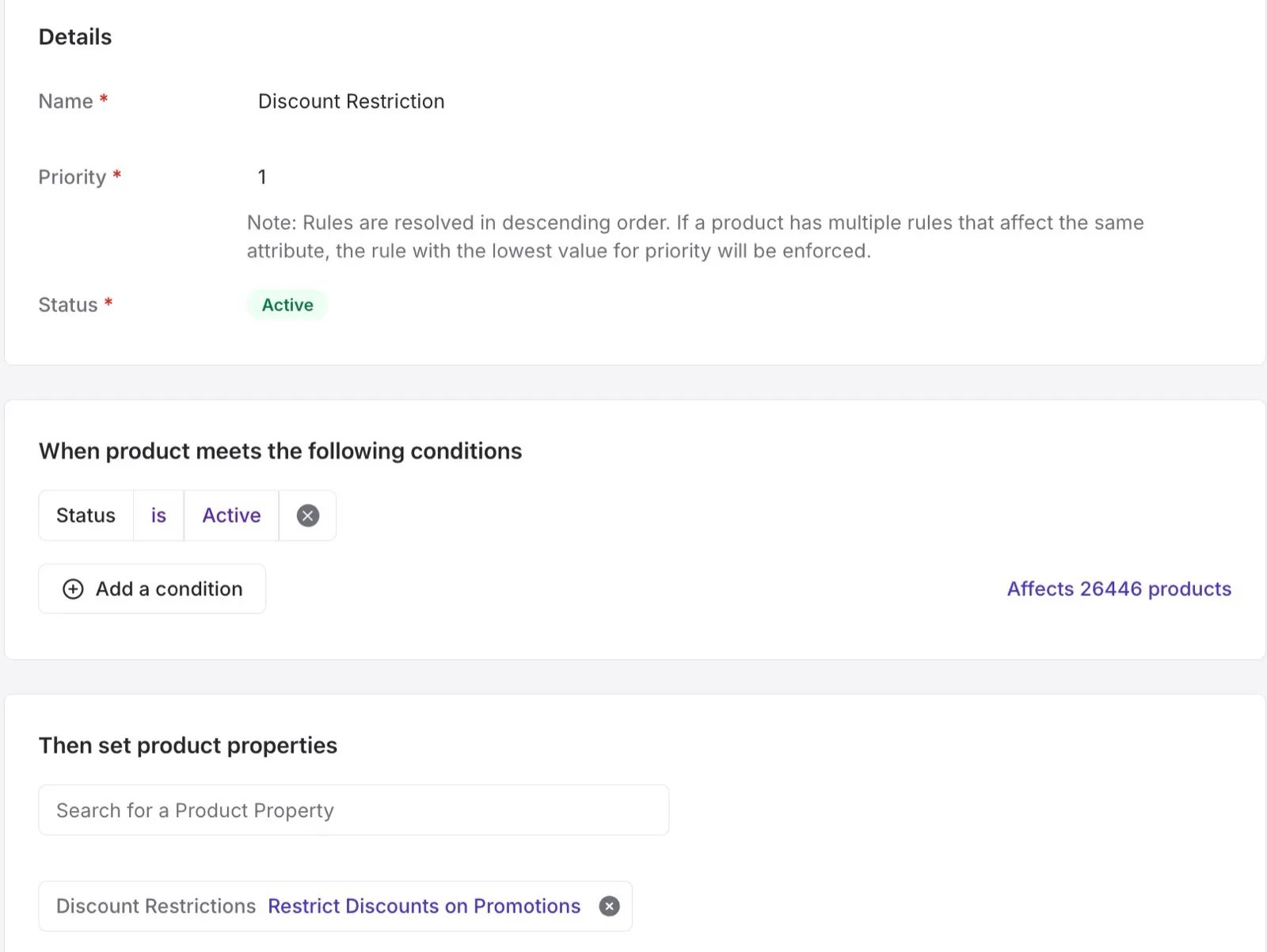
- Discount restrictions — limit which products can be discounted.
- Target margins — set a pricing target across a group of products.
Where to find Product Rules
Go to Products > Product Rules in the left-hand navigation.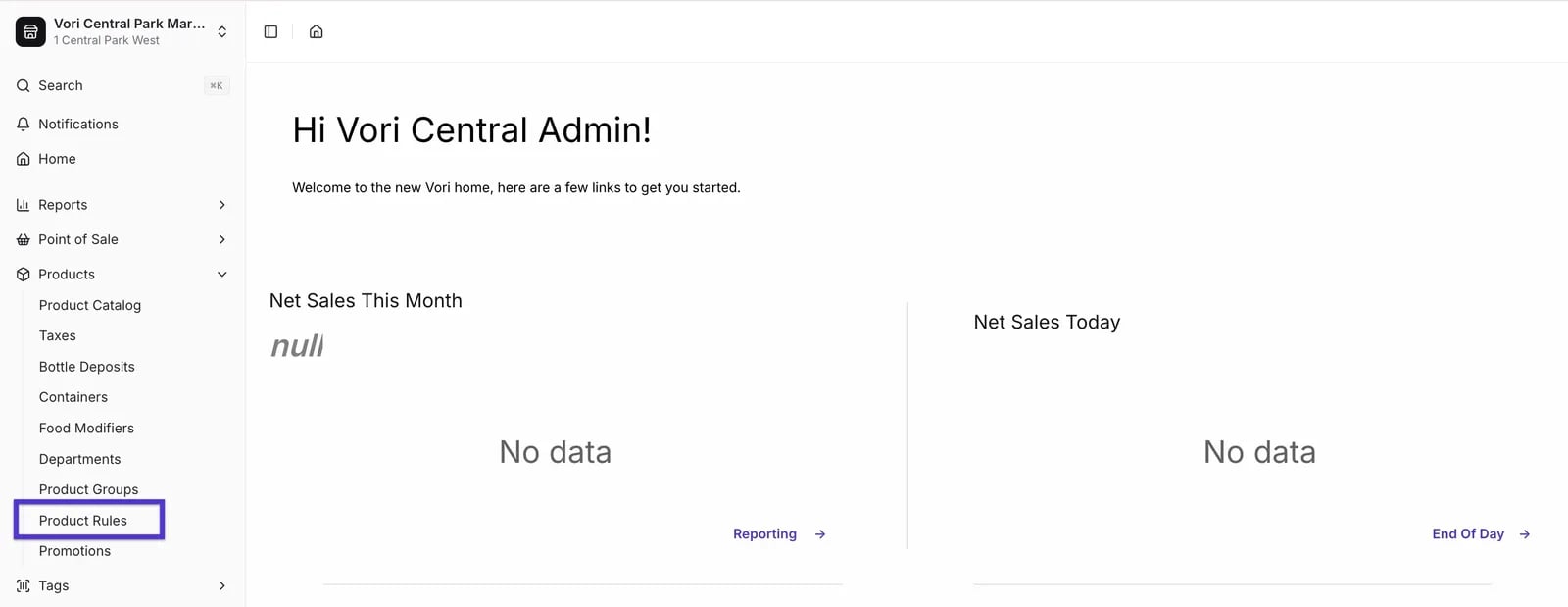
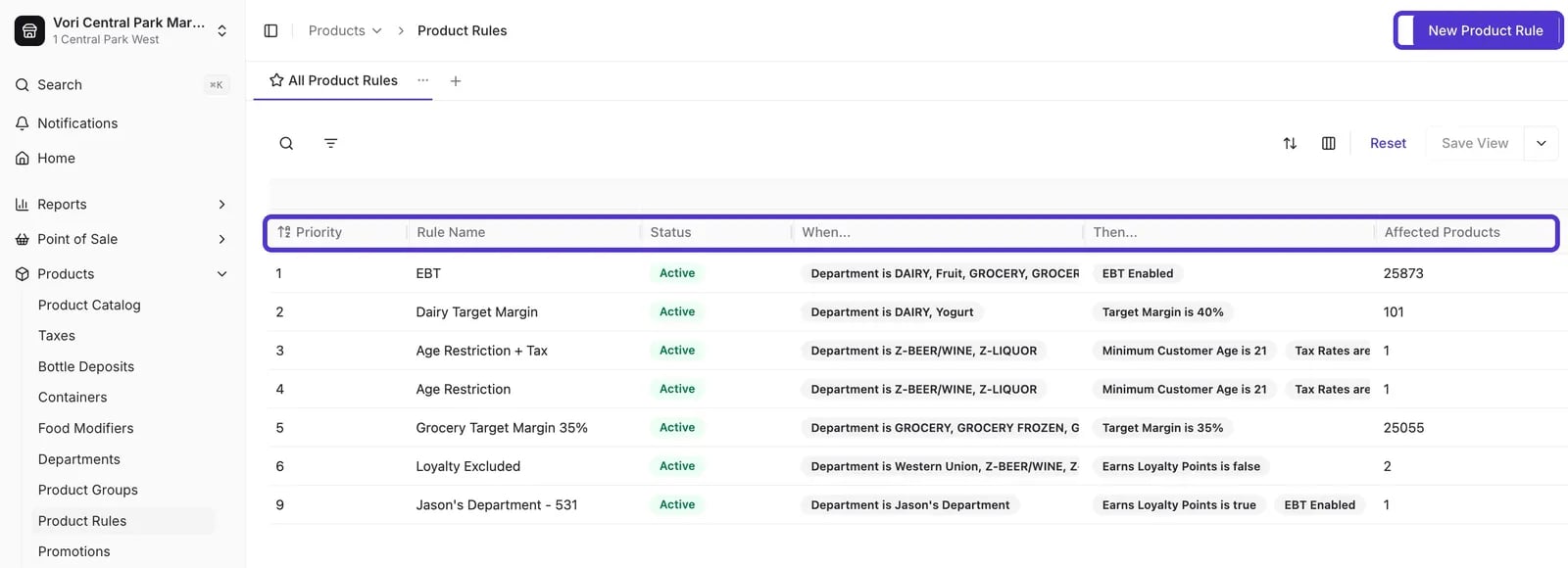
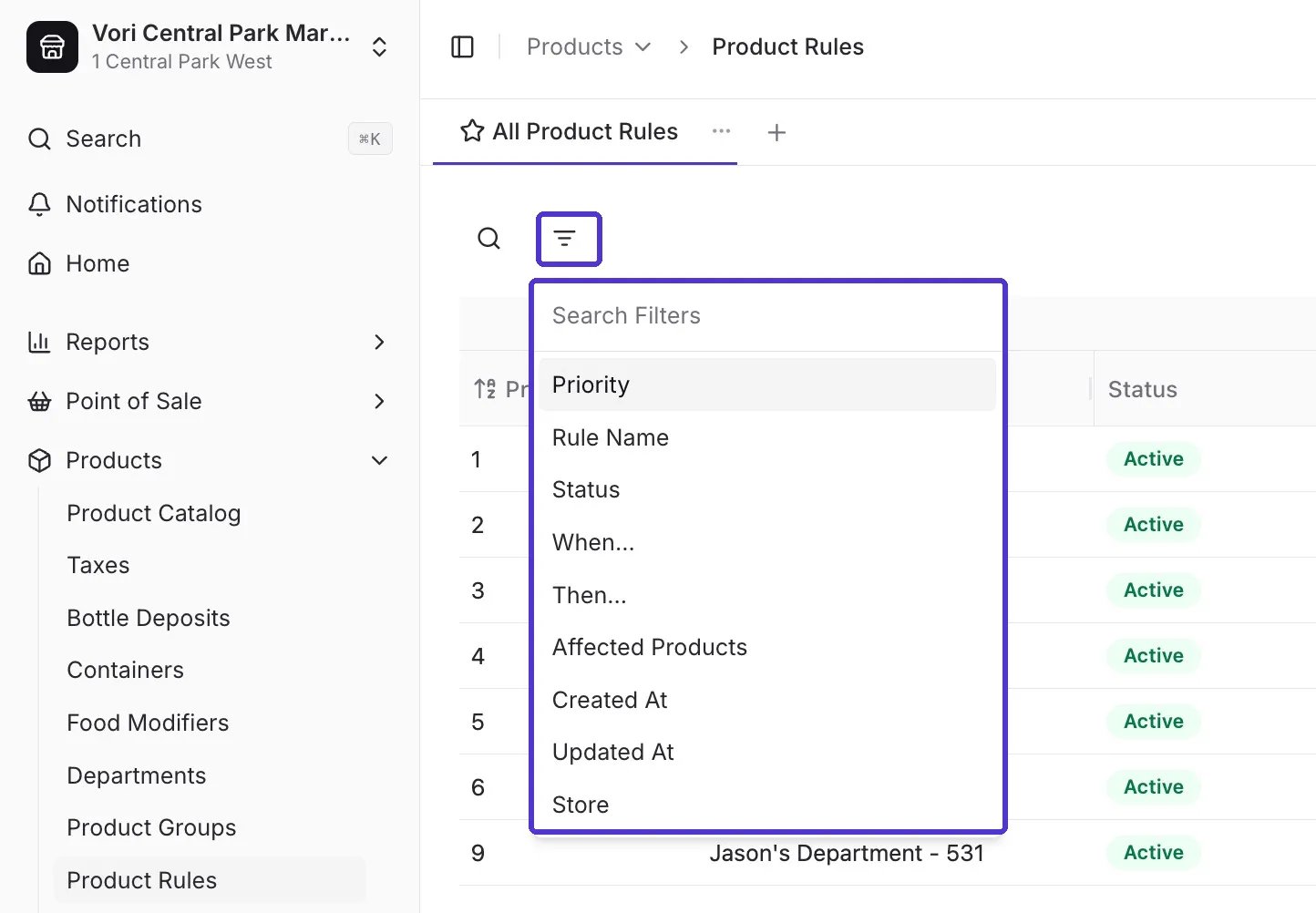
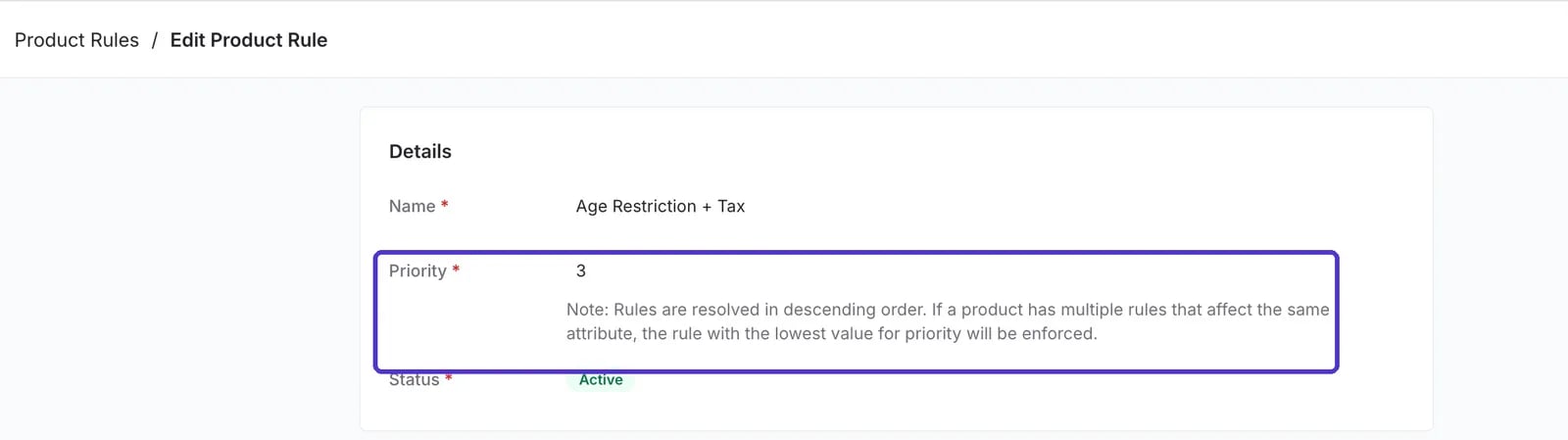
- Priority — the order rules apply when a product matches more than one.
- Rule name — search by what you named the rule.
- Status — Active or Inactive.
- When — the condition, such as Department is Dairy.
- Then — the property the rule sets.
- Affected products — how many products the rule currently applies to.
- Created at and Updated at — when the rule was made or last changed.
How priority works
A single product can match more than one rule. For example, an item might belong to both a parent department and a sub-department, each with its own rule. Priority decides which rule wins. The lower the priority number, the higher the priority. Say you have two target-margin rules:
A yogurt item lives in both the Dairy parent department and the Yogurt sub-department, so it matches both rules. Because the Dairy rule has the lower priority number (2), its 35% target margin applies first and takes precedence over the 40% from the Yogurt rule.
Create a Product Rule
- Go to Products > Product Rules and click Create New in the top-right corner.
- Select Rule.
- Under Product Details, give the rule a clear Name (for example, “Grocery target margin” or “Age restriction”).
- Set the Priority. Remember that a lower number applies first when a product matches multiple rules.
- Set the Status to Active to turn the rule on, or Inactive to save it for later.
Set the “when” condition
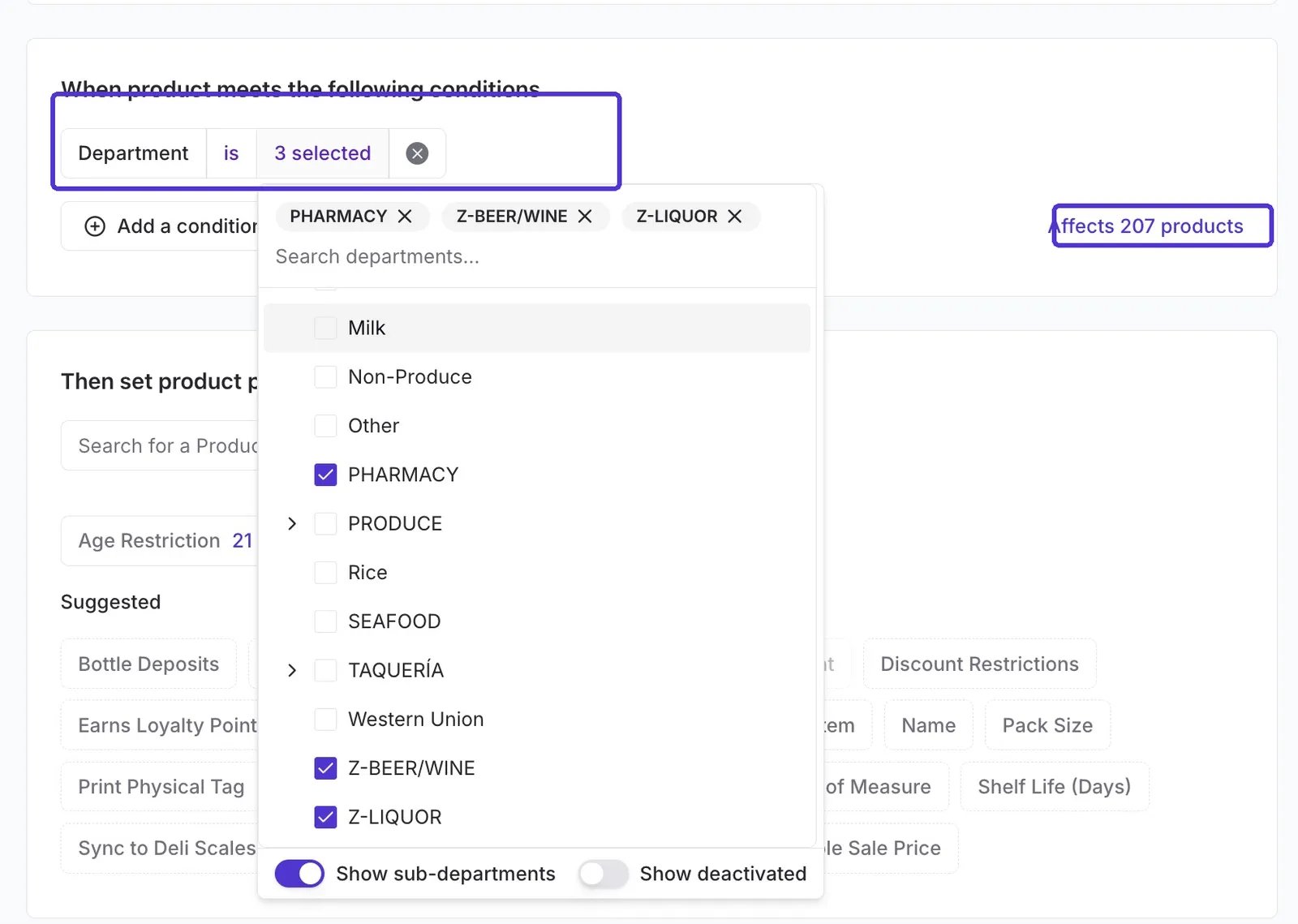
Under When product meets the following conditions, add the conditions that decide which products the rule targets. The simplest condition is by department. For example, to build an age-restriction rule for alcohol, set the condition to Department is your alcohol departments. You can:- Select multiple departments — add every alcohol parent department and sub-department to one rule. Toggle Show sub-departments to include them in the list.
- Use is or is not — include or exclude departments to shape the set exactly.
Set the “then” properties
Under Then set product properties, choose the properties to apply to every matching product. Search for a property or pick one from the Suggested list. For an age-restriction rule, you’d set Age restriction to your chosen value. You can add more than one property to a single rule, for example an age restriction and a tax rate (see the examples below).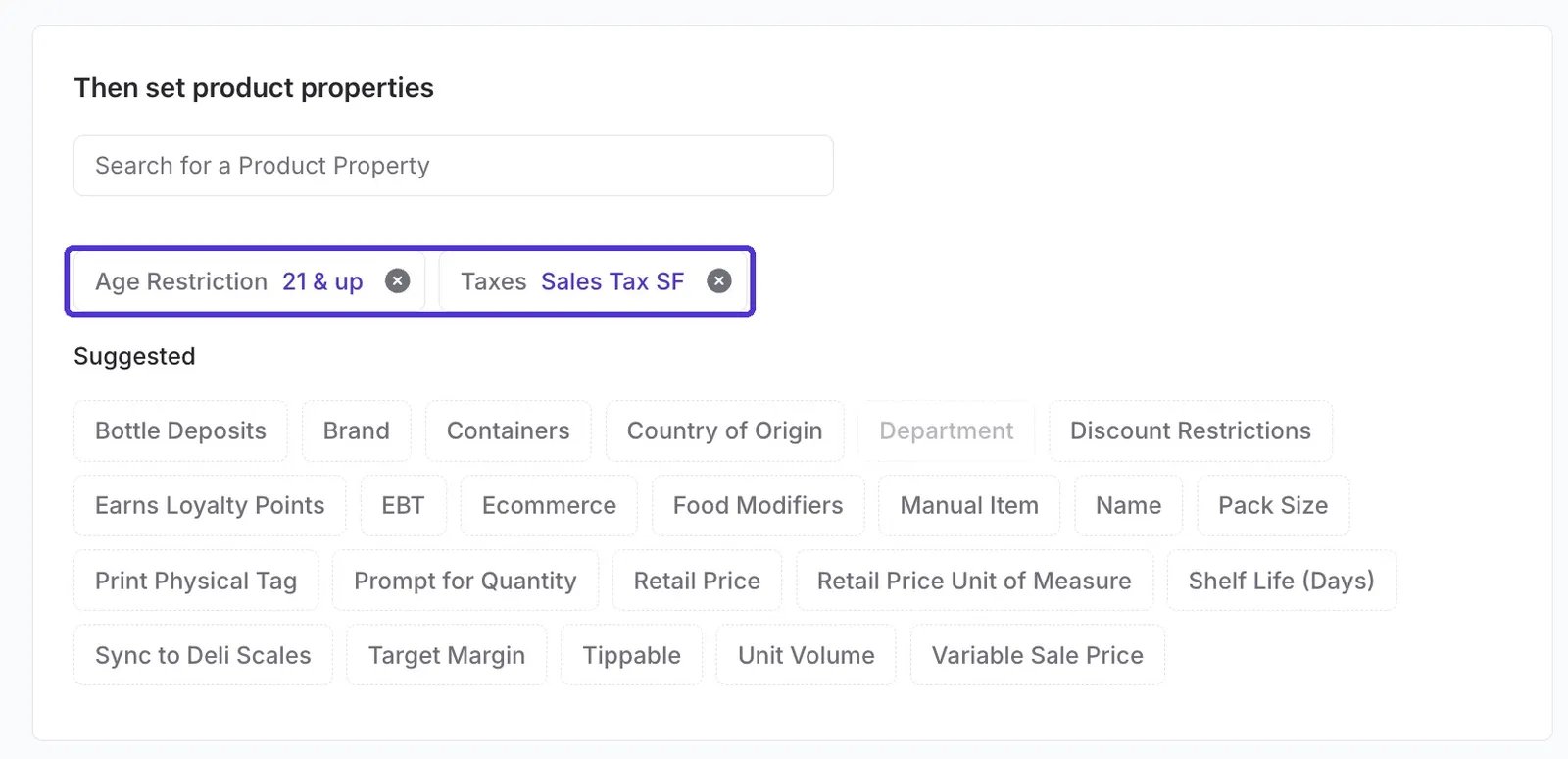
- Click Create Product Rule.
Product properties glossary
Each property you can set in the Then set product properties section does the following: Age Restriction — Enforces an age-verification prompt at the Point of Sale (POS) when a matching item is scanned. Set to 18+ or 21+ depending on the product type (for example, tobacco vs. alcohol). Bottle Deposits — Attaches a bottle deposit or California Redemption Value (CRV) fee to matching products. The fee is applied automatically at checkout when a qualifying item is scanned. Brand — Sets the brand name for matching products in bulk. Containers — Specifies the tare container type for matching products. Used for bulk departments where shoppers bring their own containers — for example, a glass jar for bulk teas or peanut butter, a shampoo bottle for refill stations, or a produce bag at the bulk bin. The container’s tare weight is subtracted from the total at the POS so the shopper is only charged for the product. Country of Origin — Sets the country of origin for matching products in bulk. Relevant for produce labeling requirements and reporting. Department — Assigns matching products to a department in bulk. Discount Restrictions — Controls which types of discounts can be applied to matching products at checkout. Options include:- Restrict Discounts on Promotions — prevents double-discounting when an item is already on promotion.
- Restrict POS Discounts — blocks all discounts at the POS.
- Restrict Multiple POS Discounts — allows one discount per item, but not two stacked together.
When to use Product Rules
Product Rules are best suited for applying consistent attributes across large groups of products. Common use cases include:- Taxes — apply the correct tax rate by department or product type.
- EBT — flag all qualifying grocery and produce items as EBT-eligible.
- Age restriction — enforce age verification for alcohol (21+) and tobacco (18+) departments.
- Discount Restrictions — prevent promotions or POS discounts from applying to tobacco or other restricted items.
- Sync to Deli Scales — push deli products to connected scales automatically.
- Target margin — monitor and enforce margin targets by department.
- Tippable — enable tip prompts for deli departments or coffee stands that accept tips for prepared foods.
- Earns loyalty points — exclude categories like tobacco or alcohol from loyalty accrual.
- Retail price UOM — if your meat department contains only weighted items, set a rule so every item in that department defaults to per-weight pricing. No individual product edits needed.
- Bottle deposit / CRV — if your single cans and beverages are cleanly organized in their own department or sub-department, you can attach a $0.05 bottle deposit or CRV automatically. ⚠️ Caution: If multi-packs are also in that department, they will be tagged with the wrong deposit amount. Review the affected products list carefully before activating.
Review and exclude affected products
A single rule can apply to thousands of products at once, so it’s worth reviewing the list before you save. Click the Affects # products count to open the View Products list. This is a live snapshot of every item that currently matches your conditions. To remove an item, click Exclude in its row, the header updates to show how many products are included and how many are excluded (for example, 204 Products included (3 excluded)). Click Undo to add an excluded item back. When you’re done, click Done.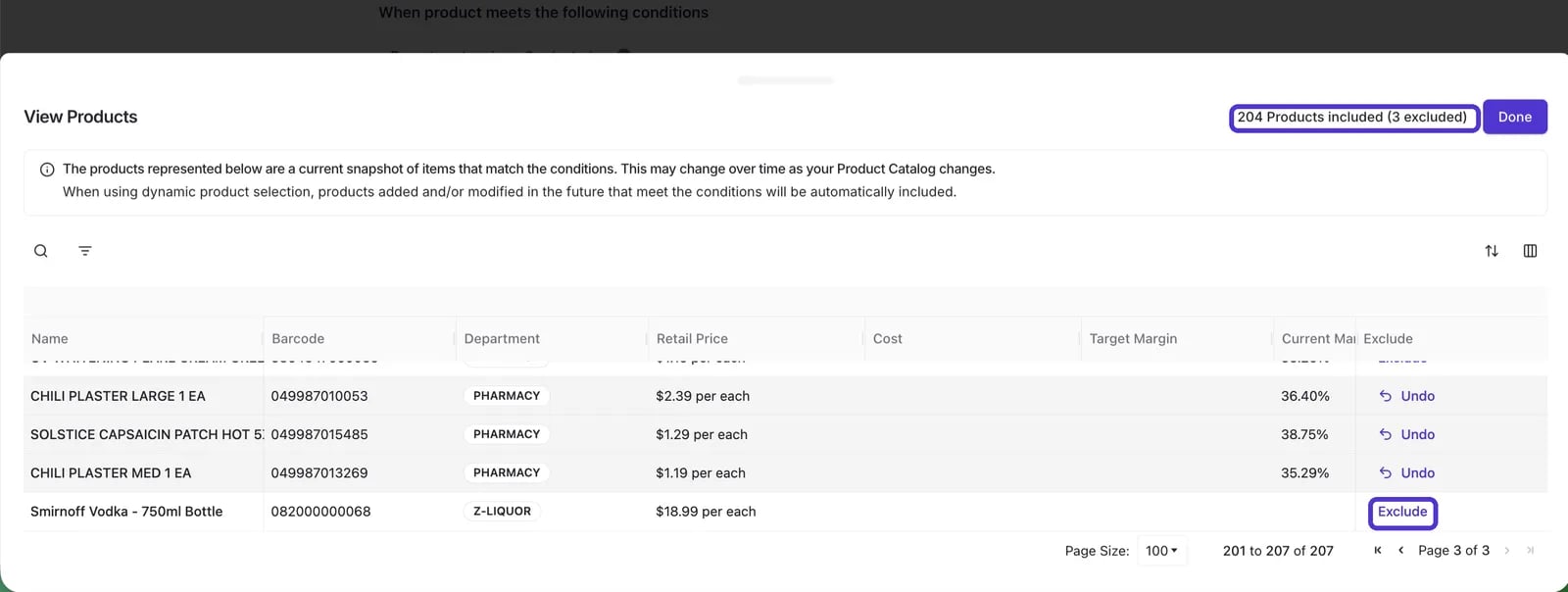
Examples
Age restriction + tax
If all of your alcohol is both 21-and-up and taxable, you can set both properties in a single rule.- Create a new rule and name it (for example, “Age restriction + tax”).
- Set the when condition to your alcohol departments, such as Beer and Wine & Liquor. Add every relevant parent department and sub-department.
- In the then section, add two properties: set Age restriction to 21 and up, and set the Tax rate to the rate for your store (for example, NYC or SF sales tax).
- Click Create Product Rule.
Loyalty exclusion
By default, every product is eligible to earn loyalty points. Some stores choose to exclude loyalty from departments like tobacco or alcohol.- Create a new rule and name it (for example, “Loyalty excluded”).
- Set the when condition to the departments you want to exclude, such as Western Union, Beer, and Wine & Liquor.
- In the then section, set Earns loyalty points to No.
- Click Create Product Rule.
Discount restrictions
You can stop an entire department or sub-department from receiving discounts at the register, the same restrictions you can apply to a single item, set in bulk. This is useful for departments you never want discounted, like tobacco.- Create a new rule and name it (for example, “Tobacco no discounts”).
- Set the when condition to the departments you want to restrict, such as Tobacco.
- In the then section, add the Discount Restrictions property and choose one or more restrictions:
- Restrict Discounts on Promotions — prevents double-discounting. When an item is already on promotion, cashiers cannot apply an additional discount at the POS.
- Restrict POS Discounts — blocks all discounts on the item at the POS.
- Restrict Multiple POS Discounts — allows one discount per item, but not two stacked together.
- Click Create Product Rule.
These are the same restrictions you can set on a single item on the Product Detail Page — a Product Rule applies them to a whole department at once. To see how they appear to cashiers, read Manage discounts at the POS.
How rules appear in the product catalog
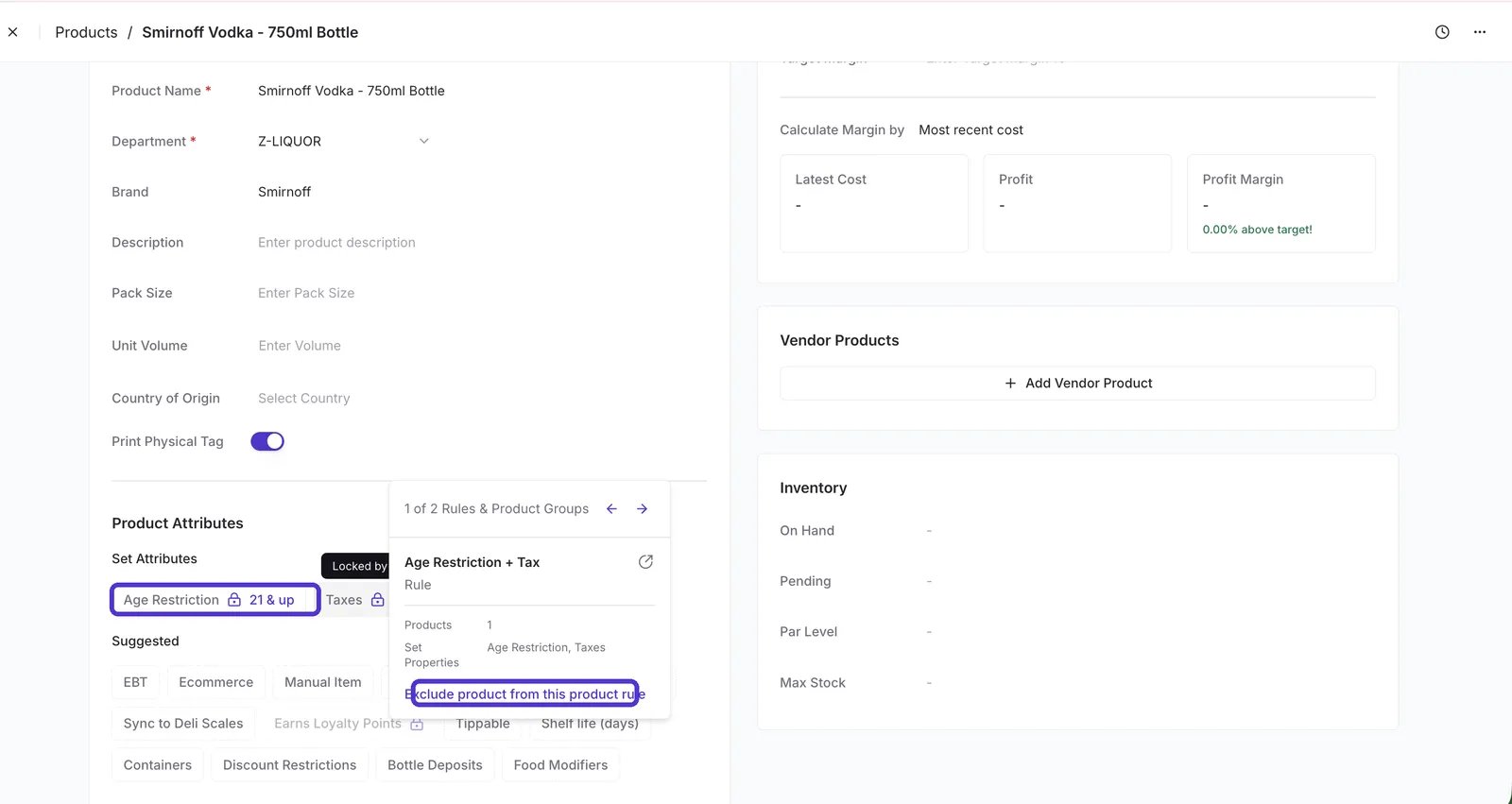
Once a rule is live, you can see it on the individual products it affects. Open any product in the Product Catalog and look for a 🔒 lock icon next to an attribute. A lock means the attribute is set by a Product Rule. For example, a bottle of liquor covered by the “Age Restriction + Tax” rule shows its age restriction locked at 21 & up. Because the rule controls these values, you can’t change them directly on the product. Hover over the lock to see which rule is setting the attribute. To make an exception for a single product, select Exclude product from this product rule. The product keeps its current value but is no longer governed by the rule.