

- Fast Performance: Enjoy quick load times, even with large product lists.
- More Filter Criteria Options: Use the search field or click into a specific column to filter by criteria such as Case Cost, EBT Enabled, and Retail Price, as well as existing ones.
-
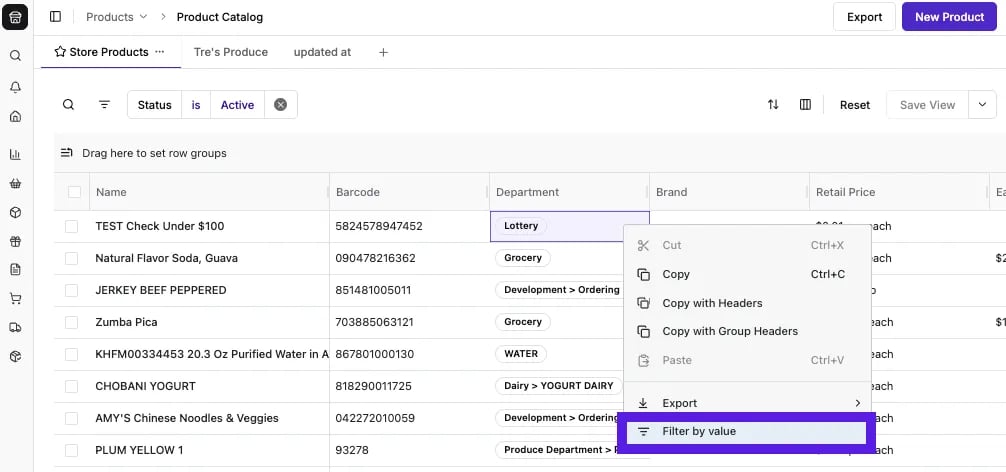
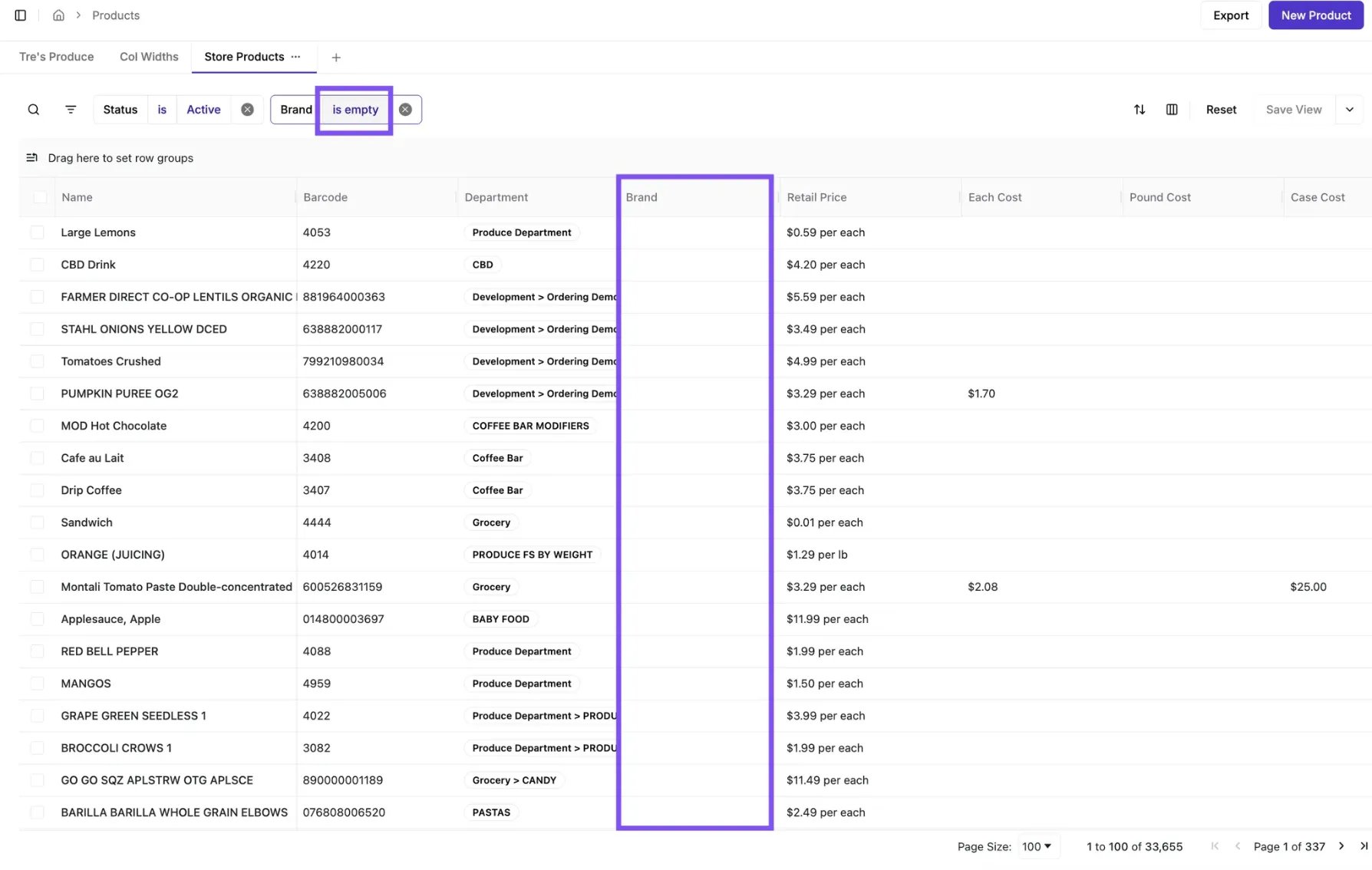
Filter by Value: You can filter on any cell, and it should add that to the filter bar.
- Sort Columns: Sort columns by ascending or descending order.
- Group Columns: Group products in your catalog to make browsing and managing your list easier.
- Move Columns: Drag and drop to move columns.
- Pin Columns: Select a column, then choose a pin direction (left or right) to pin it. To unpin a column, select the Unpin option.
- Hide & Unhide Columns: Hide or unhide columns as needed. Unhidden columns will appear at the end of the table.
-
Bulk Edits: After selecting all the products you’d like to update, either by checking the box to the left of each product name or the box at the top left of the product table, a Bulk Update bar will appear at the bottom of the screen, showing how many products will be updated.
-
You’ll now see popular update options, such as Change Department, listed right away. Select More to view the full list of updateable traits in alphabetical order.

-
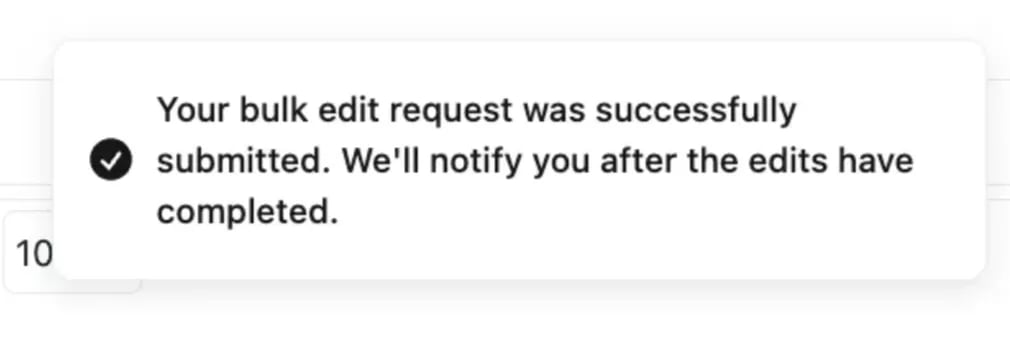
Once the update is submitted, a success notification will appear in the bottom left corner of the screen.
-
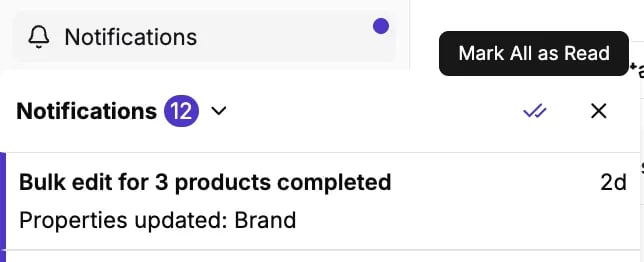
You can also review when the bulk updates have been completed by visiting the Notifications panel on the left-hand menu.
- Larger bulk edits (over 1,000 products) may take a few minutes to process. The success notification will arrive once the update has been fully completed for all selected items.
- For a full walkthrough, see Bulk Update Products.
-
You’ll now see popular update options, such as Change Department, listed right away. Select More to view the full list of updateable traits in alphabetical order.
-
Save Views: Save, name, and delete views that are shared across all store logins, making it easy to access your most-used filters (e.g., “New Products”).
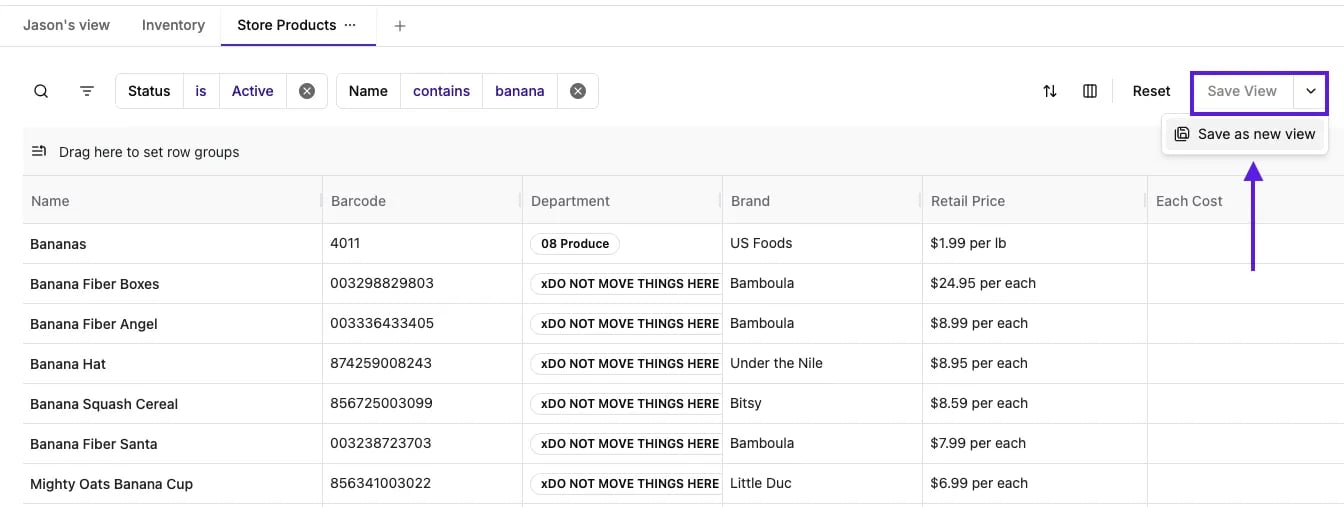
-
Export Products: Export your product list to a CSV file. The export function is WYSIWYG (What You See Is What You Get), so the exported file will contain precisely what is displayed on your screen.
- Filtered Export: Apply any combination of filters to narrow your catalog, then select the products you want (or check the box in the top-left corner to select every filtered product) before clicking export. The file will contain only the products you selected.
- Selected Export: You can also manually check the box next to specific products without filtering first. If you export with items selected, the file will contain only those selected products, regardless of any active filters.
- For step-by-step instructions, see How to Export the Product Catalog.