How to Bulk Update in the Back Office
Use the Products page in the Back Office for powerful, filter-based updates from your desktop.-
Navigate to the Products page to begin. To apply filters, click the Add Filters + at the top left of the page.
- Filters can be used to help apply bulk updates across product brands, departments, and more.
-
Select the products you wish to update. You can do this in one of two ways:
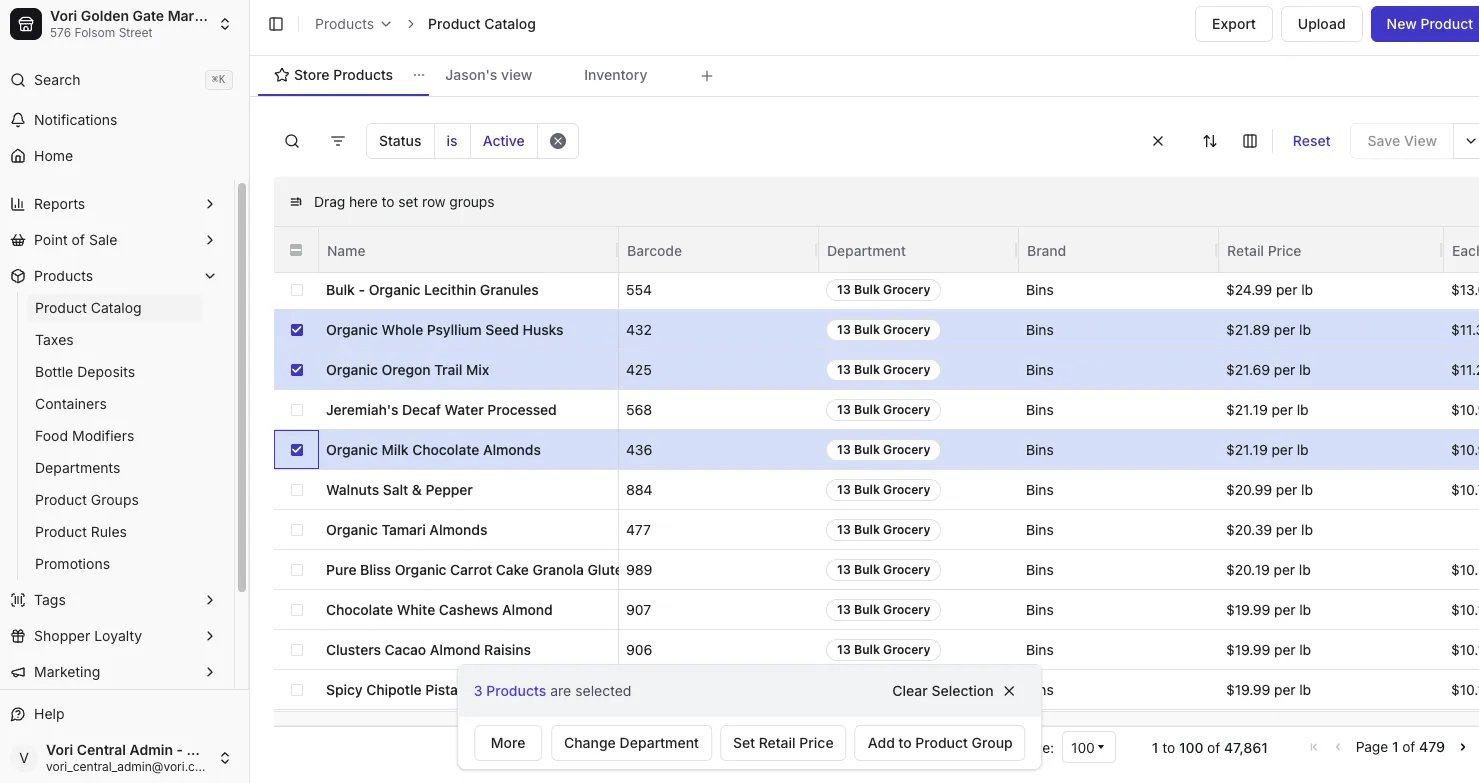
- Manual selection: Check the square on the far left of the product’s row. At least two products must be selected for the Bulk Update prompt to appear.
- Select all: Check the square at the top left of the product table to select all products matching your filters. Only products matching all applied filters will be selectable for bulk updates.
-
Once two or more products are selected, a prompt will appear at the bottom of the screen. The prompt shows the number of selected items.
-
If more than 100 items are selected, you will see a pop-up to confirm these changes. Enter APPROVE CHANGES (case-sensitive), then tap Change # Products to continue.

-
If more than 100 items are selected, you will see a pop-up to confirm these changes. Enter APPROVE CHANGES (case-sensitive), then tap Change # Products to continue.
- Select the desired field, and then Save.
Bulk Actions on VoriOS
Use the Bulk Actions feature on VoriOS to print tags, set prices, edit product details, or assign locations for a list of products you gather by scanning or searching.- From the home screen, tap Bulk Actions.
-
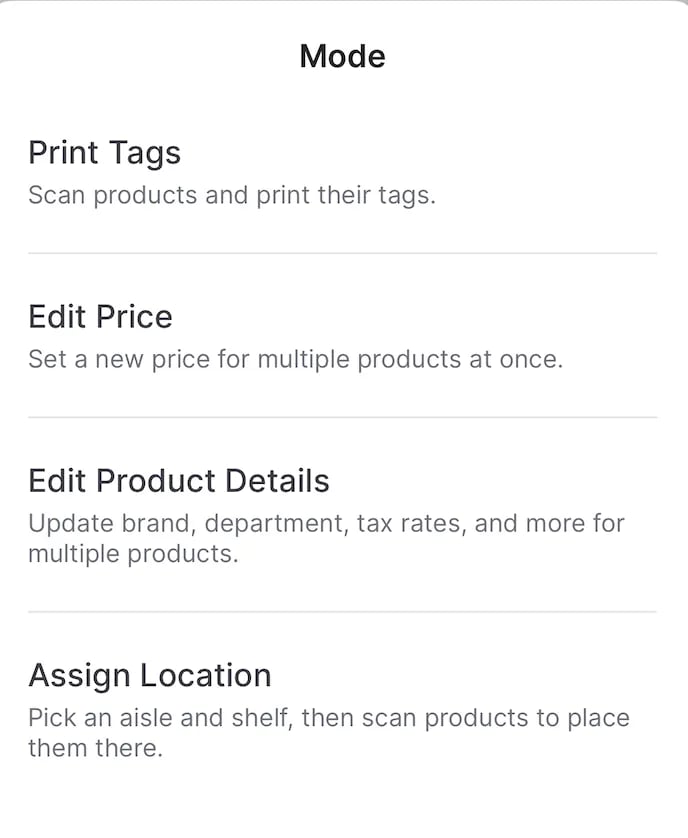
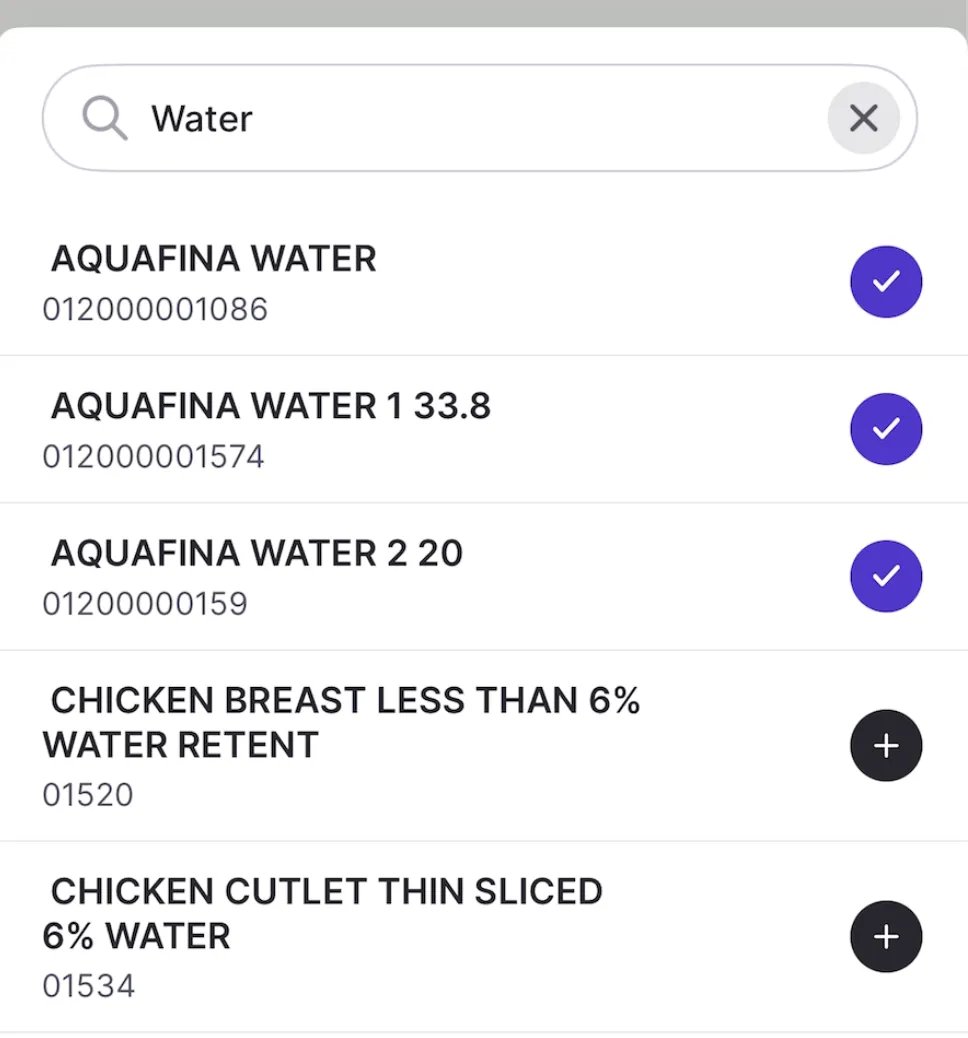
Choose the mode you need, then build your list. Scan items with your device, or search for a product and tap the plus icon to add it.
- Print tags: tap Print All when your list is ready.
- Edit Price: tap Set Price to apply the retail price to every item on the list.
- Edit Product Details: change any fields you need, then tap Save to apply those edits across the list.
- Assign Location: pick an aisle, section, and shelf, then tap Assign Locations to set that location for every product on the list.