

Add locations and product options from the floor
Use Bulk Actions in the Vori operating system app to update many products at once while you walk the aisles.Assign aisle and section locations
- From the home screen, tap Bulk Actions.
-
Tap Assign Location.
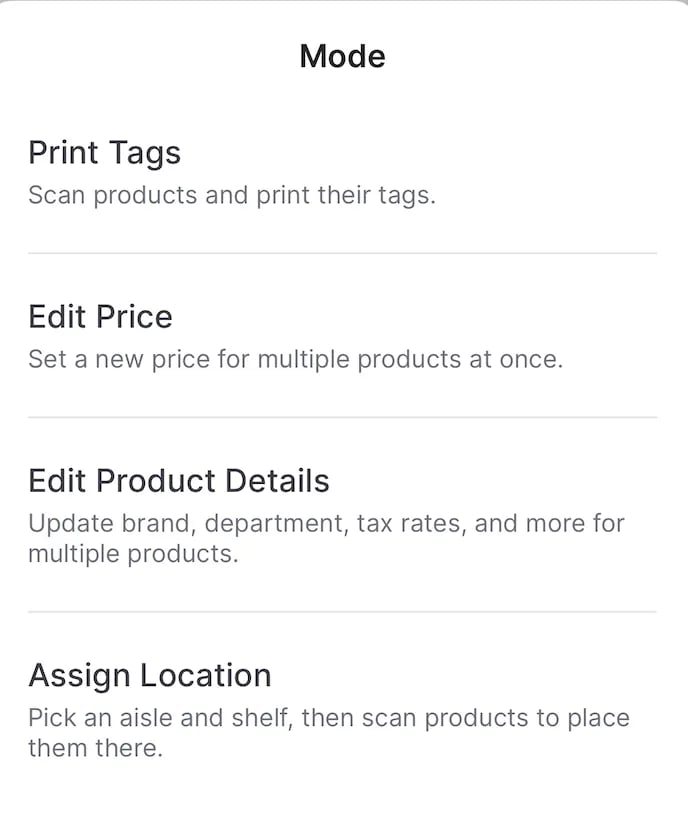
- Tap Select an Aisle and pick the aisle you’re standing in.
-
Type the Section (for example,
EndcaporCereal), then use + and - to set the shelf. Leave the shelf blank if you don’t track shelves.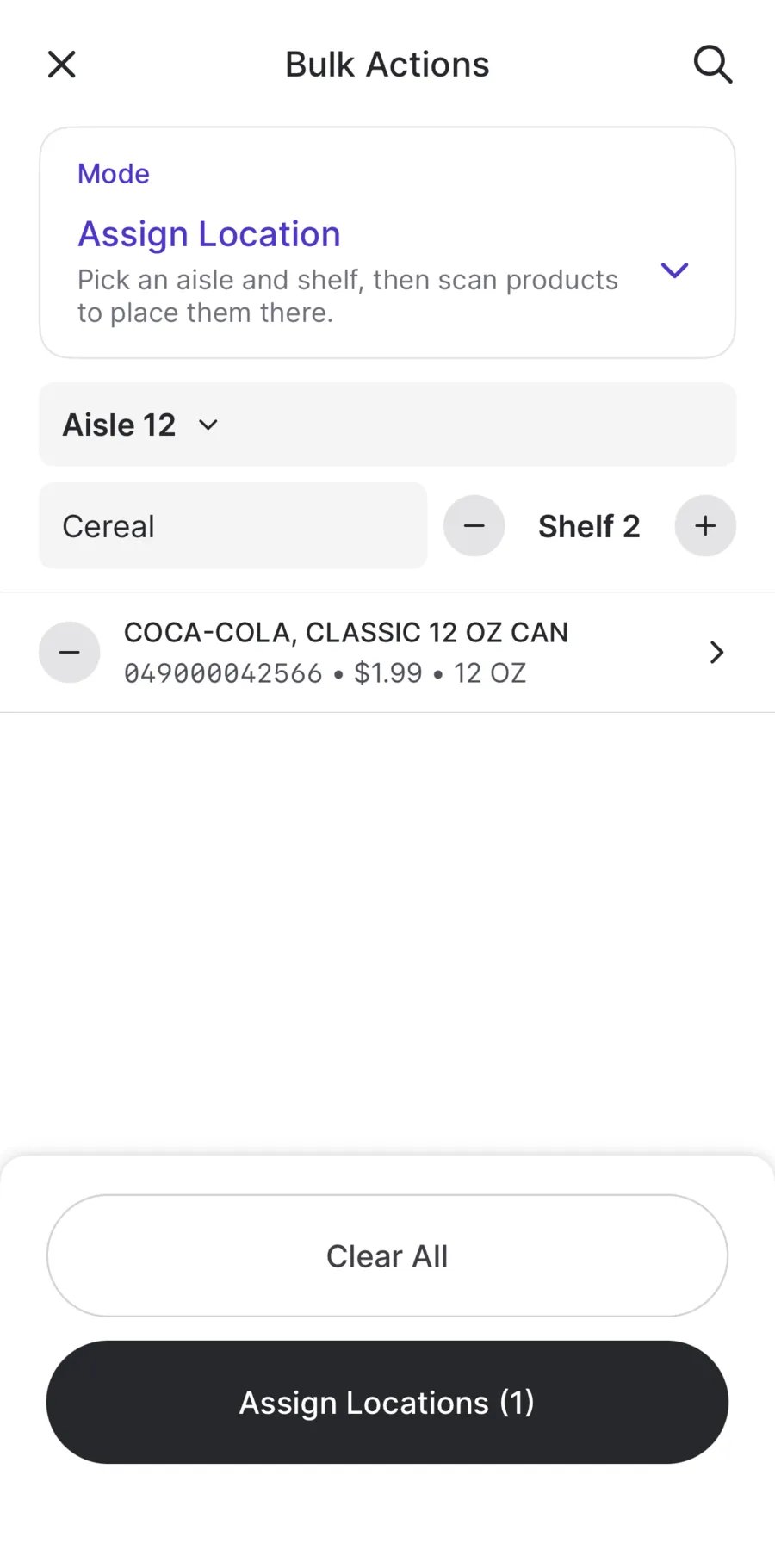
- Scan each product on that aisle and section. Every scan joins the list under the location you set.
- Tap Assign Locations, then confirm. The app shows Locations updated when it’s done.
- Move to the next section, change the Section or shelf, and keep scanning.
A product can have more than one location. To review, edit, or set a primary location for one product, open it and go to the Locations tab. See Edit Product Details in the VoriOS App.
Mark products as prepackaged
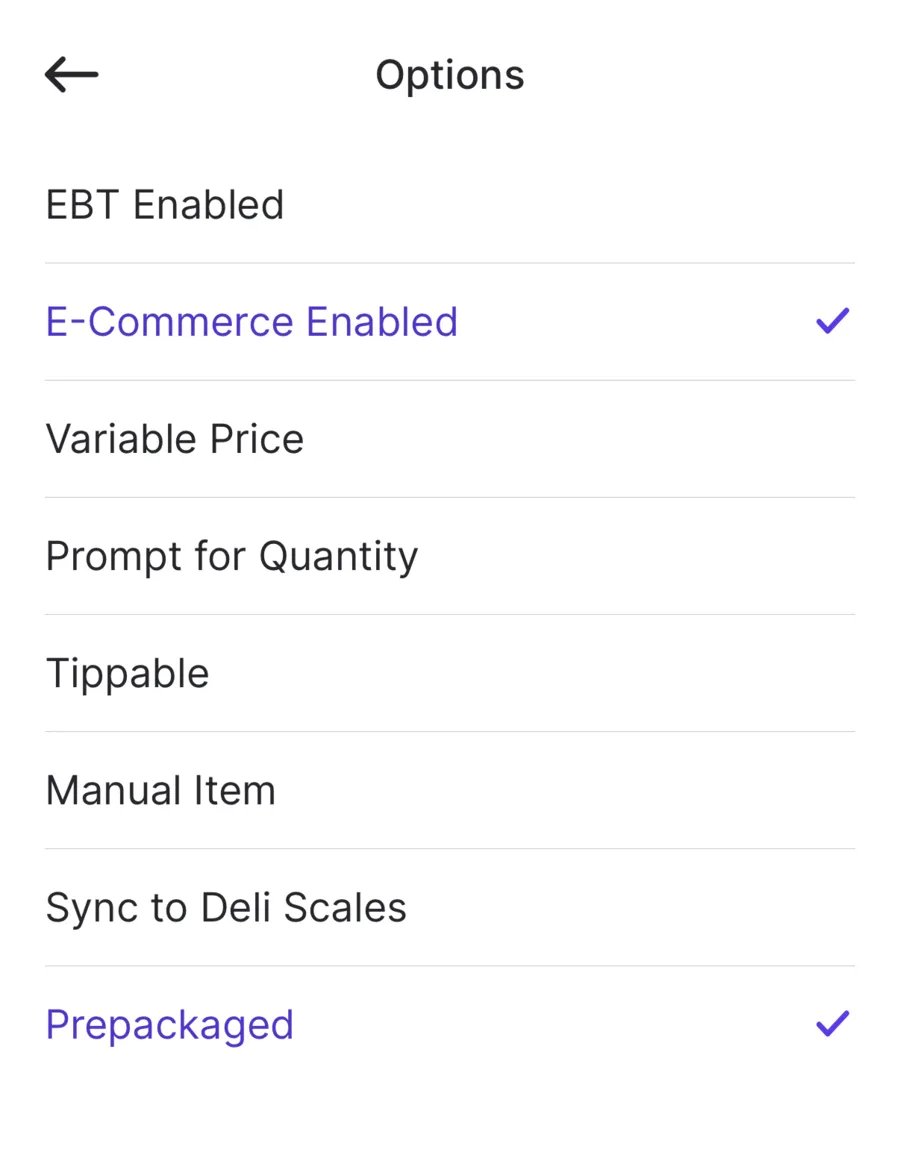
Turn on Prepackaged for items sold in a fixed unit, like a bagged salad or a pre-weighed tray of meat, rather than weighed or portioned at the time of sale.- From Bulk Actions, tap Edit Product Details.
- Scan or search for each prepackaged product to build your list.
- Tap Edit Details.
-
Tap Options, turn on Prepackaged, and go back. While you’re here, make sure E-Commerce Enabled is on for products you want to list online.
- Tap Save. Only the fields you changed apply to the products on your list.
Clean up photos and brands in Back Office
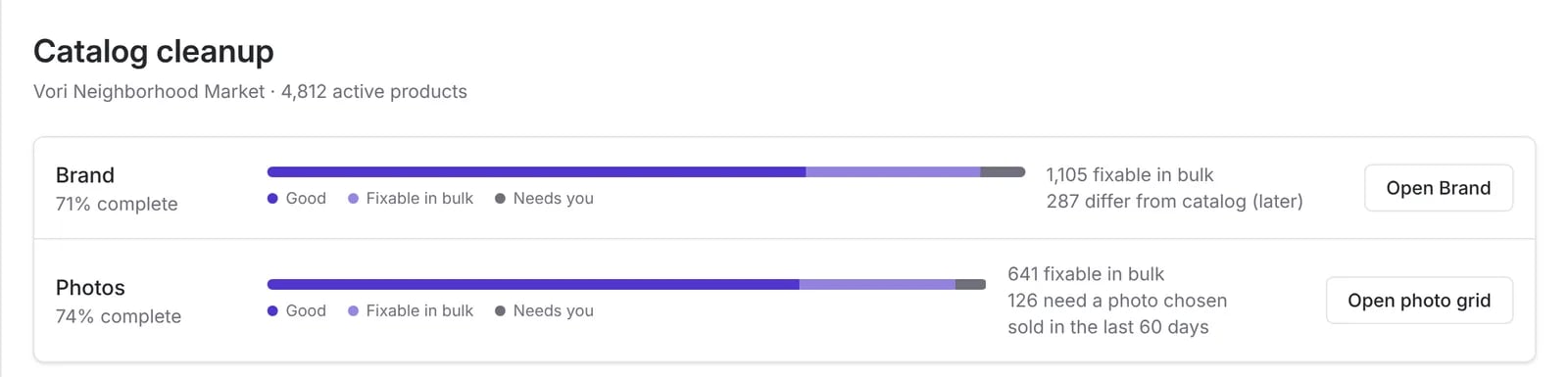
Catalog cleanup shows how complete your catalog is and lets you fix gaps in bulk with data from Vori’s master catalog.Open Catalog cleanup
- Select your store in the store switcher at the top left. Catalog cleanup works on one store at a time.
- Go to Products > Product Catalog.
-
Click Clean up catalog.

- Good: the product already has a value.
- Fixable in bulk: Vori found a value you can apply in a few clicks.
- Needs you: a product that needs your decision, like a photo you choose yourself.
Add photos from the Vori catalog
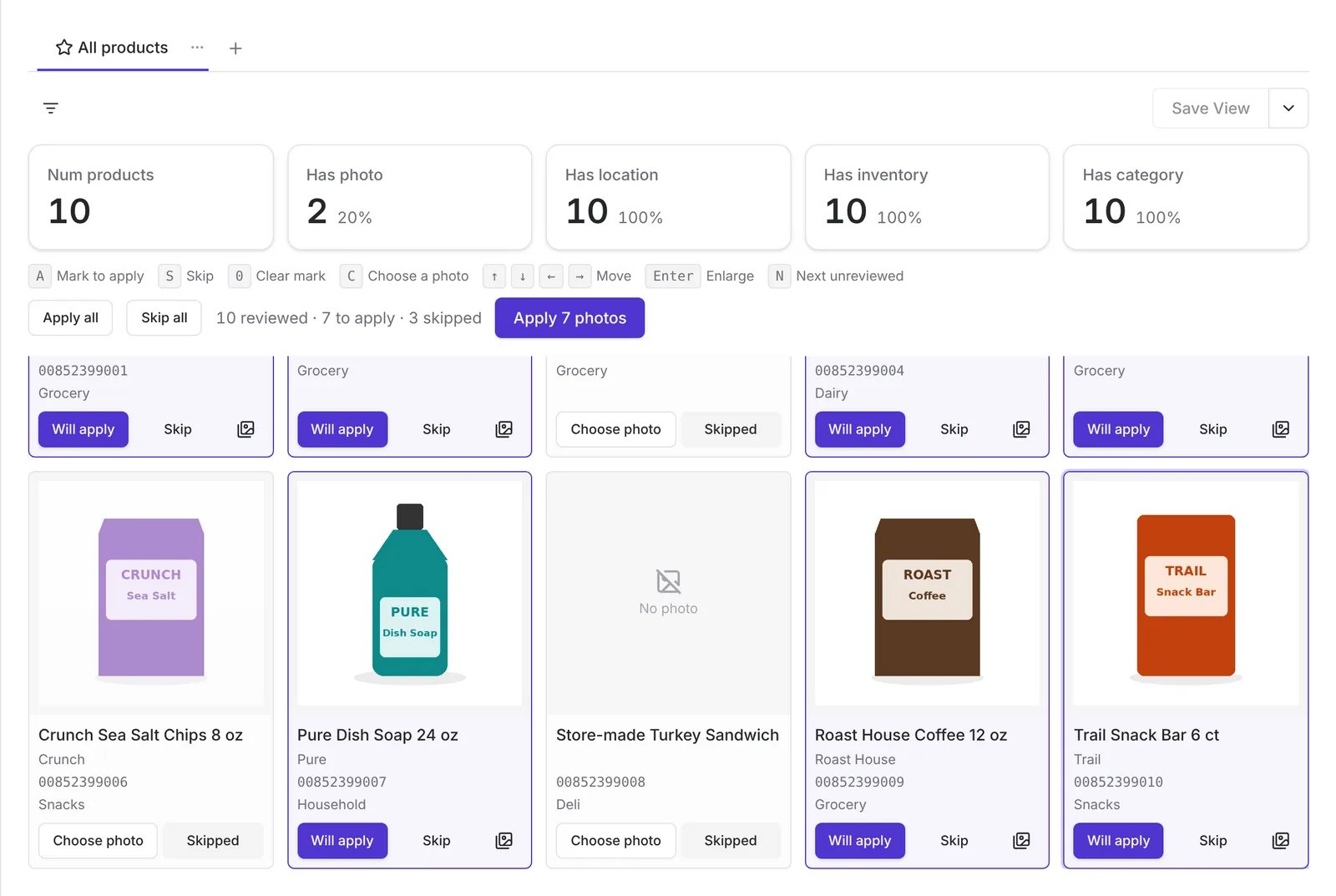
- On Catalog cleanup, click Open photo grid.
- Review the cards. Products that are fixable from the catalog show the Vori catalog photo with an Apply button.
- Mark each card:
- Click Apply, or press
A, to use the Vori catalog photo. - Click Skip, or press
S, to leave the product as it is. - Use the arrow keys to move between cards, and press
Enterto see a larger photo.
- Click Apply, or press
- Click Apply all to mark every fixable card at once, or Skip all to clear the rest.
- Click Apply photos. The button shows how many photos you marked.
Choose a photo for one product
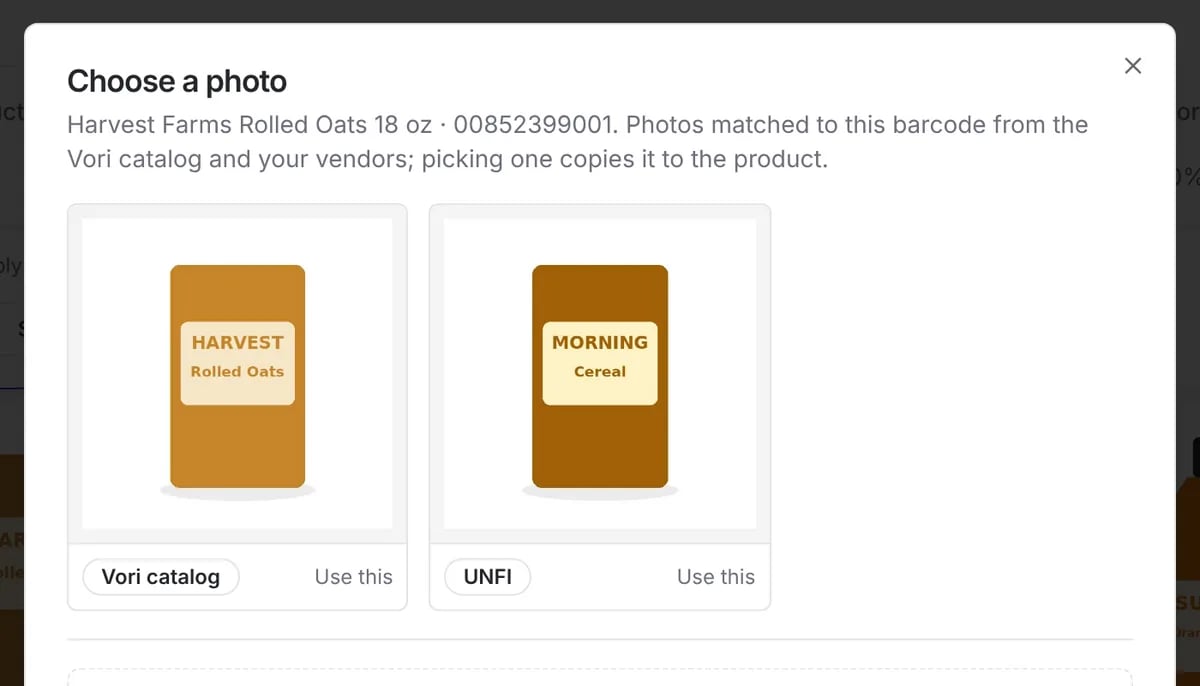
When a product has no catalog photo, or you want a different one:- Click Choose photo on the card, or press
C. - Pick a photo matched to the barcode from the Vori catalog or one of your vendors, then click Use this.
- If nothing fits, drag your own photo into the box, or click to browse. JPEG, PNG, WebP, GIF, and AVIF files up to 10 MB work.
Unify brand spelling
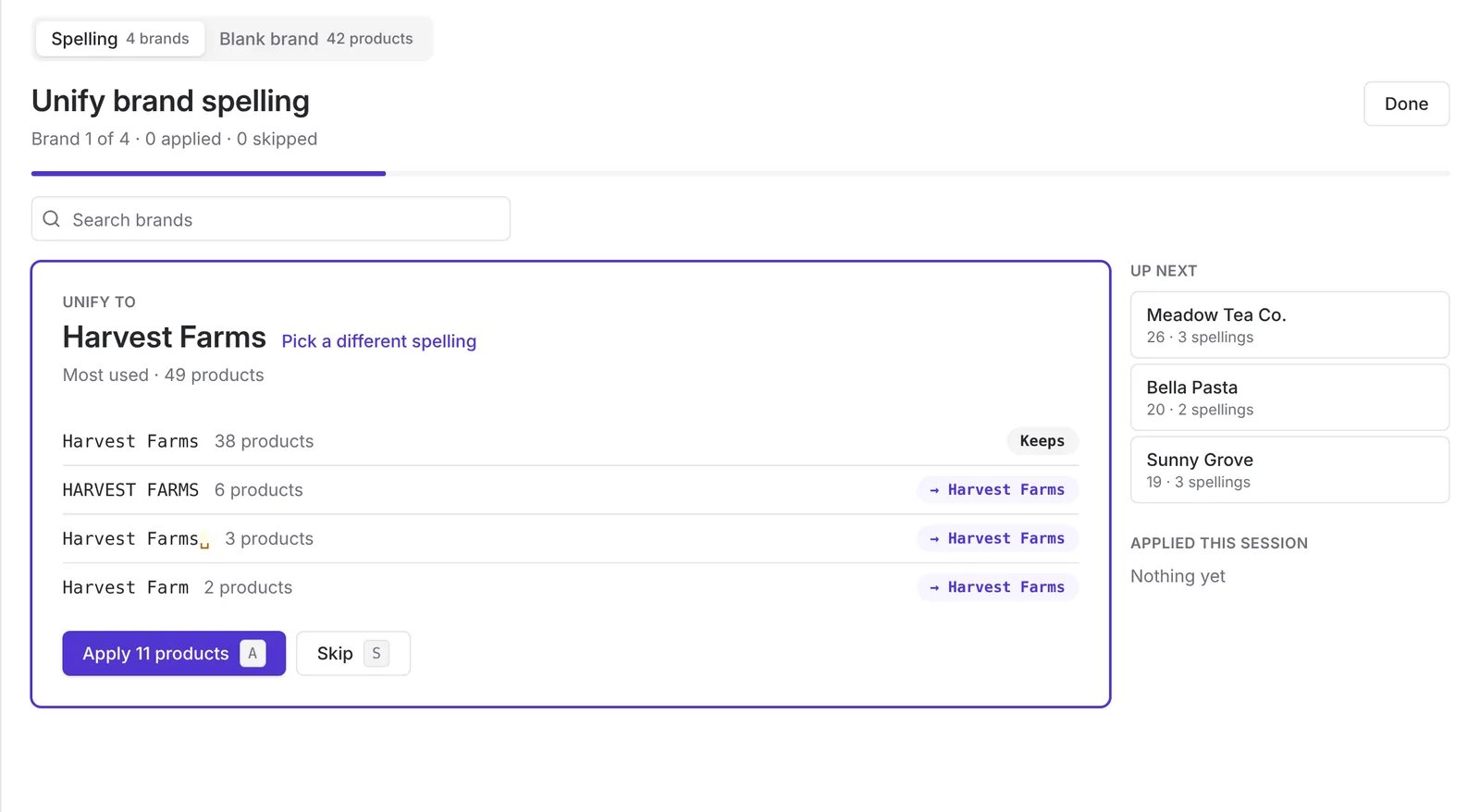
The same brand often ends up spelled several ways, likeHARVEST FARMS, Harvest Farm, or a name with a trailing space. Online, those look like different brands.
- On Catalog cleanup, click Open Brand.
- On the Spelling tab, review the brand at the top. Unify to shows the spelling Vori suggests, which is usually the one most of your products already use. Each other spelling shows the products it will change.
- To use a different spelling, click Pick a different spelling.
- Click Apply, or press
A, then confirm. To leave a brand alone, click Skip or pressS. - The next brand in Up next opens. Keep going until you’re done, then click Done.
Fill in blank brands
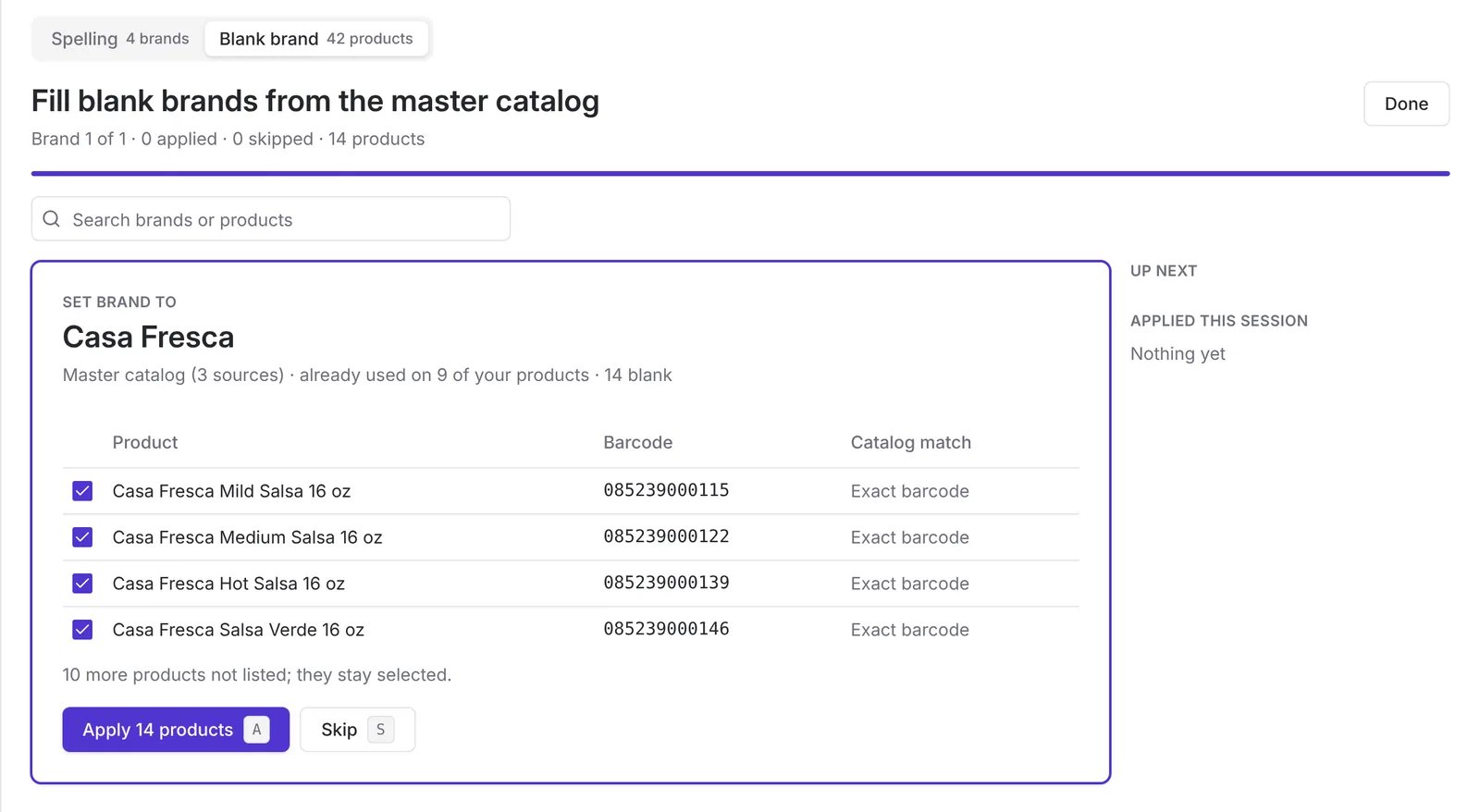
Products with no brand are harder to find online. Vori matches them to the master catalog by barcode and suggests the brand.- On the Brand page, click the Blank brand tab.
- Review the suggested brand under Set brand to and the products it will fill. Catalog match shows how each product matched.
- Clear the checkbox next to any product that shouldn’t get this brand.
- Click Apply, then confirm.
Keep your listings in shape
- Check Catalog cleanup after you add new products or receive a new vendor catalog. The percentages show what still needs work.
- Walk one aisle a week with Assign Location until every aisle is mapped.
- For changes across many products at once, like a department or tax rate, see Bulk Update Products.
- For what each product option does, see Product Attributes Reference.