Update Product Pricing or Details
You can edit store product details directly from the VoriOS app.-
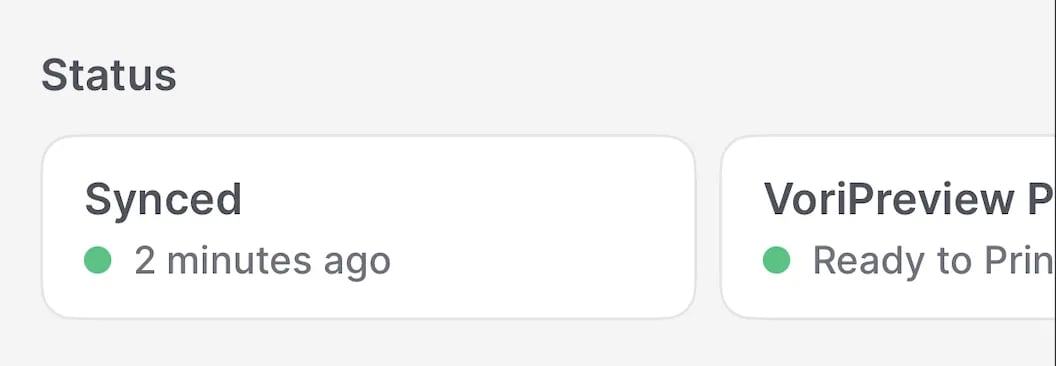
Tap the card that shows your current sync status (e.g., “Synced 2 minutes ago”) from the home screen to ensure the app is up to date with your Back Office data.
-
Search for the product using one of the following:
- Scan the barcode.
- Enter the PLU.
- Use the Search bar to look up the item by name.
- Tap the product from the results.
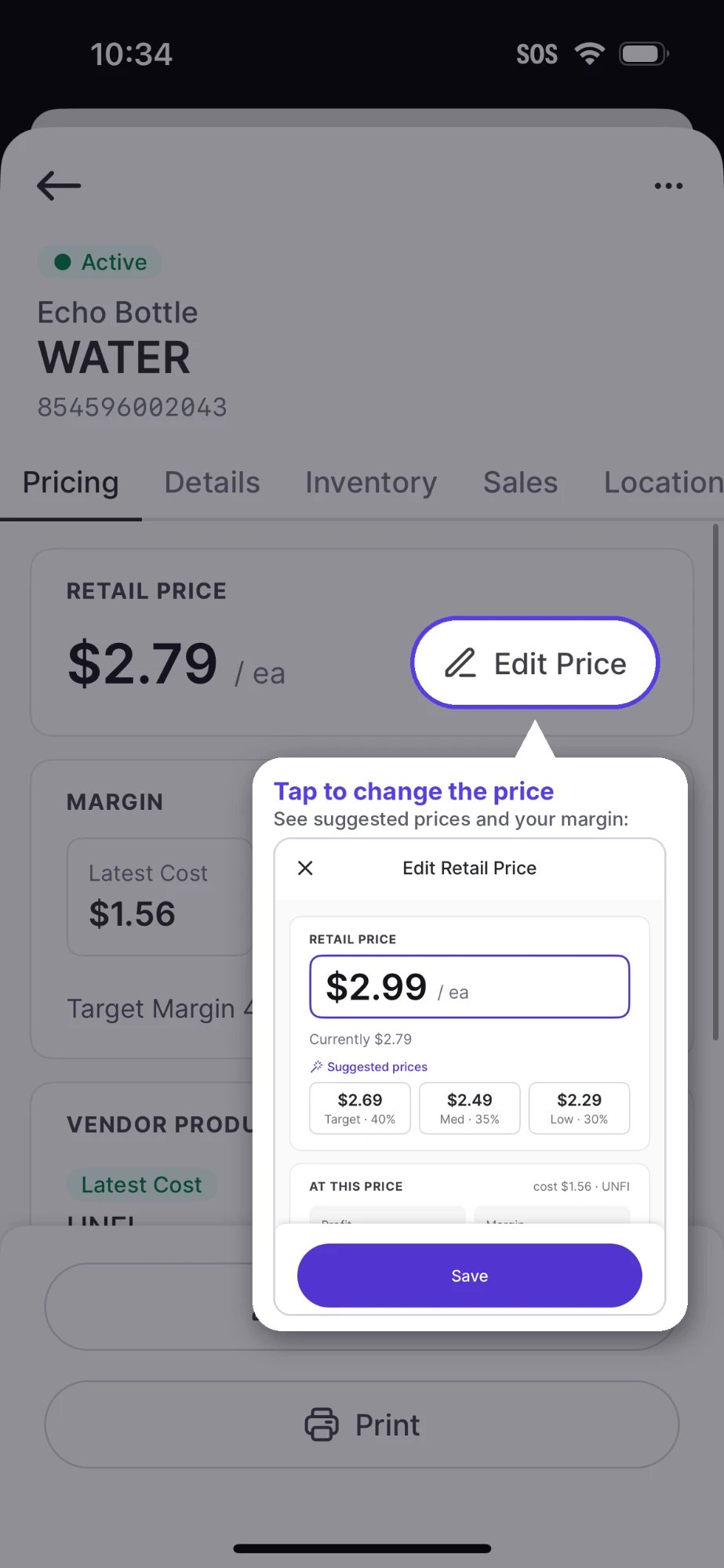
- To quickly change the retail price, tap Edit Price. To edit all other details and attributes, select Edit Product.
- Update the desired field(s).
- Tap Save to confirm your changes.
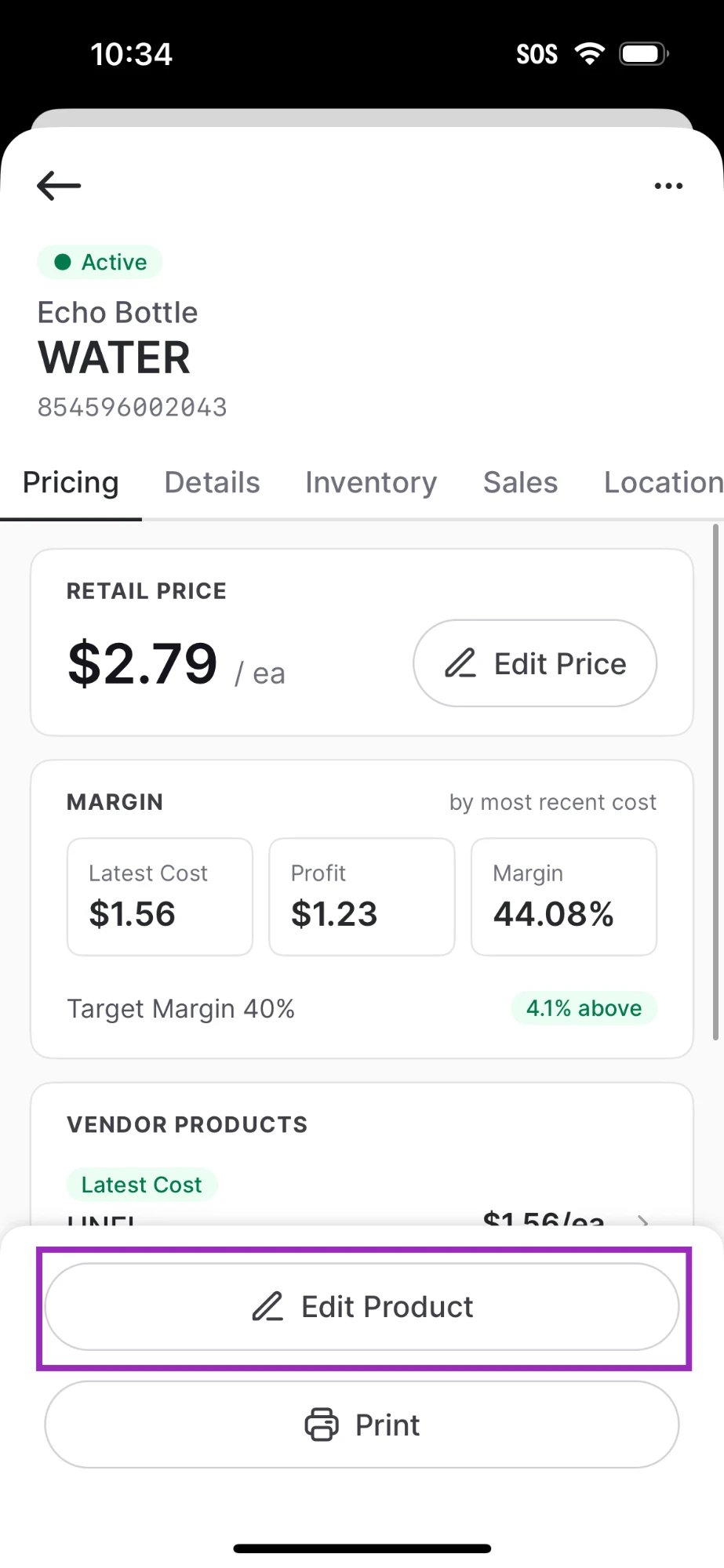
Tap the … in the right corner to create a new promo, add to product group, or deactivate.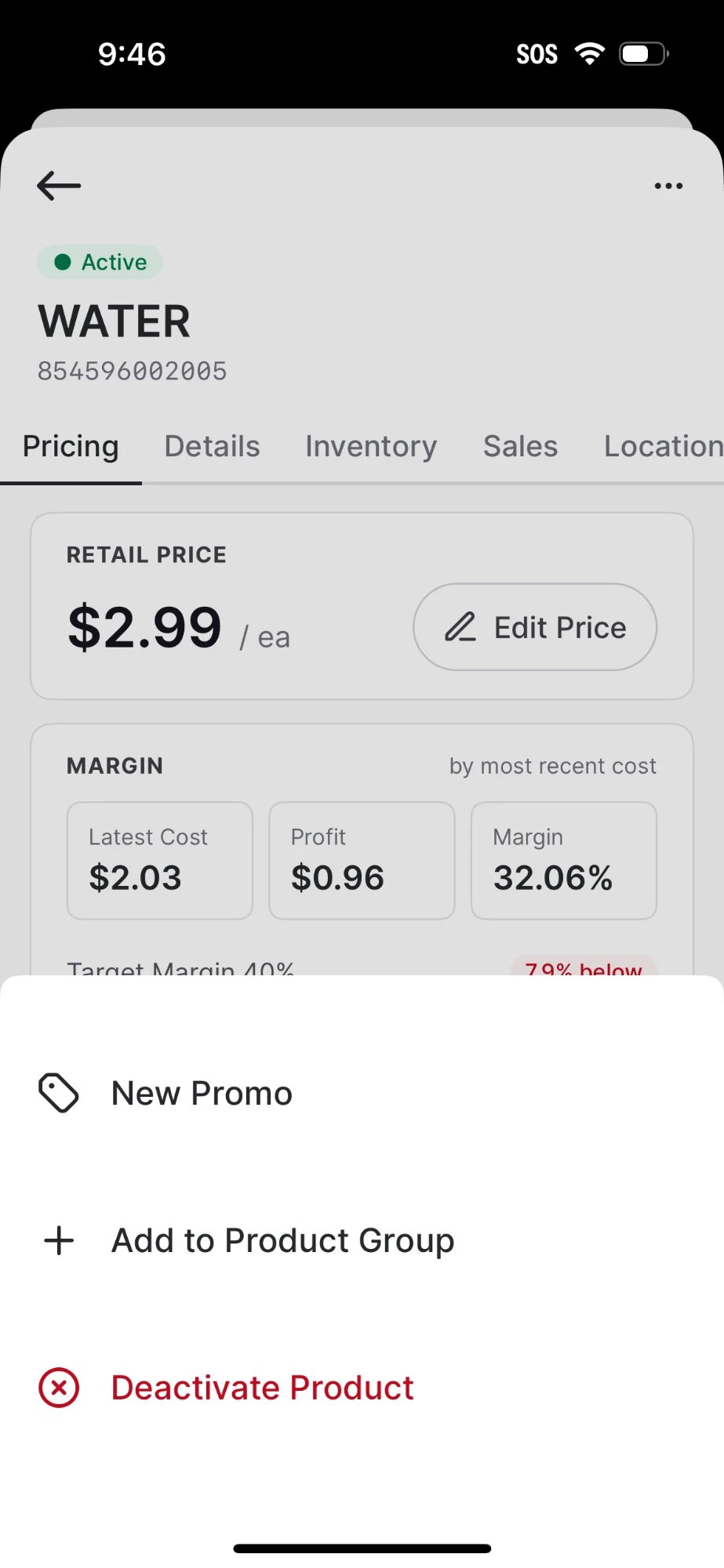
View Sales
- Scan or search for the product.
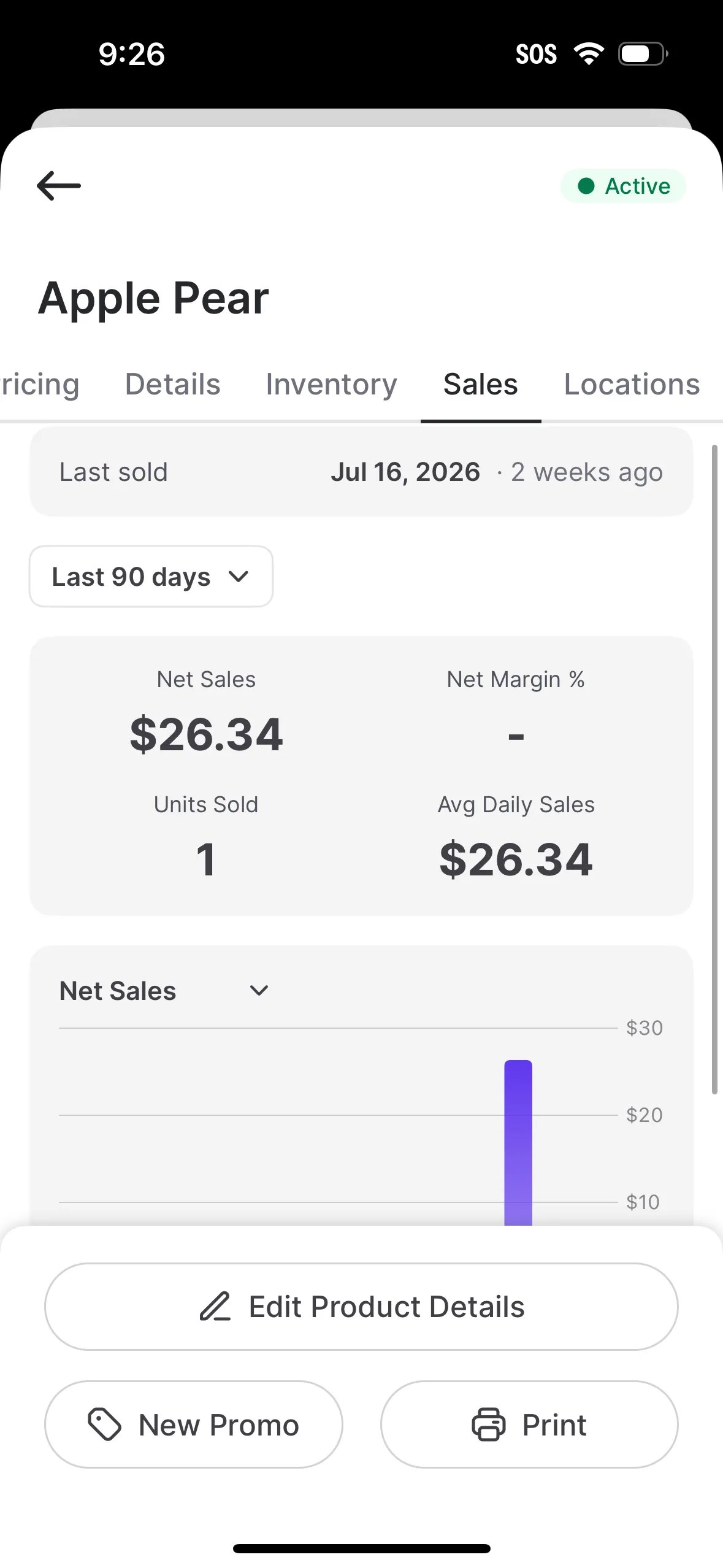
- Open the Sales tab to see the quantity sold over the last 7, 30, or 90 days.
Locations
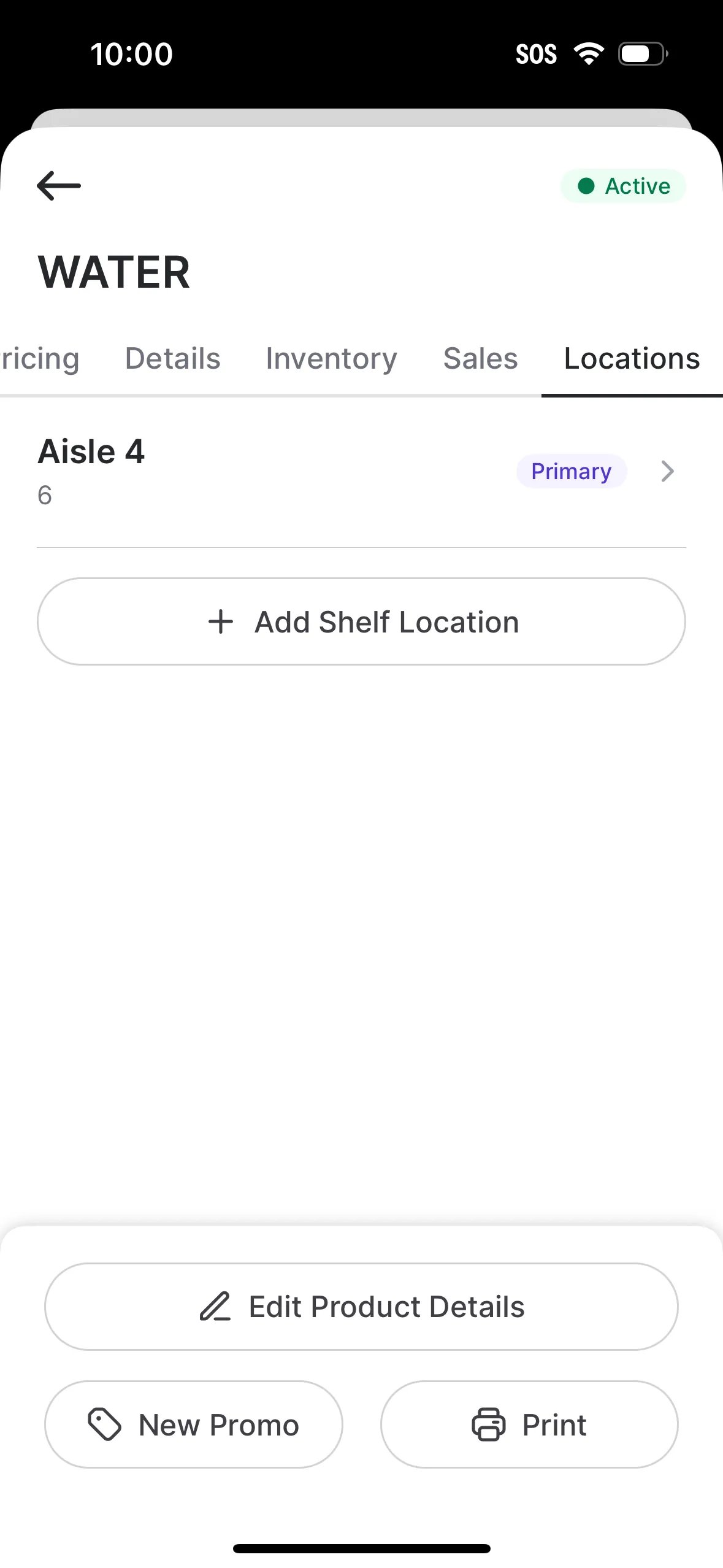
Add one or more shelf locations to a product so your team can find items quickly on the floor. Set the Aisle, Section, and Shelf.