

Find your way around the front cover
Use this diagram to find the parts of the front cover that Vori Support may ask you about. It shows the cover on newer enclosures.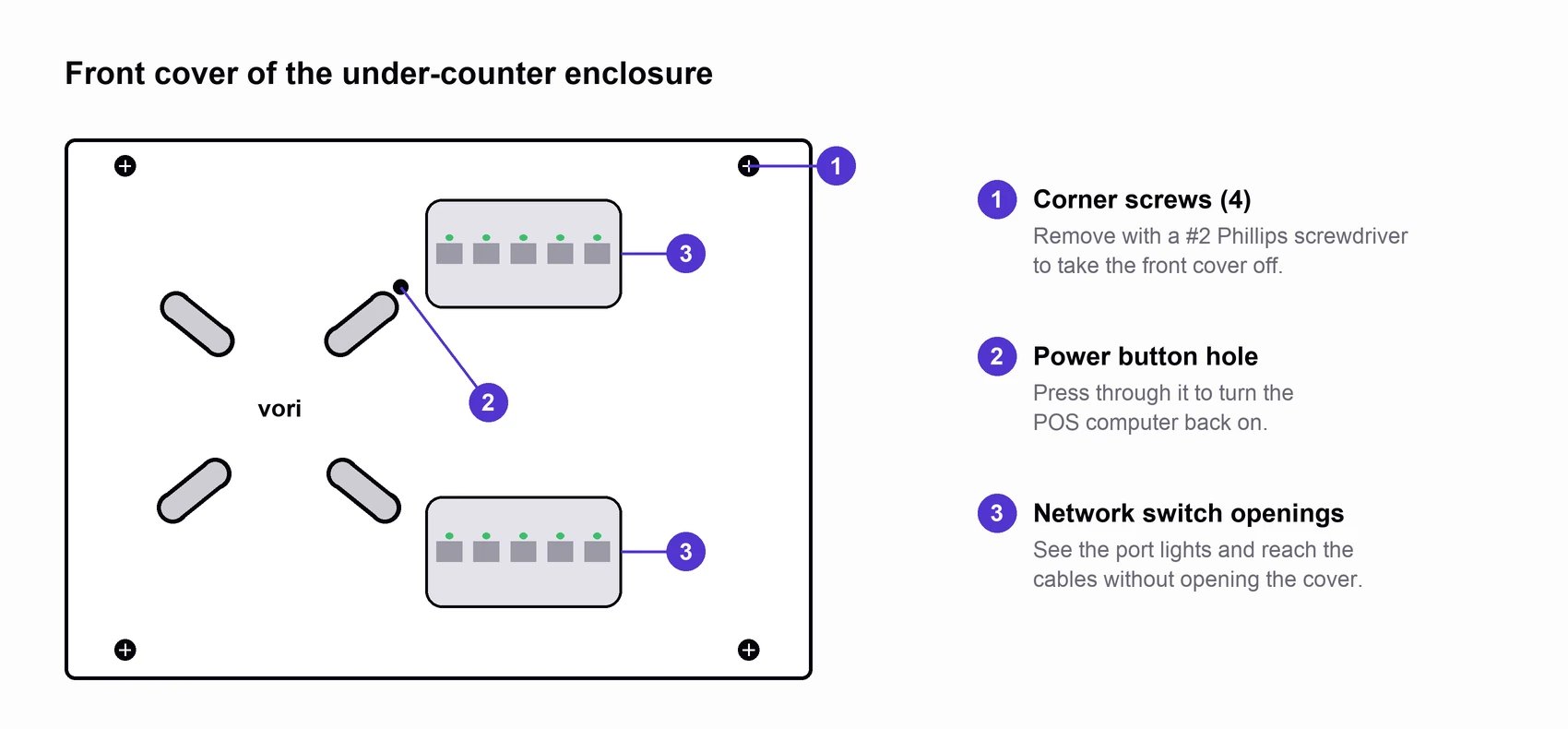
- Corner screws (4): Remove these with a #2 Phillips screwdriver to take the front cover off.
- Power button hole: Press through this hole to turn the POS computer back on.
- Network switch openings: Look through these to see the port lights, and reach in to check the cables without opening the cover.
Older enclosure covers
Lanes installed earlier have a solid front cover without the network switch openings.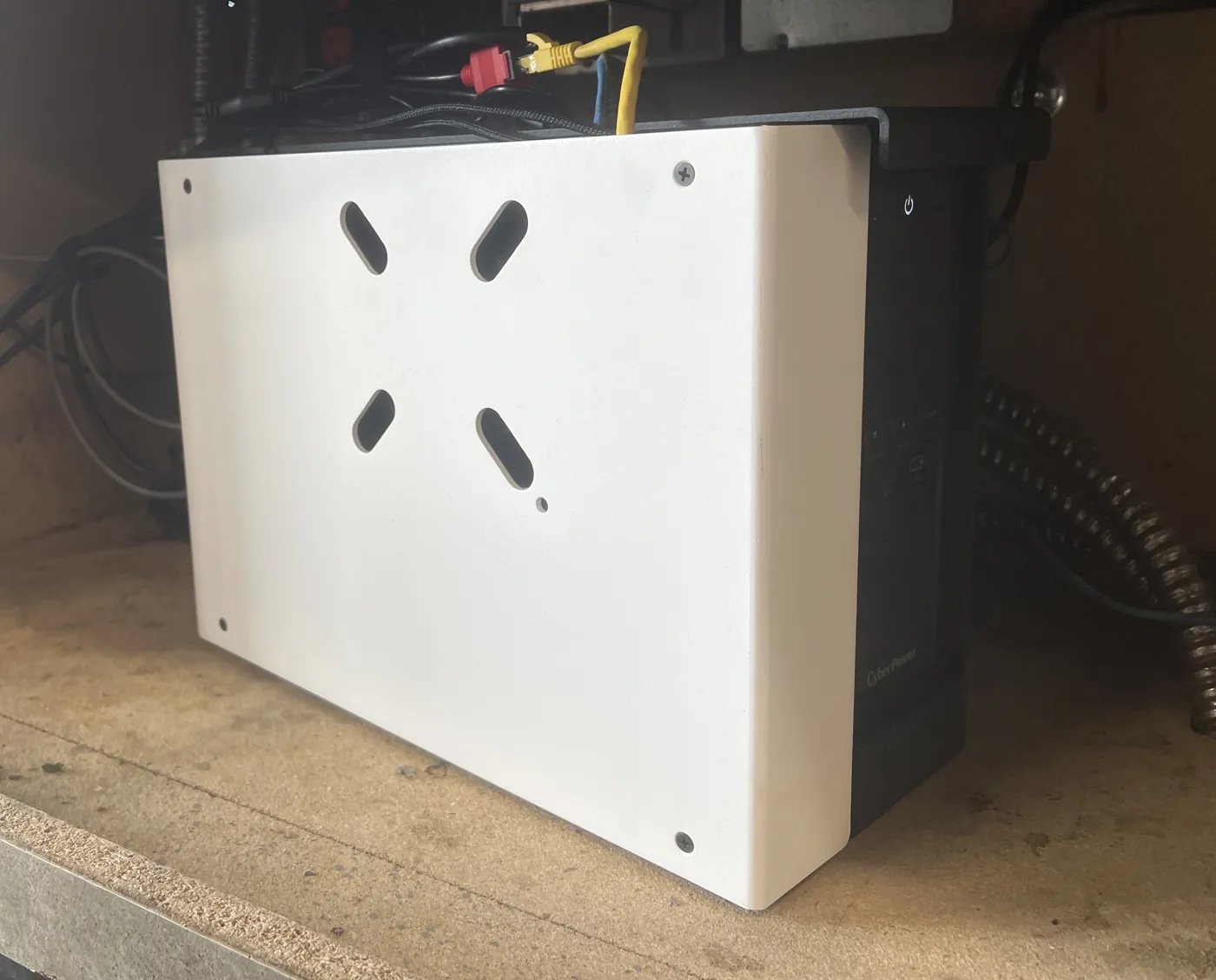
- The 4 corner screws are in the same place.
- The power button hole is just below the lower-right slot.
- There are no network switch openings, so you need to open the enclosure to see the switch.
What’s inside the enclosure
Each lane has its own enclosure. Here’s what you’ll find:
💡 Tip: Your installer labels the cables during setup. Check the labels first when you’re not sure what a cable is for.
Open the enclosure
The front cover is held on by 4 screws, one in each corner. You need a #2 Phillips screwdriver to remove it.- Close out any open transactions on the lane.
- Remove the 4 corner screws from the front cover.
- Pull the cover straight toward you to take it off.
- When you’re done, line the cover back up and replace all 4 screws.
Turn the POS computer back on
If the lane lost power, the POS computer doesn’t always turn back on by itself. If your lane has an enclosure:- Find the small round hole on the front cover of the enclosure. The POS computer’s power button sits behind it.
- Press the power button through the hole once, using a fingertip or the tip of a pen.
- Wait about a minute for the POS app to open on the cashier screen.
- Find the POS computer under the counter. It’s a small, flat, silver box with the cashier screen and receipt printer cables plugged into the back.
- Find the power button. On most POS computers, it’s a small round button on the back. On newer ones, it’s on the underside, near the back corner.
- Press the power button once.
- Wait about a minute for the POS app to open on the cashier screen.
Restart the lane network switch
Restarting the switch fixes most problems where a lane loses internet or can’t find the payment terminal.- Find the lane network switch inside the enclosure.
- Unplug the switch’s power cable.
- Wait 10 seconds, then plug it back in.
- Wait 1 minute, then check whether the lane is back online.
Read the network switch lights
Each port on the switch has a light next to it.- Light on or blinking: The cable in that port is connected and working.
- Light off: Nothing is getting through that port. The cable may be loose, unplugged, or damaged.
Check the battery backup
- If the battery backup is off, press its power button. It can power the lane while it recharges.
- After the backup turns back on, you may need to turn the POS computer back on.
Send photos to Vori Support
When you contact Vori Support about a lane, photos of the enclosure help us find the problem faster. Take clear, well-lit photos of:- The front of the enclosure, with the cover on.
- The lane network switch, showing which ports have lights on.
- The back of the POS computer, showing where each cable is plugged in.
- The battery backup, showing its lights and what’s plugged into it.