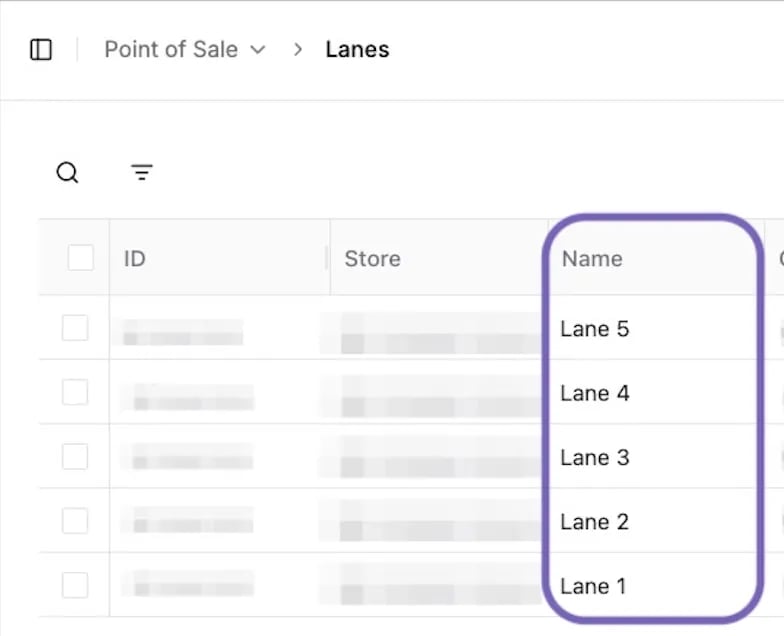
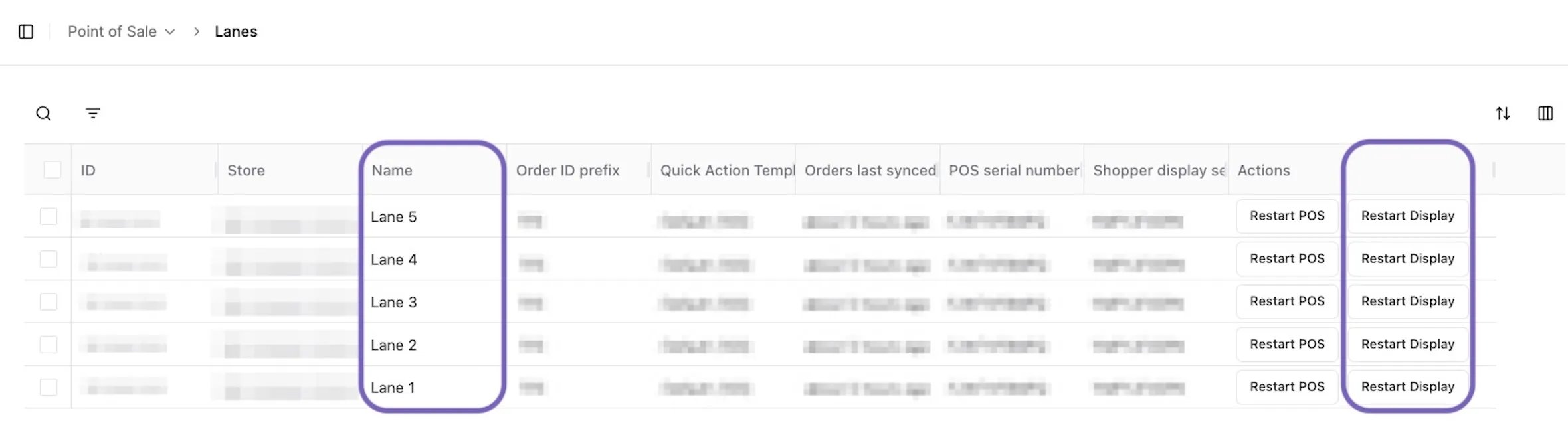
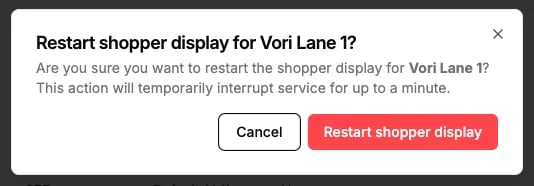
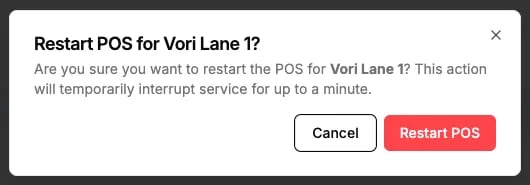
Learn how to fix communication issues by sending a remote restart command from the Back Office or by restarting the Shopper Display from the Point of Sale (POS
Is it the Shopper Display or the POS Cashier Screen?
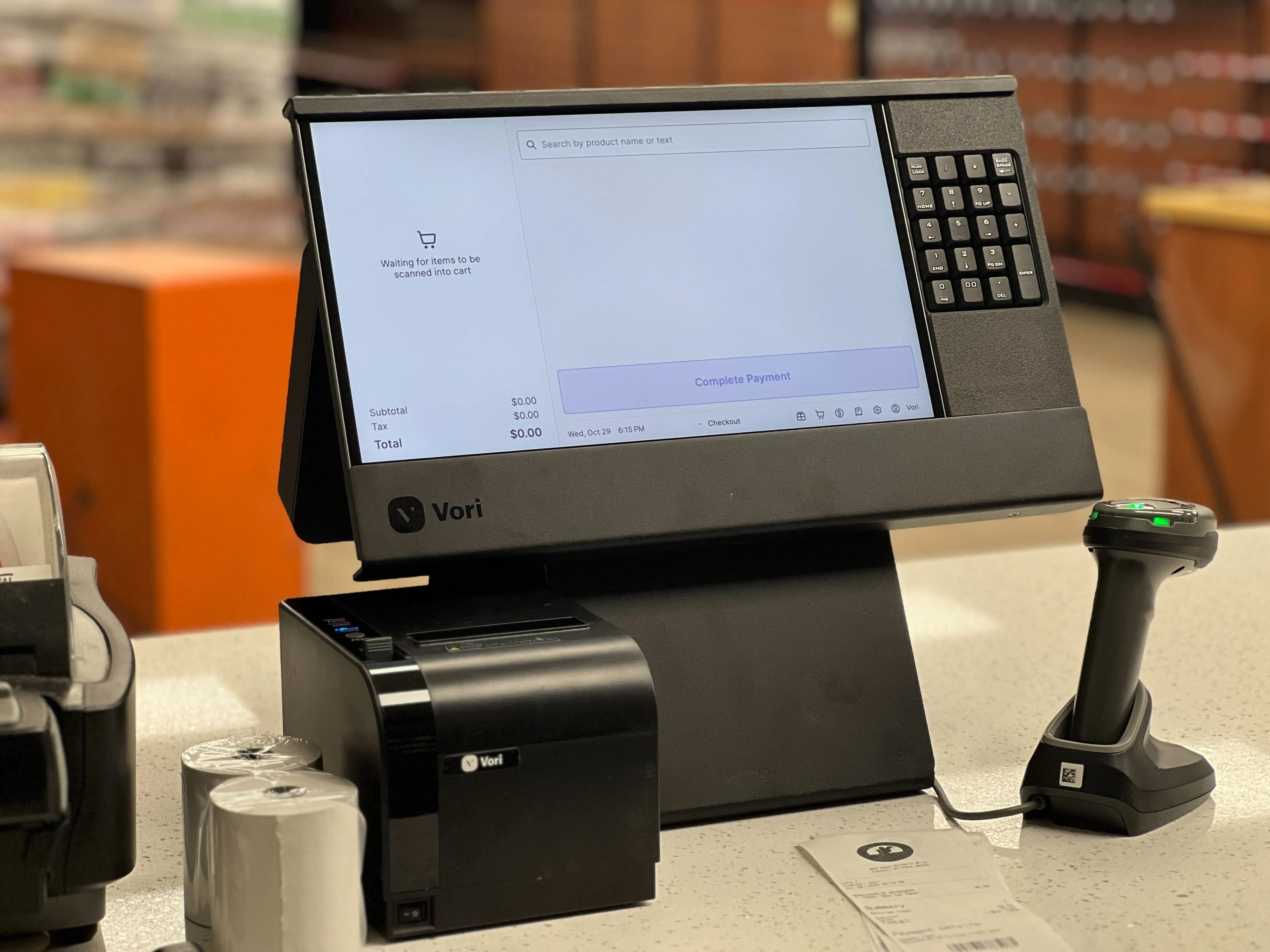
Shopper Display: The large, horizontal touchscreen tablet facing the customer. It displays the store logo, itemized cart, and the “Member Rewards” login.POS Cashier Screen: The large monitor facing the employee. It shows the cart or basket and hot key quick action buttons used to ring up items.
If a Shopper Display stops responding to touch input or has communication issues, you can restart it directly from the POS. This action only restarts the Shopper Display, and the POS remains operational.
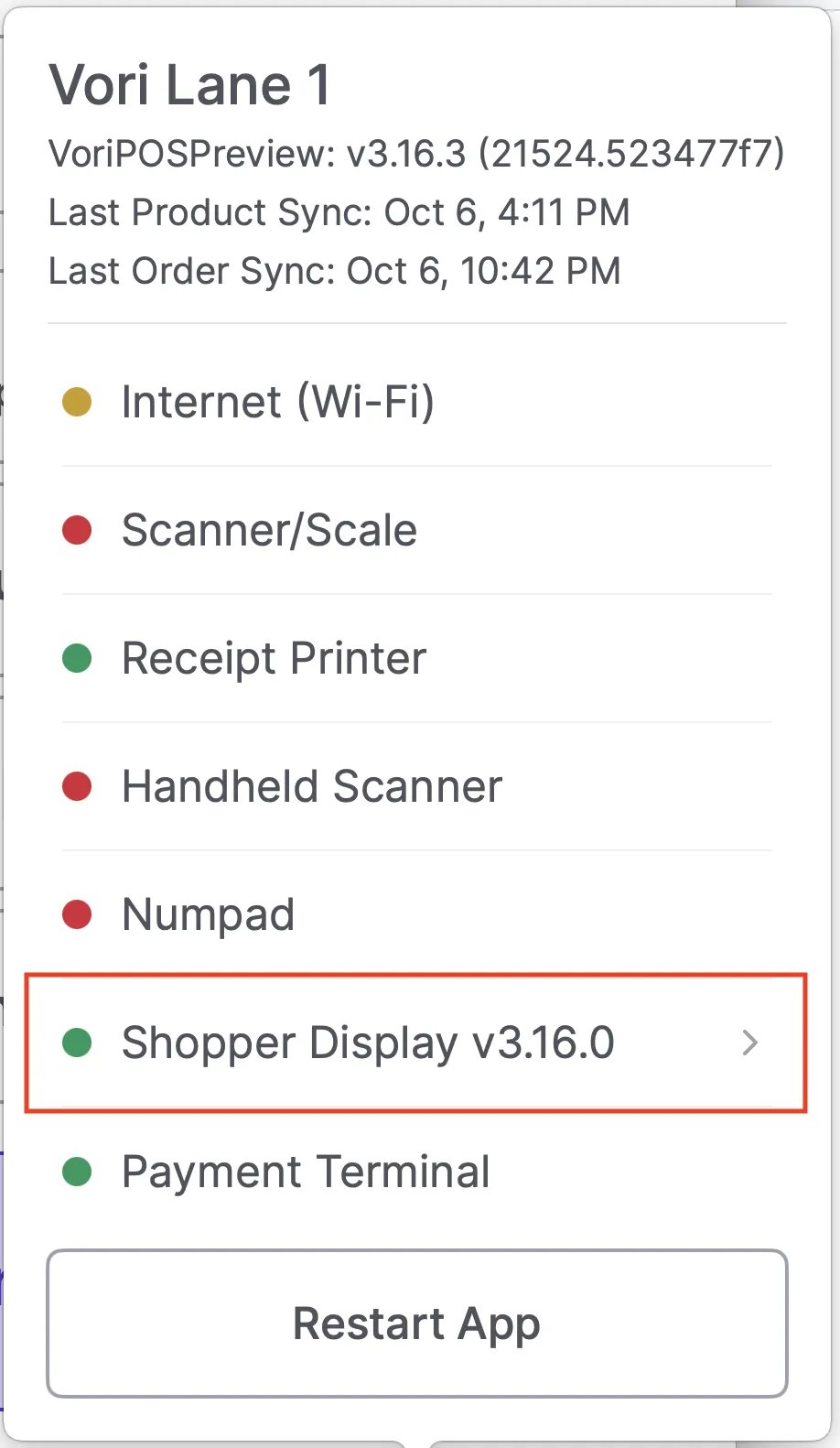
Select the ⚙️ icon from the POS main page.
Tap Shopper Display.
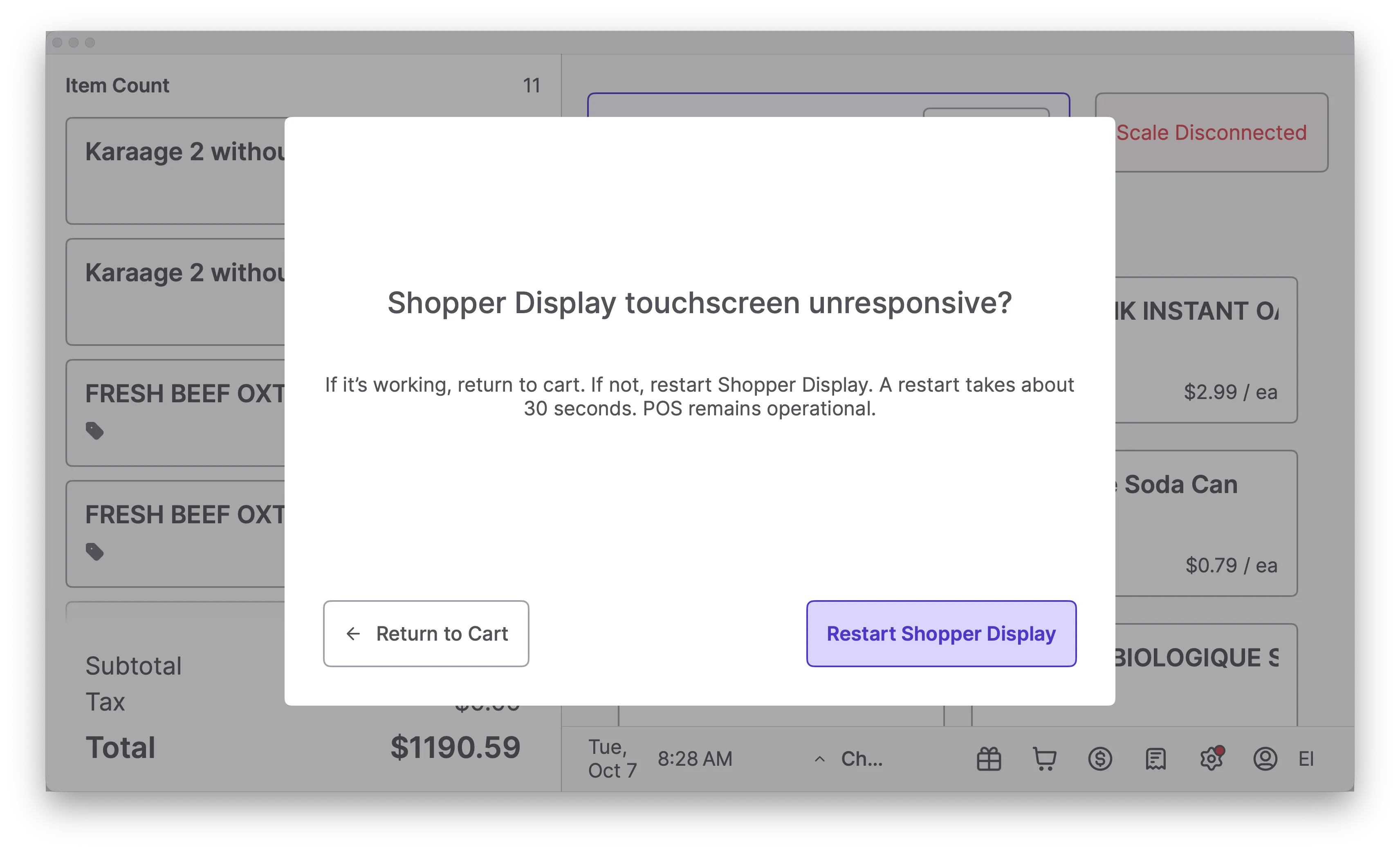
A dialog box with the message “Shopper Display touchscreen unresponsive?” will pop up.
Click the Restart Shopper Display button.
The Shopper Display will restart within about 30 seconds. The POS will remain operational.
If the Cashier Screen Remains Black After the Restart
If the remote restart left the screen black, the computer likely shut down completely and didn’t boot back up on its own.For instructions on how to manually power the POS computer back on, please refer to our troubleshooting guide: Fix a Black or Frozen POS Cashier Screen.


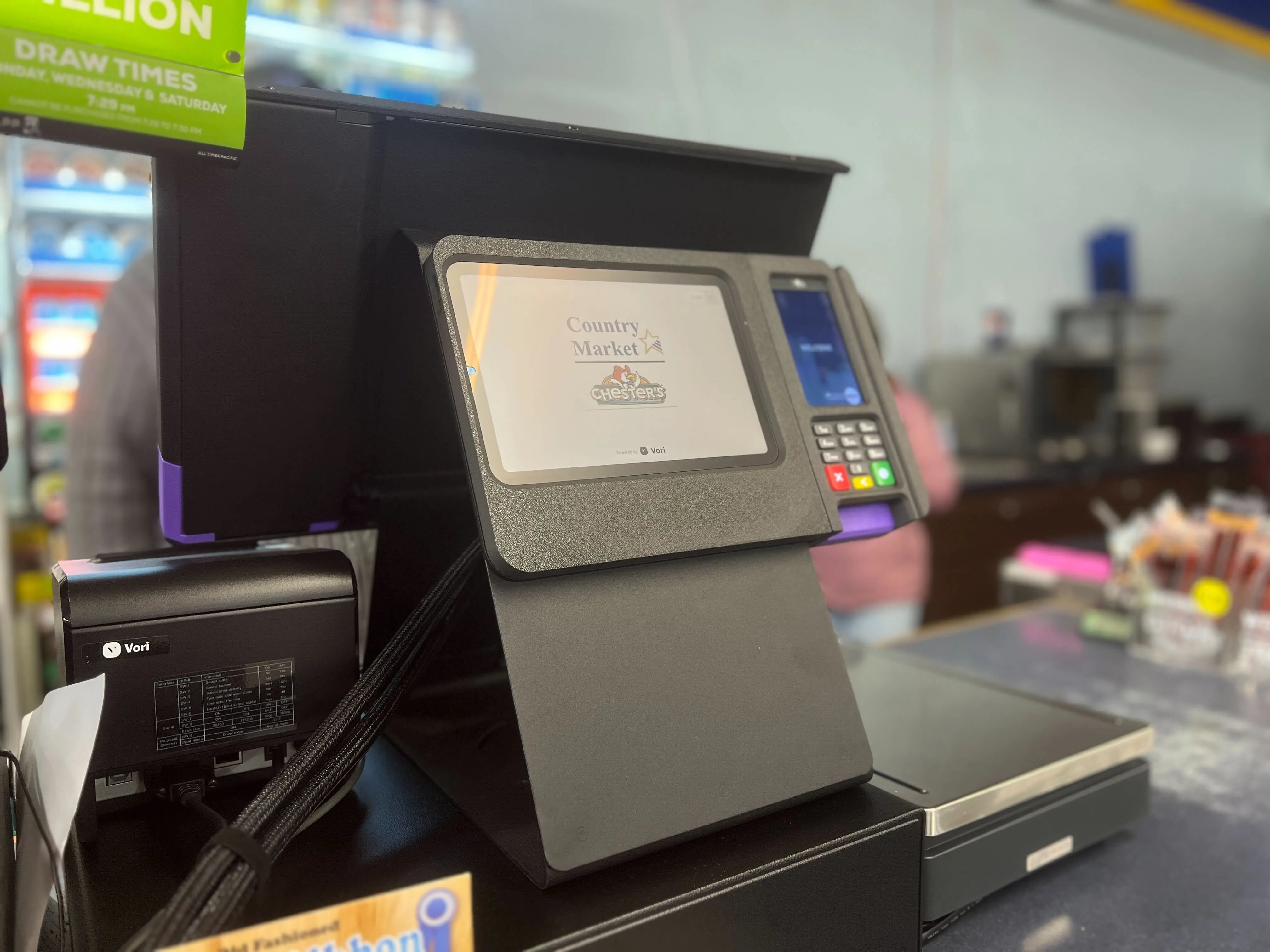
 POS Cashier Screen: The large monitor facing the employee. It shows the cart or basket and hot key quick action buttons used to ring up items.