Introduction
The cashier screen on the POS is designed to be easy to read in a variety of lighting conditions. Two key settings that affect screen visibility are brightness and contrast.- Brightness controls how much light the screen emits, which can help make the display easier to see in bright environments or more comfortable to view in dim settings.
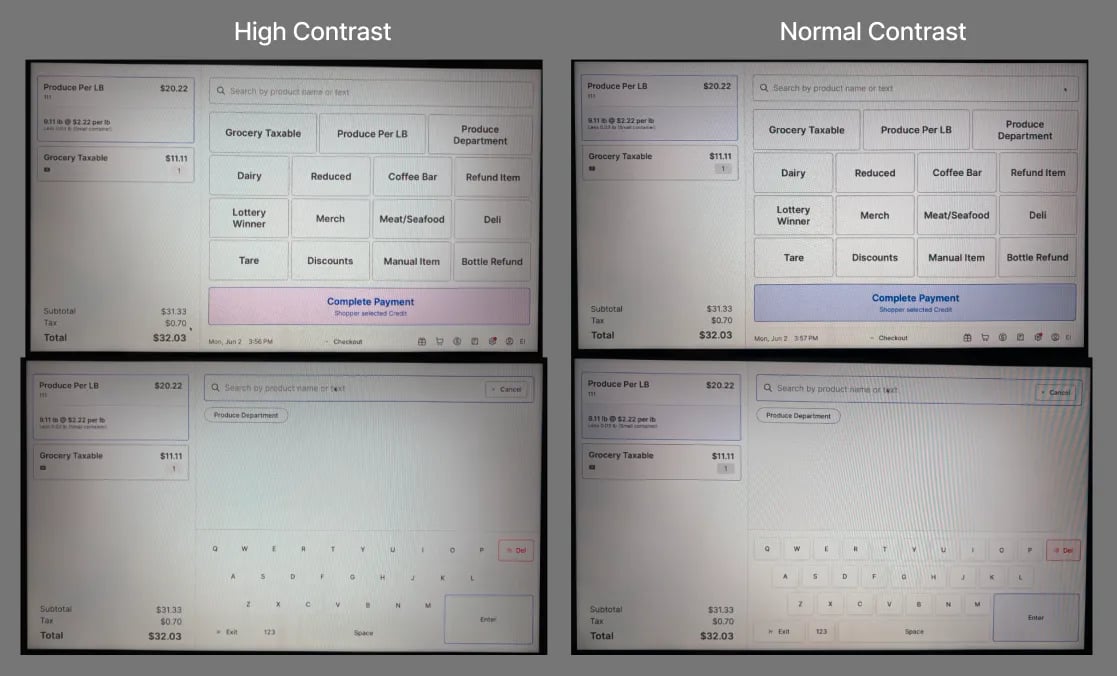
- Contrast adjusts the difference between light and dark areas on the screen, improving readability and making text and images appear sharper.
Video overview of controls
Instructions for accessing cashier screen display controls
- On the cashier screen, place two fingers just below the center of the screen and swipe upward about 1–2 inches.
- If done correctly, a set of display controls will appear along the bottom of the screen.
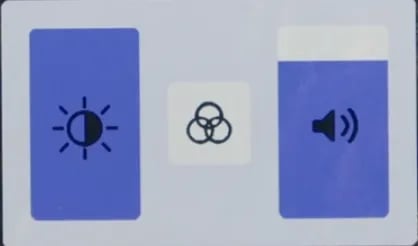
- If done correctly, a set of display controls will appear along the bottom of the screen.
- To dismiss the display controls, simply tap anywhere outside of the control area on the touchscreen, or allow a few moments for them to automatically close on their own.
Adjusting the cashier screen’s brightness
On the display’s controls panel, use the display’s touch controls to drag up and down on the brightness slider.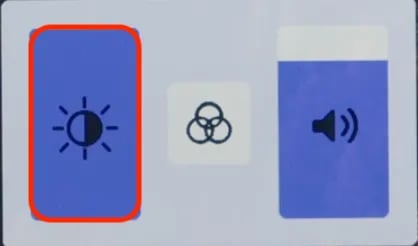
Adjusting the cashier screen’s contrast
-
Tap the center button on the display’s controls panel.

-
On the new control page, use the display’s touch controls to drag up and down on the contrast slider.