

Test for a Click Sound
When you trigger the Open Cash Drawer command, the drawer should make a distinct “click” sound. This sound confirms the POS is communicating with the drawer. Firmly push the drawer back into its enclosure before starting.-
On the main cashier screen, tap the $ icon in the bottom right corner to open the Till Details window.
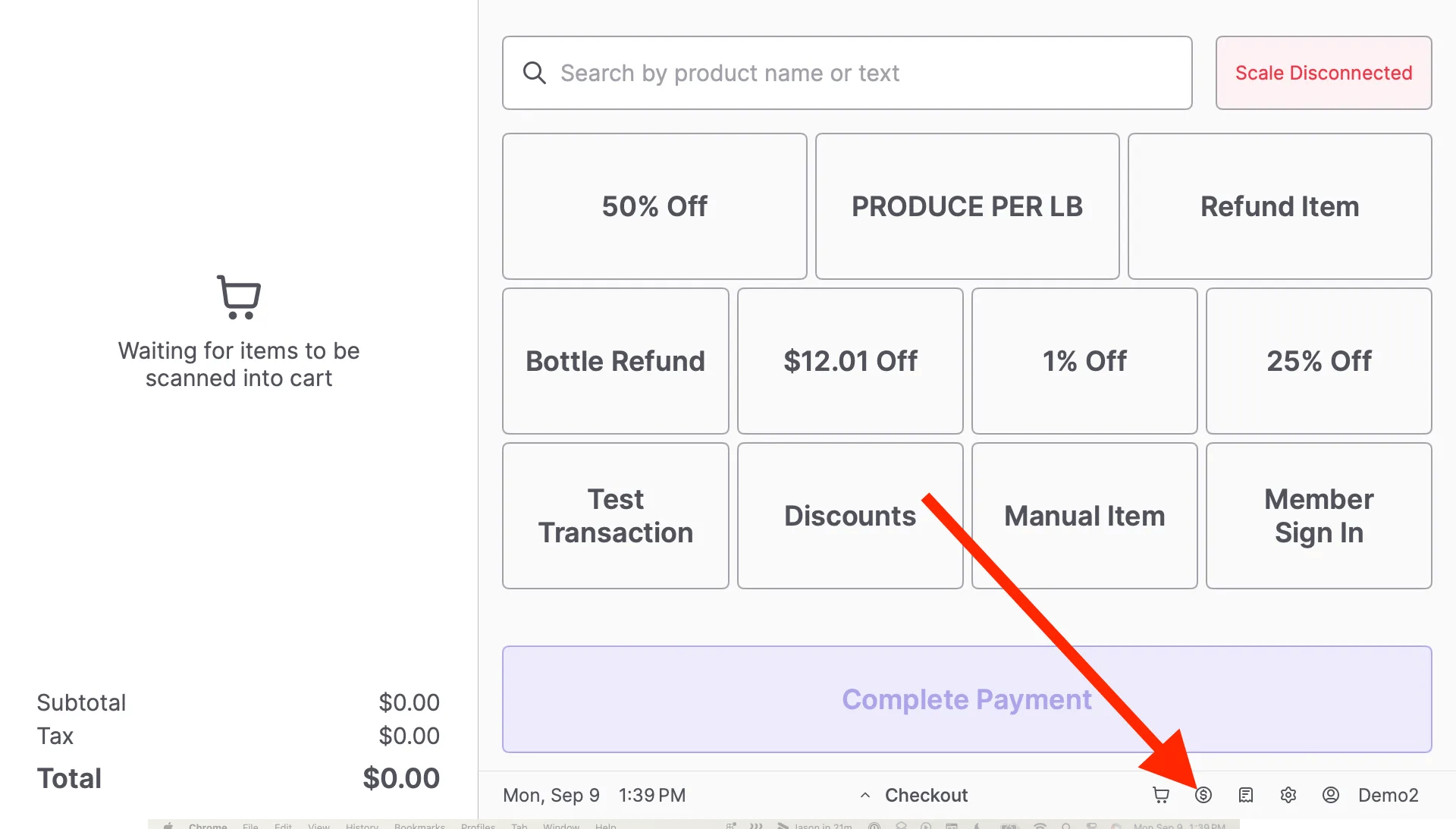
- Tap Open Cash Drawer.
- Listen closely for a click sound. You can repeat this step if you are unsure.
No Click Sound: Troubleshoot Connection Issues
If the drawer is silent, the POS is not communicating with the hardware. Follow these steps to restore the connection.1. Check Power and UPS Status
The cash drawer relies on the receipt printer, which is powered by a UPS (Uninterruptible Power Supply). You must confirm both devices have power. Check the Receipt Printer-
Verify the status LED on the top left of the printer is lit.
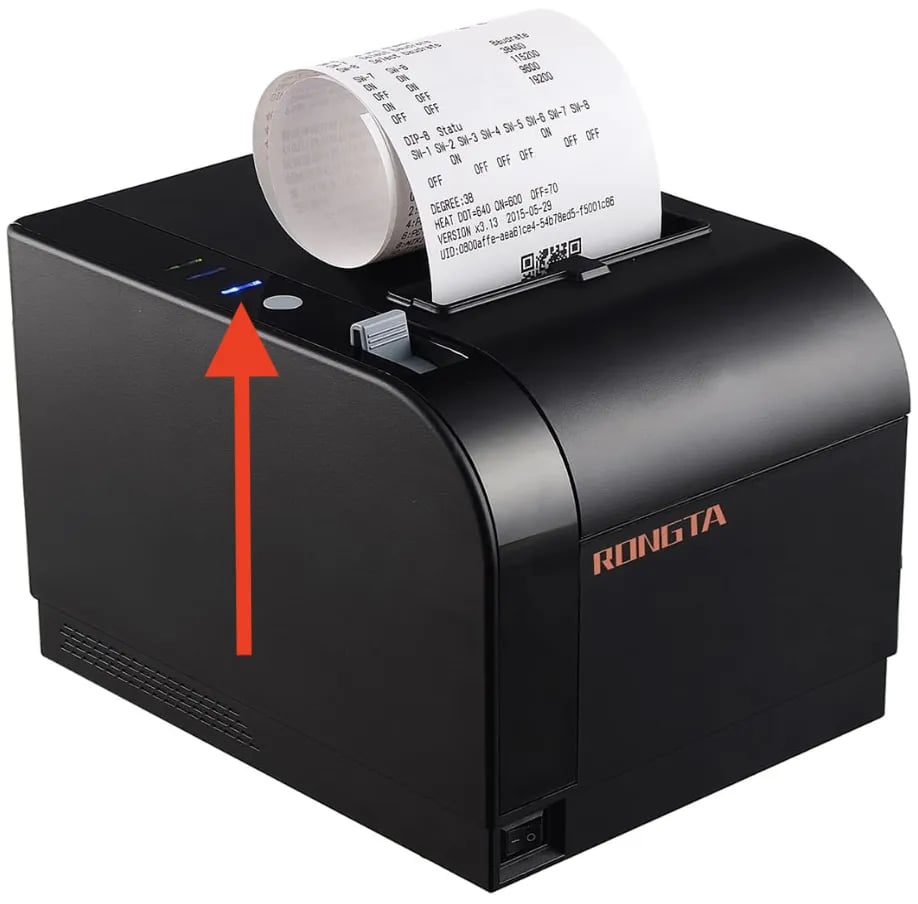
- If unlit, flip the power switch on the front left to the On position.
- If the switch is On but the LED is unlit, ensure the power cable is securely inserted on both ends.
- Confirm the UPS is on. Ensure the LED indicator on the UPS unit is lit.
-
Check the UPS LED behavior:
- Solid Light: The UPS functions normally.
- Flashing Light: The power source is offline, and the UPS is in battery backup mode. Troubleshoot the store’s electricity (e.g., check the wall outlet or circuit breaker).
- Attempt to open the cash drawer through the POS again.
2. Restart the POS App
- On the main cashier screen, tap the gear icon in the bottom right corner.
- Select Restart App in the System Status window.
- Log back into the POS app.
- Attempt to open the cash drawer to test if the issue is resolved.
3. Verify Cable Connections
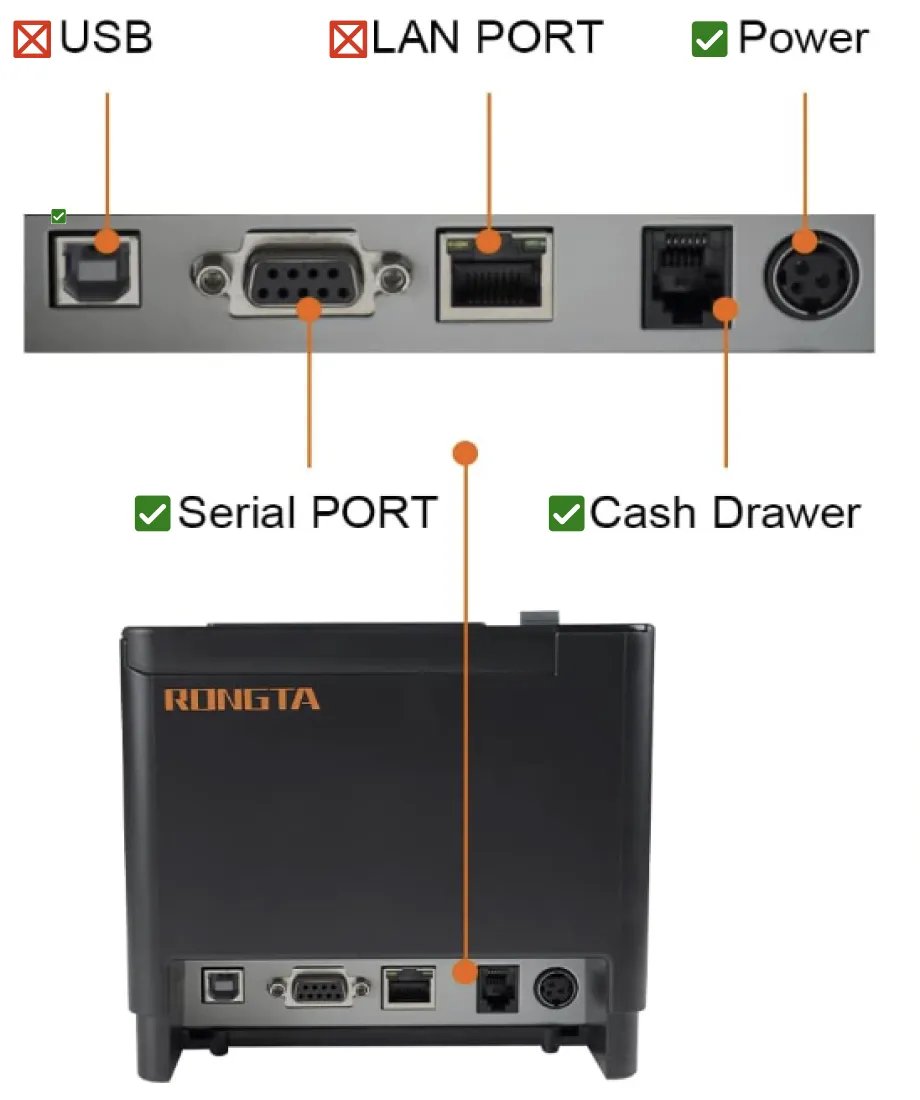
Check the back of the receipt printer to ensure the cables are plugged into the correct ports. Important: The cash drawer cable is small enough to insert into the larger Ethernet (LAN) port, but this is the wrong connection.- Cash Drawer Port (RJ12): This is the smaller, 6-pin port (often black). The cash drawer cable must be plugged in here.
- LAN Port (Ethernet): This is the larger, 8-pin port. This should remain empty for this setup.
- USB: Empty.
- Serial Port: Plugged in (Connects to the POS).
- LAN Port: Empty.
- Cash Drawer: Plugged in (Connects to the Cash Drawer).
- Power: Plugged in.
4. Verify Peripheral Settings
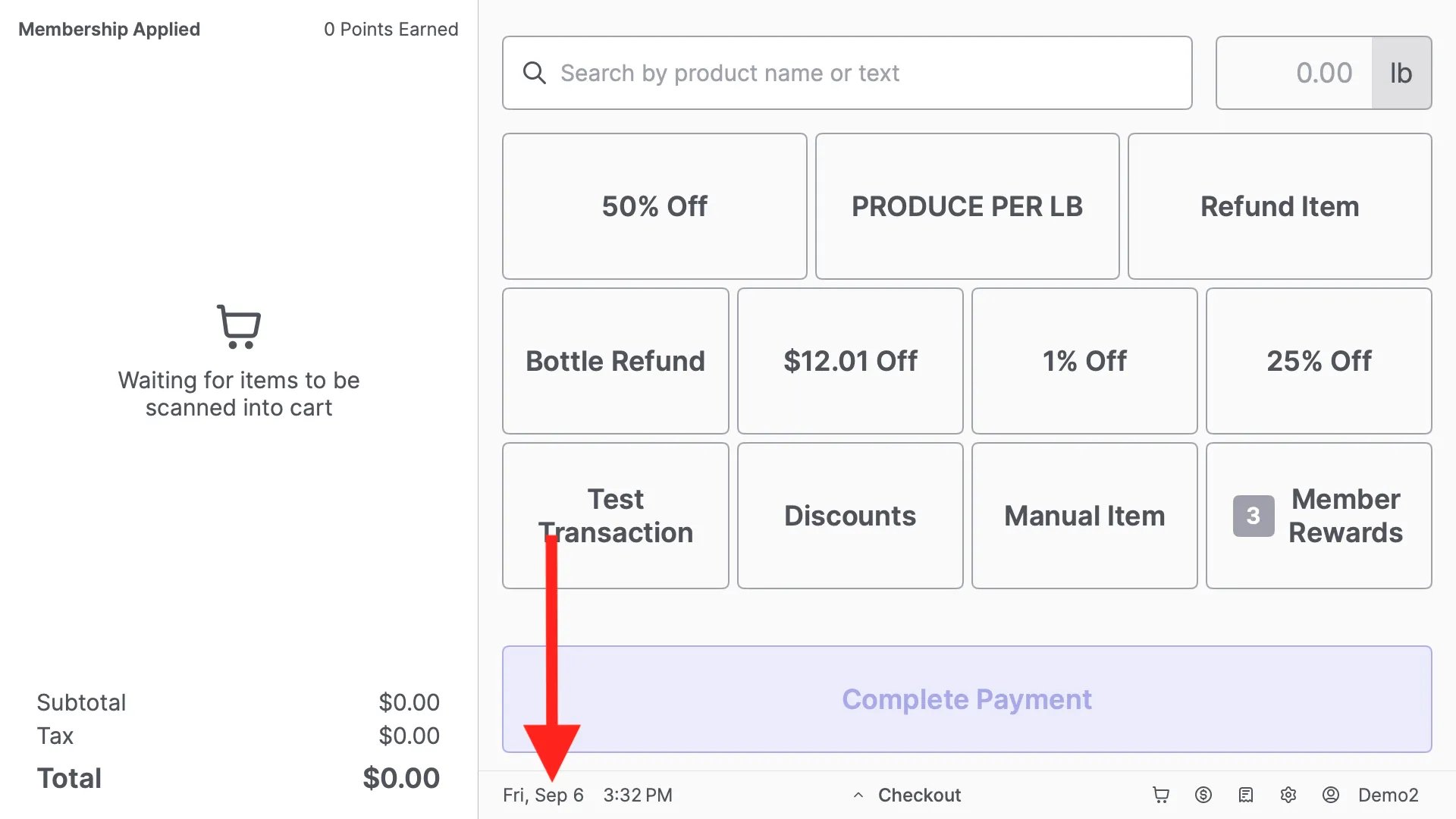
On the main cashier screen, locate the Date & Time display at the bottom.-
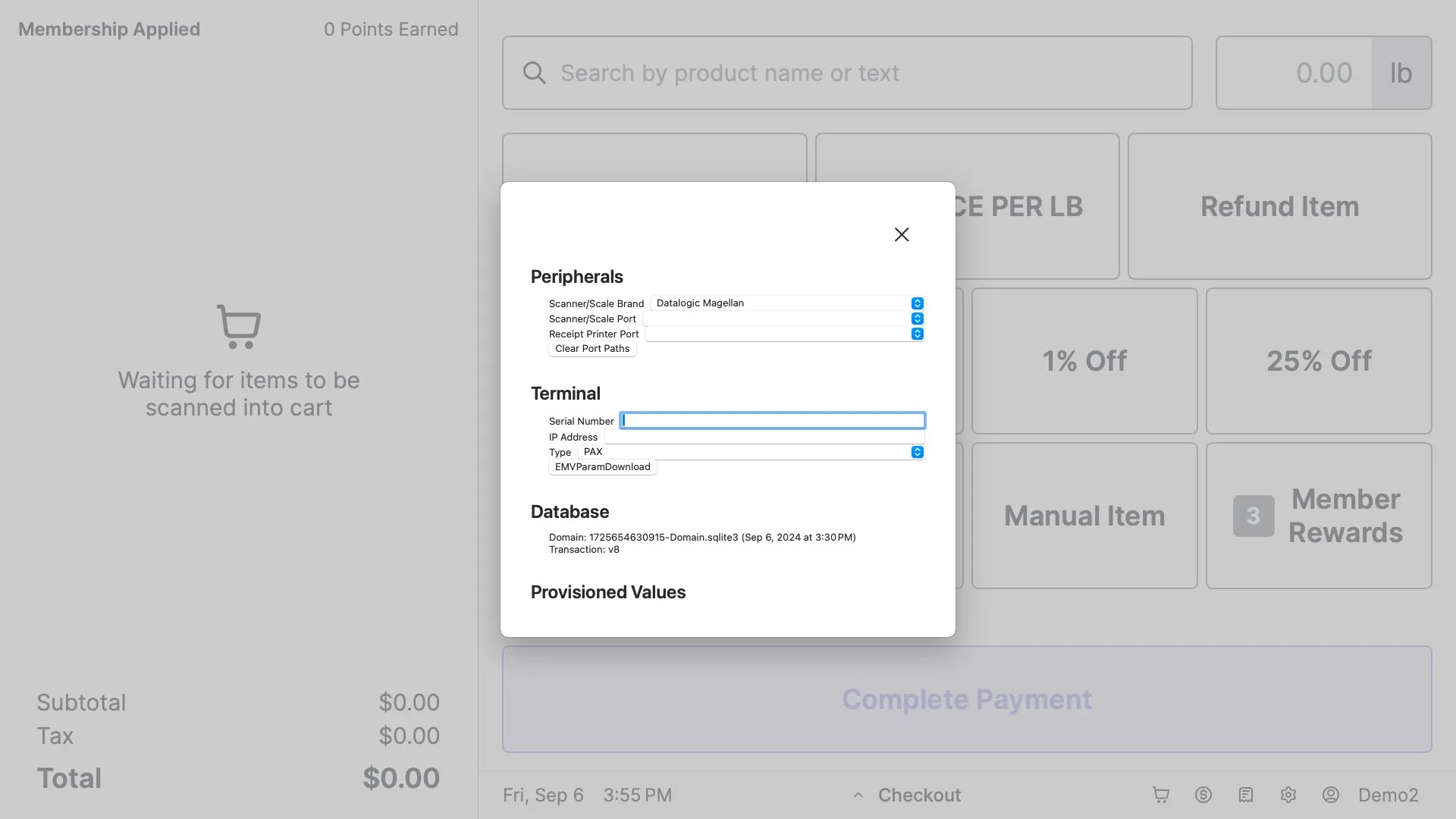
Quickly tap the Date 3 times to open the peripheral settings. (A hidden peripheral settings pop up window should appear.)
-
Tap the Receipt Printer Port dropdown menu.
-
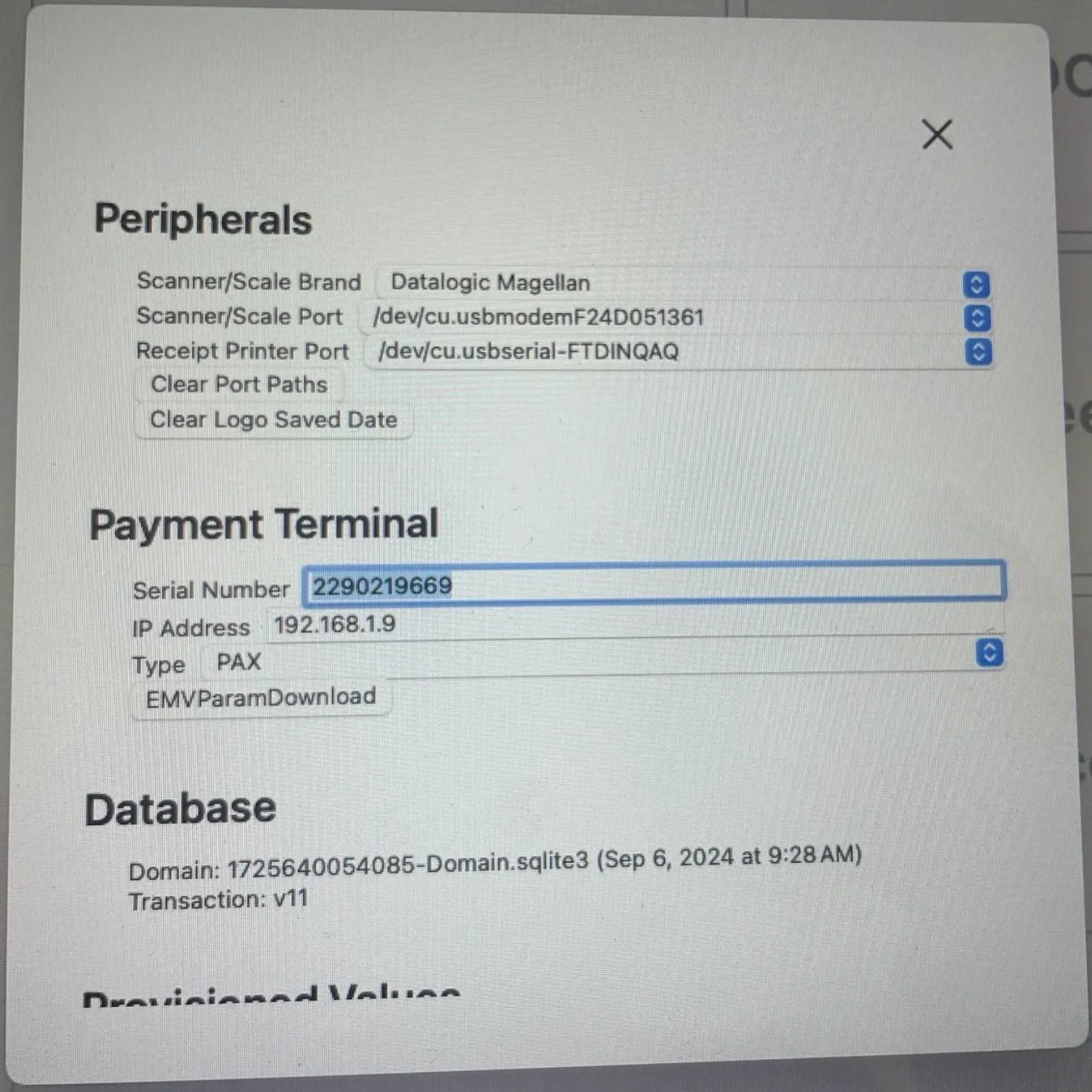
Select the port path that follows this format: /dev/cu.usbserial-########
-
The alphanumeric string ######## is unique to every POS lane (e.g., usbserial-AB1234). Select the one available in your list.
-
The alphanumeric string ######## is unique to every POS lane (e.g., usbserial-AB1234). Select the one available in your list.
- Tap X to exit, then Restart the POS App (see instructions above).
- Log back in and test the drawer.
Click Sound: Troubleshoot Mechanical Issues
If the drawer clicks, it is receiving a signal but is physically stuck.1. Check the Lock Position
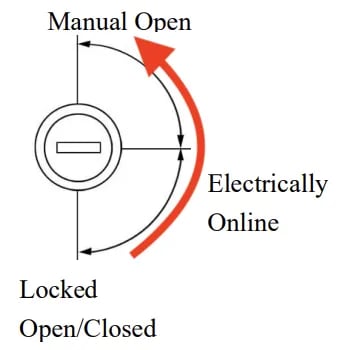
Inspect the lock on the front of the drawer.- Locked (Vertical): The drawer is locked and requires the key to open.
- Unlocked (Horizontal): The drawer is ready to open electronically.
 If the lock is Vertical, insert the key and turn it counterclockwise to the Horizontal position. Test the drawer via the POS.
2. Manually Open and Reset
- Insert the key into the front lock.
-
Rotate the key counterclockwise to the Manual Open position until the drawer pops open.
- Push the drawer back in and return the lock to the Horizontal position.
- Attempt to open the drawer via the POS to test the resolution.