

Walk through a session together
-
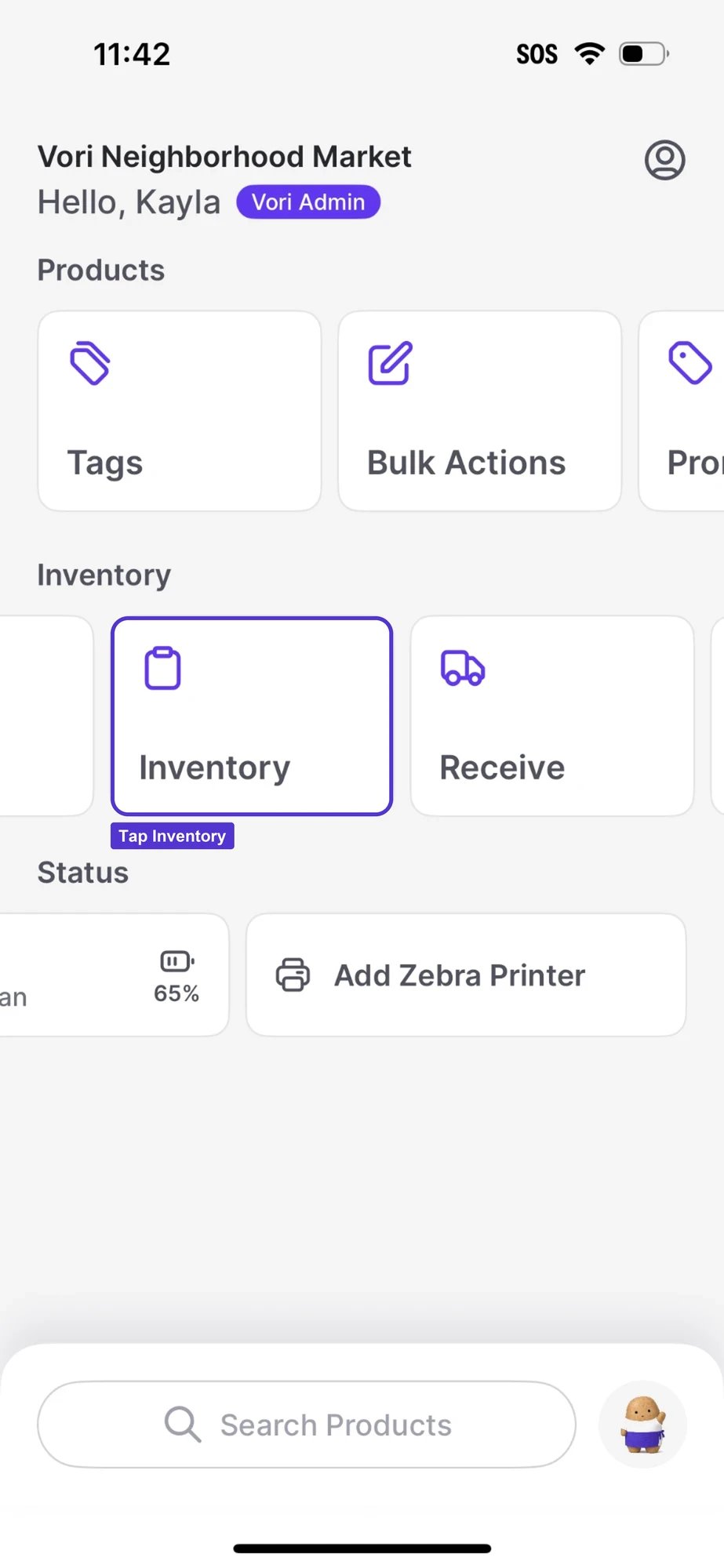
From the Vori operating system home screen, tap Inventory.
-
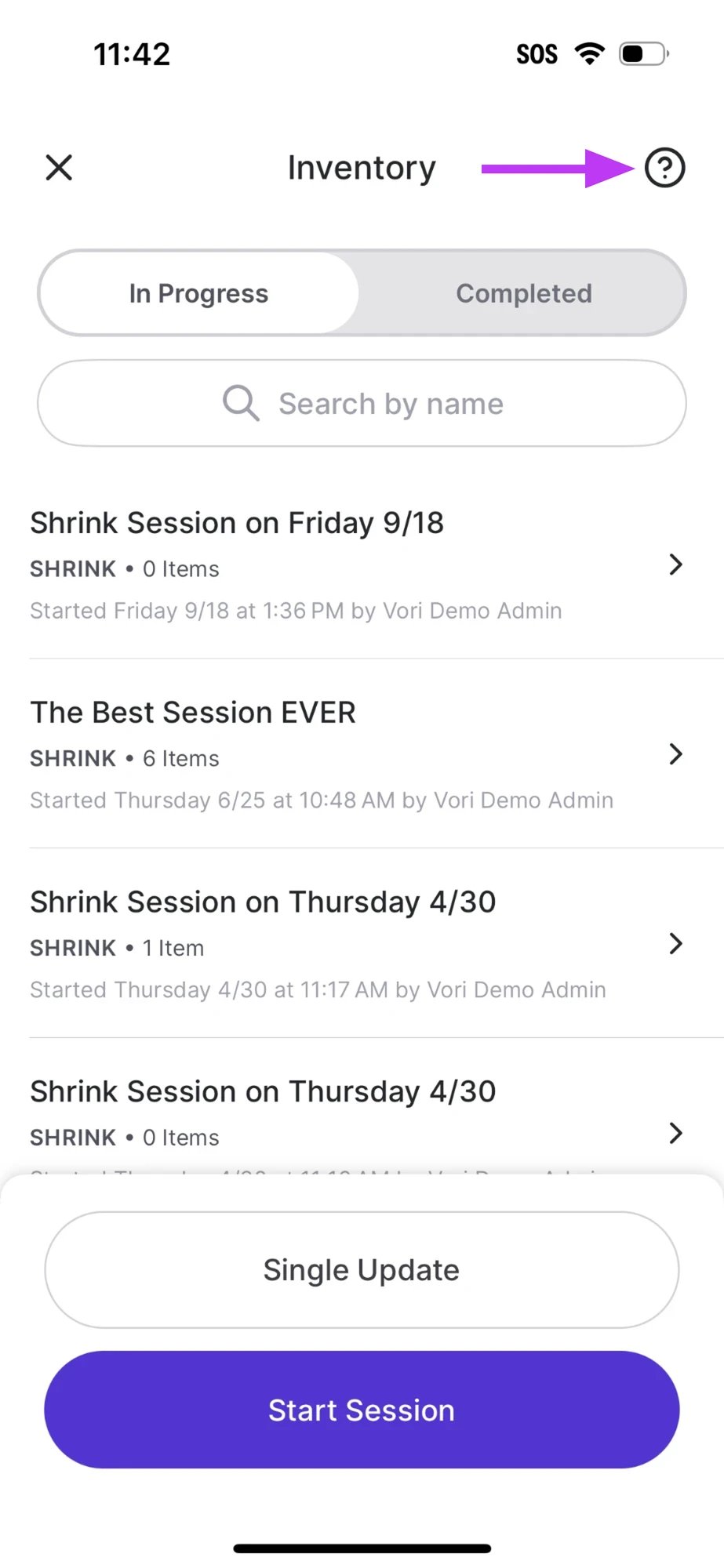
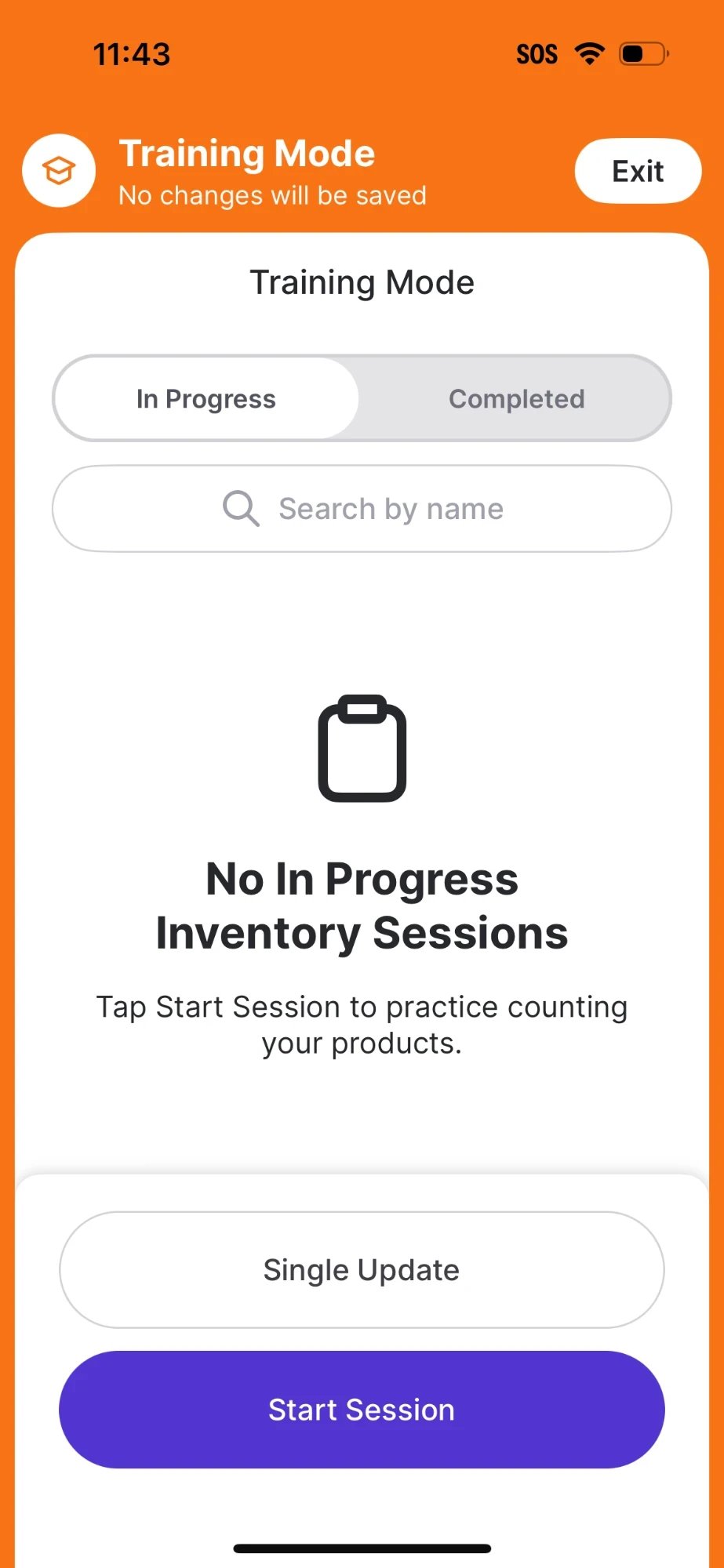
Tap the ? mark to enter Training Mode, then tap Start Session to start a fresh session.
-
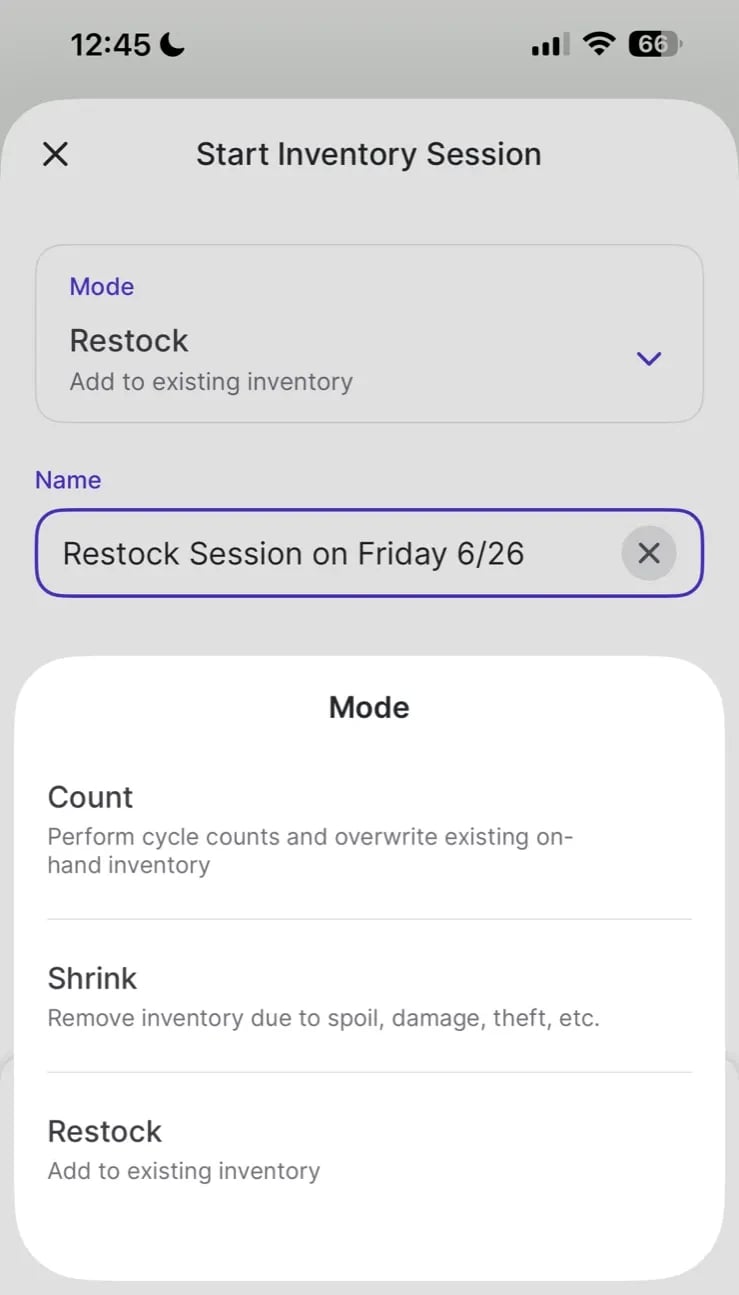
Pick a Mode, give the session a descriptive Name, and tap Begin. Walk the trainee through what each mode does to on-hand inventory:
-
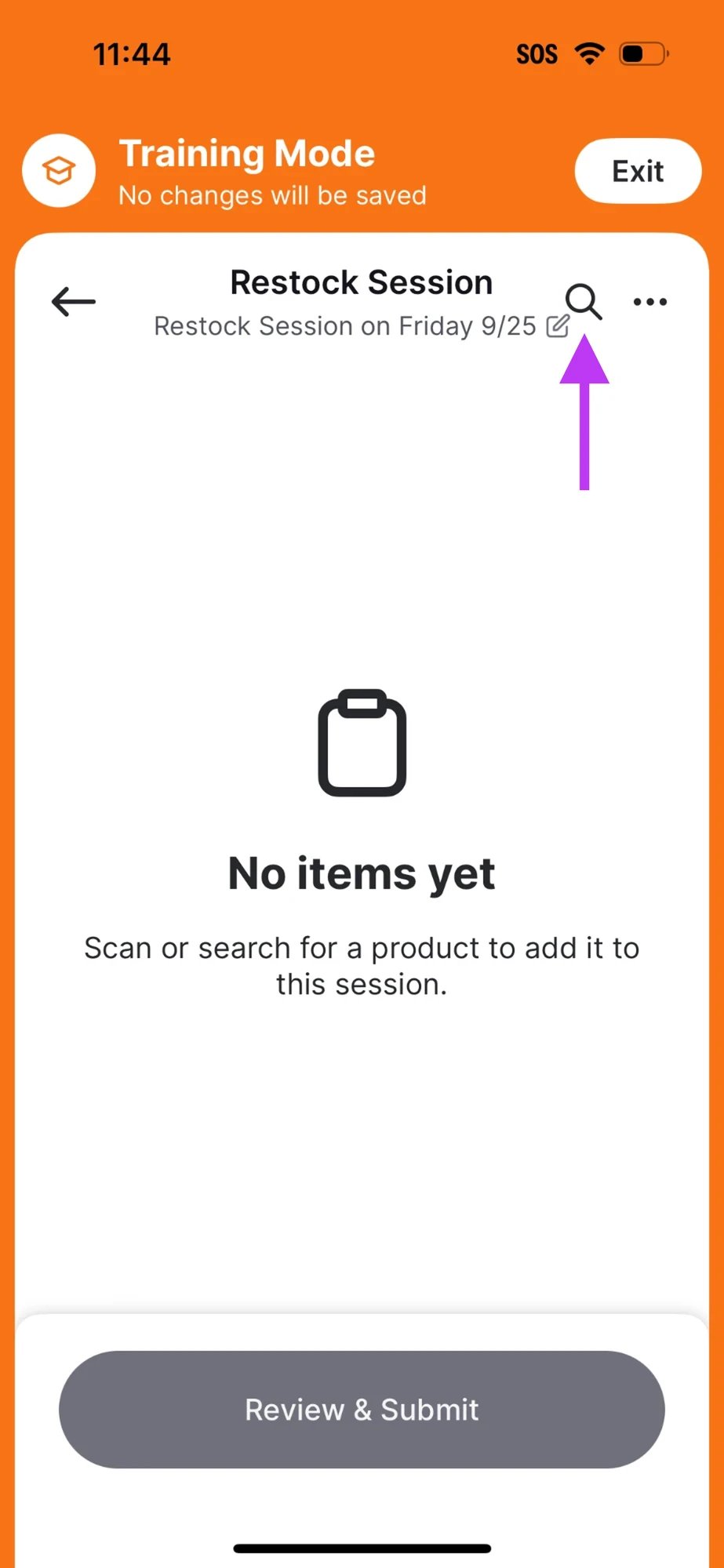
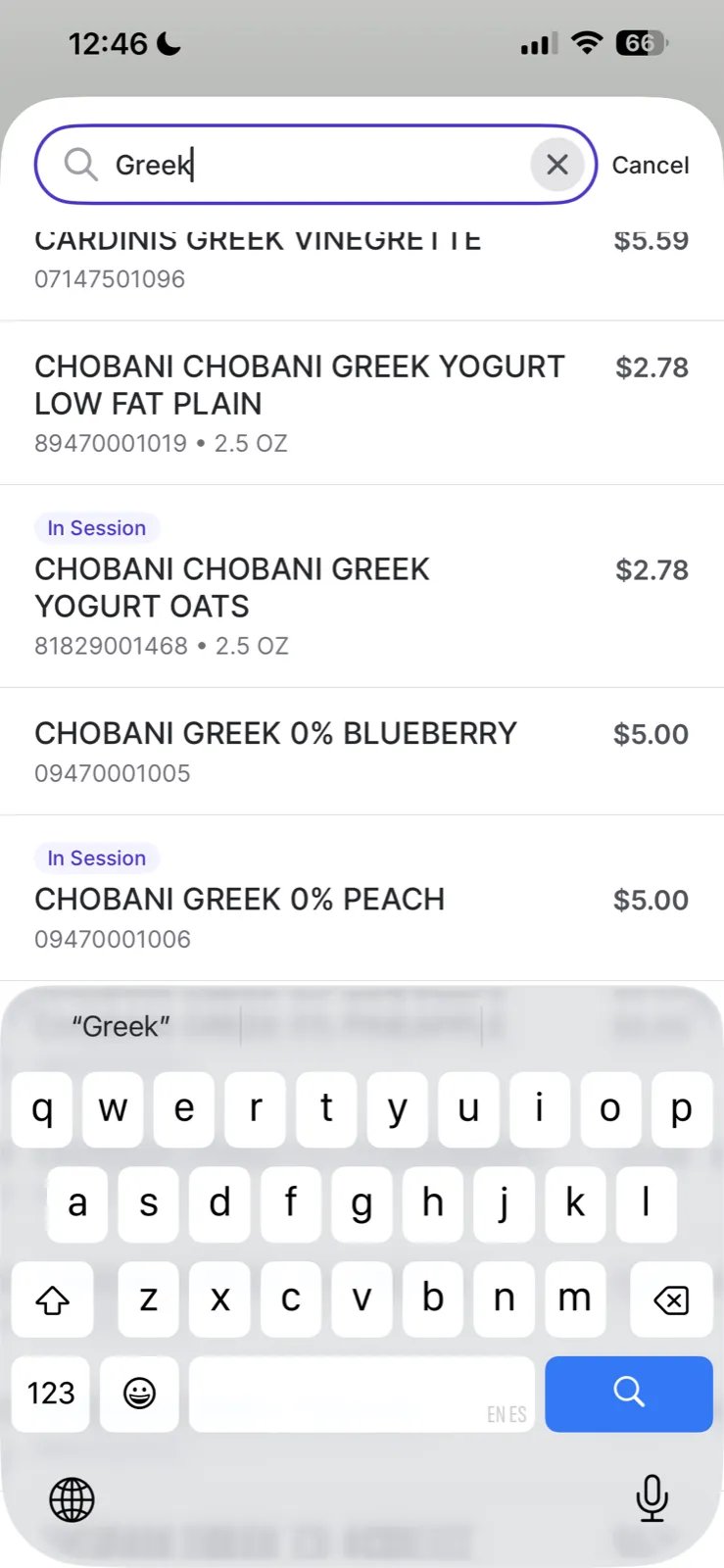
Scan an item’s barcode, or tap the search icon to find it by name. Items already in the session show an In Session badge.
-
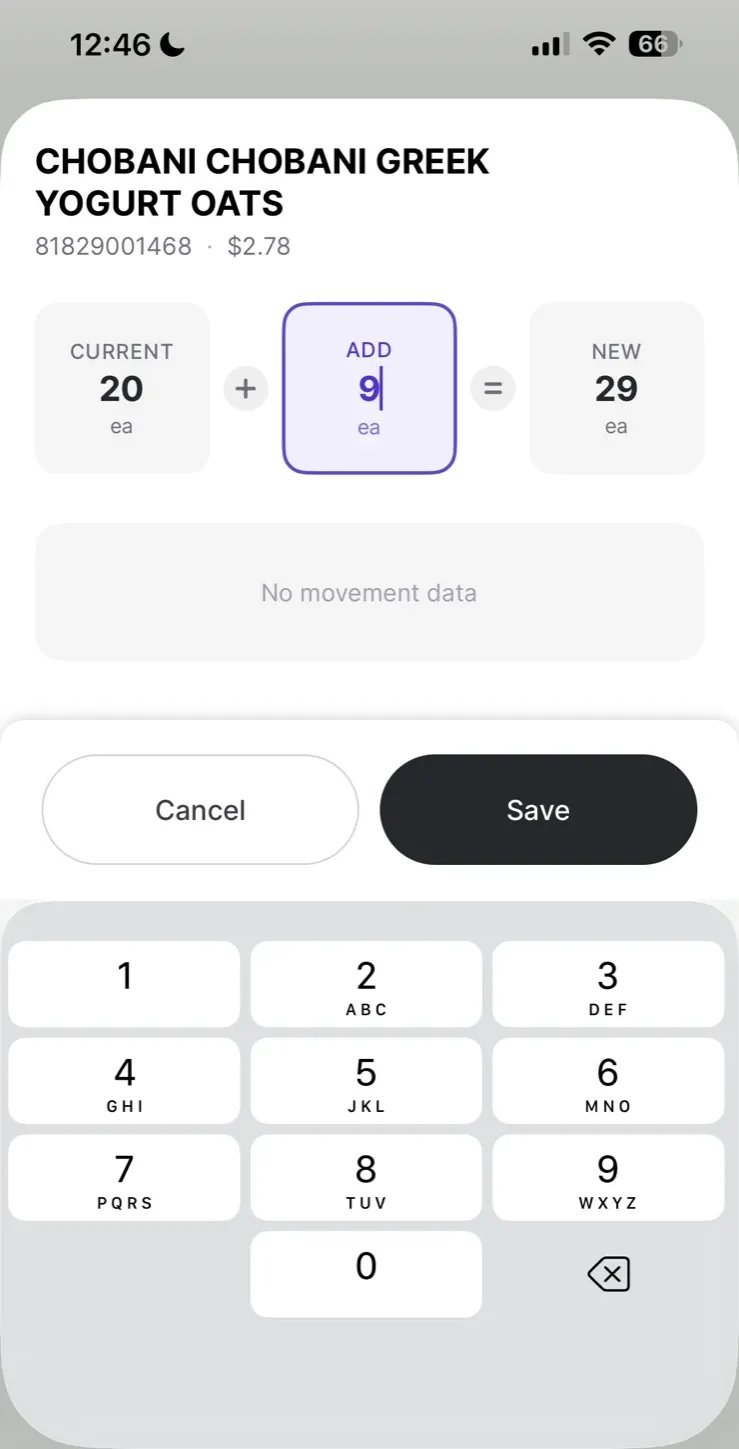
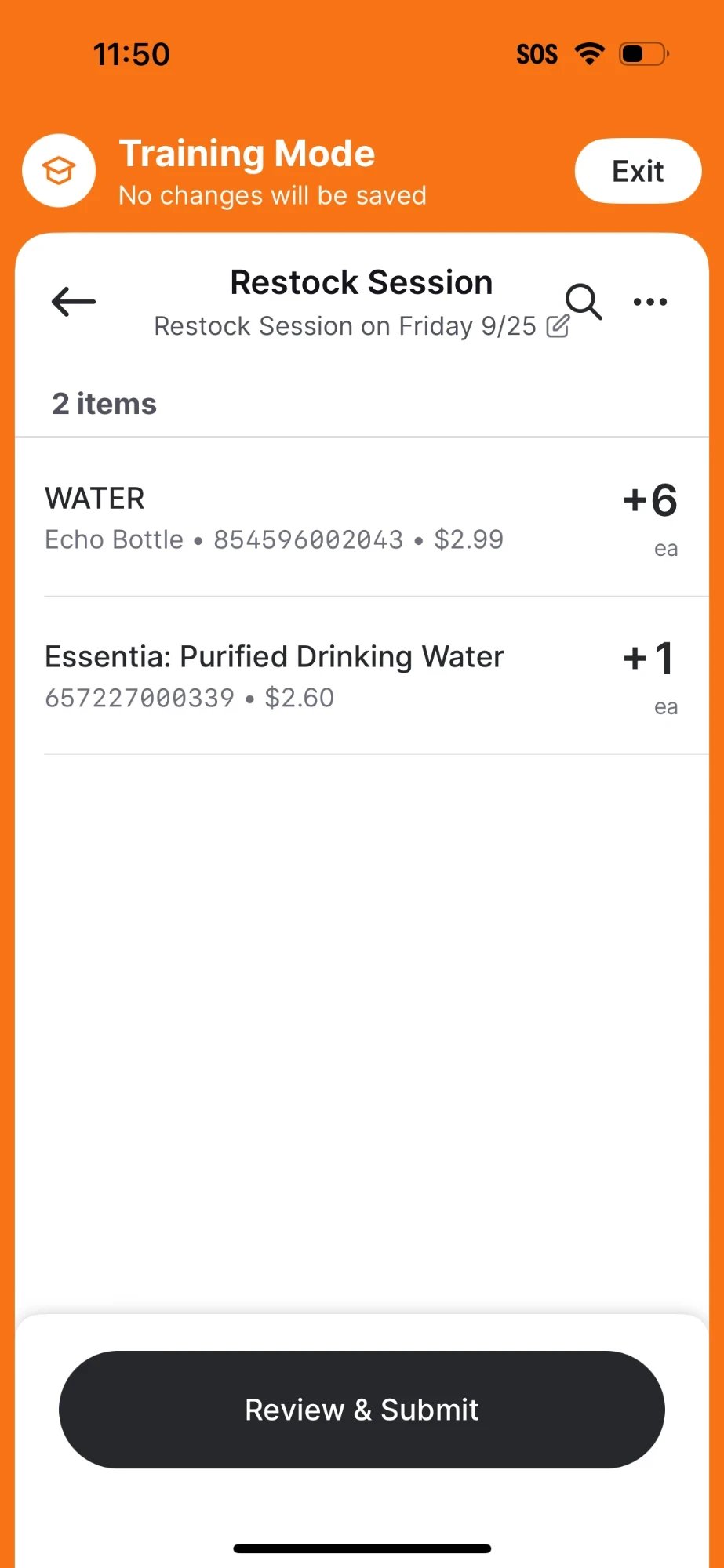
Enter the quantity and tap Save. Point out the Current, Adding, and New totals so the trainee can confirm the change before saving. Each item then appears in the session list with its change.
-
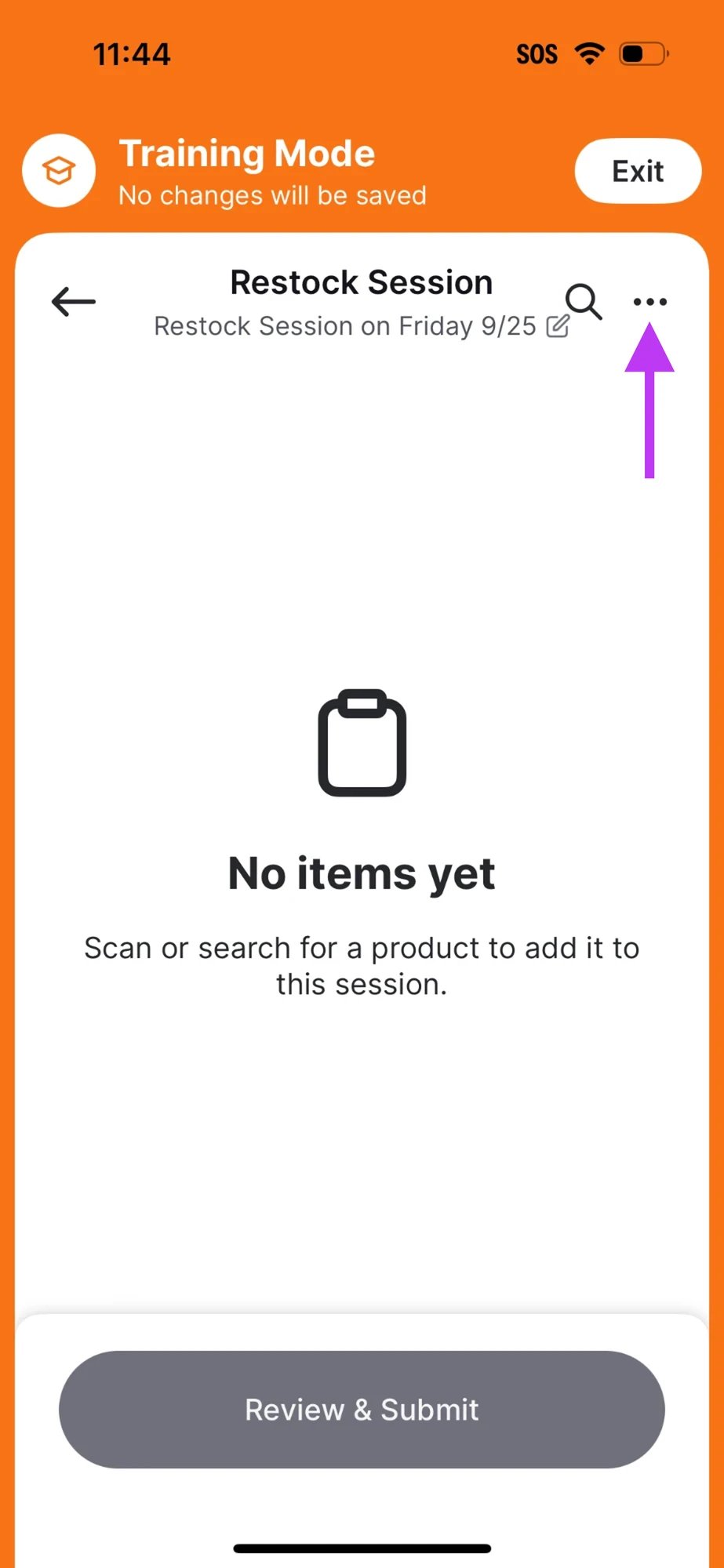
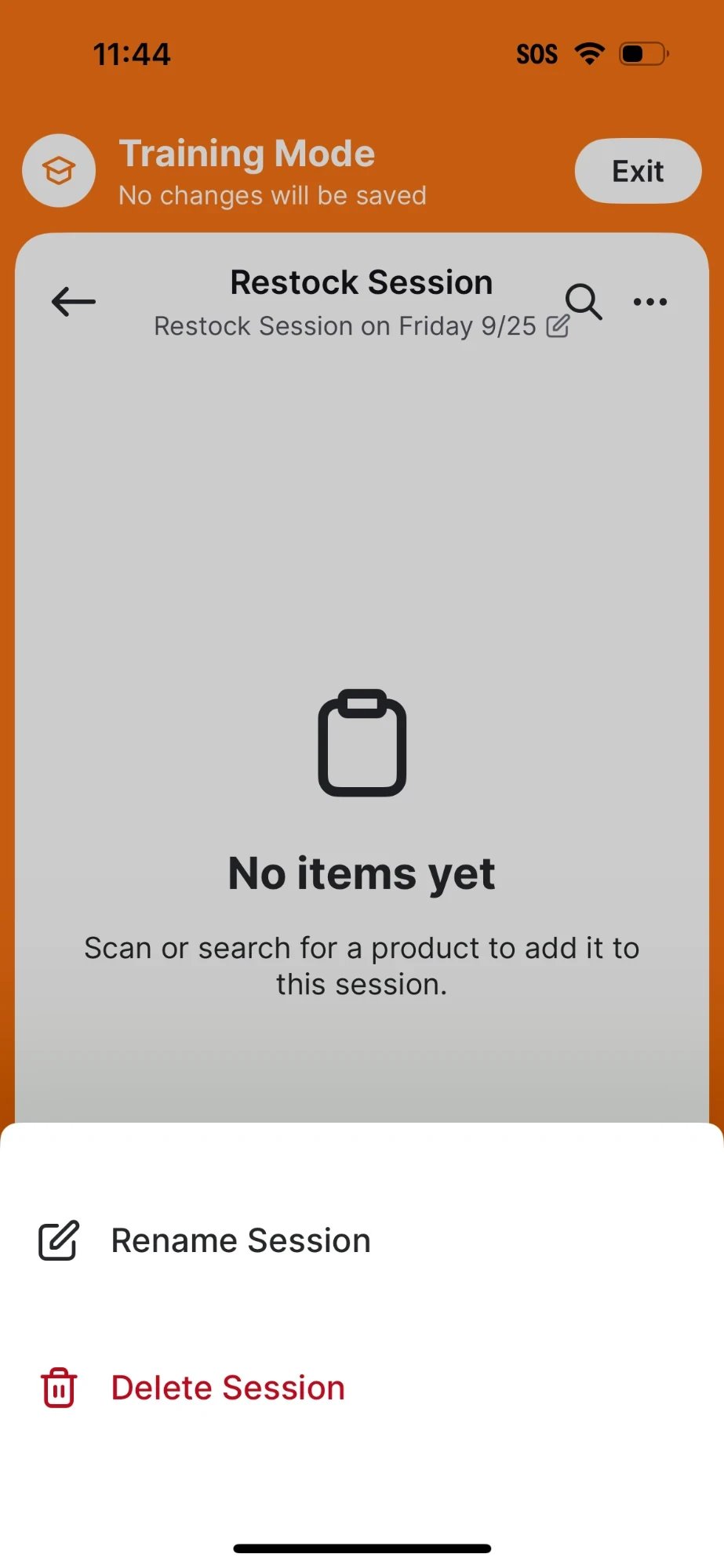
To rename the session, tap the ••• icon in the top right, then tap Rename Session.
-
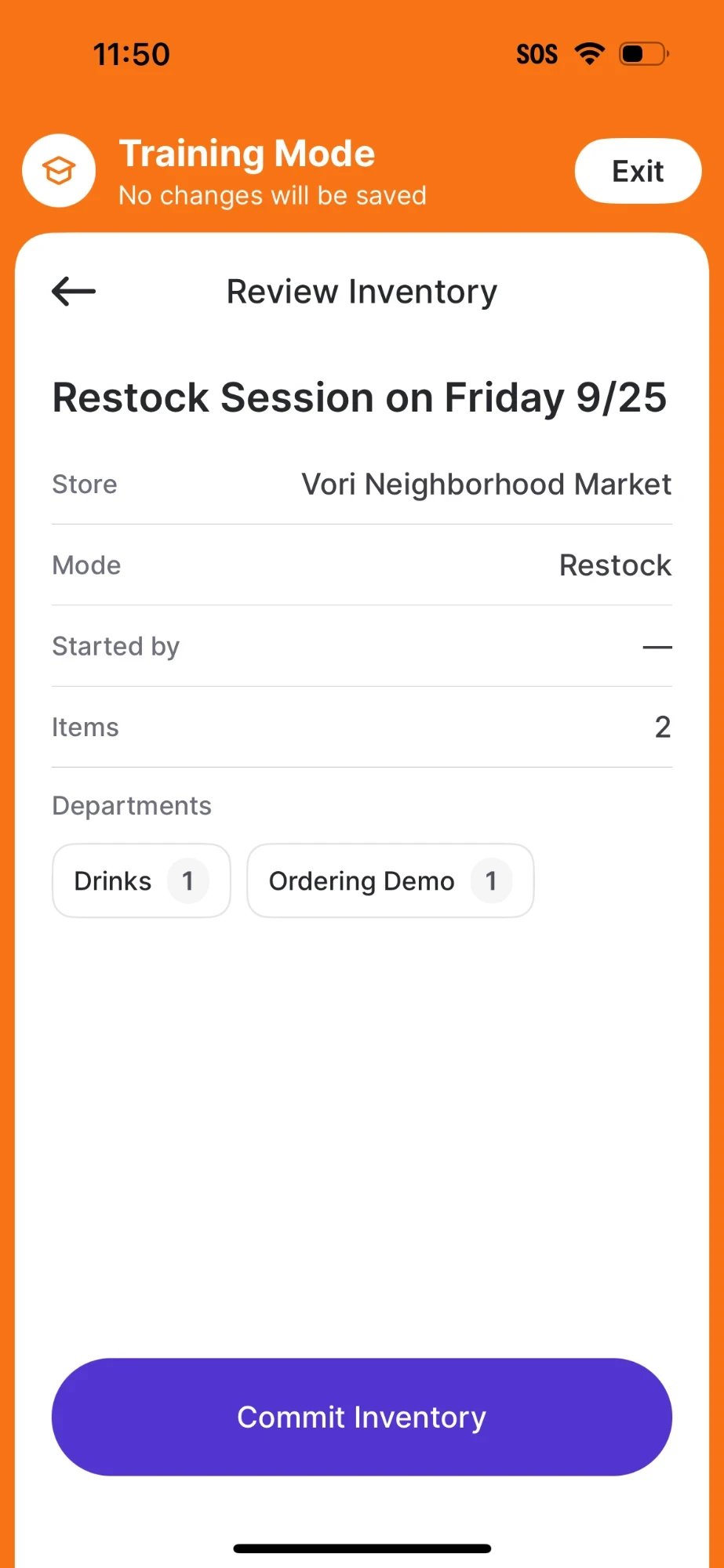
Tap Review & Submit to see the session summary: store, mode, who started it, item count, and departments affected. Tap Commit Inventory to complete it.
Walk through a single update
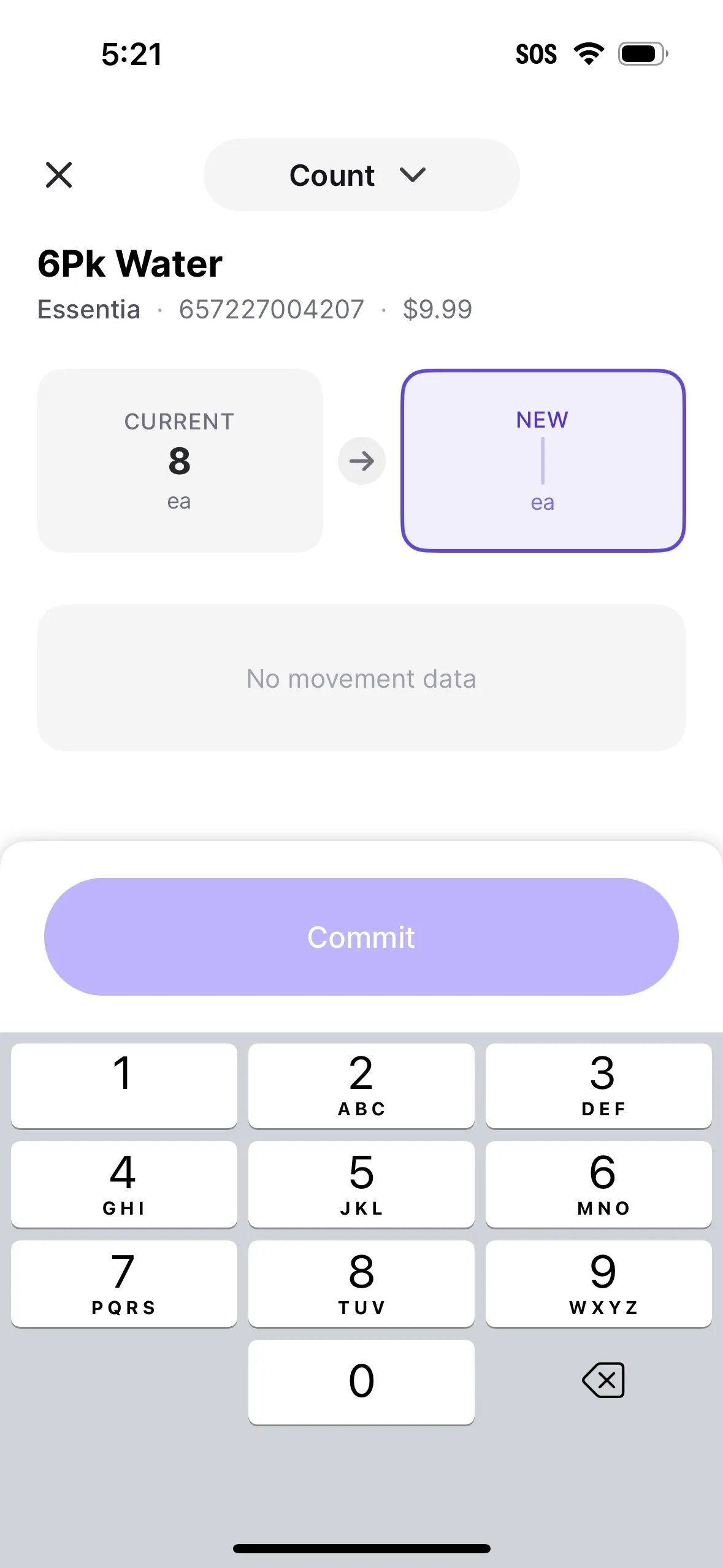
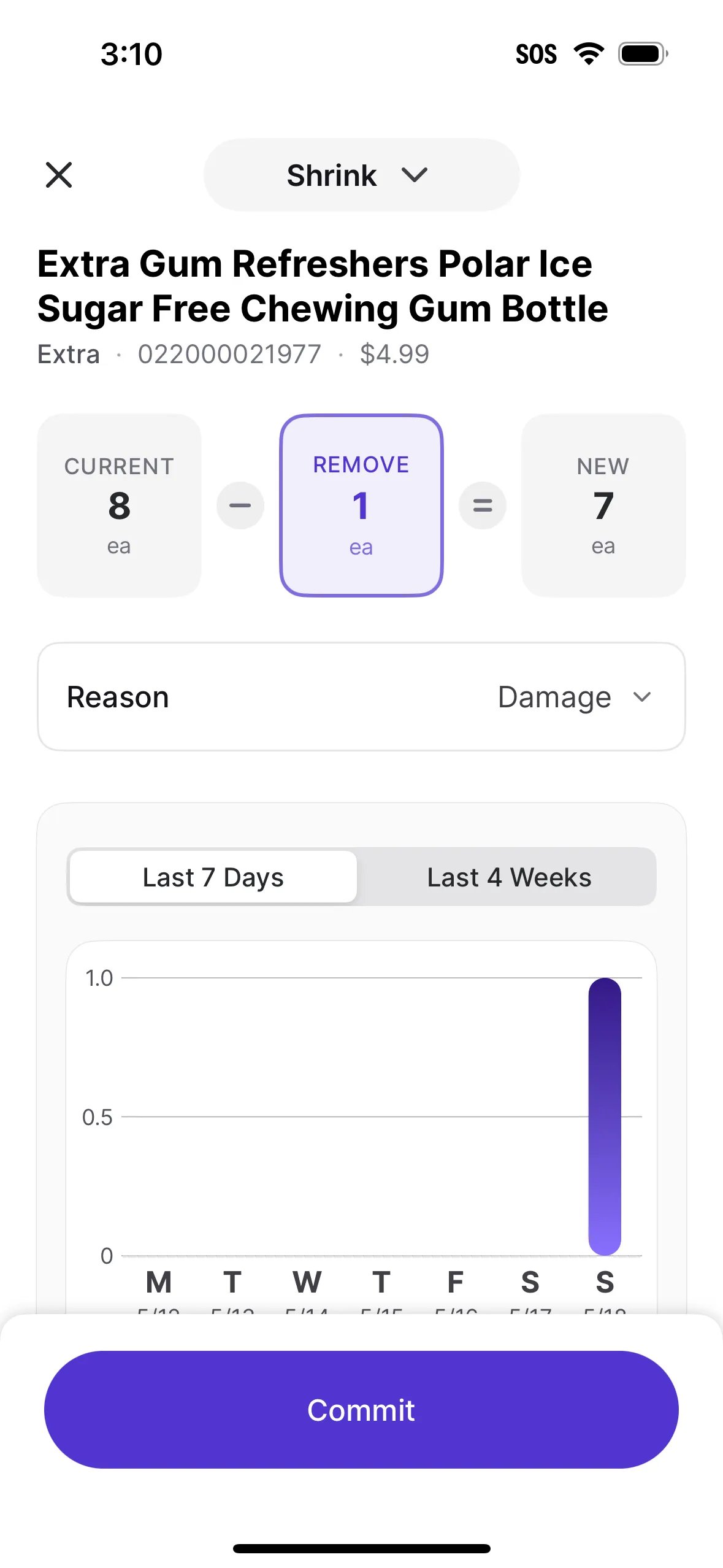
Use Single Update to change one item’s count without starting a session. It’s the fastest way to handle a quick restock, a damaged item, or a spot count.- From the Training Mode screen, tap Single Update and pick a mode: Restock, Shrink, or Count.
-
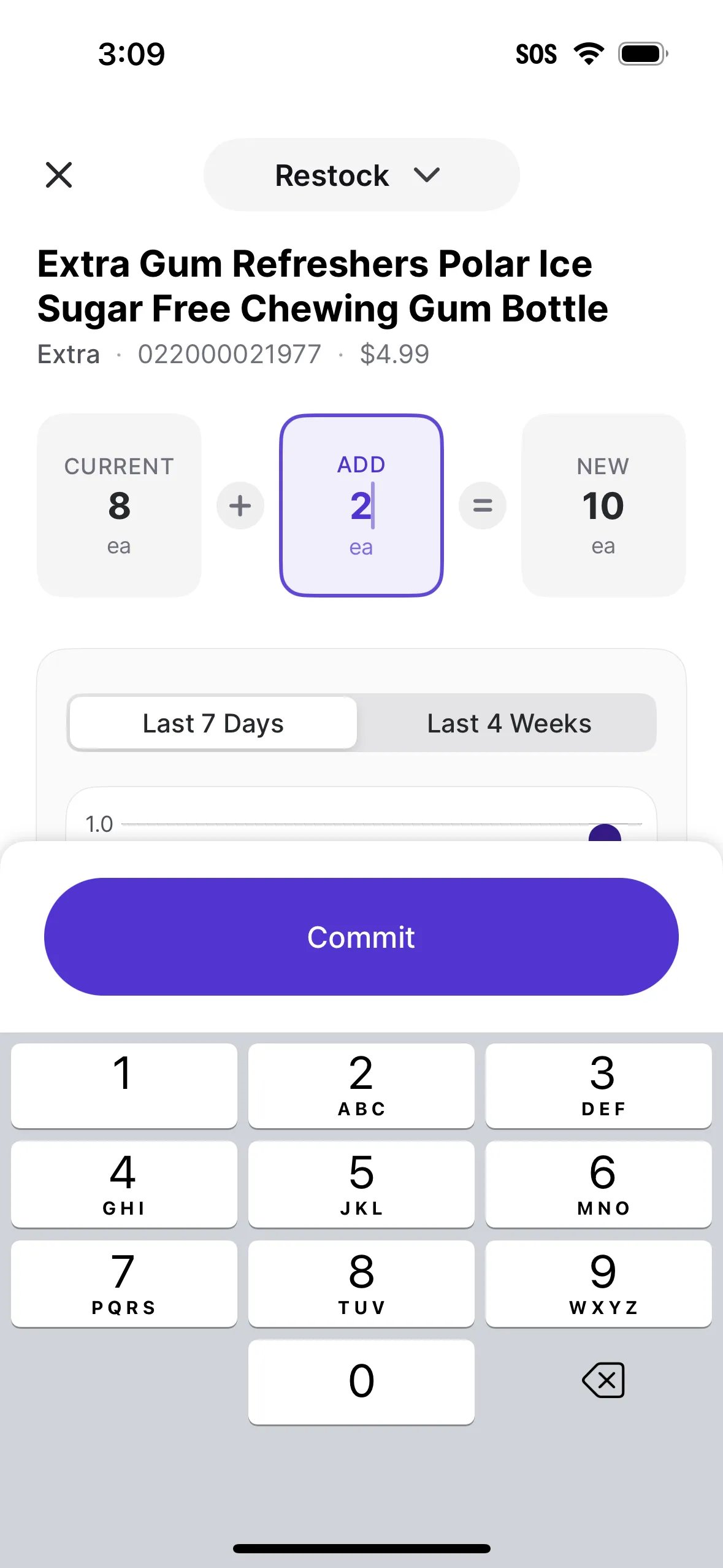
On the Scan a Product screen, scan the barcode or tap Search For Product to look it up by name. Enter the quantity, check the Current and New totals, then tap Commit. To switch modes, tap the mode menu at the top of the screen.
-
For Shrink, pick a Reason before committing: Damage, Spoilage, Theft, Donation, Store Use, Sample, or Other.

Check their understanding
Before signing off on a trainee, confirm they can:- Explain the difference between Count, Shrink, and Restock, and pick the right mode for a task.
- Add items to a session by scanning and by searching.
- Read the Current, Adding, and New totals before saving an item.
- Rename a session after it’s started.
- Review the session summary and commit it.
- Make a Single Update in each mode, including picking a Reason for Shrink.
- Choose between Single Update and Start Session for a given task.
Each session type can be set to Require review in the Back Office. When it’s on, the trainee submits the session for review, and a different person commits it in the Back Office before inventory updates. When it’s off, the trainee can commit the session directly from the handheld. See Choose Which Session Types Require Review.