Receiving lives in the VoriOS App and lets your team check in a vendor delivery against its invoice right from the floor. Use this guide to walk a new team member through their first receiving session.
Receiving is currently in closed beta and only available to select stores.

Walk through a session together

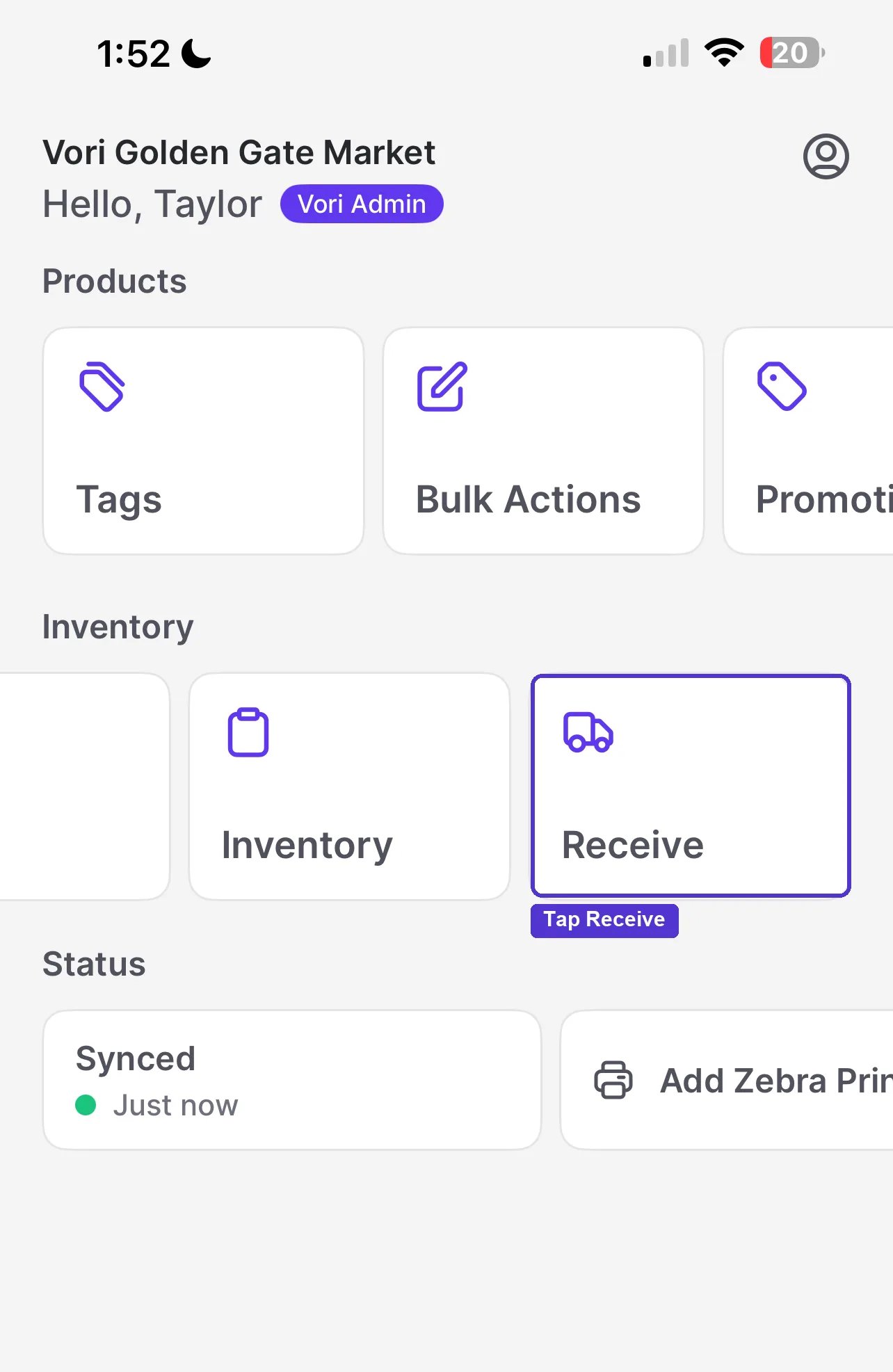
  1. From the VoriOS home screen, tap Receive. VoriOS home screen with Products, Inventory, and Status tiles, including a Receive tile under Inventory
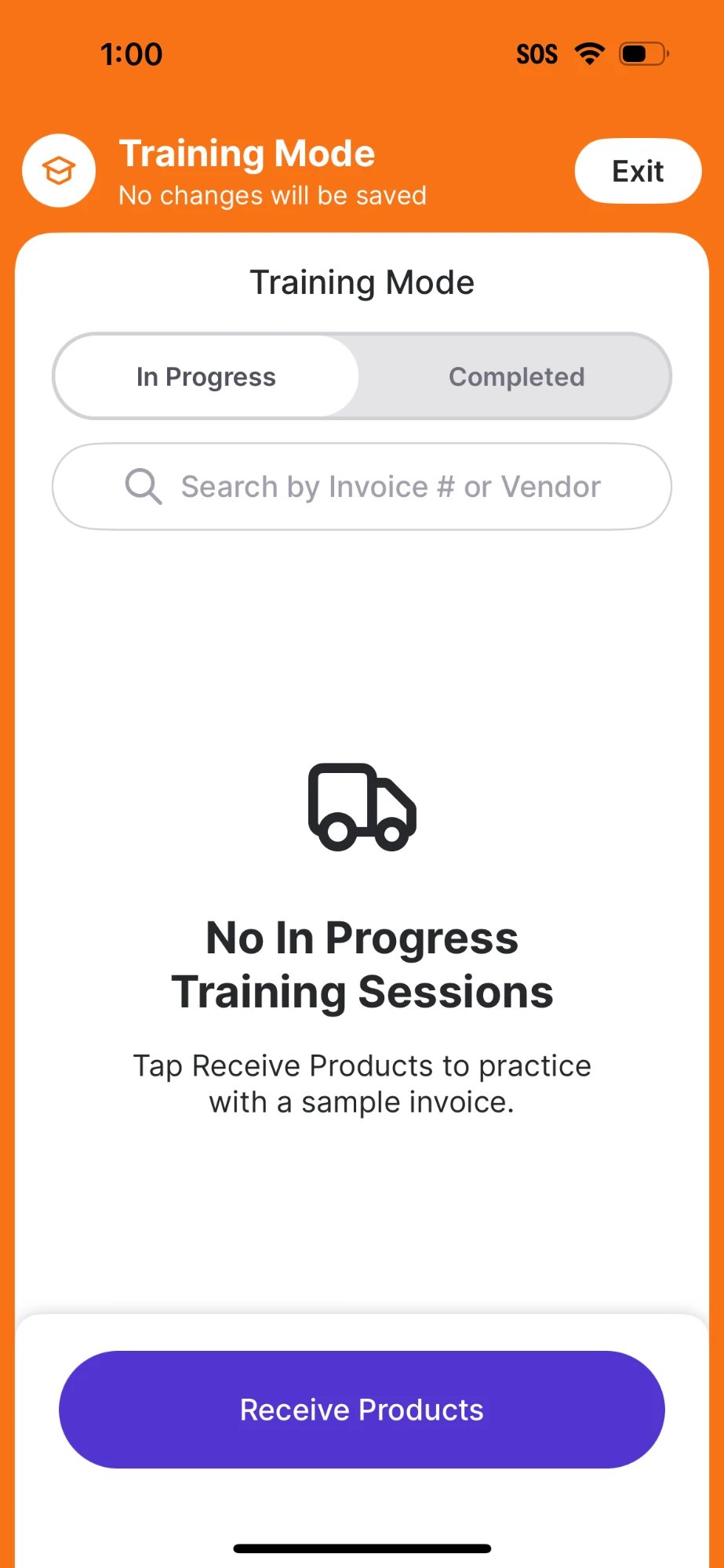
  2. Tap the ? mark to enter Training Mode, then tap Receive Products to start a fresh session.
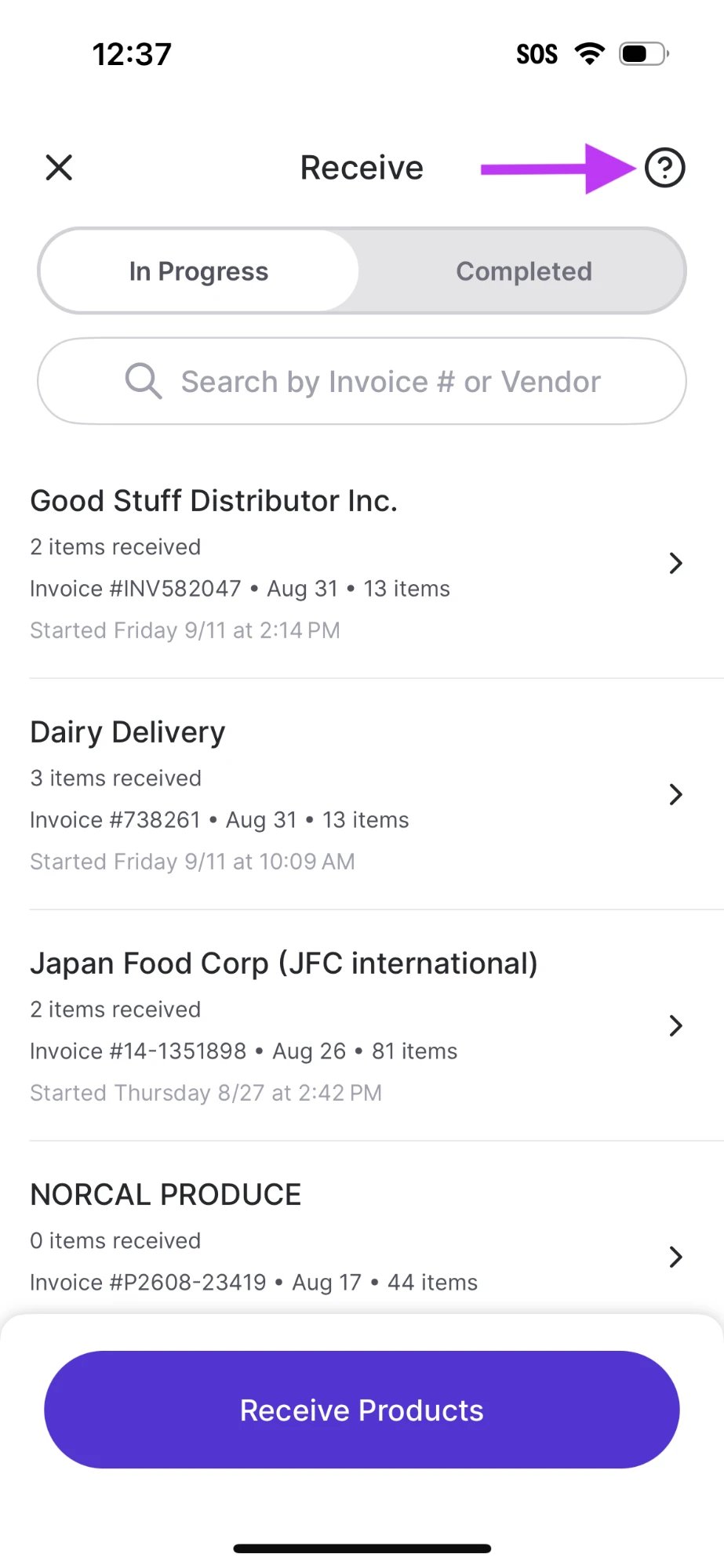
    Receive screen with In Progress and Completed tabs, a list of in-progress vendor sessions, a Receive Products button, and an arrow pointing to the help icon in the top rightTraining Mode screen with an orange No changes will be saved banner, an Exit button, and a No In Progress Training Sessions empty state prompting you to tap Receive Products to practice with a sample invoice
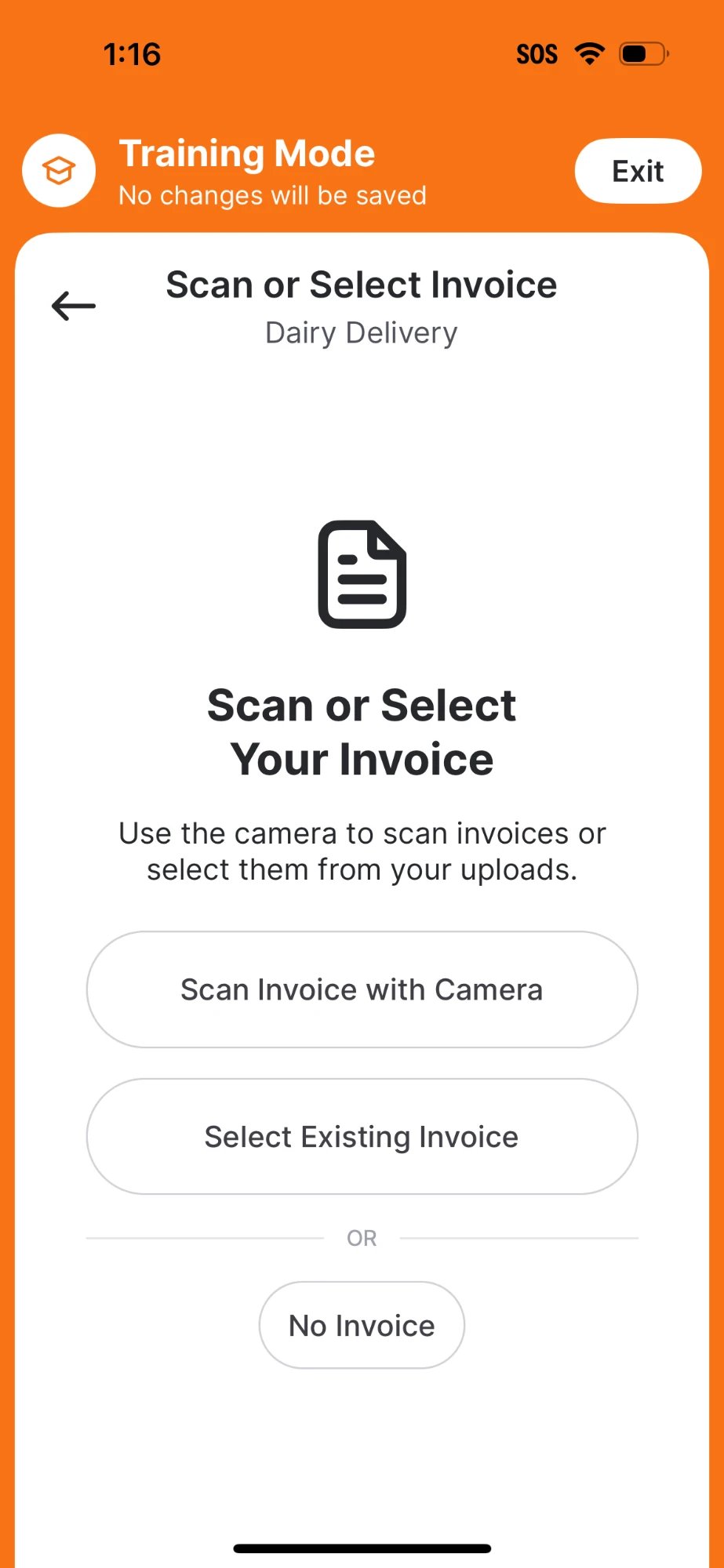
  3. Select the vendor, then choose how to bring in the invoice: Scan Invoice with Camera, Select Existing Invoice (a dummy invoice in Training Mode), or No Invoice. Training Mode Scan or Select Invoice screen for Dairy Delivery with Scan Invoice with Camera, Select Existing Invoice, and No Invoice options
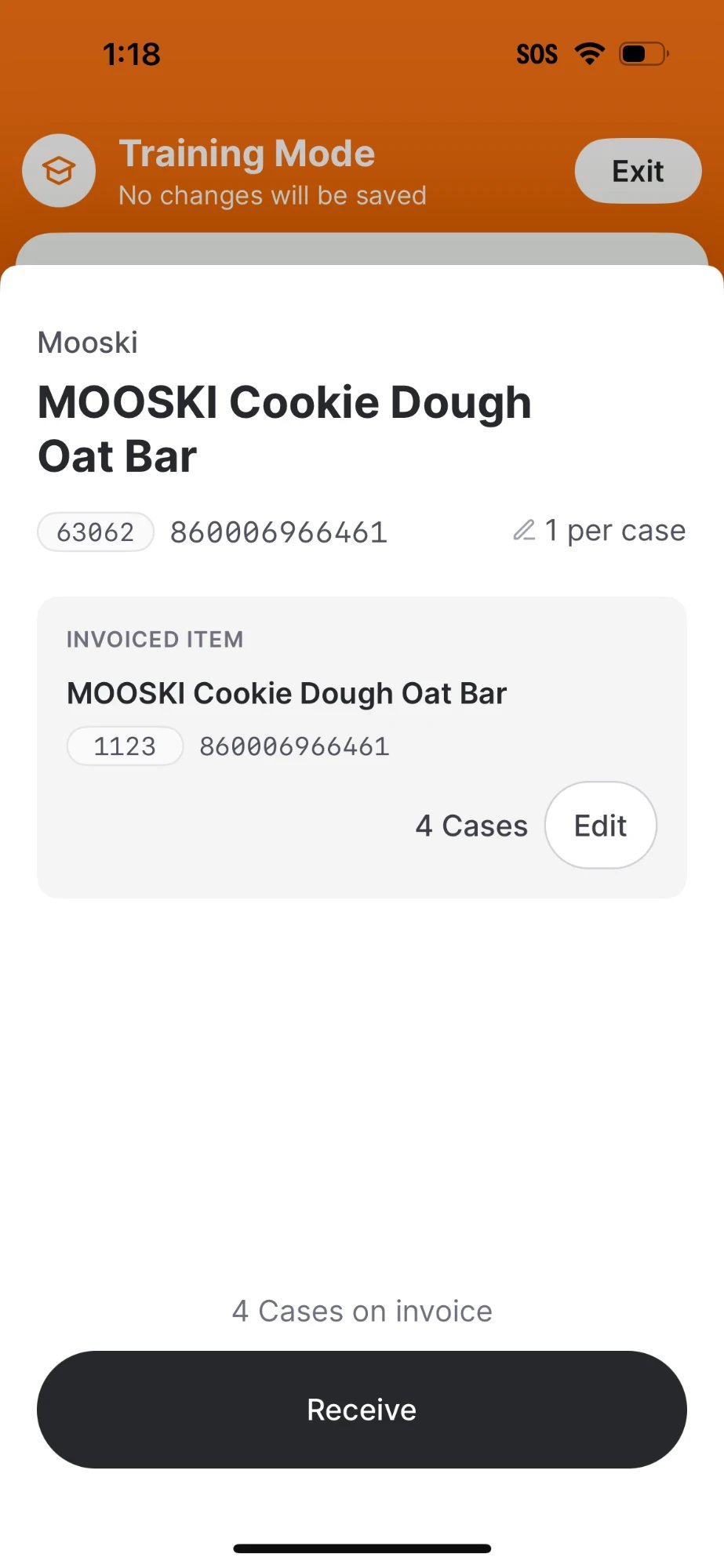
  4. Scan or tap each item to mark it received. If a quantity doesn’t match, tap Edit to correct it; if an item isn’t in the catalog yet, tap Add Case Size so Vori knows how much to add to inventory. Training Mode item detail page for MOOSKI Cookie Dough Oat Bar showing invoiced item details, 4 cases on invoice, and a Receive button at the bottom
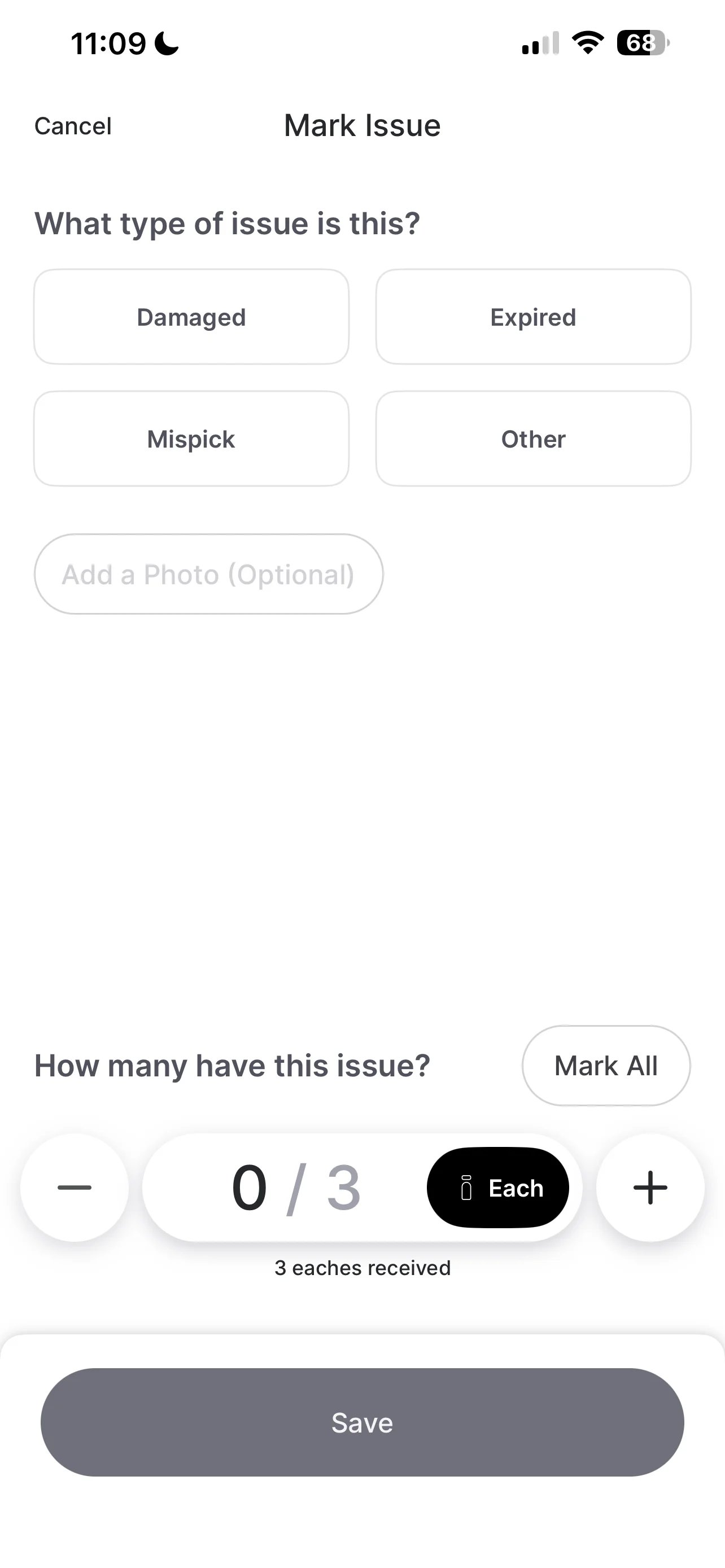
  5. For anything that didn’t arrive as expected, tap the item, tap Mark an Issue, and choose a type: Damaged, Expired, Mispick, or Other. A photo is optional. Mark Issue screen with issue type options: Damaged, Expired, Mispick, and Other
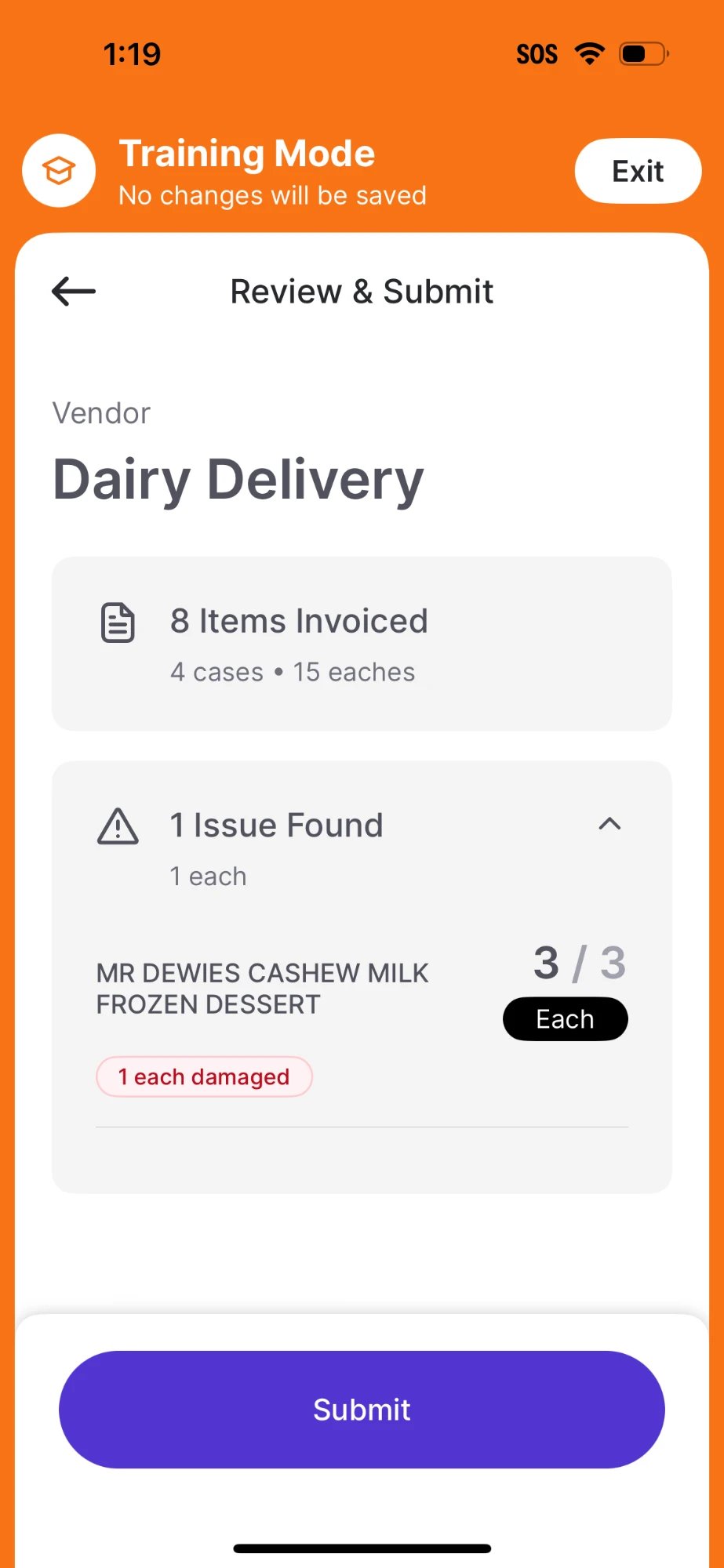
  6. Tap Review to see the session totals, then Submit to complete it. Training Mode Review and Submit screen for Dairy Delivery showing 8 items invoiced across 4 cases and 15 eaches, with 1 issue found on MR DEWIES Cashew Milk Frozen Dessert
Check their understanding

Before signing off on a trainee, confirm they can:
  • Start a session against a queued invoice and against a scanned paper invoice.
  • Flag a damaged, expired, or mispicked item with a photo attached.
  • Handle an item flagged No Product Match by adding a case size.
Remind the trainee that a scanned invoice can take a few minutes to process, especially on a weak Wi-Fi signal. Don’t restart the scan while it’s still processing.
For the full reference on every screen, issue type, and edge case, see Receive Deliveries on the Handheld.