

Before you begin, create a promotion and an offer. See Create Promotions, Schedules, and Offers for steps.
Manual vs. Dynamic Selection
Use Manual Selection
Use Manual when a deal applies to a few specific items that don’t share a brand or department.- In your offer details, set the Product Selection field to Manual.
- Click into the Qualifying Products search bar and type a product name or barcode.
- Select the item from the dropdown to add it to the offer.
- For larger lists, click Browse to open the full product table and use filters to narrow it down.
- Check the box next to each item you want and click Done.
Use Dynamic Selection
Dynamic selection is set-it-and-forget-it. Instead of picking items one by one, you set rules (for example, “all Alcohol department items except Beer”), and Vori includes matching items now and in the future as your catalog grows.- Set the Product Selection field to Dynamic.
-
Click Set Conditions, then Add Condition for each rule, such as:
- Department: for example, “Dairy” or “Meat.”
- Brand: for example, “contains Olipop.”
- Price/Margin: for example, “Retail Price is greater than $10.00.”
-
Check the X products included count (marked with the purple eye icon). It shows exactly what matches your rules right now. Open it to make sure your conditions aren’t pulling in items you don’t want.

Exclude Items from a Dynamic Selection
Even with broad rules, you may want to leave out specific items (for example, “10% off Dairy, except certain milks”).- After setting your conditions, click the X products included link at the bottom of the condition window.
- Vori opens a snapshot of every product that matches your rules.
- Scroll or search to find the product you want to remove.
- Click Exclude next to it. The item stays in your catalog but this offer ignores it.
- Click Done to save.
Selection Tips
-
Look for the wand icon. On the Promotions dashboard, a wand icon means an item was added by dynamic selection. Items with no icon were added manually.
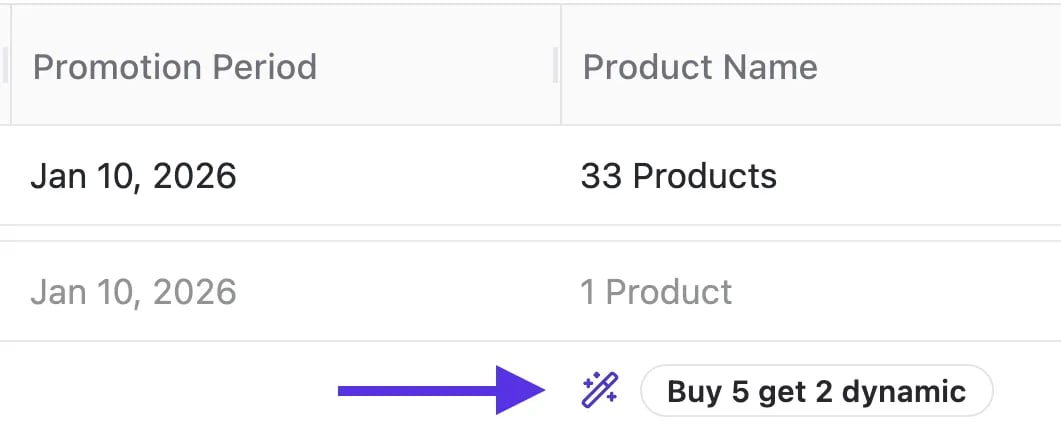
- New products join automatically. If you use dynamic selection for a brand and add a matching product next month, Vori adds it to the promotion for you.
Add Conditions to an Offer
Conditions (called Additional Attributes in Back Office) let you build targeted strategies, like rewarding your best shoppers or encouraging bigger trips. You can add them to every offer type.- Open an existing offer or start a New Offer.
- Select Full Details to see all options.
- Scroll to the Additional Attributes section at the bottom of Offer Details.
- Select the conditions you want from the Unused Attributes menu.
Loyalty Members Only
Only members (shoppers enrolled in your loyalty program) get the discount.- How it works: The register applies the discount only when a loyalty account is scanned in the transaction.
- When to use it: Exclusive offers meant to drive new sign-ups.
This condition is hidden for Extra Loyalty Points offers. Only members earn points already, so it isn’t needed.
Limit to Shopper Group
Only shoppers in a group you choose get the discount.- How it works: Select Limit to Shopper Group, then choose the group the offer applies to.
- When to use it: Run an offer for one audience, like employees, without opening it to everyone.
Minimum Basket Total
The shopper’s whole transaction must reach a dollar amount before the deal applies.- How it works: The discount triggers once the total retail value of the cart, including the promoted items, reaches your threshold.
- When to use it: Generous, high-markdown offers where a bigger basket helps offset the discount. It also works well on Buy X Get Y or percentage-off deals to encourage larger trips.
Limit Per Basket
Caps how many times the deal can apply in one transaction.- How it works: If the limit is 2 and a shopper buys enough for three deals, the POS applies the discount to the first two sets only.
- When to use it: High-value loss leaders that bring shoppers in. A limit (for example, 1 per shopper) keeps one person from clearing your shelves at a very low price, so more shoppers get the deal.
You can’t use Limit Per Basket with Extra Loyalty Points offers, because points are calculated on the line-item subtotal.