

How Promotions Are Organized
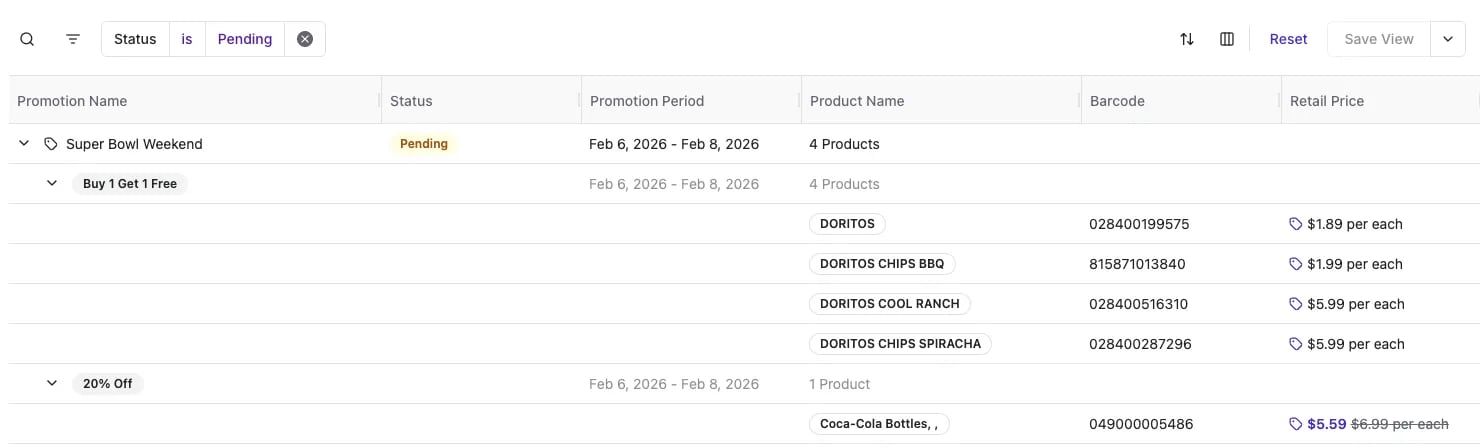
Promotions use a three-tier structure. Knowing these tiers helps you see exactly how a deal is set up.-
Promotion (the container): The “folder” for your sale. It holds the name (for example, “Super Bowl Weekend”) and the dates and times the sale is active.

-
Offer (the logic): Lives inside the promotion. It defines the math, like “Buy 1 Get 1 Free” or “20% Off.”

-
Product: The specific items attached to the offer.
Create a Promotion
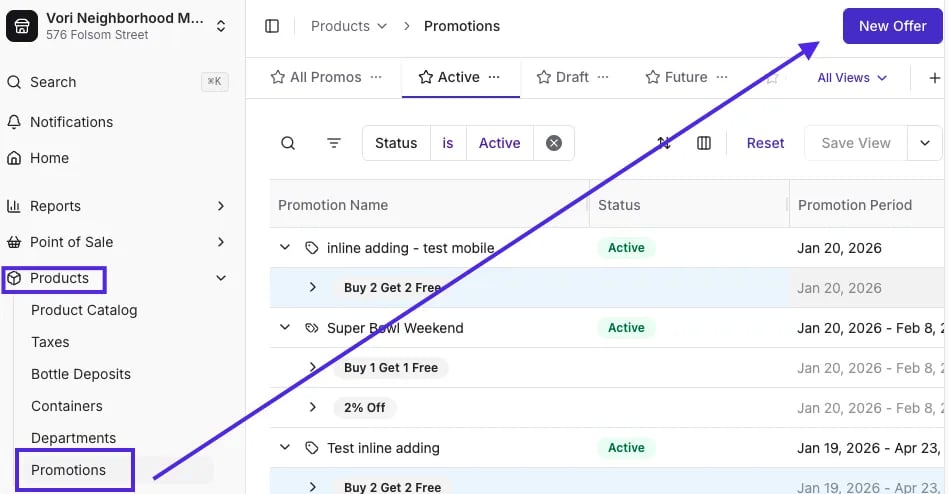
You create a promotion and its first offer at the same time.- In Back Office, go to Products > Promotions.
-
Click New Offer in the top right corner.
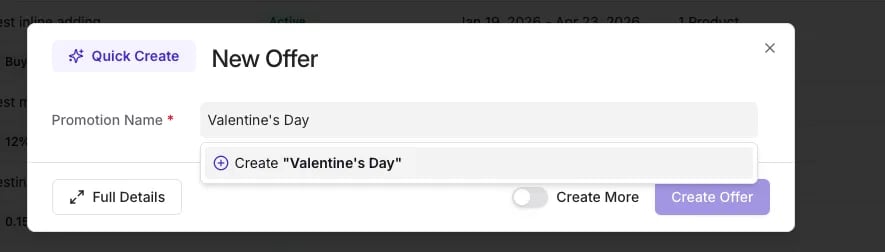
- In the Promotion Name field, select an existing promotion or type a new name to create a new container (for example, “Valentine’s Day”).
-
If you entered a new name, click Create “[Name]” to show the timing and frequency controls.
Set Dates and Frequency
The top of the creation form controls when the promotion is available to shoppers.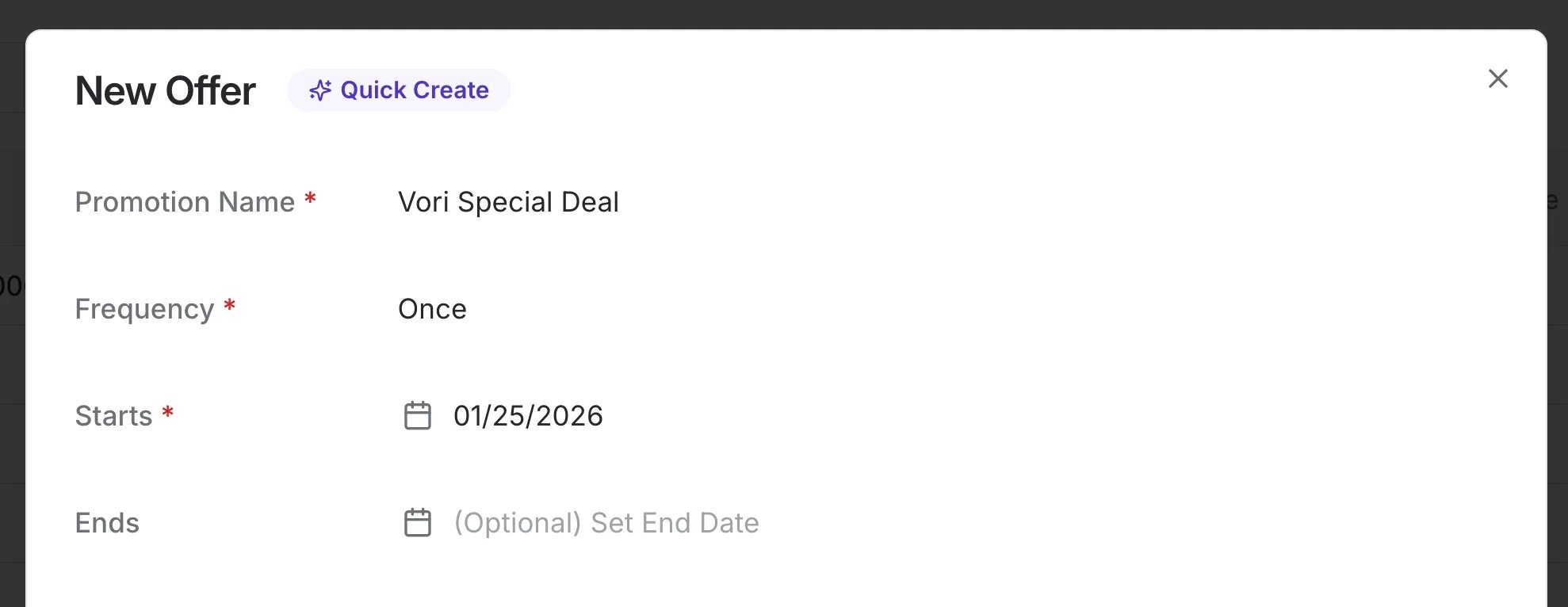
- Start date: The day the deal begins. It starts at 12:00 AM by default.
- End date (optional): The promotion runs through the end of this day (11:59 PM) by default. Leave it blank to create an evergreen promotion that runs indefinitely.
- Frequency: How often the deal repeats.
- Once: Runs continuously from start to finish.
- Daily, Weekly, or Monthly: Repeats on specific days or times. See Set a Recurring Schedule.
Set Specific Start and End Times
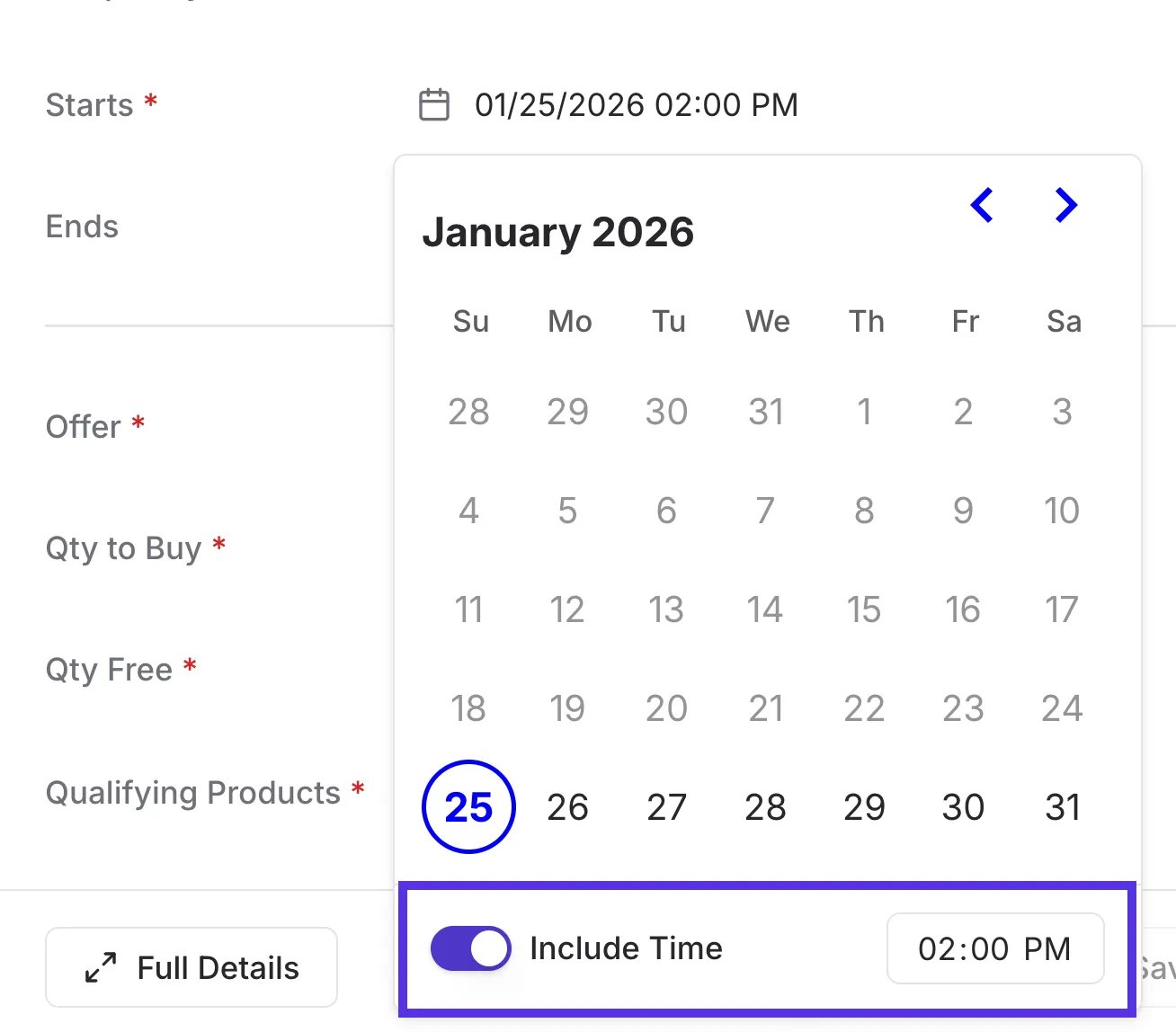
To start or end a deal at a specific hour instead of midnight:- Click into the Starts or Ends date field.
- Turn on Include Time at the bottom of the calendar picker.
-
Select the hour and minute.
Set a Recurring Schedule
Recurring frequencies run time-sensitive deals automatically, so you don’t have to turn them on and off yourself.Daily Schedule
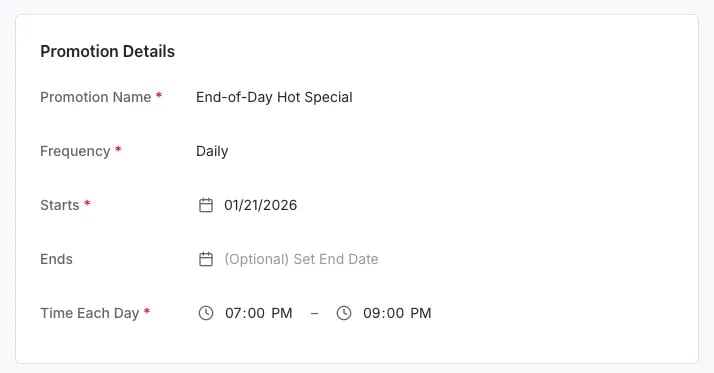
Ideal for end-of-day markdowns or a daily happy hour.- Set Frequency to Daily.
- Enter the Start date.
- Enter the active window in the Time Each Day fields (for example, Start: 07:00 PM, End: 09:00 PM).
-
The promotion turns on and off during those hours every day within your date range.
Weekly Schedule
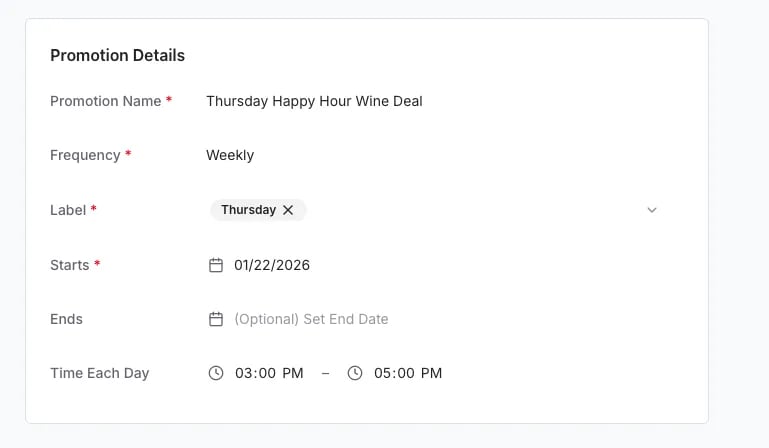
Perfect for “Double Point Tuesdays,” “Fresh Friday,” or weekly happy hour specials.- Set Frequency to Weekly.
- In the Label field, select the days of the week the deal applies (for example, “Friday”).
- Enter the Start date.
-
Time Each Day is optional. If you leave it blank, the promotion runs the full day.
Monthly Schedule
Use this for end-of-month inventory clearance.- Set Frequency to Monthly.
-
Click into the Days of the Month field to choose your active dates:
- First/Last of the month: Runs at the start or end of every month.
- Specific dates: Select numbered days (for example, “Day 15”) for mid-month specials.
-
Time Each Day is optional. If you leave it blank, the promotion runs the full day.
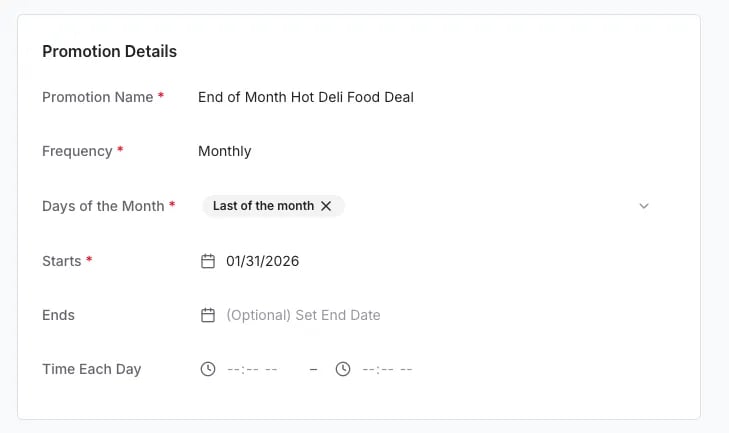
The Days of the Month picker works with specific numbered days (like the 8th) and first/last of the month, not patterns like “the third Thursday of every month.”
Scheduling Tips
- Default timing: Start dates default to 12:00 AM and end dates default to 11:59 PM. This applies to newly created promotions. Existing promotions aren’t affected.
- Recurring schedules take priority: When you set a recurring frequency (like Daily), Vori uses the Frequency and Time Each Day settings to decide when the deal is active at the register.
- Editing active promotions: You can edit an active promotion at any time to extend it or change its recurring schedule.
Choose an Offer Type
The offer sets how shoppers save. Pick the type that fits your deal.
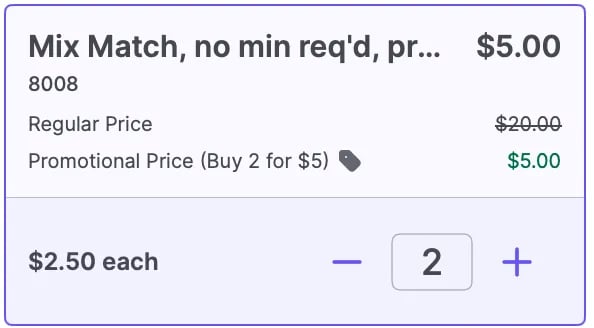
Here’s how a promotion looks at the POS. The regular price is crossed out, and the promotional price shows in green with a tag icon.
Add Products to Your Offer
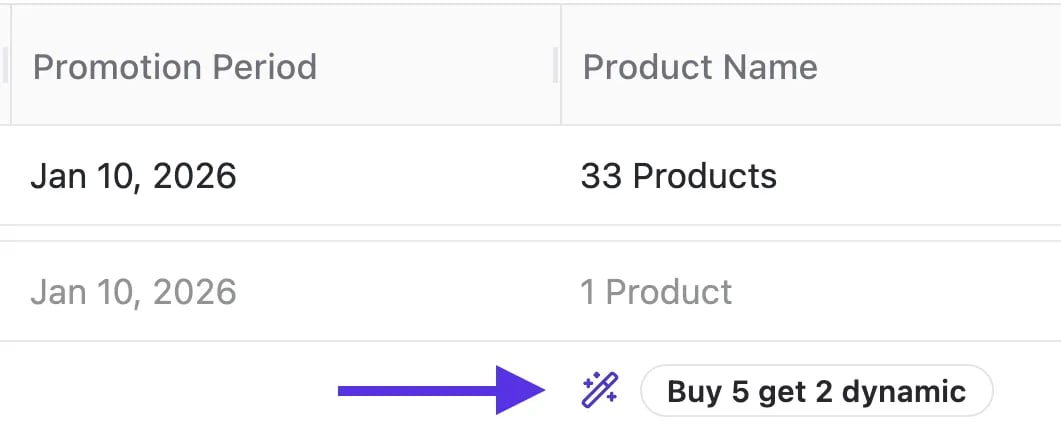
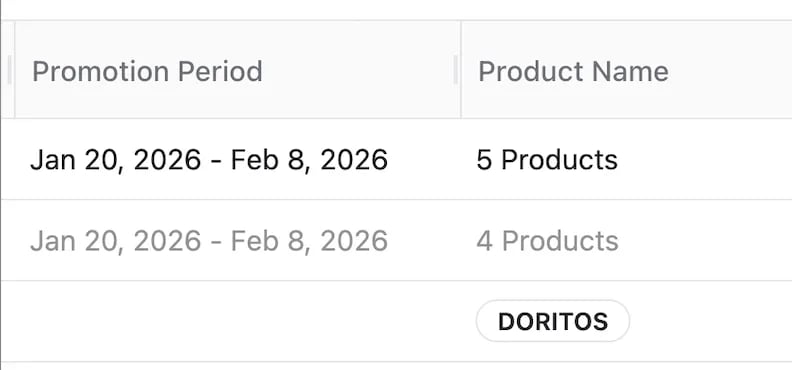
Every offer needs products. You can add them two ways:- Manual selection: Pick specific items one at a time by name or barcode. Best for a handful of items that don’t share a brand or department.
- Dynamic selection: Set rules (for example, “all Dairy items”) and Vori includes every matching product, now and as you add new items to your catalog.
Track Promotion Status
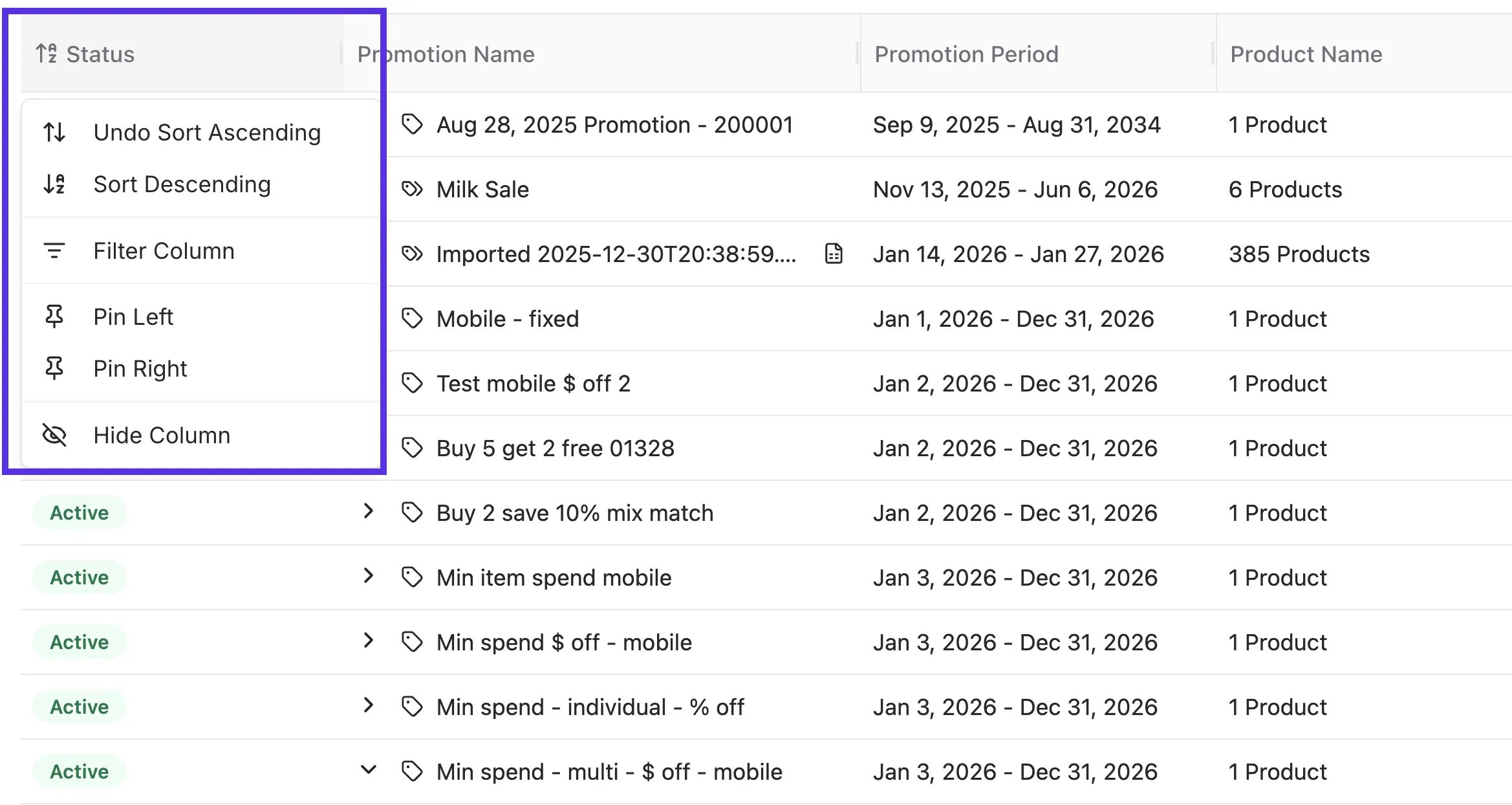
The Status column shows which deals are live at your store.- Draft: The promotion is incomplete and hasn’t been published.
- Pending: The promotion has a future start date and isn’t active yet.
- Active: The promotion is live and rings up at the POS.
- Completed: The promotion’s end date has passed.
- Canceled: The promotion was stopped manually.
- Deleted: Reserved for drafts that were never published. A deleted draft is permanently removed.
Find Promotions with Search and Filters
Check whether an item is already on sale, or find a campaign by name.Quick Search
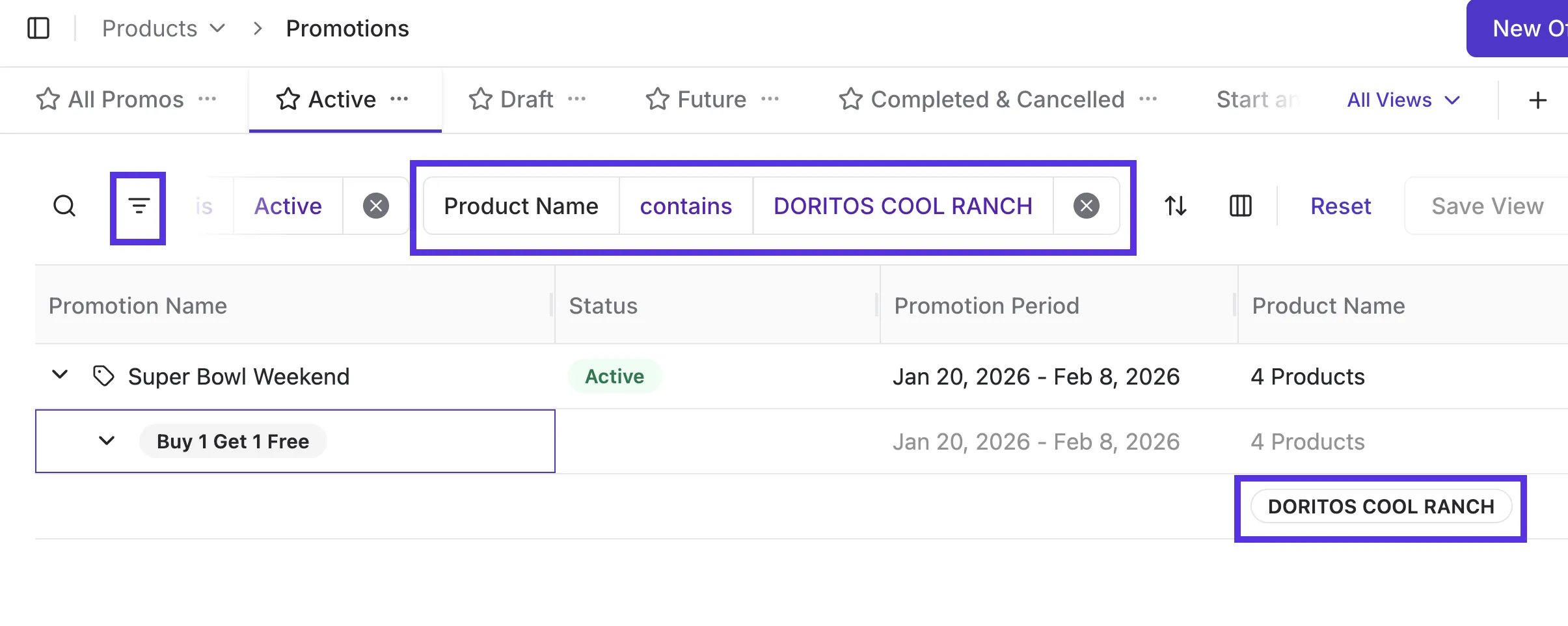
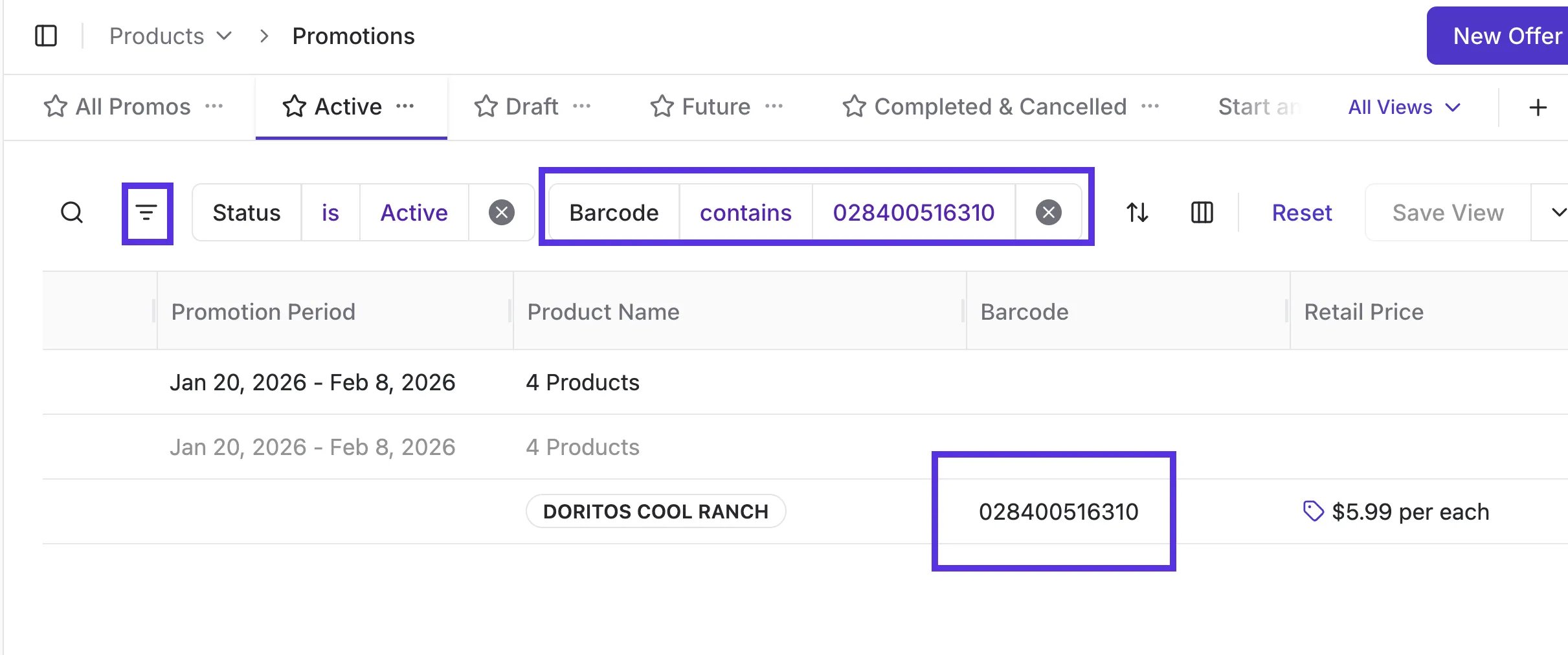
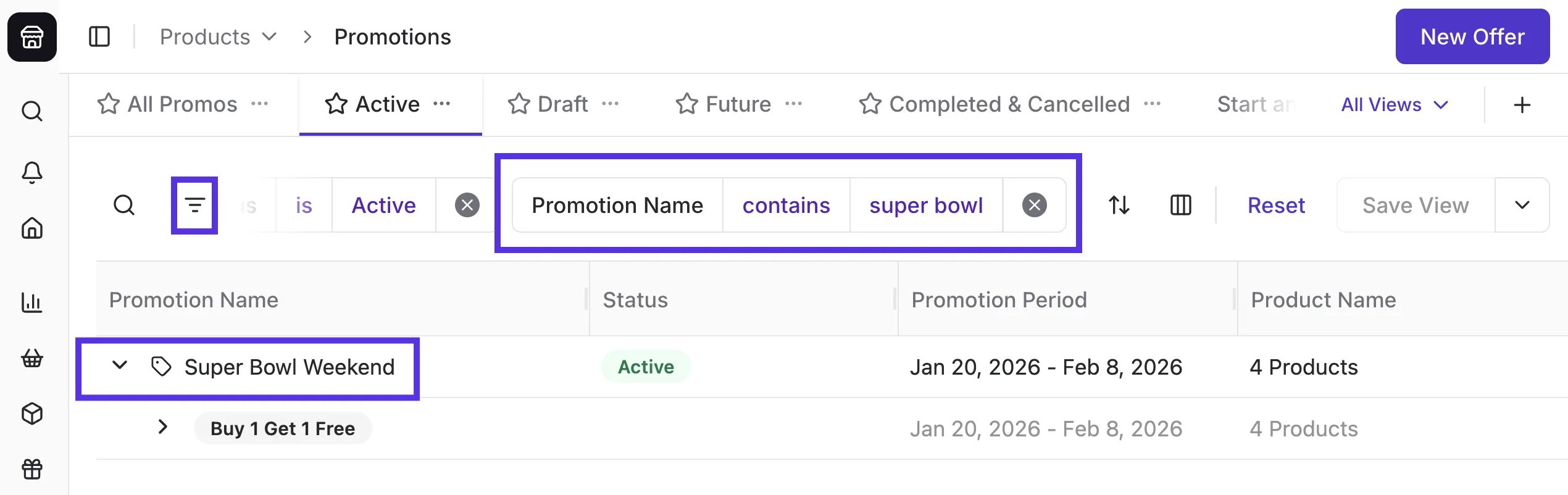
Use the search bar at the top of the Promotions table to find deals by:-
Product name
-
Barcode (UPC/PLU)
-
Promotion name
Advanced Filters
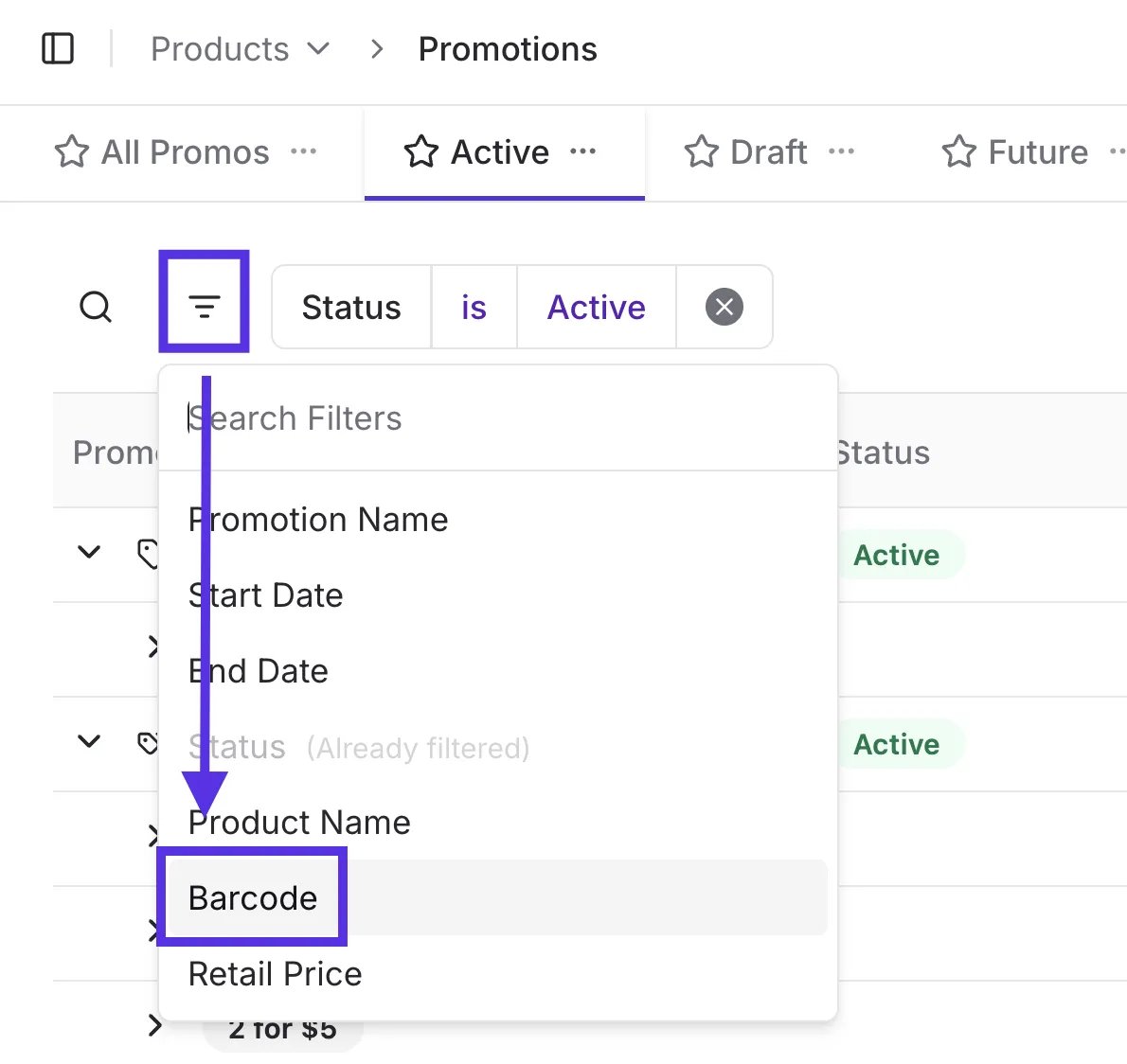
For more specific searches, use Filter:- Click Filter at the top left of the Promotions table.
-
Select a category (such as Barcode) from the dropdown.
-
Enter the value you want to check.
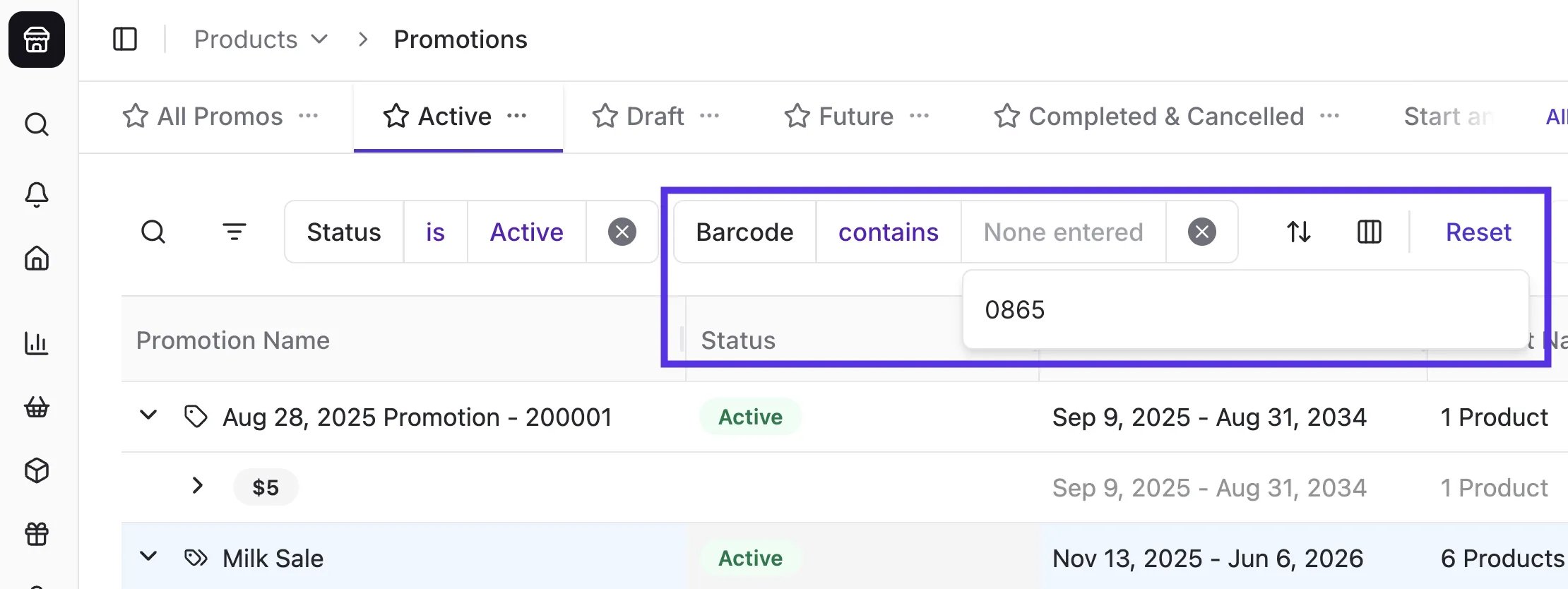
- The table updates to show only matching promotions.
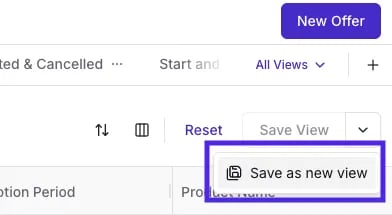
Identify Promotional Pricing
Vori shows visual cues next to each product so you can spot deals without opening every item.The Purple Promotion Icon
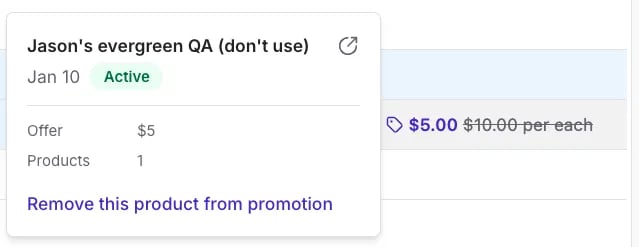
A purple tag icon next to a price means the product is on promotion. Hover over it to see a quick summary of the deal.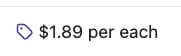
Pricing Display Types
-
Strikethrough price: A TPR. The original price is crossed out with the promotional price next to it.
-
Purple icon only: The final price depends on what the shopper buys (for example, “Buy 2 Get 1 Free”), so no single new price is shown.
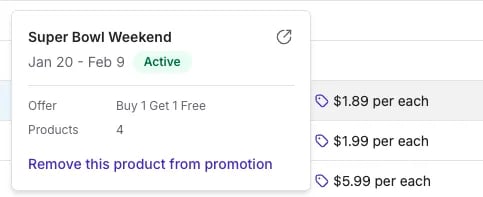
-
Bold purple text: The product has multiple overlapping active promotions. This appears in the Product Catalog table.
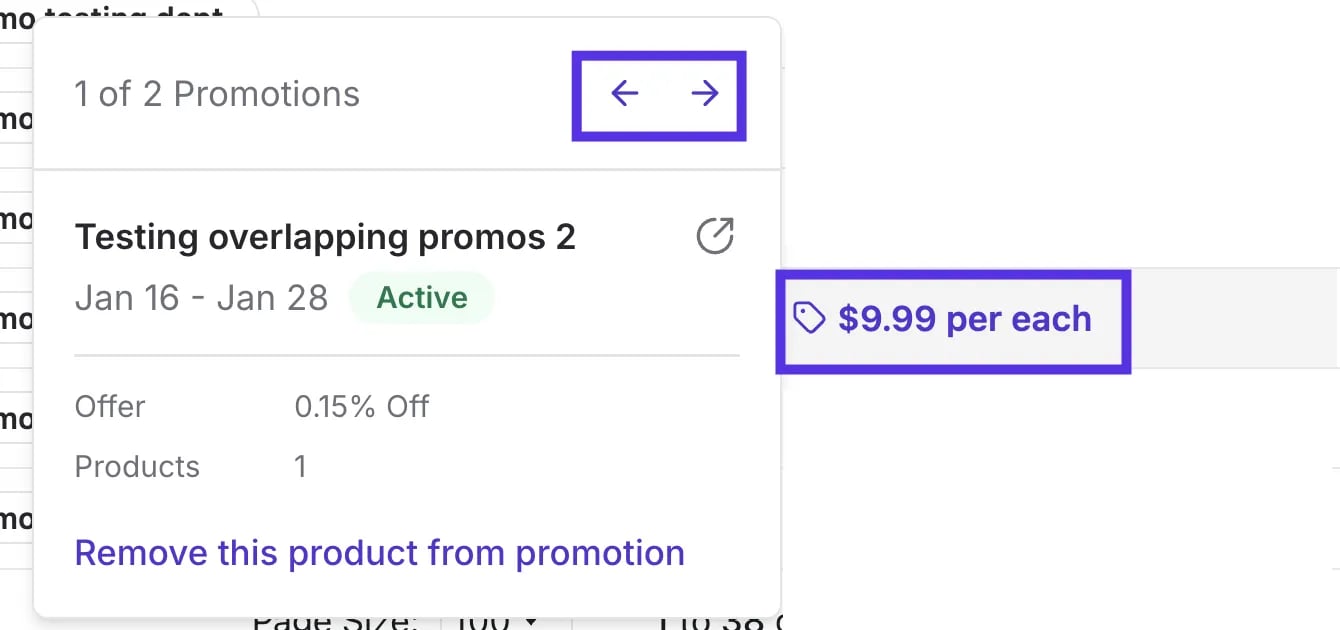
How Overlapping Promotions Are Prioritized
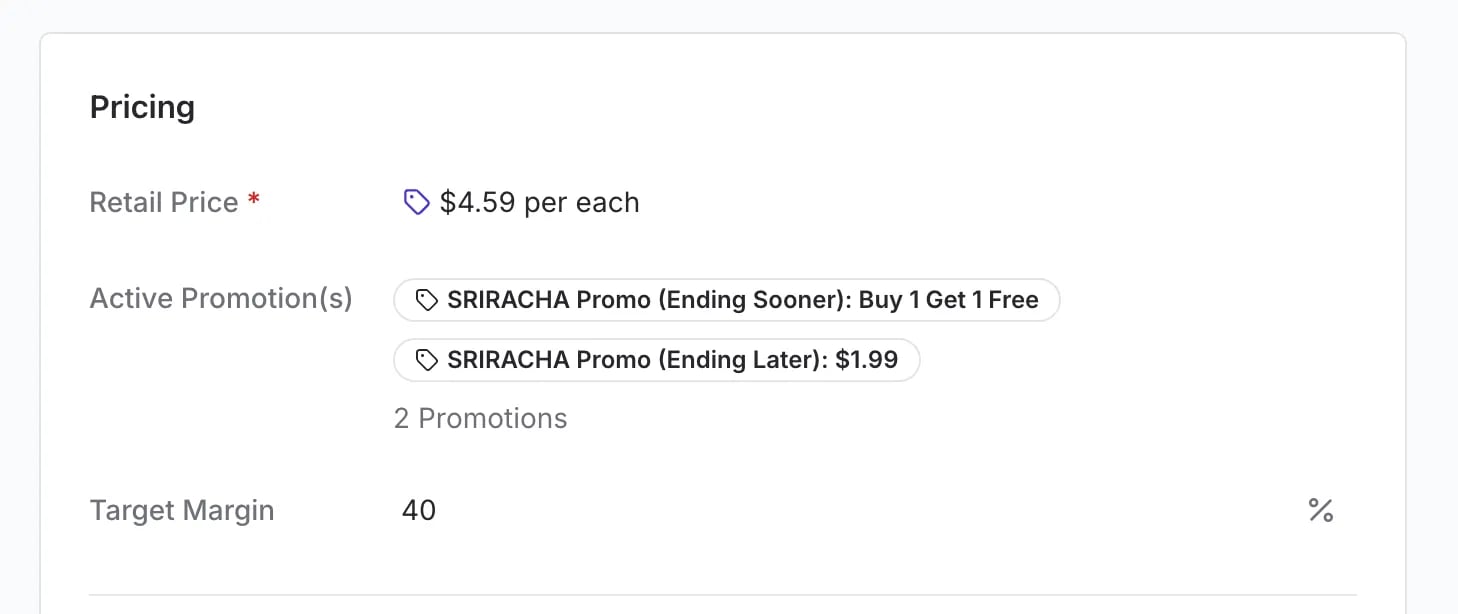
See the priority of overlapping offers on the Product Details page under Pricing → Active Promotions. Vori applies these rules:- Priority 1: The promotion ending soonest wins.
- Priority 2: If two promotions end at the same time, the most recently created one wins.
-
Create the $1.99 promotion. Set it up as a standard price reduction with an end date further out (for example, March 2).

-
Create the BOGO promotion. Set it up as Buy 1, Get 1 Free with an end date slightly earlier (for example, February 28).

- Ring it up. The POS applies the BOGO when the shopper buys two, and the $1.99 price for a single item.
Review Promotion Performance
Once a promotion is active, Vori labels it Overperforming, Underperforming, or No Impact. The label compares the product’s average daily sales during the promotion with its average daily sales off promotion (total sales divided by the number of days in each period):- Overperforming: Average daily sales on promotion are higher than off promotion.
- Underperforming: Average daily sales on promotion are lower than off promotion.
- No Impact: There are no sales in the period, or on- and off-promotion sales are about equal.
This comparison uses sales dollars, not units. If a product goes out of stock during its promotion, on-promotion sales reflect that gap, which can show the promotion as Underperforming even if the offer worked.
Next step: Learn how to Choose Products and Add Conditions to Offers, like Loyalty Members Only or a minimum basket total.