

Before You Start
Make sure:- The VoriOS app is installed on your mobile device.
-
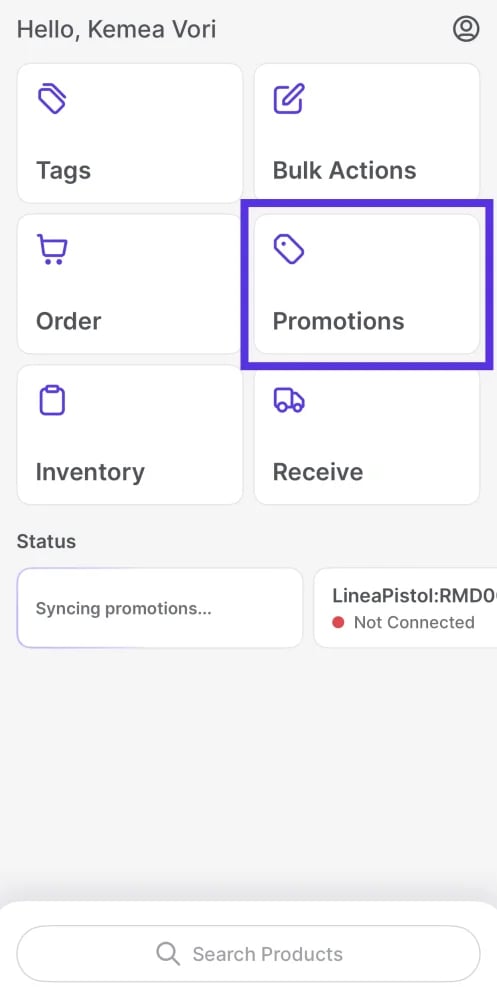
You’re logged in and can see the Promotions module on the home screen.
Create a New Promotion
You can start a promotion in two ways:- From the Promotions module
- Directly from the Products page while you’re on the floor
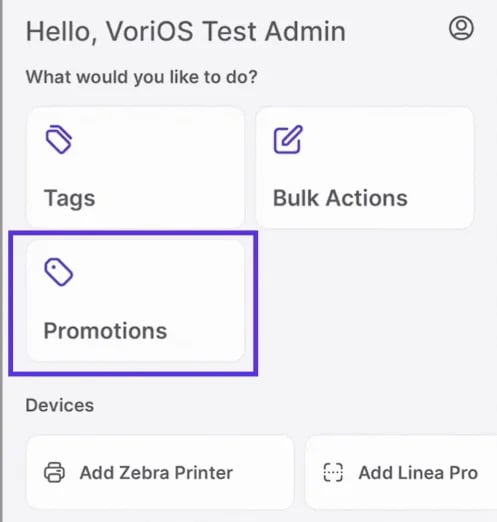
Promotions module
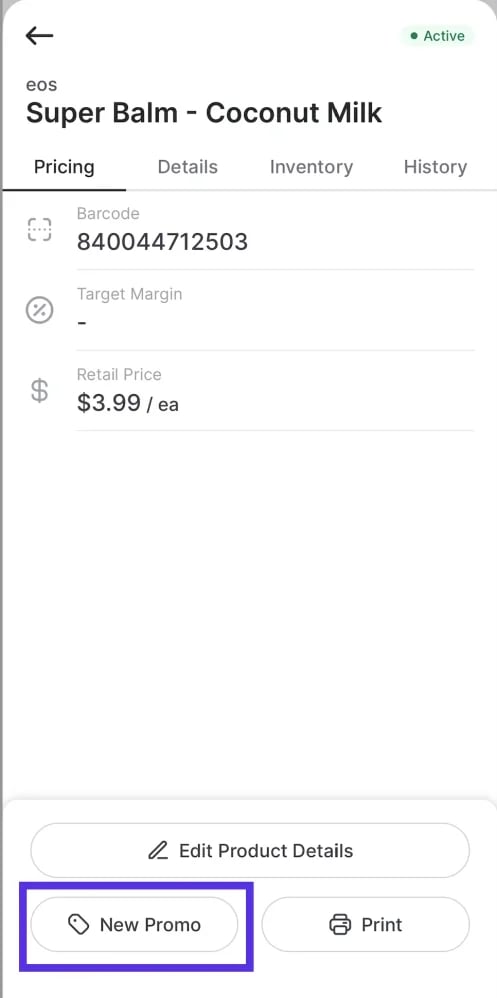
Products page
Option 1: From the Promotions Module
- Select the Promotions module from the main menu.
-
Tap Create New Offer at the bottom of the screen.
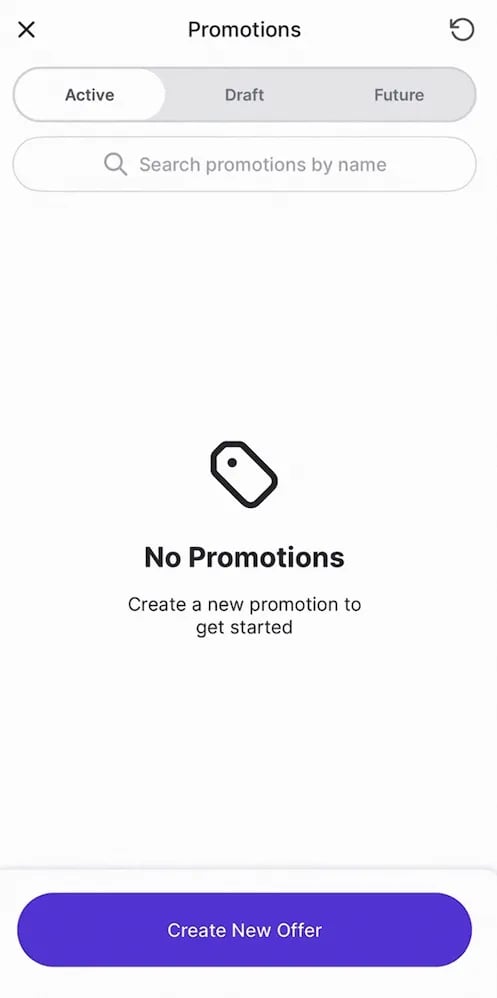
-
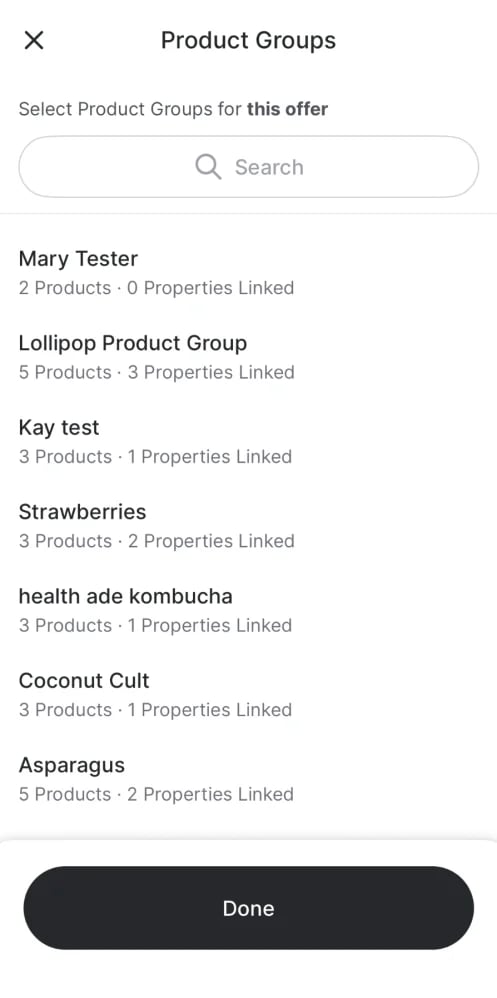
Select products. Add Individual Products or Product Groups.
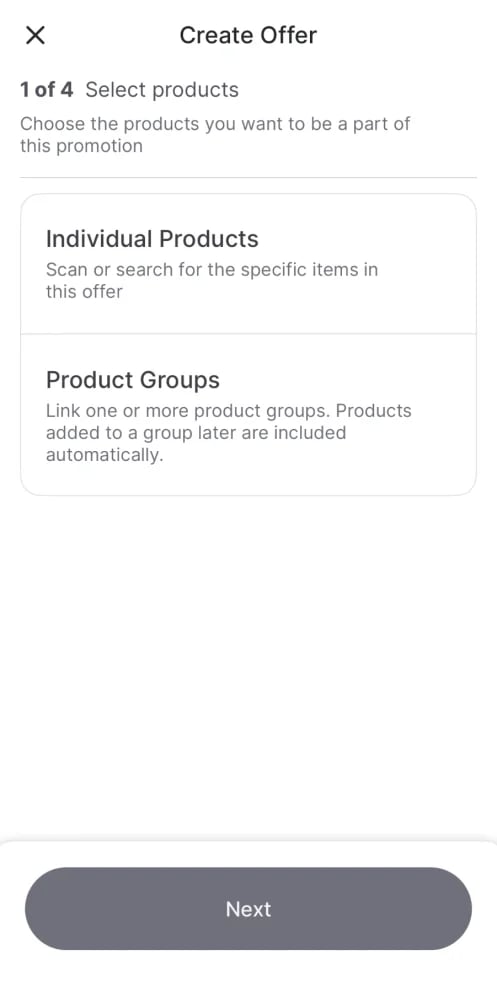
- Scan With Camera or Linea Pro: Walk the aisle and scan barcodes continuously to add items fast.
-
Search for Product: Search manually and tap the + next to each item. When you see the check mark, the item is locked in.
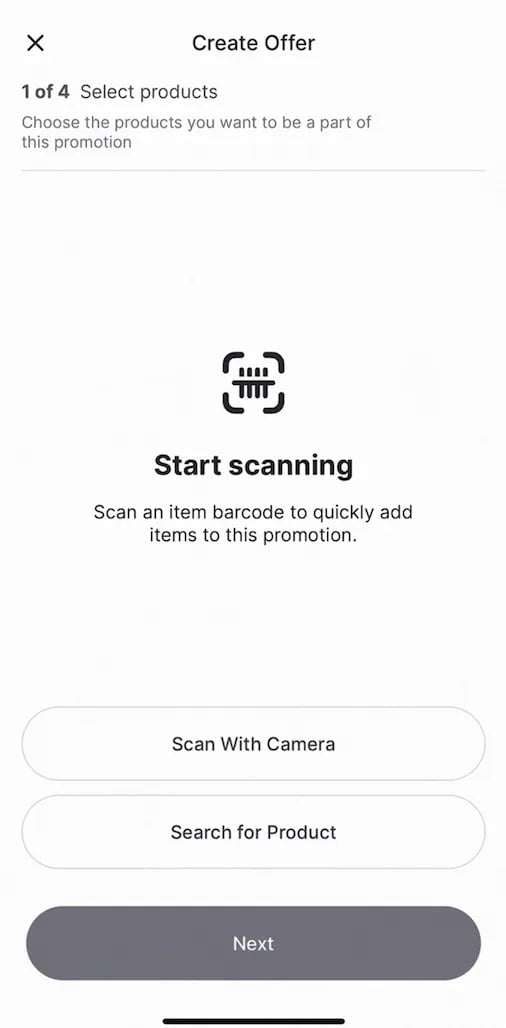
- Select the product group(s) for this offer. Use Search to find a group by name.
-
Tap Done. Products added to a group later are included in the offer automatically.
-
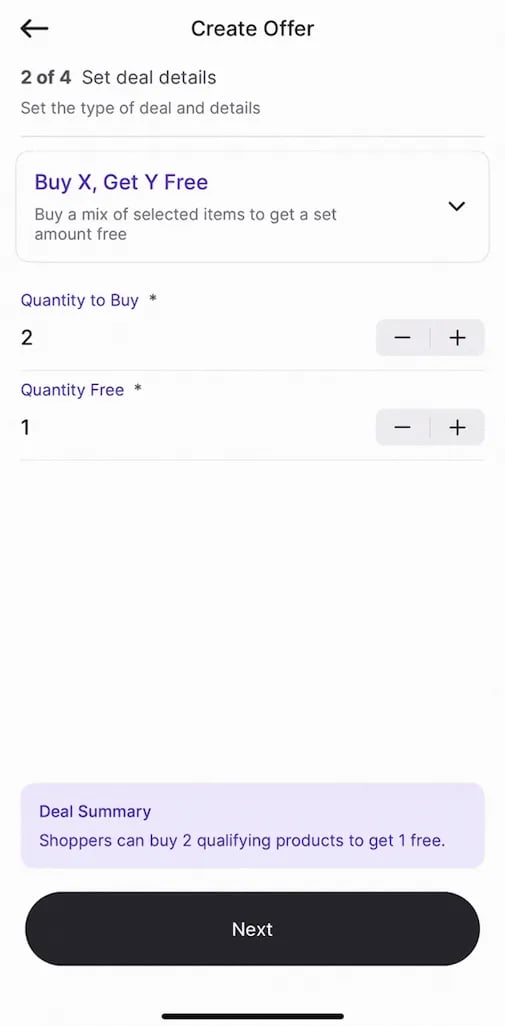
Tap Next to set your deal details:
-
Deal type
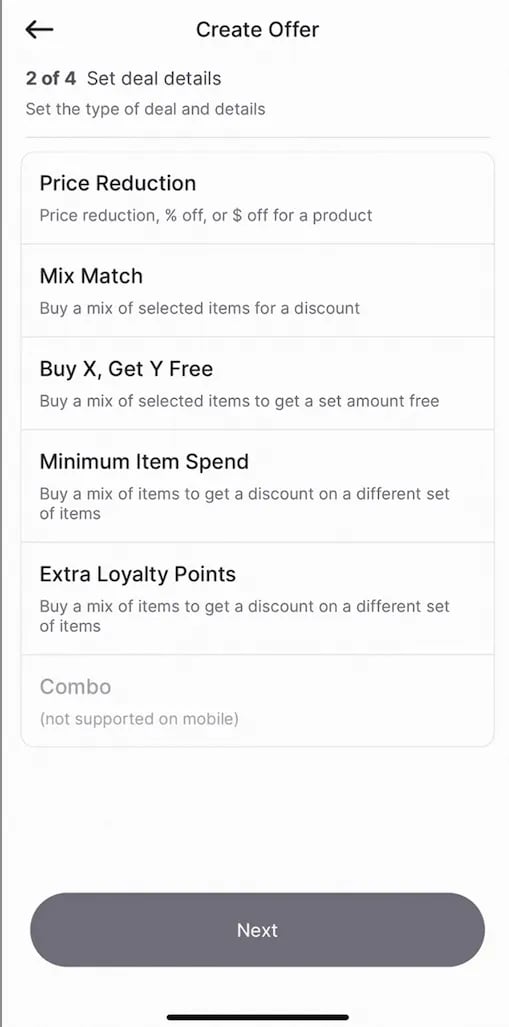
- Conditions
-
Discount structure
-
Deal type
-
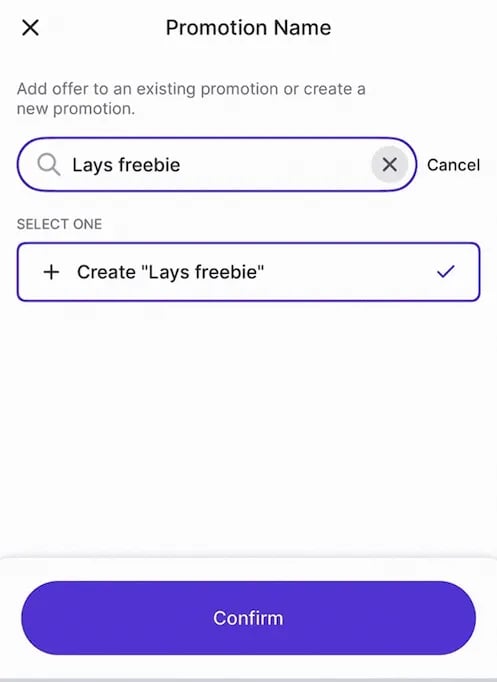
Tap Next again to assign the offer to a promotion. Either:
- Select an existing promotion, or
-
Enter a new name and tap Confirm.
-
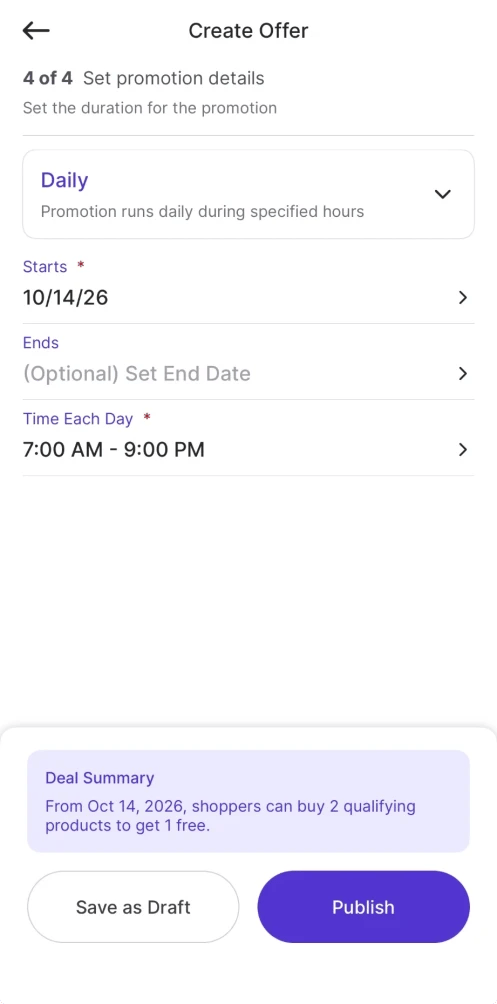
Set the duration, frequency, date, and time of the promotion.
-
Choose one:
- Save as Draft if you’re still refining, or
- Publish to go live immediately.
-
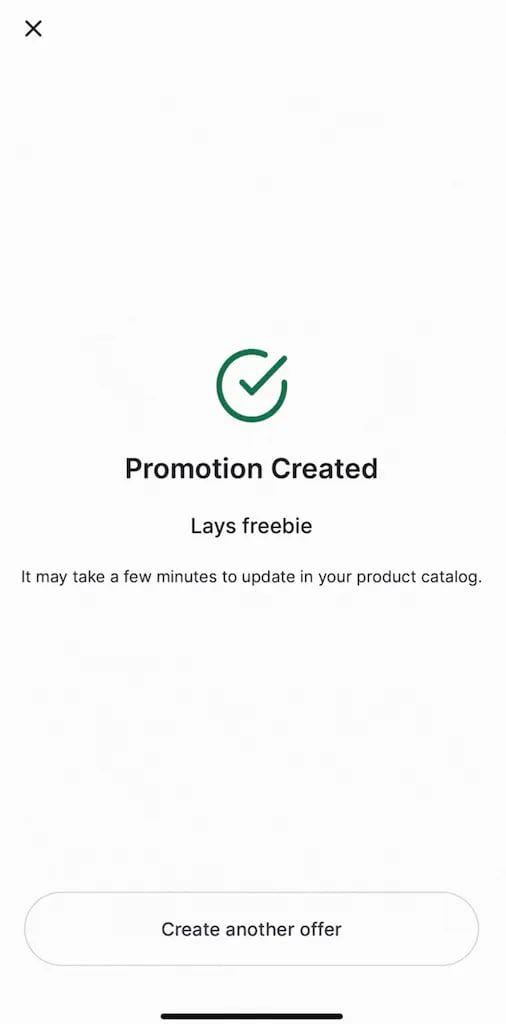
You’ll see a Promotion Created confirmation, and your promotion is officially working for you. The promotion appears under Active, Draft, or Future, depending on its details.
Option 2: From the Products Page
If you’re already on the floor adjusting pricing or reviewing items:- Use the Search bar or Scan to find the product.
-
Tap New Promo at the bottom of the screen.
-
Follow the same steps above to:
- Add items
- Set deal details
- Publish or save as a draft
Managing Variable-Weight Item Promotions
Variable-weight items support specific promotion types depending on your store setup:- Standard Promotions: Use the standard Promotions module. Variable-weight items support percentage-off promotions, as well as BOGO, Combo, Minimum Spend, and Shopper Group promotions.
- Manual Price Updates: If you’re not running one of these promotion types, update the price either manually or through Cost Changes.
Edit a Promotion
Accurate promotions protect shopper trust and your margins.From the Promotions Module
- Open Promotions.
- Tap the promotion you want to update.
- Edit the promotion:
- Select Edit Promotions to update the promotion period, frequency, date, and time.
- Select the item on promotion to edit the offer type.
- Make your changes.
- Tap Save or Update Offer.
- A confirmation banner appears at the bottom of your screen.
From the Products Page (Updating the Offer Only)
- Scan or search for the product already on promotion. Look for the purple tag next to the retail price.
- Tap the product.
- Tap the active promotion.
- Select View Promo.
- Make your changes to the offer.
- Tap Update Offer.
Duplicate a Promotion
Running recurring sales? Don’t start from scratch.- Open Promotions.
- Select the promotion you want to copy.
- Tap the three dots at the top right.
- Select Duplicate Promotion Details.
- Review and adjust as needed.
- Tap Save.
- The new promotion saves as a Draft, ready for you to publish.
Cancel a Promotion
If you need to end a sale early, you can do so in a few taps.- Open the Promotions module and select the active promotion.
- Tap the three dots at the top right and select Cancel Promotion.
- When the confirmation pop-up appears, tap Cancel Promotion to finalize.