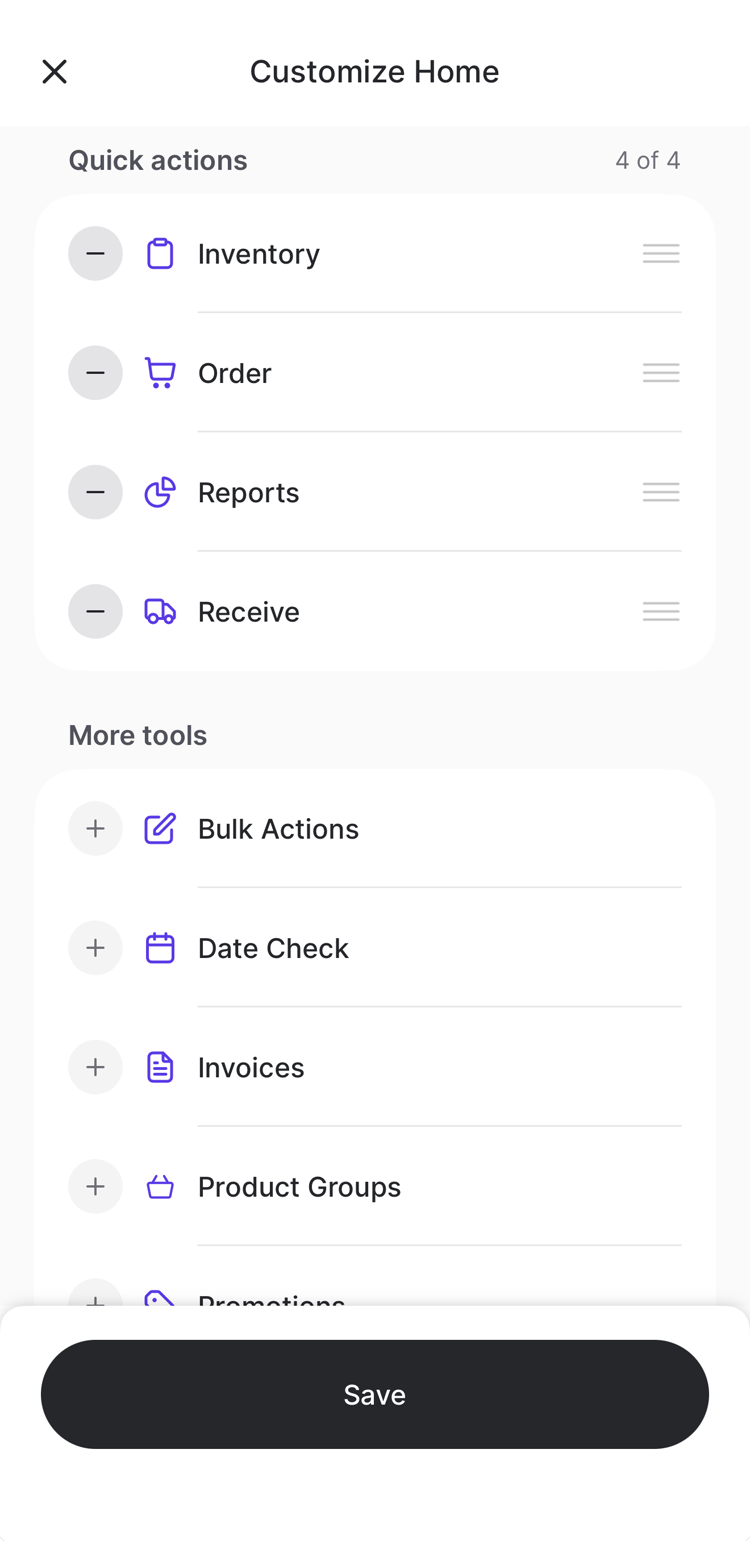
Quick actions appear when you have access to 7 or more tools. If you have fewer, the home screen shows all of your tools as tiles instead, and there’s nothing to customize.
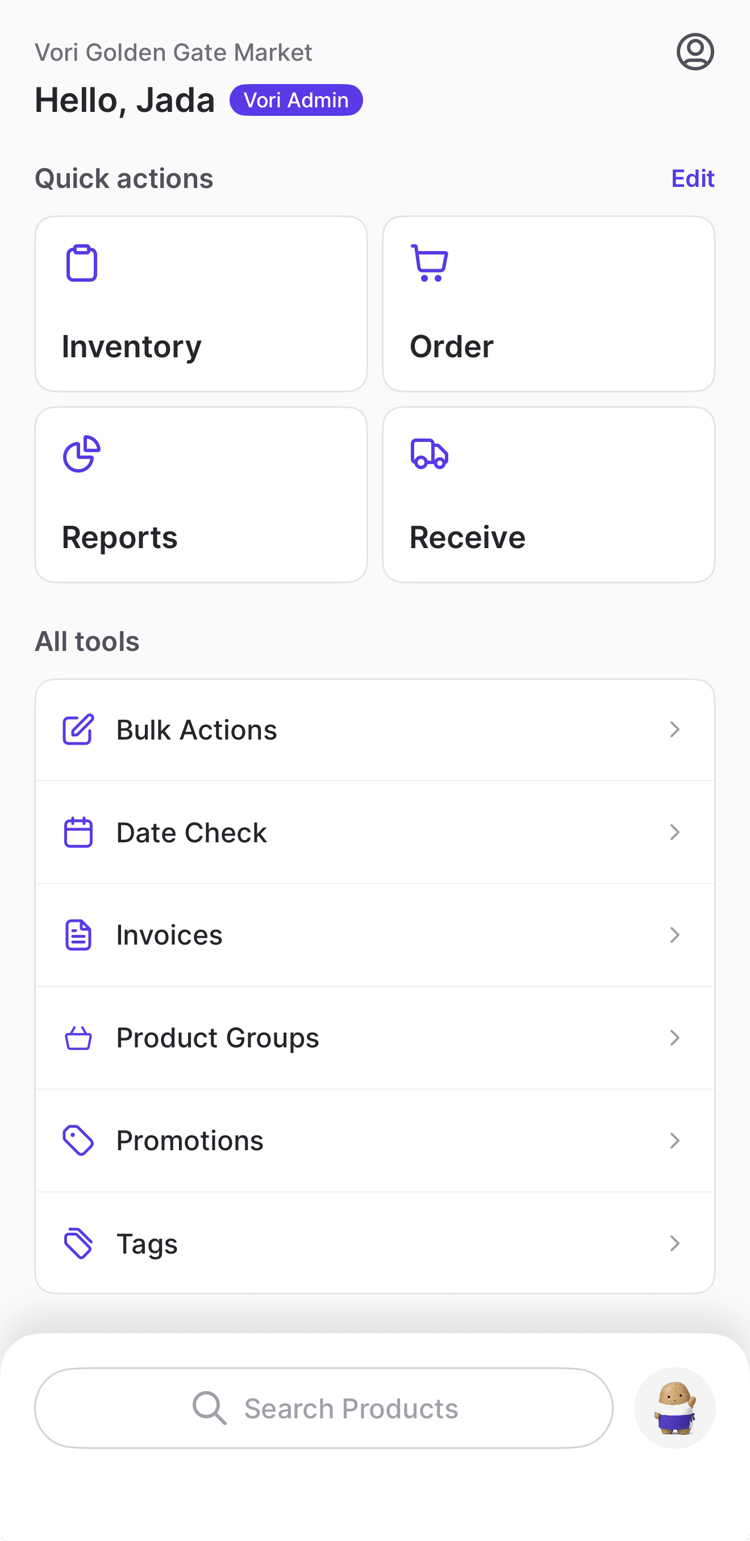
What’s on the home screen
- Quick actions: Up to 4 tools pinned as large cards at the top.
- All tools: Every other tool you have access to, in alphabetical order.
- Status: Scroll down to find tiles for sync, your tag printer, and your scanner. Tap the sync tile to sync the app with the Back Office.
- Search Products and Chip: Buttons at the bottom of the screen to look up a product or ask Chip a question.
Choose your quick actions
- On the home screen, tap Edit next to Quick actions.
- On the Customize Home screen:
- Tap + next to a tool under More tools to add it.
- Tap − next to a pinned tool to remove it.
- Drag a pinned tool by its handle to change its order. The first tool appears at the top of your home screen.
- Tap Save.