

Introduction
If the VoriOS app is not connected to the phone’s built-in camera, a blank screen will appear when attempting to open the camera-based barcode scanner. Follow the steps below to identify and resolve the issue. 💡 Tip: If available, try scanning barcodes with a connected Linea Pro for faster input than the phone’s built-in camera.Force Quit and Reopen the App
Start by fully closing and reopening the VoriOS app.- Swipe up from the bottom of the screen and pause in the middle.
- Swipe up on the app’s preview to close it.
Confirm and Reset Camera Access
Next, check if the app has permission to use the camera.- Force quit the app again using the directions above.
- From the handheld home screen, open Settings ⚙️.
- Swipe to the bottom of the Settings page and select Apps.
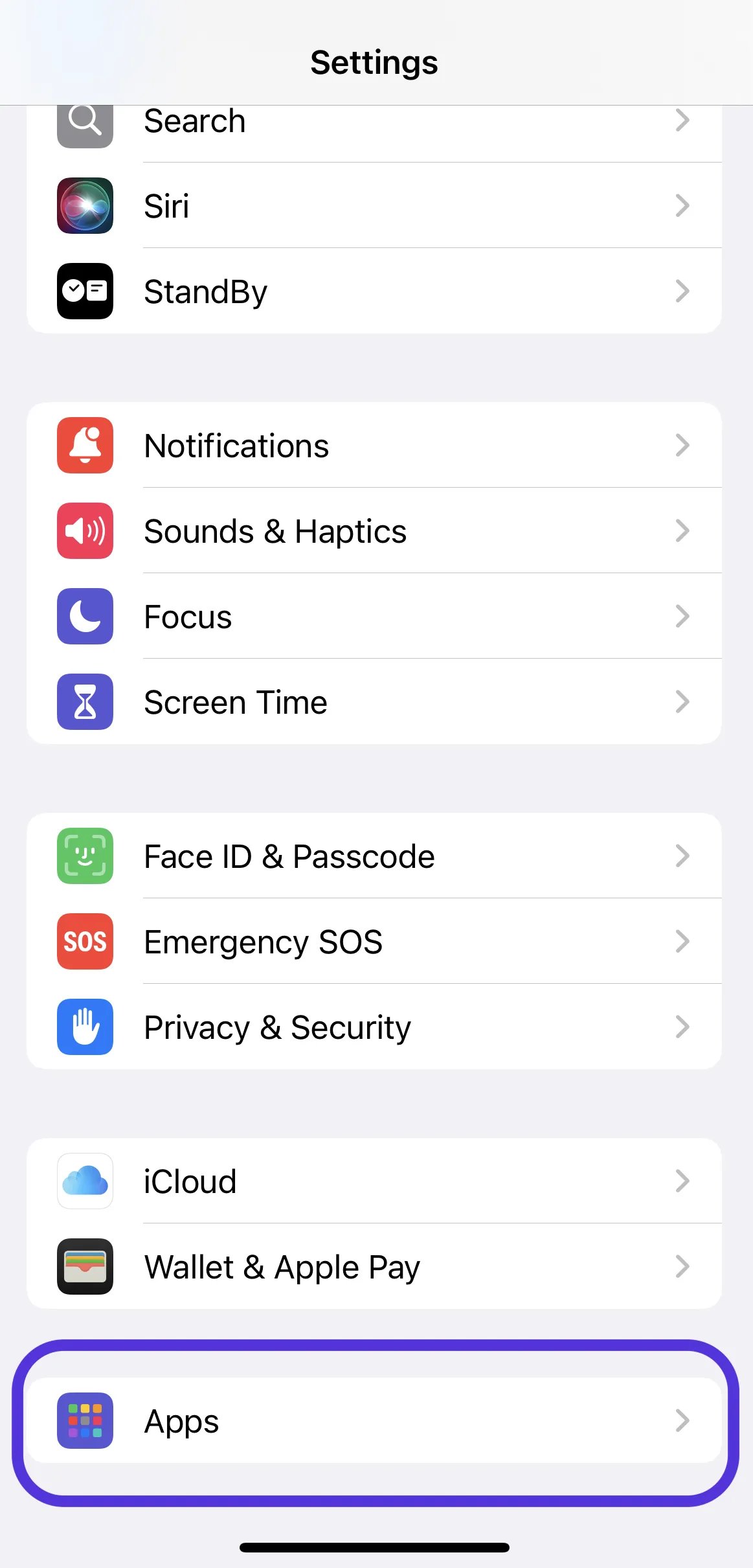
- Search for and select the VoriOS app.
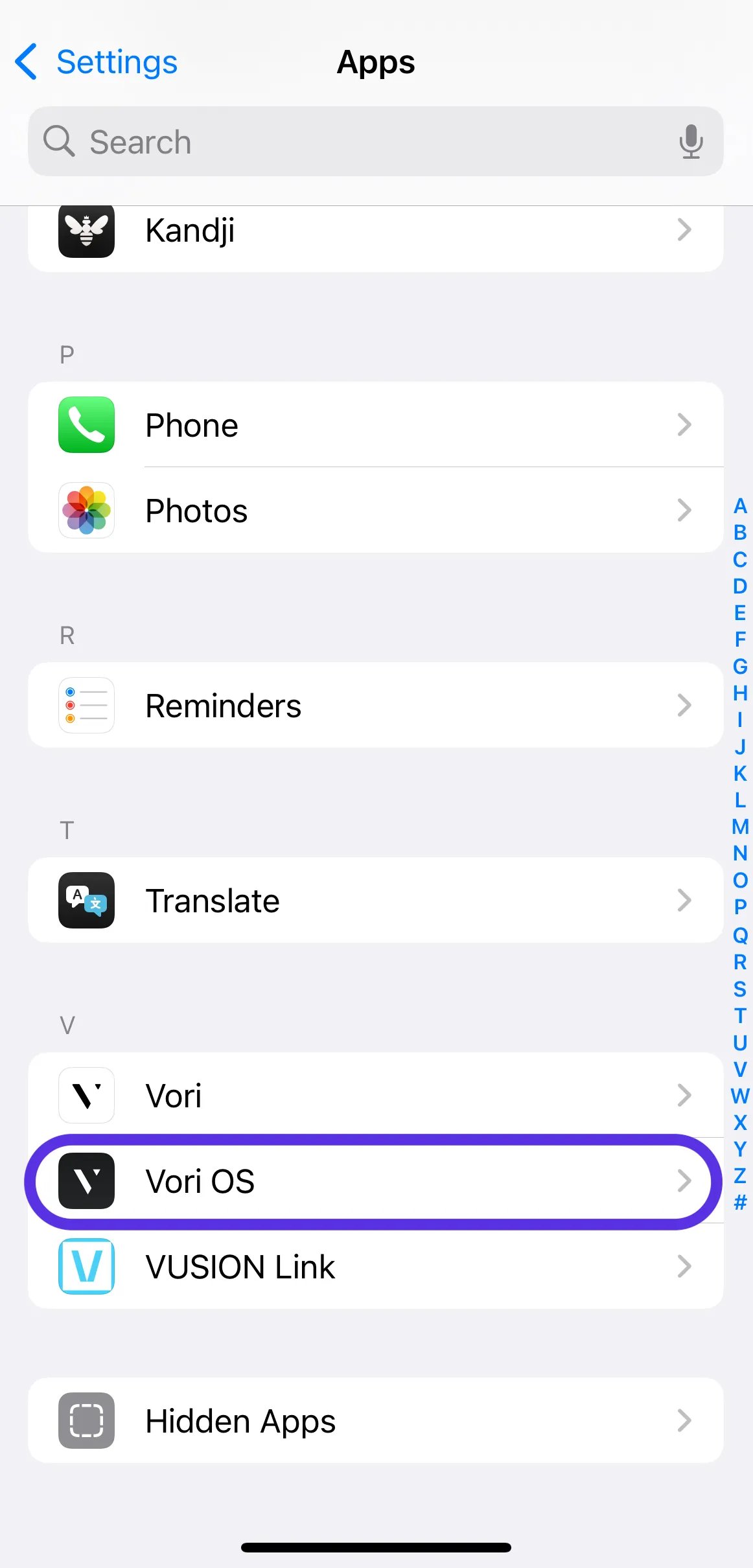
- Confirm Camera access is enabled.
- If Camera access is already enabled, toggle it off to disable it, then toggle it back on to re-enable access.
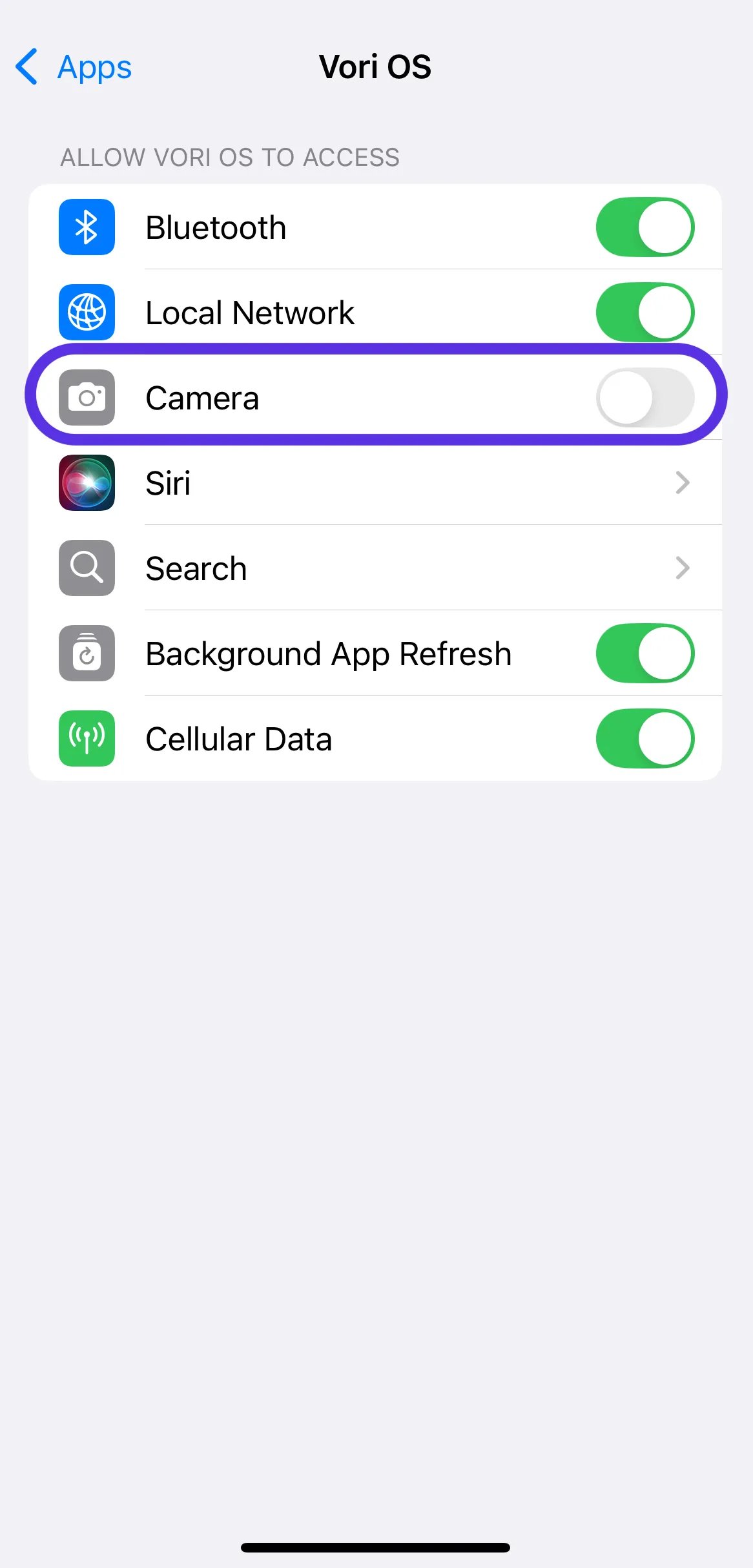
- If Camera access is already enabled, toggle it off to disable it, then toggle it back on to re-enable access.
- Swipe up from the bottom of the screen to close the Settings page.
- Reopen the VoriOS app to confirm if the camera now has access.
Restart the Handheld
Last, power cycle the handheld to reset any misconfigurations that may be causing the issue.- On the handheld unit, press and hold the top volume button and right side button until the slide to power off prompt appears.
- Slide the power off prompt to the right to power turn off the handheld.
- Press and hold the right side button until the handheld powers back on.
- Reopen the VoriOS app to confirm if the camera now has access.