

Overview
The Electronic Shelf Labels page gives you a live view of every Electronic Shelf Label (ESL) in your store. Use it to confirm labels are connected, check which product each label shows, and find labels with low batteries or connection problems before shoppers notice a wrong price.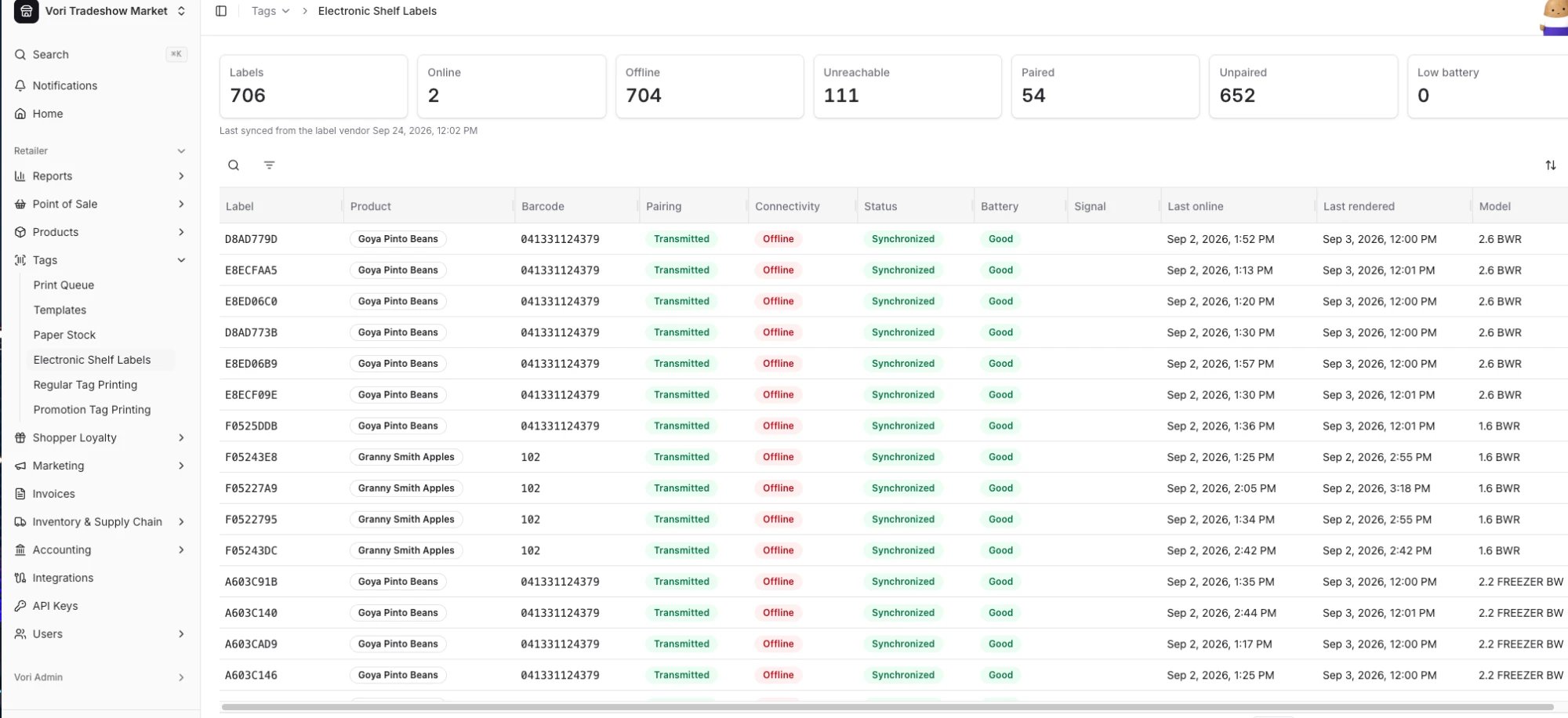
Open the Electronic Shelf Labels page
- Sign in to Back Office at app.vori.com.
- In the left menu, go to Tags > Electronic Shelf Labels.
Read the summary cards
The cards at the top of the page show label counts for your store at a glance.
Online and Offline add up to your total label count, as do Paired and Unpaired.
Below the cards, Last synced from the label vendor shows when Vori last pulled label data from your ESL provider. If a label’s status looks out of date, check this timestamp first.
Search, filter, and sort labels
Use the tools above the table to find specific labels:- Search (magnifying glass icon): look up a label by its label ID, product name, or barcode.
- Filter (filter icon): narrow the list, for example to show only offline or unpaired labels.
- Sort (arrows icon on the right): change the order of the table.
Understand the label table
Each row is one ESL. Scroll right to see all columns.Troubleshoot common issues
- Many labels are offline or unreachable: Check that your ESL access points are powered on and connected. See How to physically troubleshoot an ESL access point.
- A label is unpaired: Link it to a product. See Link a product to an Electronic Shelf Label (ESL).
- A label shows the wrong product or won’t link: See How to troubleshoot ESL linking issues with type 2 UPCs.
- Battery shows low: Replace the label’s battery or swap the label.