Step 1: Force Quit and Reopen the App
Start by force-quitting the VoriOS app on your handheld and reopening it.- Slowly drag your finger up from the bottom of the handheld’s touch screen and leave your finger resting at the center of the screen.
- When a windowed preview list of all open apps on the handheld is displayed, release your finger.
- Swipe up on the VoriOS app’s preview to close it.
- Re-open the VoriOS app and log back in.
- Check to see if the missing product or invoice data is now available on the handheld.
Step 2: Trigger the Re-Sync in VoriOS
-
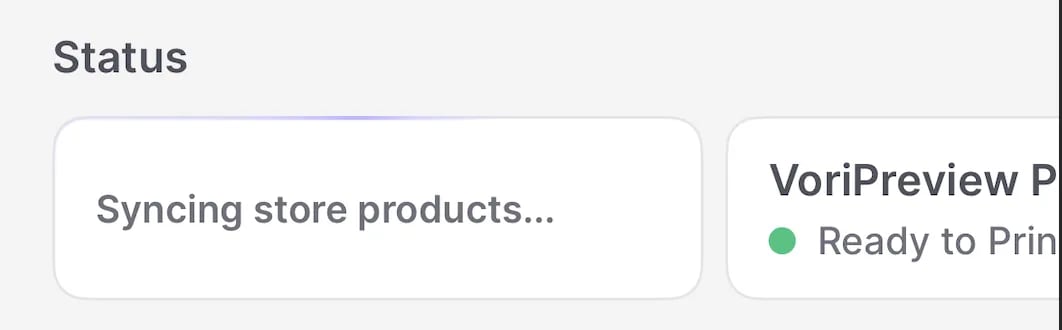
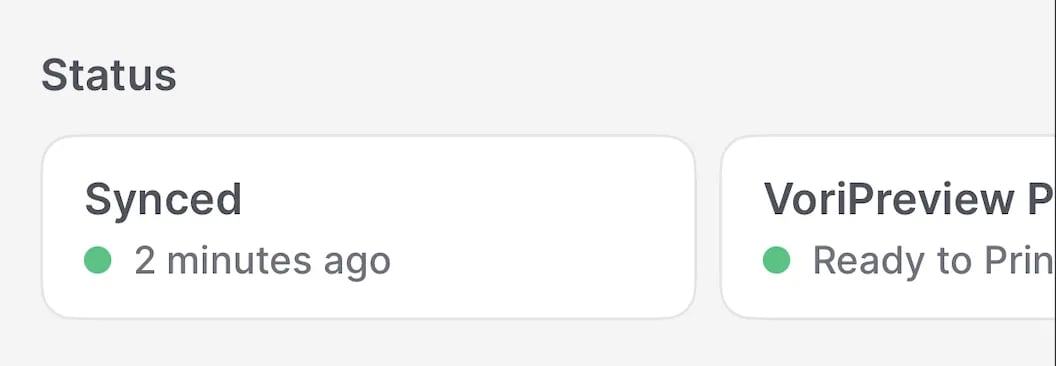
From the main screen of the VoriOS app, tap the card that shows your current sync status (e.g., “Synced 2 minutes ago”).
Step 3: Reinstall the App Using Iru
- If data is still missing after a re-sync:
- Force quit the VoriOS app again.
-
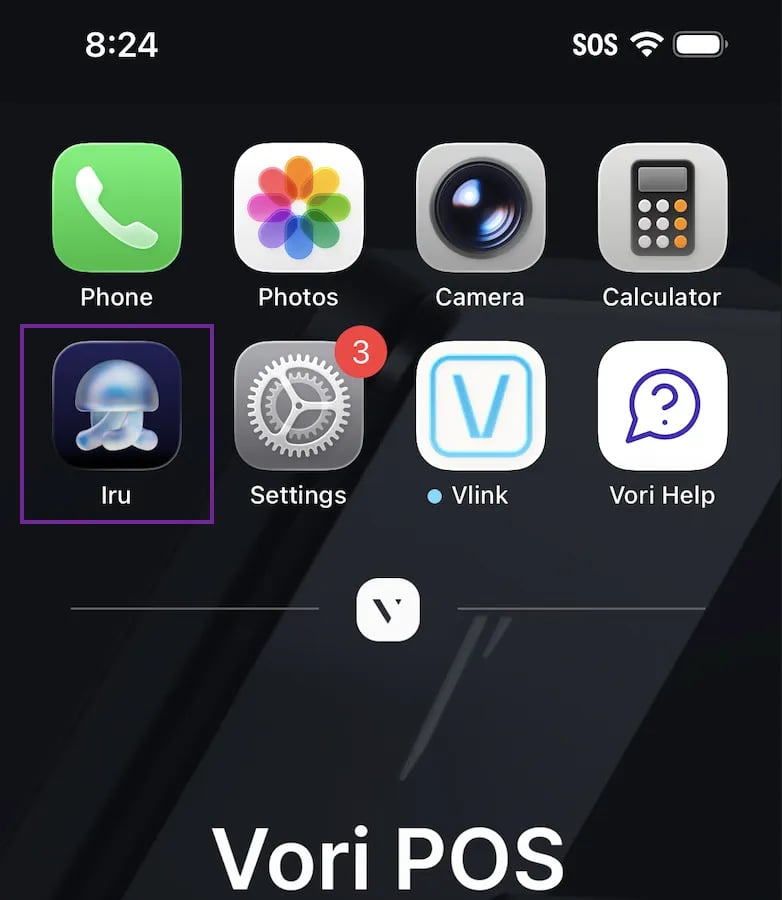
From the handheld home screen, open the Iru app.
-
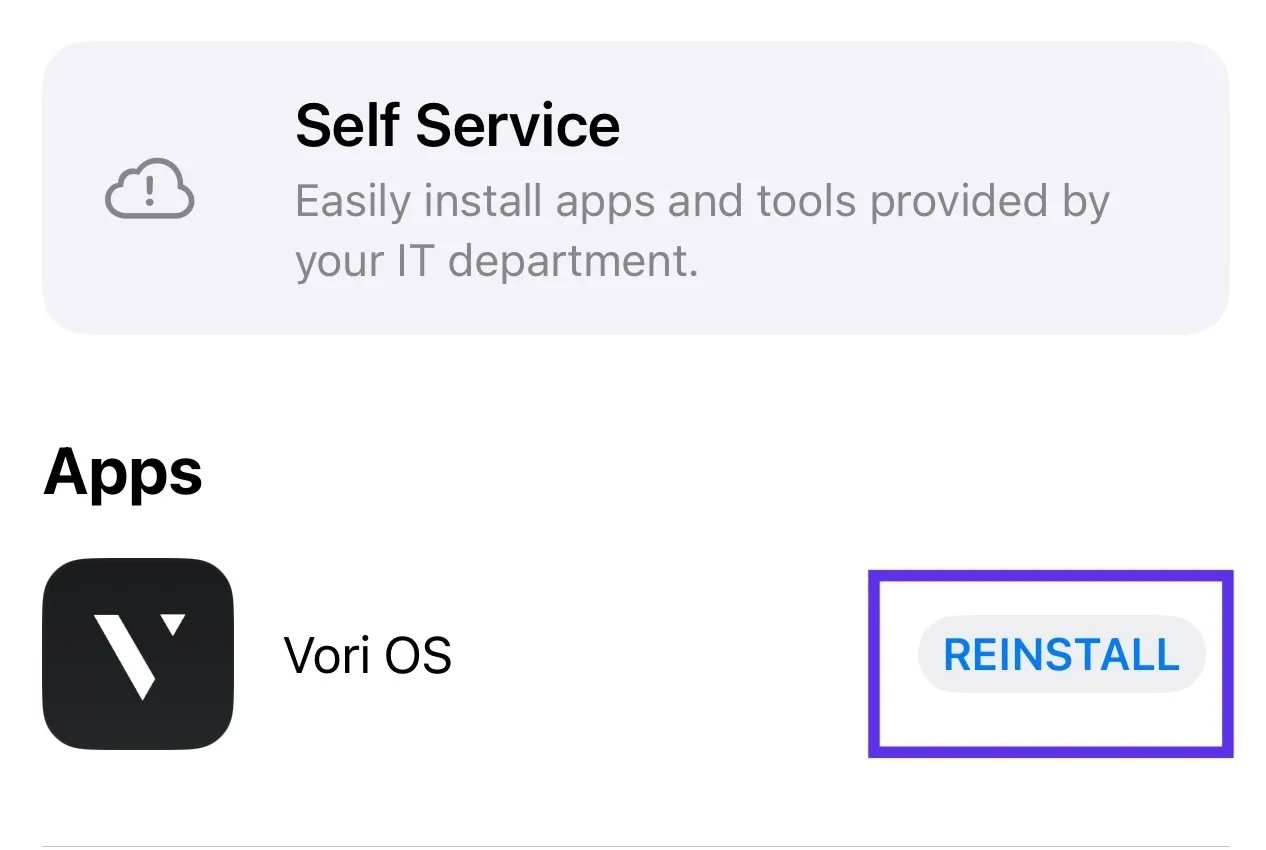
Tap Reinstall next to the VoriOS app.
-
Once the reinstall is complete, reopen VoriOS and check for your data.
Troubleshooting
Still not seeing the product or invoice?- Double-check that you’re logged into the correct store account.
-
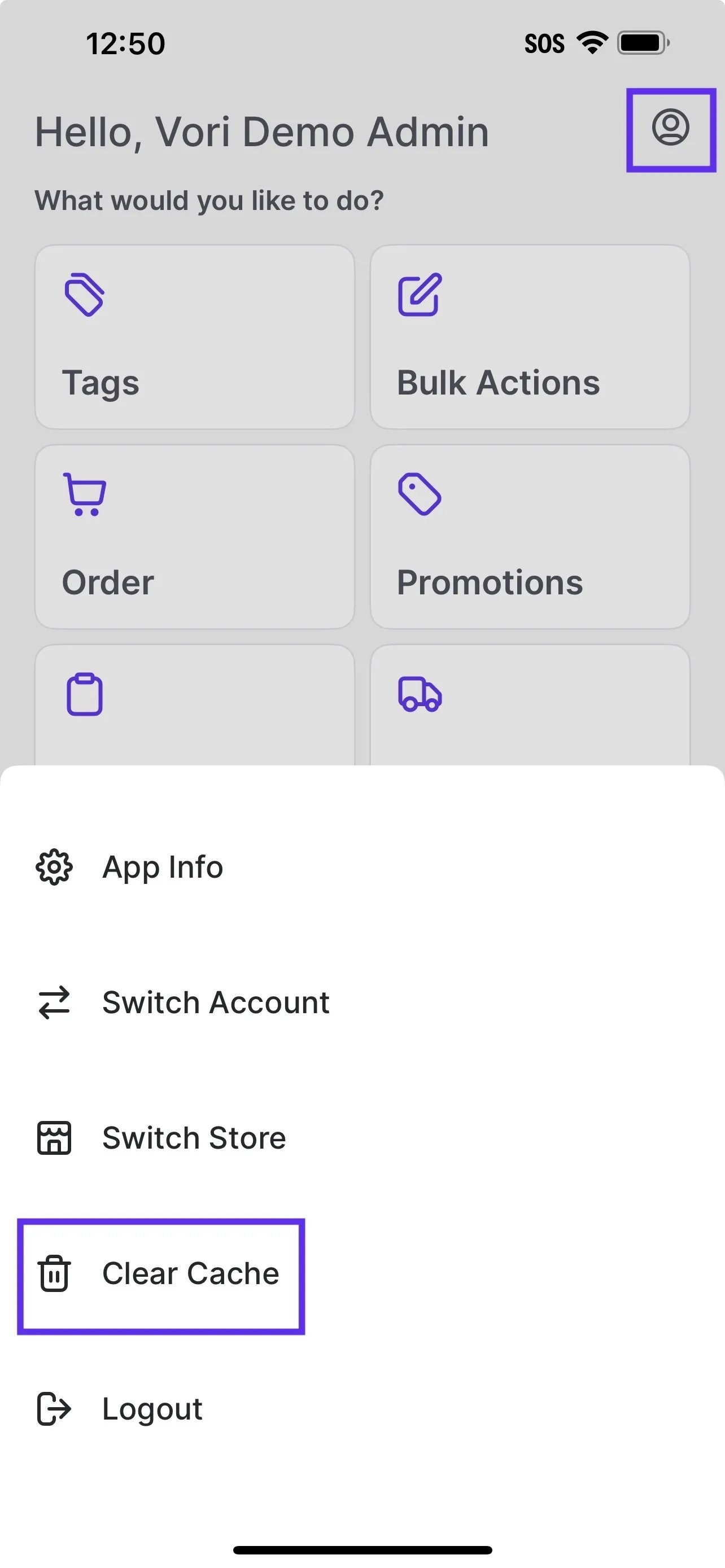
Try clearing your cache:
- From the main screen of VoriOS, select the profile icon.
- Tap Clear Cache.
-
Wait a moment and check again.