

How to Reset the Scanner
-
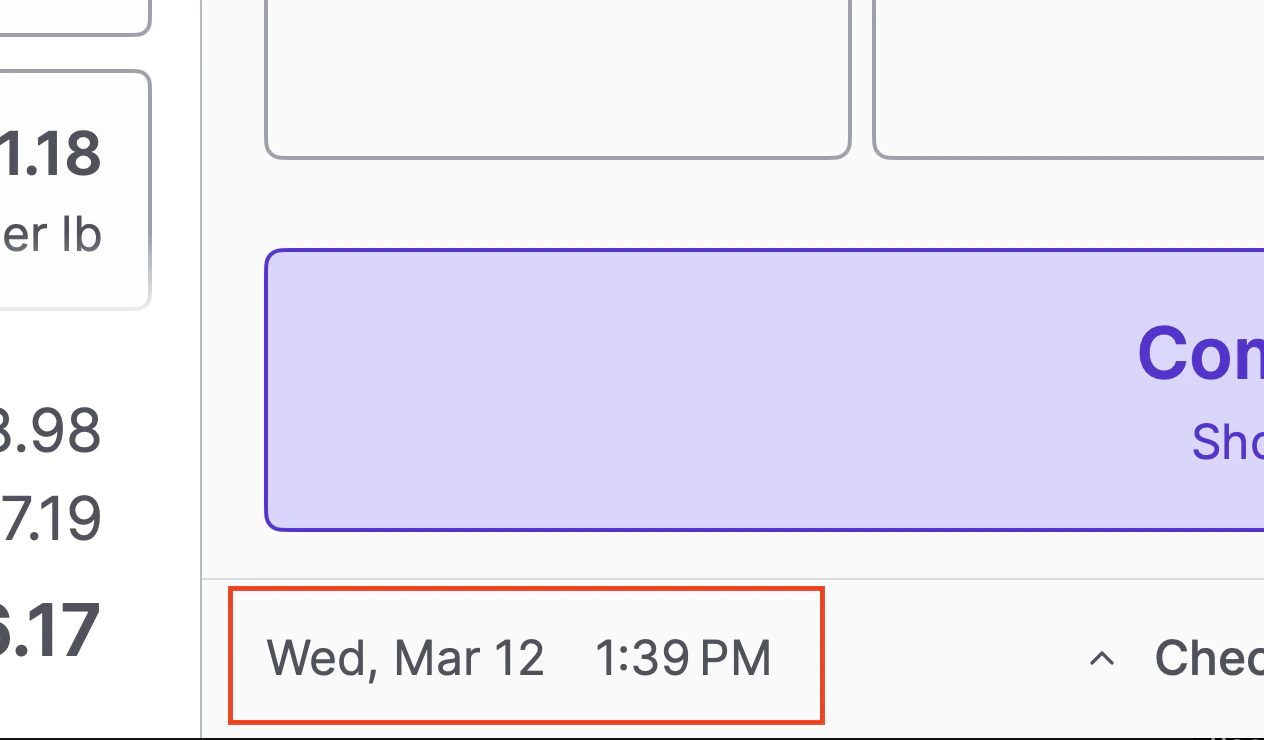
On the POS screen, quickly tap the date and time in the bottom right corner three times to open the settings menu.
-
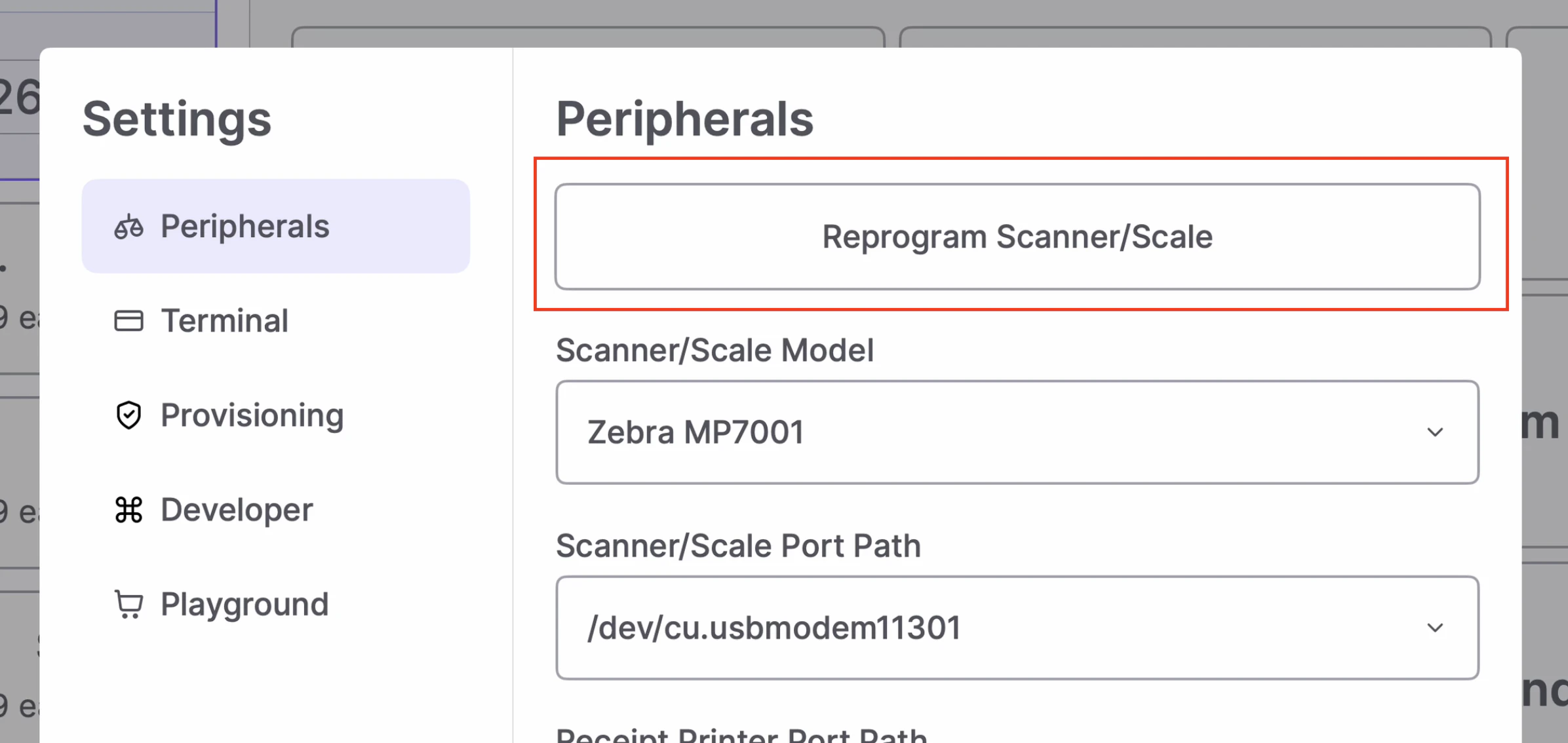
Tap Reprogram Scanner/Scale.
-
⚠️ Caution: To avoid issues with your POS, please do not change any other settings in this menu.
-
⚠️ Caution: To avoid issues with your POS, please do not change any other settings in this menu.
-
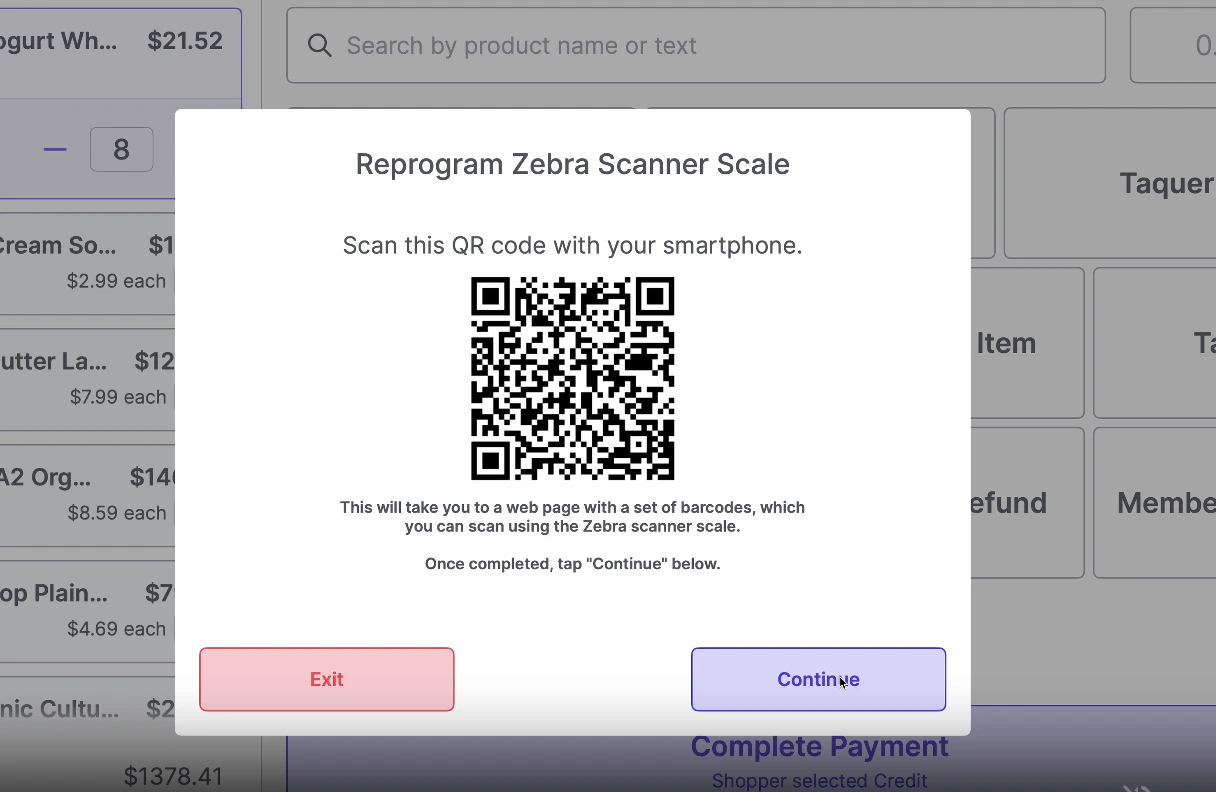
Use your smartphone’s camera to scan the QR code that appears on the POS screen. This will open a webpage on your phone containing two barcodes.
-
Using the POS scanner, scan each barcode on your smartphone’s screen one at a time. The scanner will restart after you scan each one.
- The second restart may take up to 30 seconds.
- Once the scanner has restarted for the second time, tap Continue on the POS screen, then tap Confirm to finish.
- Test that the scanner is working correctly by scanning an item and weighing something on the scale.