Direction
Each Vori store with ESLs is also equipped with a store handheld with the Vusion Link app pre-installed. This guide explains how to setup the app on a new phone, but is also helpful if needing help logging back into the app.Required Materials
- Smartphone with internet access.
- Computer with internet access.
- User email registered to Vusion Manager, directions here.
Directions
-
On the smartphone, download Vusion Link from the App Store. Then open it.
-
-
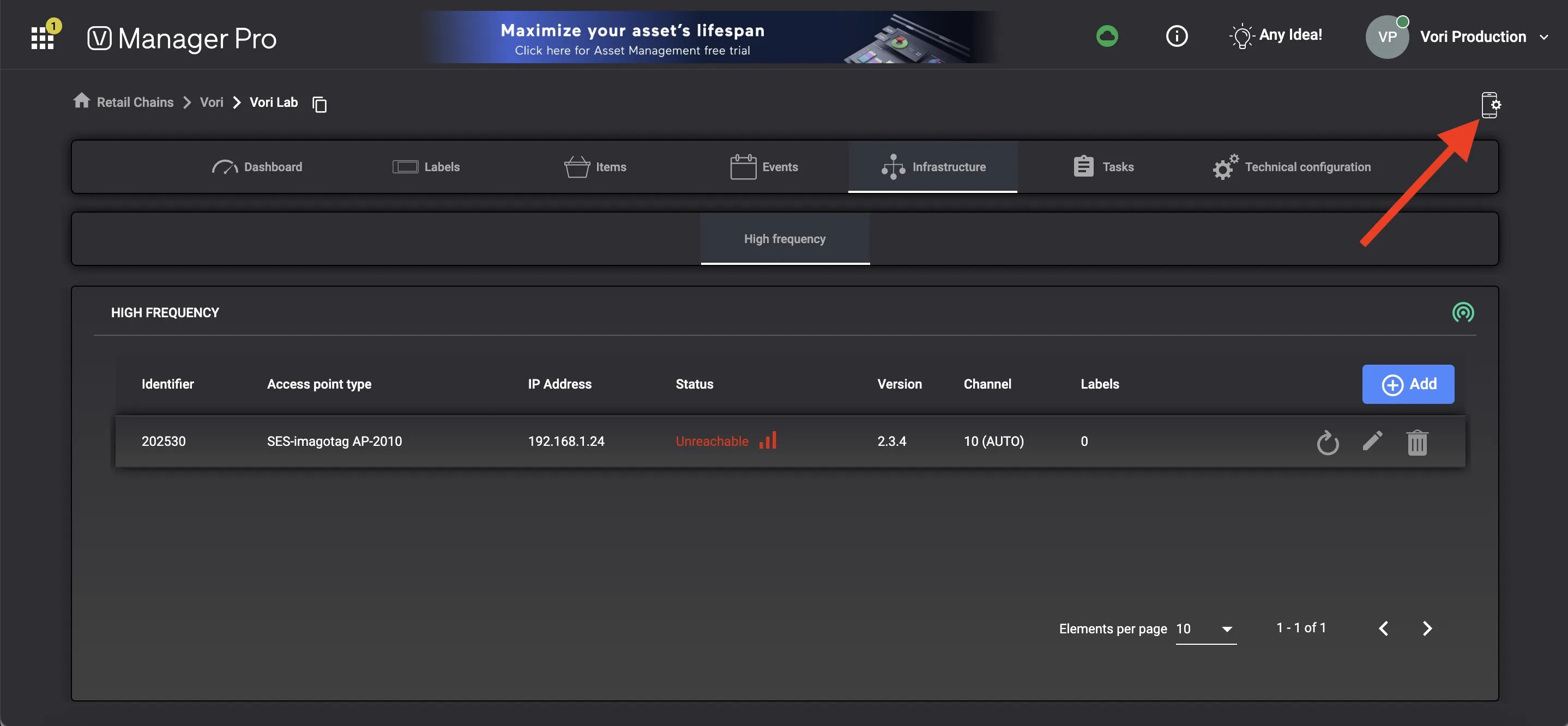
On the computer, log into Vusion Manager. On your store’s page, select the
**Mobile Configuration**icon. -
-
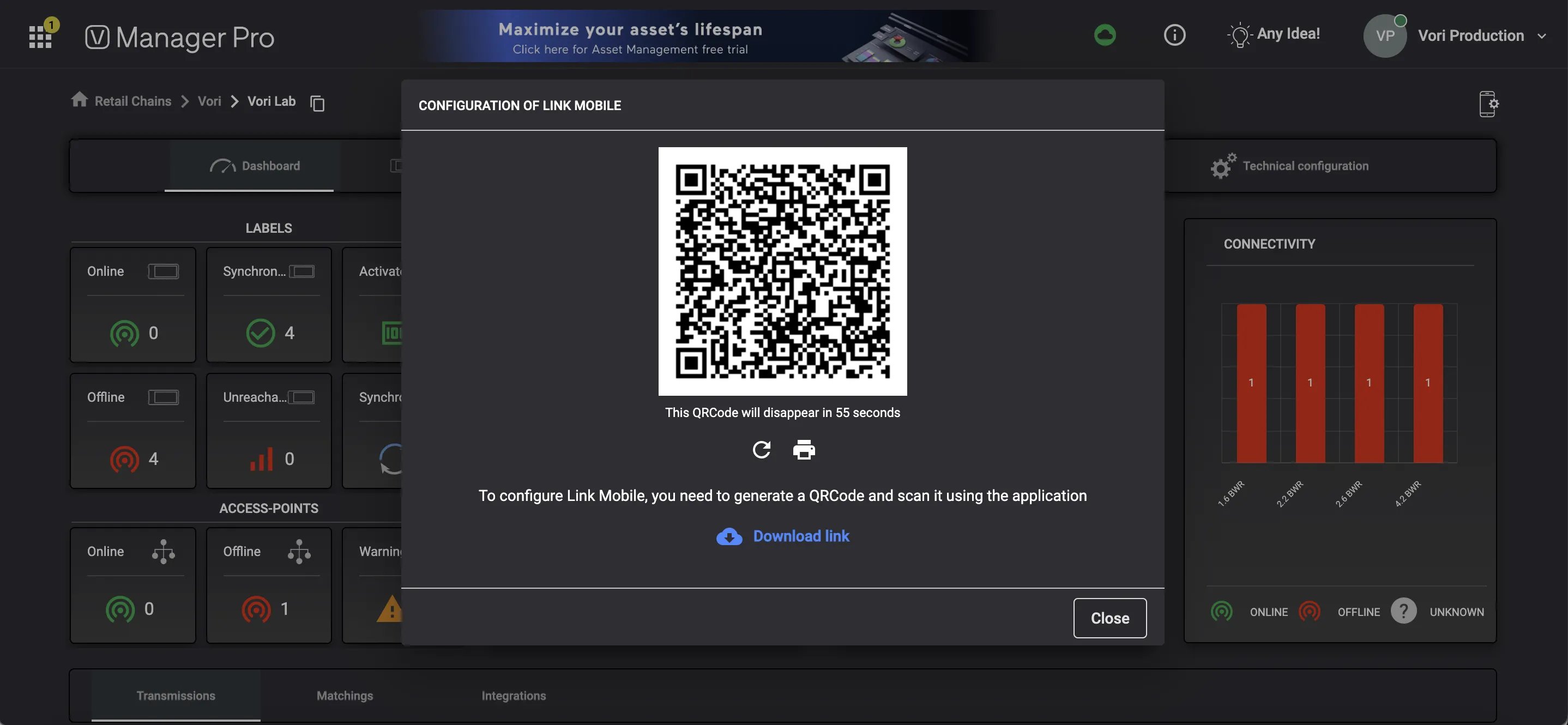
A login QR code will be generated.
-
-
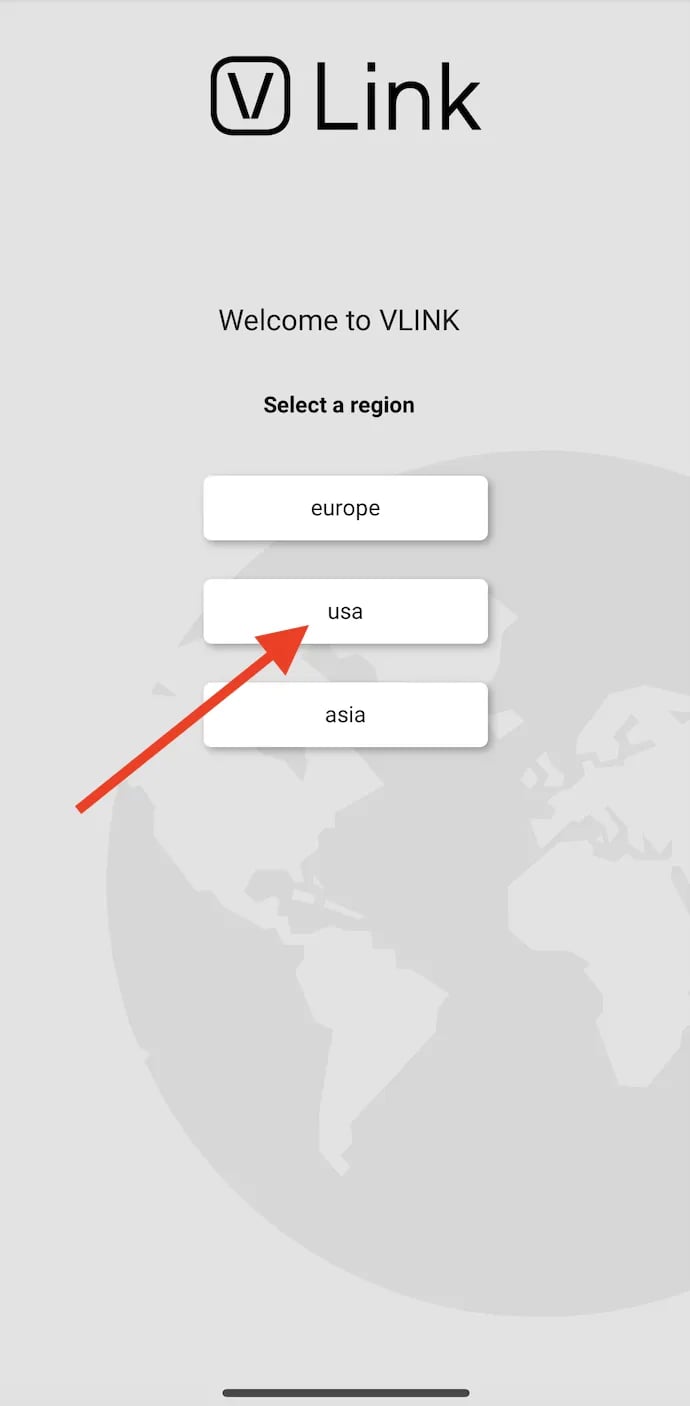
In the Vusion Link app on the smartphone, select USA on the login screen.
-
-
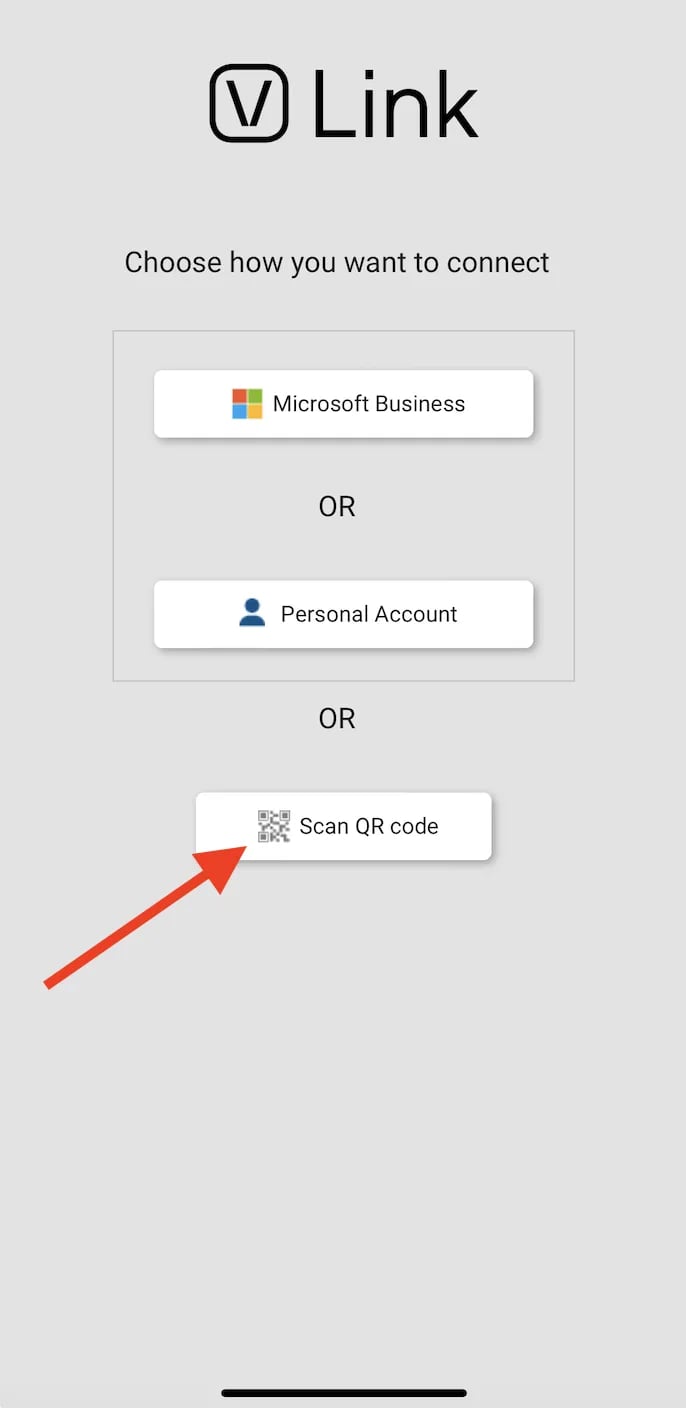
Select Scan QR code. This will open the smartphone’s camera.
-
- Once the QR code in Vusion Manager is scanned with the smartphone’s camera, the the Vusion Link app will automatically log in to the store’s account!