Introduction
In order for a store to have functioning ESLs, an access point (AP) must first be installed and brought online. If the AP is plugged in and mounted without being registered to the store’s Vusion account, the store will be unable to register ESLs or link ESLs to products.Required Materials
- Computer with internet access
- User email registered to Vusion Manager, directions here
-
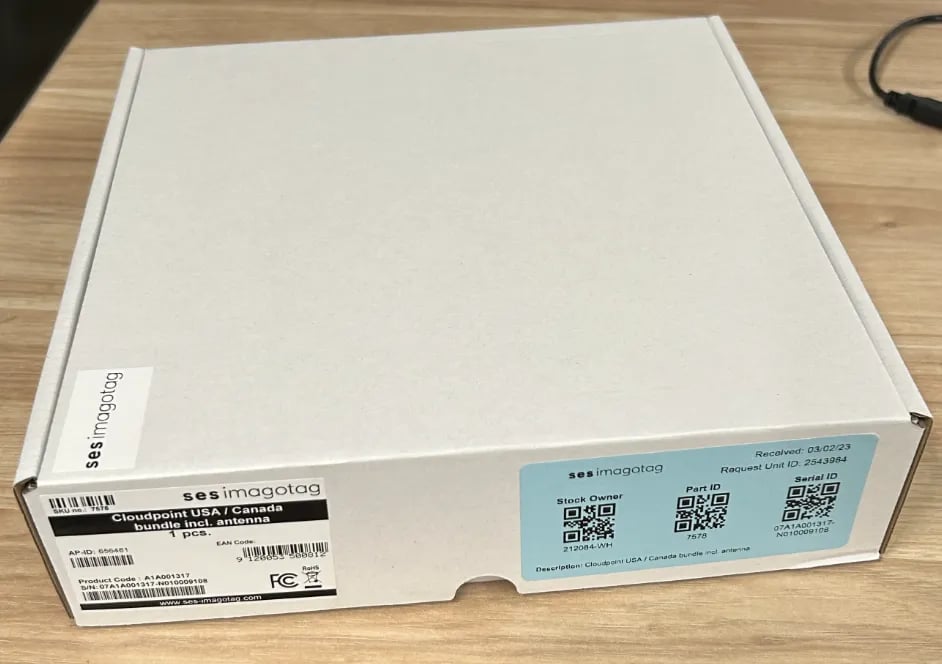
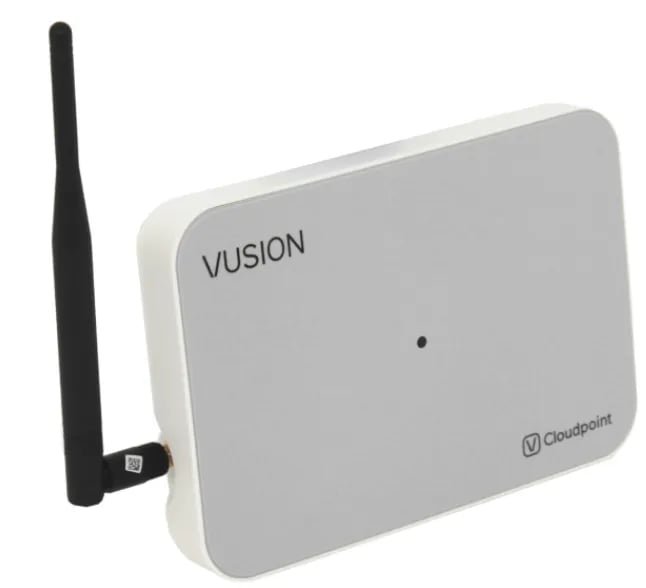
Vusion Cloudpoint AP (pictures of the case and unit below)
Directions
- On the computer, log into Vusion Manager
-
Select correct Banner name under
**Retail Chains**list.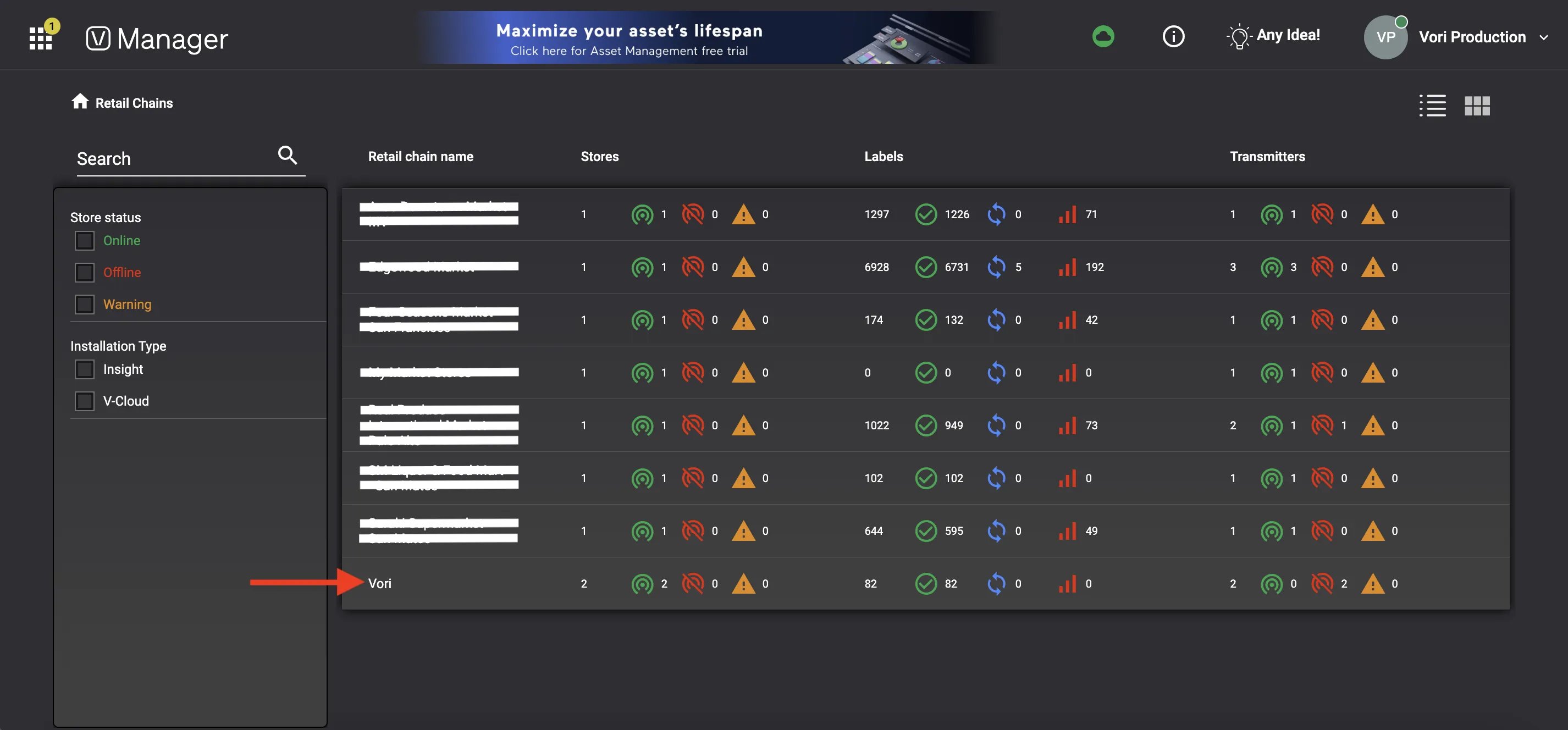
-
Select the correct store within the Retail Chain.
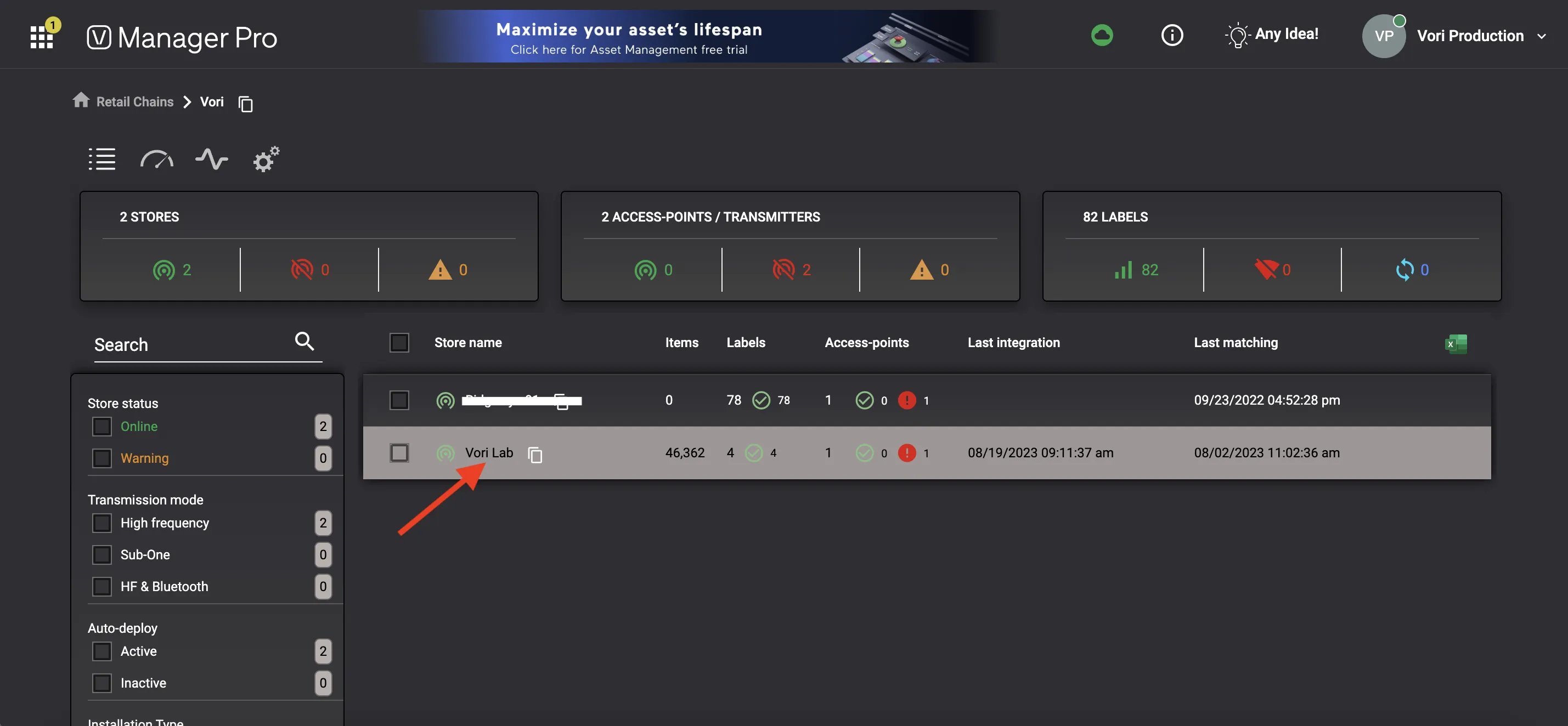
-
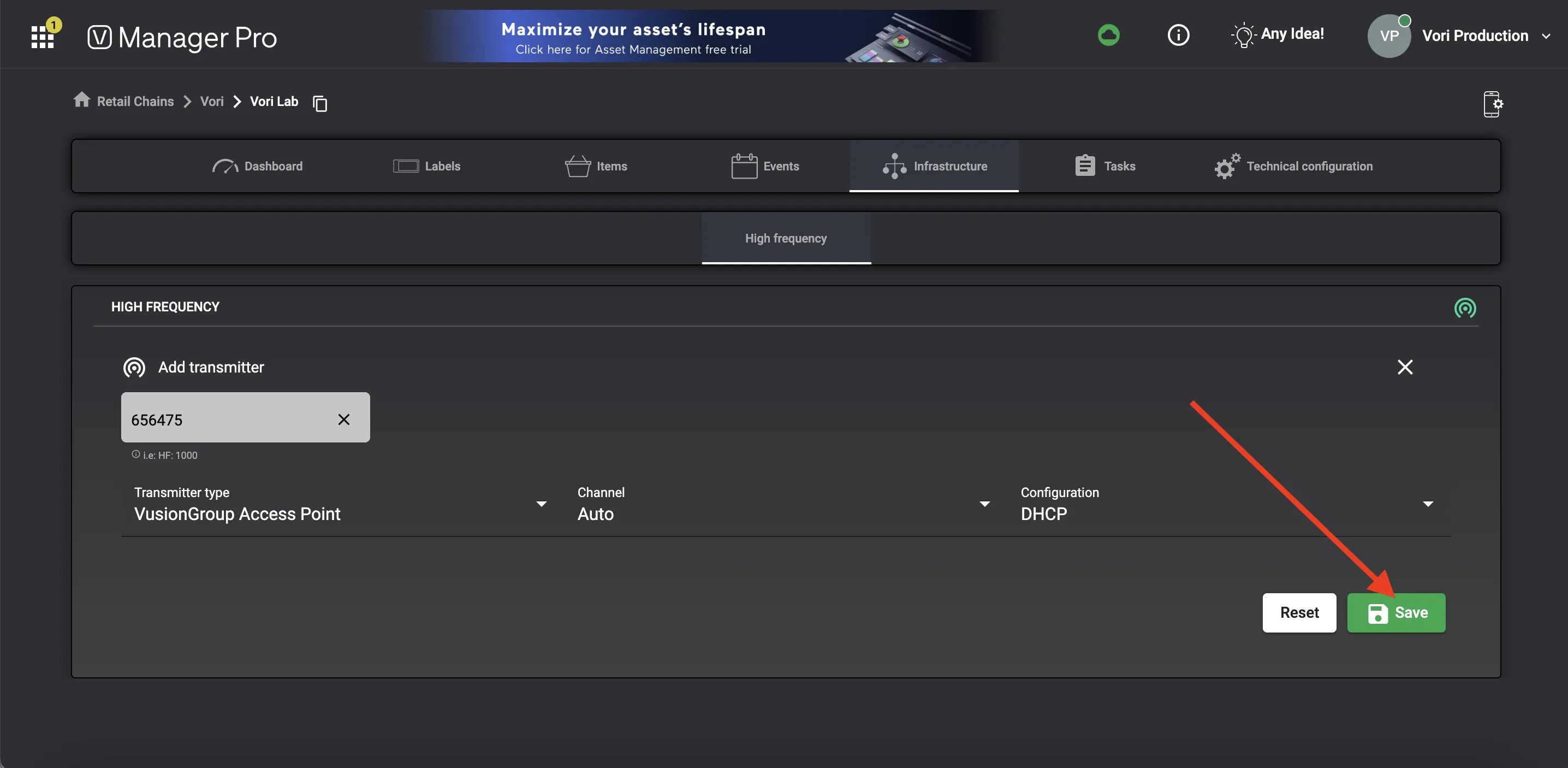
Select
**Infrastructure**in store’s Vusion page.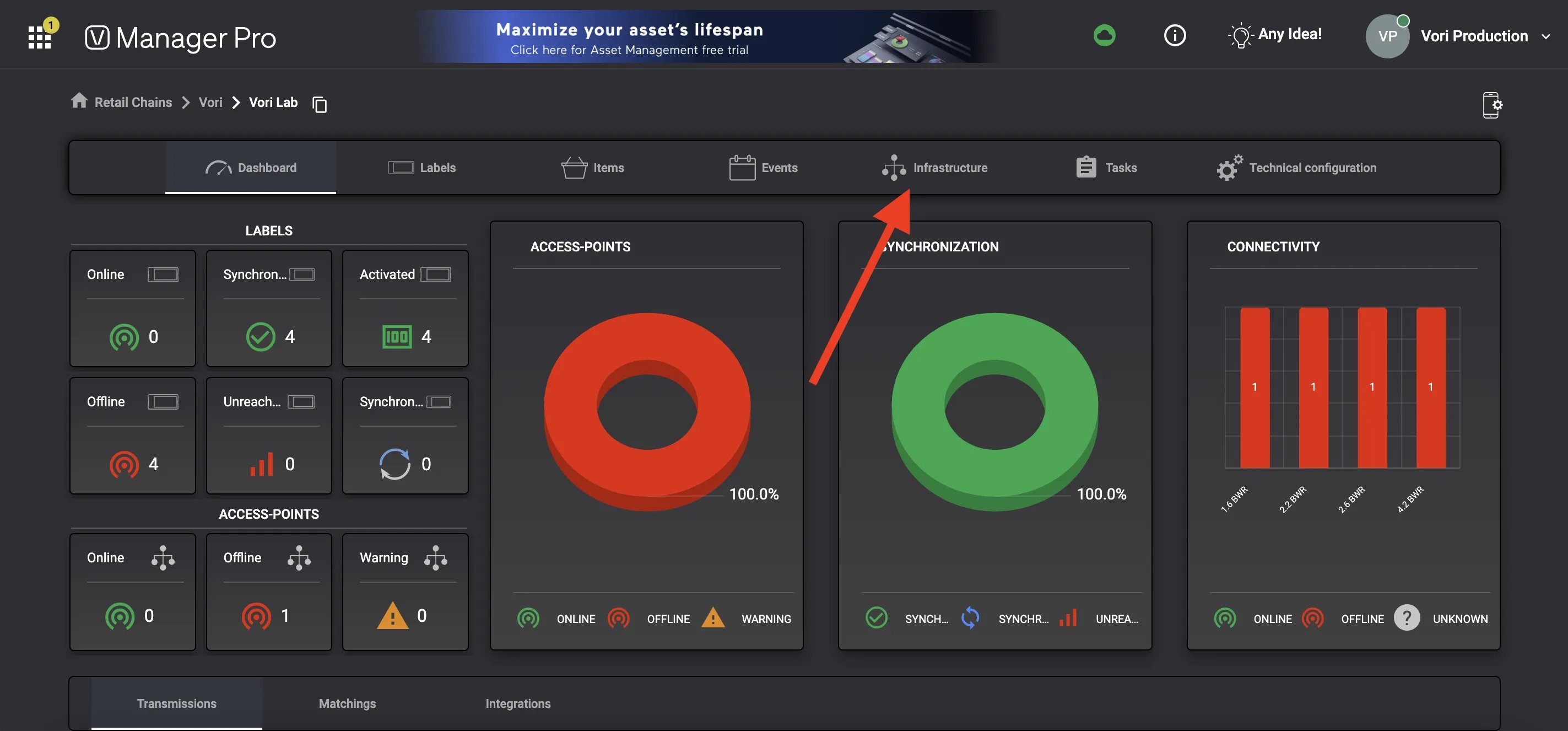
-
Select
Addto begin entering the credentials for the new access point.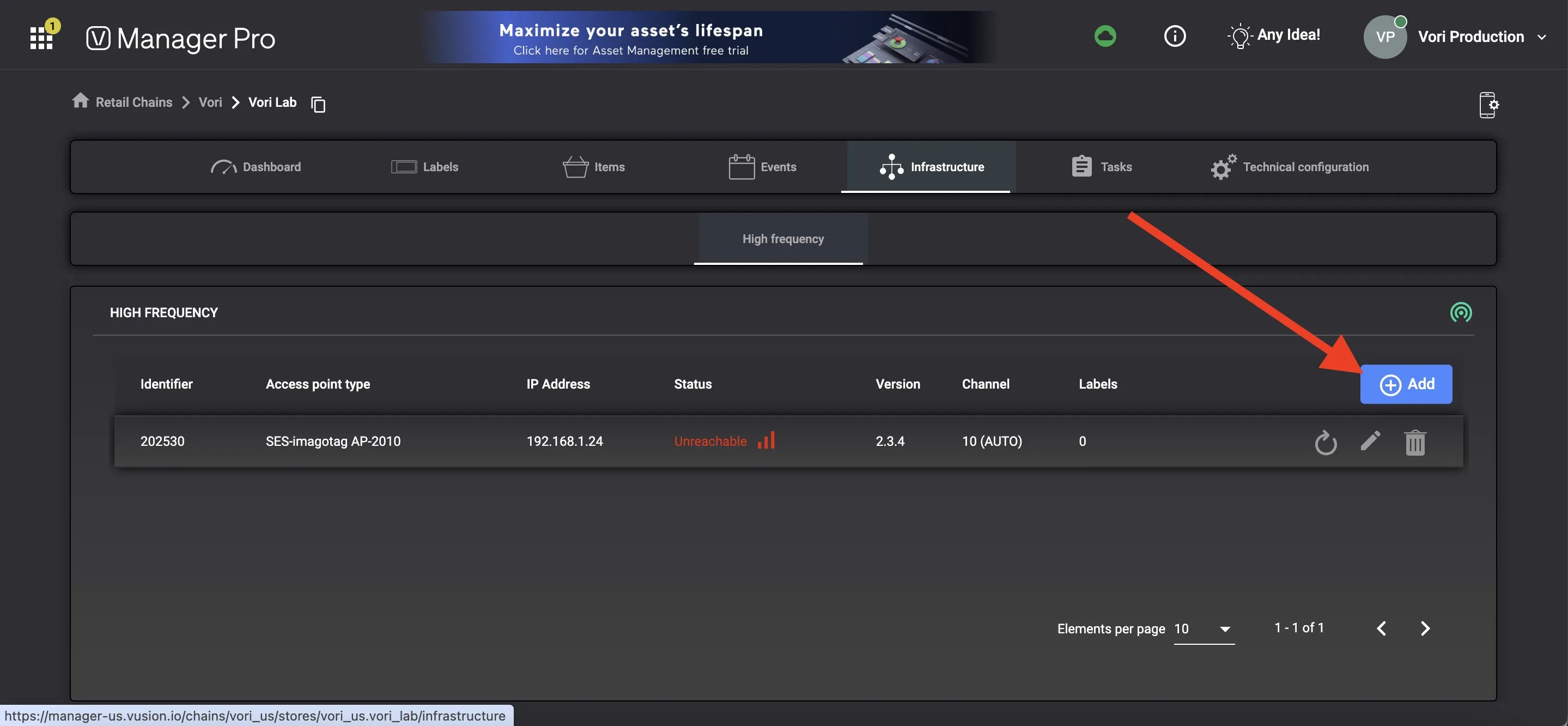
-
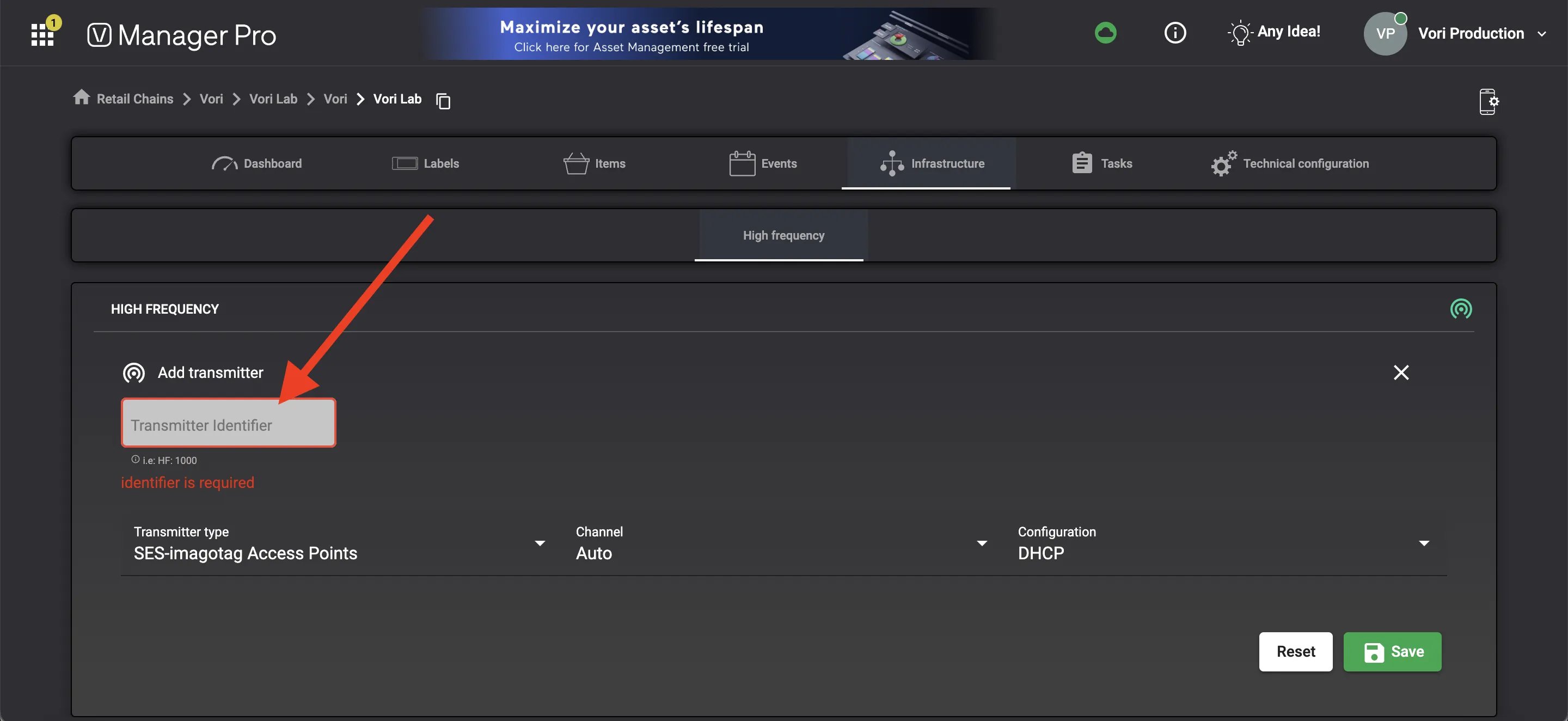
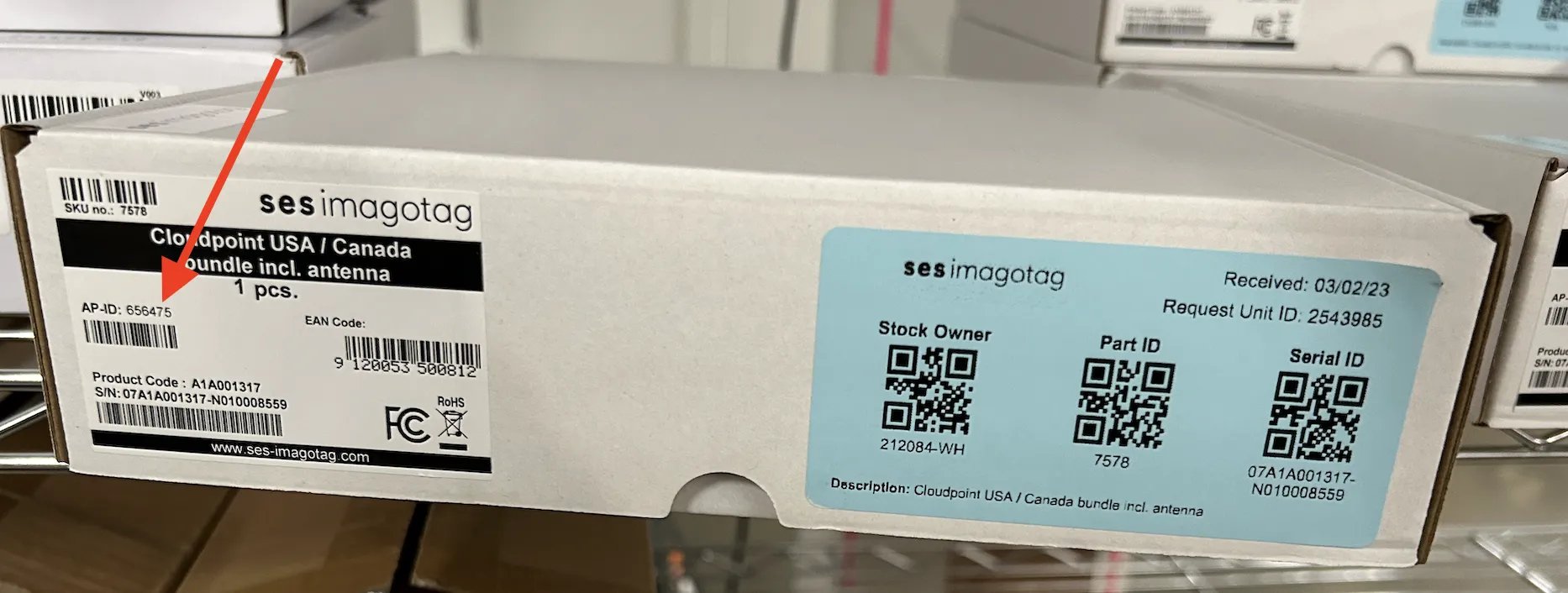
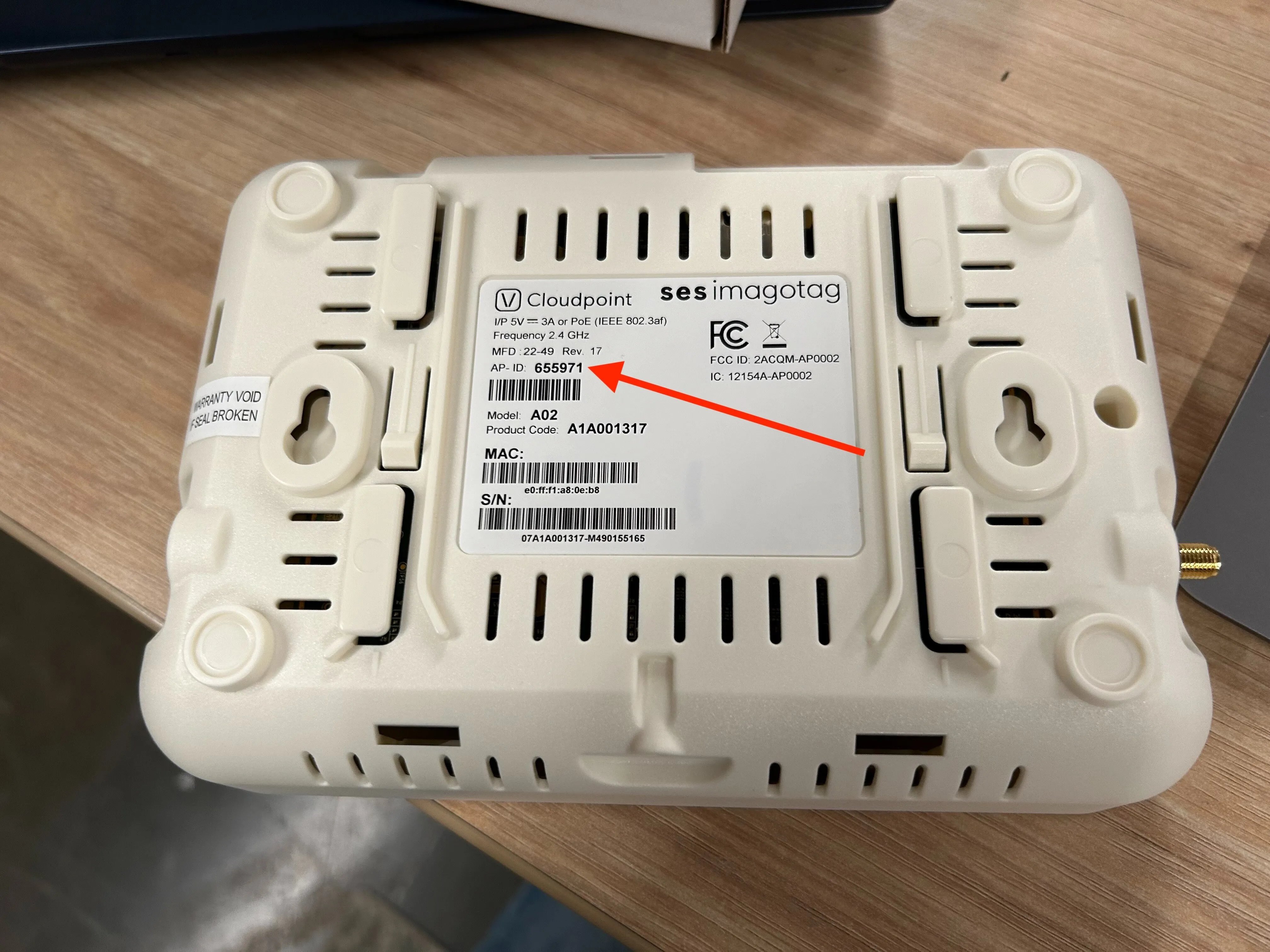
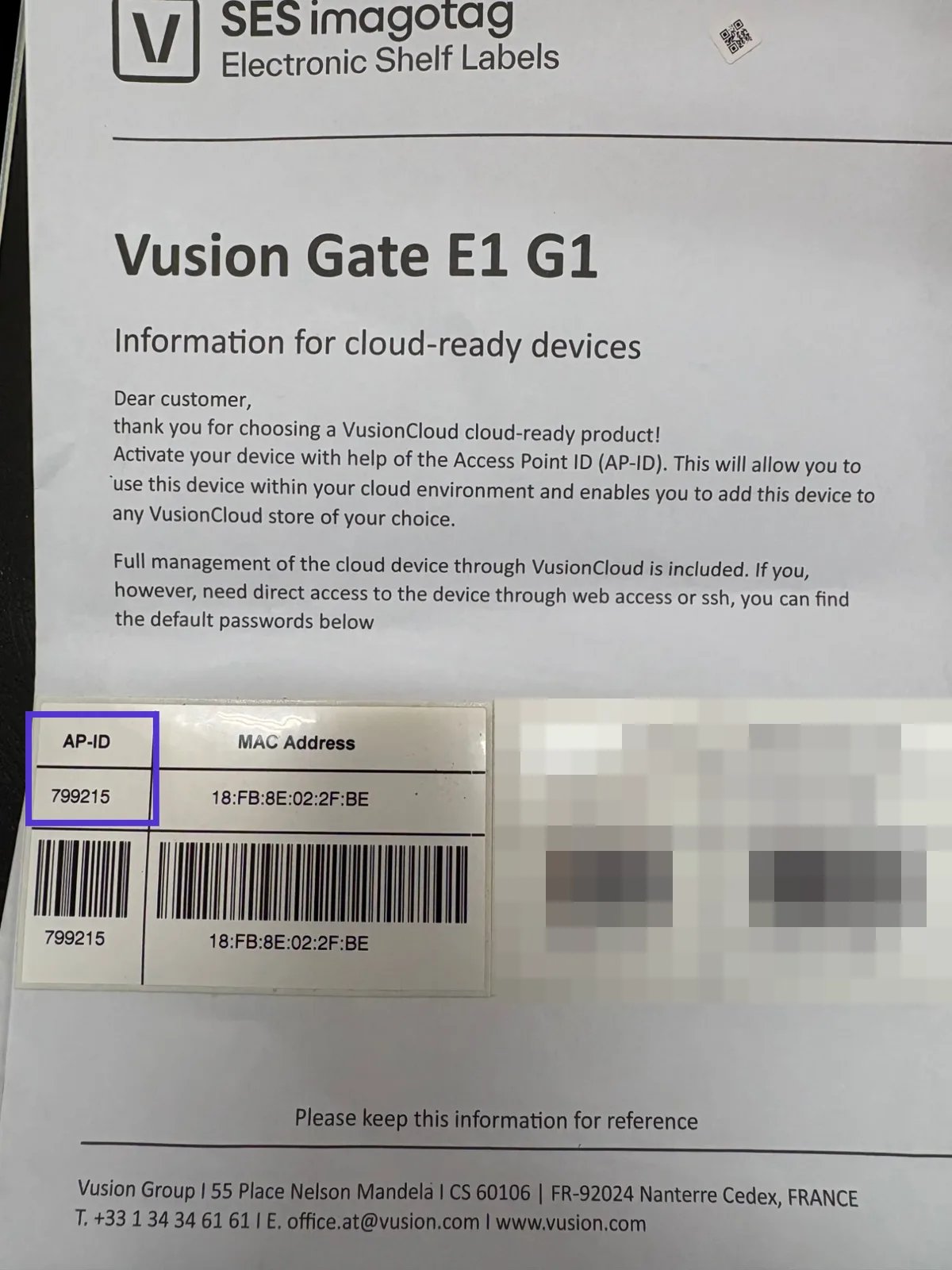
In the Transmitter Identifier field, enter the access point’s AP-ID.
-
On the access point’s box, on the product label.
-
On the bottom of the access point, on the device label.
-
On the information sheet in the box, in the AP-ID column.
-
On the access point’s box, on the product label.
-
Once the AP-ID is entered, leave all other setting on-screen as-is and select
**Submit**.