Learn how to create, edit, and attach coupons to your automated SMS marketing campaigns
The Vori Campaigns tool allows you to send targeted marketing text messages to your loyalty members. You can activate automated campaigns that send messages based on member activity.
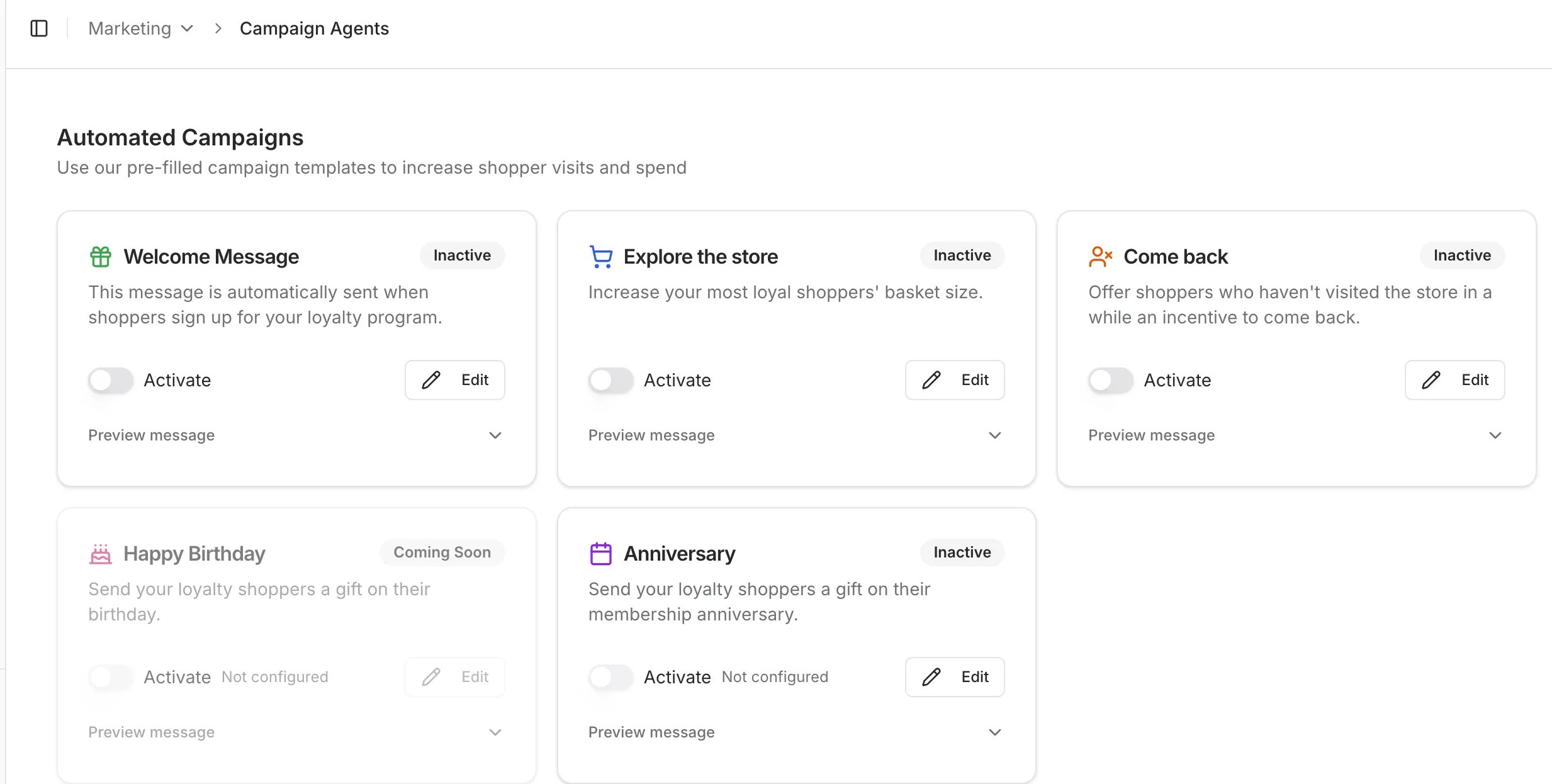
Automated Campaigns are pre-made messages that are automatically sent to members when they meet specific criteria. You can activate and edit four types:
Welcome Message: Sends a message with an optional coupon when a shopper first signs up for your loyalty program.
Explore the store: Sends personalized coupons throughout the year to encourage members to try new products and increase their average basket size.
Come Back: Sends a message with a promotional coupon after a member has been inactive for a specified period.
Anniversary: Sends a message with a promotional coupon on the anniversary of a member’s sign-up date.
It is recommended that you review and edit automated campaigns before activating them to ensure the message and any attached coupon are correct.
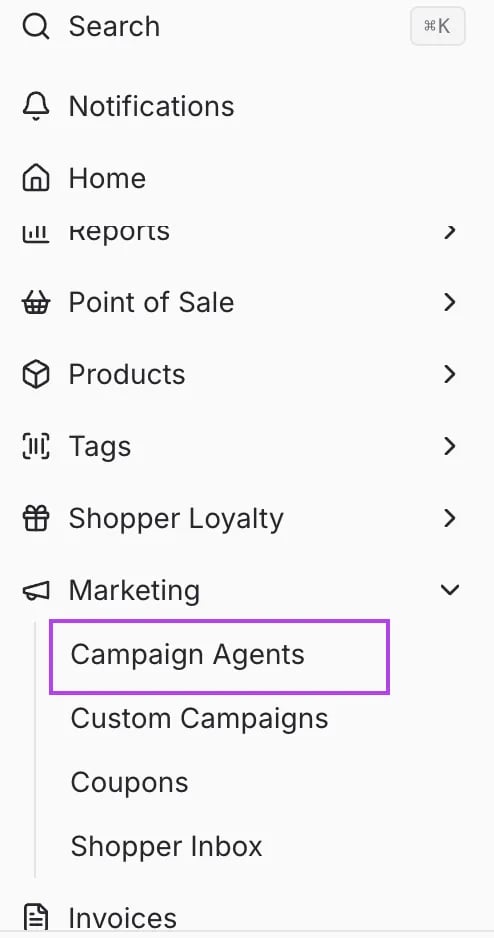
To activate a campaign, use the Activate toggle next to its name on the main Campaign Agents page.
To modify a campaign’s message or coupon, click the Edit button. Make your changes and click Save.
Always Edit an automated campaign before you activate it. This ensures any coupons are properly configured and gives you a chance to customize the message.
All Automated Campaigns, with the exception of the Welcome Message, automatically include mandatory coupons. When these Campaigns are activated, a coupon will be linked to each Campaign message.It is recommended that stores review and, if necessary, modify these coupons prior to activating an Automated Campaign. However, it is also possible to edit the coupons after activation.
The Discount Rate determines the discount percentage a shopper will receive when they redeem the coupon. A low discount rate offers a smaller discount, helping to protect store margins, while a high discount rate provides a larger discount to further incentivize the shopper.
The Shopper Frequency setting controls how often automated campaign messages—and their corresponding coupons—are sent to loyalty shoppers.
Offer Valid For determines how long the coupon is redeemable by the loyalty shopper once they receive the campaign message.
When finished adding or editing coupon details, click Save at the top right of the page.
Each campaign has a customizable, prefilled message that will be sent along with any discounts.
Opting Out: If a member has opted out by texting “STOP,” they can opt back in at any time by texting “START” to the same number.
Compliance: For the first message a member receives, it is recommended to include: “Message & data rates apply. Text STOP to opt-out.” This helps avoid being flagged as spam by mobile carriers.
Billing: Messages sent through the platform are billed separately and applied quarterly.
SMS (text-only): $0.01 per segment. SMS messages are billed per segment, so messages longer than 160 characters are split into multiple segments and each segment is billed separately.
MMS (includes an image): $0.03 per message. MMS messages are billed per message.
Stores are only charged for successfully delivered messages. Failed or undelivered messages are not billed.