

Before you start
Manage your SMS campaigns on the Marketing > Custom Campaigns page in Back Office. Before you create one, decide on:- Your audience: Which shoppers should get the message.
- Your send time: When the message should go out.
- A coupon (optional): Whether to attach one, and what it offers.
- An image (optional): If you’re adding one, have a JPEG (.jpg) file ready.
Custom campaigns
Custom campaigns are one-time SMS messages that you write and schedule yourself. Use them to announce sales, share holiday hours, or promote events. You control the message, the send date, and any image or coupon you attach.How to create a custom campaign
-
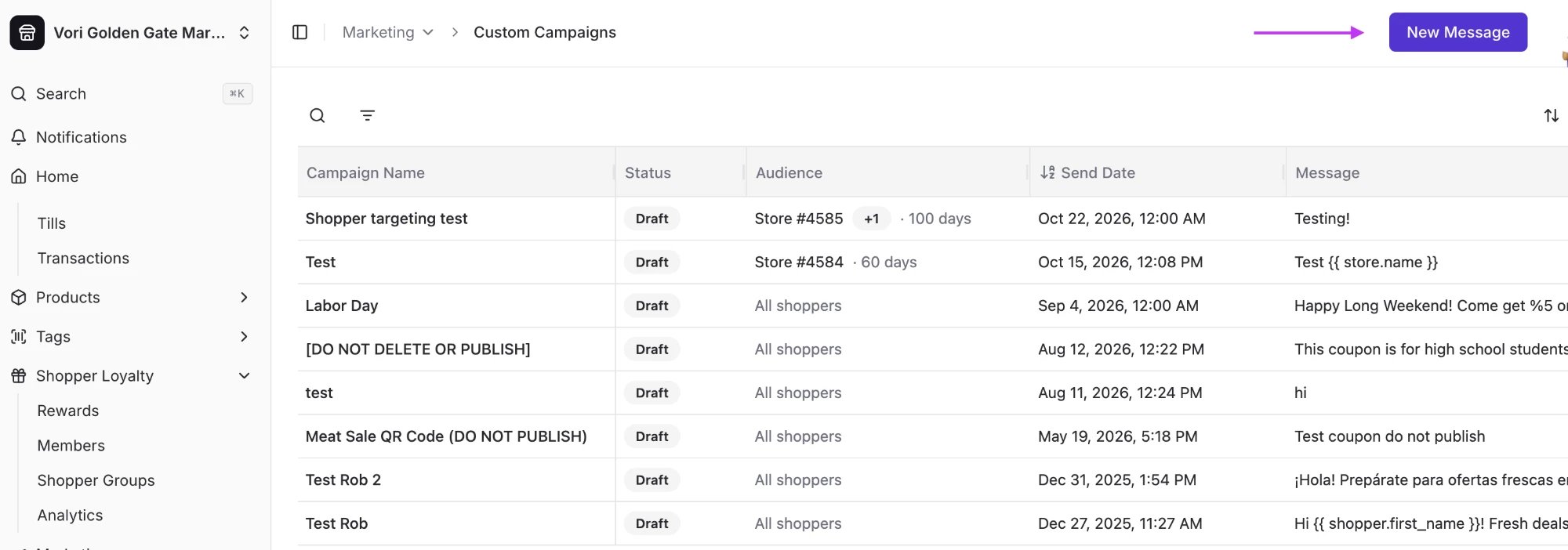
On the Custom Campaigns page, click New Message.
-
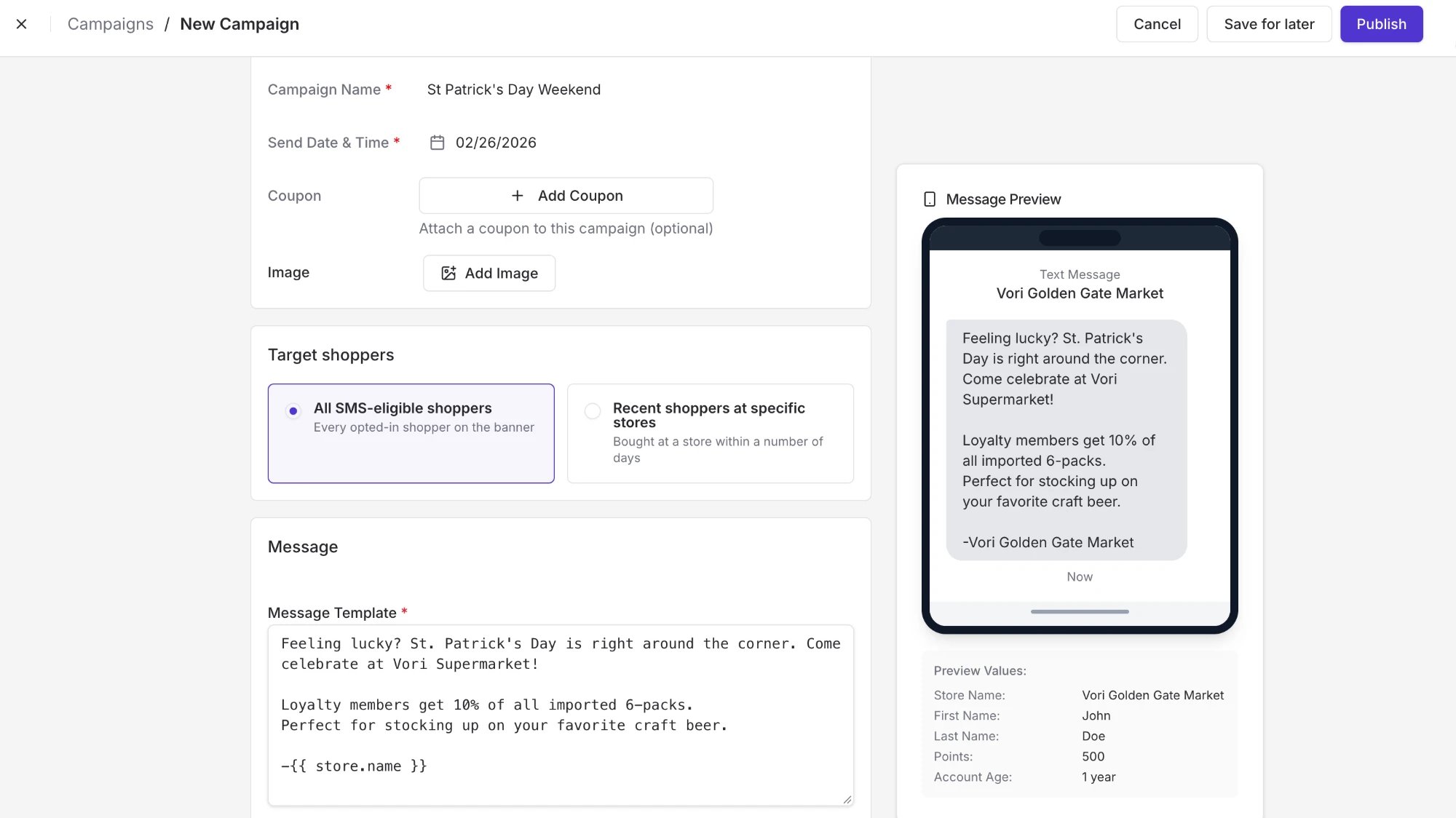
Enter the campaign details:
- Campaign Name: Give the campaign a unique name so you can find it later. Shoppers don’t see this name.
- Send Date & Time: Choose when the message goes out to members.
-
Add optional extras:
-
Add Coupon: Attach a promotional coupon.
- Coupon details are added to the text message automatically, so you don’t need to type them into the message.
- For step-by-step instructions, see How to add a coupon to a custom campaign below.
- Add Image: Attach an image to your message.
-
Add Coupon: Attach a promotional coupon.
-
Under Target shoppers, choose who receives the campaign. For details, see Choosing target shoppers below.
- All SMS-eligible shoppers: Sends to every opted-in shopper across your banner.
-
Recent shoppers at specific stores: Sends only to shoppers who bought at the stores you select within a set number of days.
- In the Stores field, select one or more stores. To remove a store, click the x next to its name.
If your banner has only one store, the Stores field can’t be edited.
-
Under Message, write your text in the Message Template field. To add your store’s name, click Insert Variable → Store Name.
Variables like
{{store.name}}and{{shopper.first_name}}fill in automatically with each recipient’s info, so you don’t need to edit them. Changing the text inside{{ }}or adding extra brackets can break the message. - Check the Message Preview to see how your message will look on a member’s phone. The Preview Values below the phone show the sample info used to fill in variables.
- To send a test, click Save for later. Then enter a phone number in the mobile number to send a test message field and click Send.
-
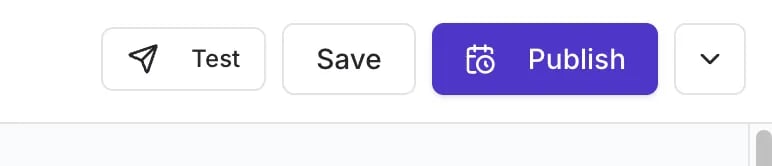
When you’re done, choose an option at the top of the page:
- Save: Saves your changes as a draft.
- Publish: Schedules the campaign to send at the date and time you set.
-
Delete: Open the dropdown and select Delete to permanently remove the campaign.
Choosing target shoppers
The Target shoppers section controls who receives your campaign. Send to your whole banner, or focus on shoppers at specific stores.All SMS-eligible shoppers
Select All SMS-eligible shoppers to send the campaign to every shopper on your banner who has opted in to text messages. This is the default, and it works well for banner-wide sales, holidays, and announcements.Recent shoppers at specific stores
Select Recent shoppers at specific stores to send the campaign only to shoppers who recently bought at certain stores. Use this for store events, local promotions, or updates like changed store hours.- Select Recent shoppers at specific stores.
-
In the Stores field, select one or more stores. To remove a store, click the x next to its name.
If your banner has only one store, the Stores field can’t be edited.
- In the Purchased within field, enter the number of days to look back. For example, enter “30” to target shoppers who bought at the selected stores in the last 30 days.
- Check the shopper count at the bottom of the section to see how many shoppers match your selection.
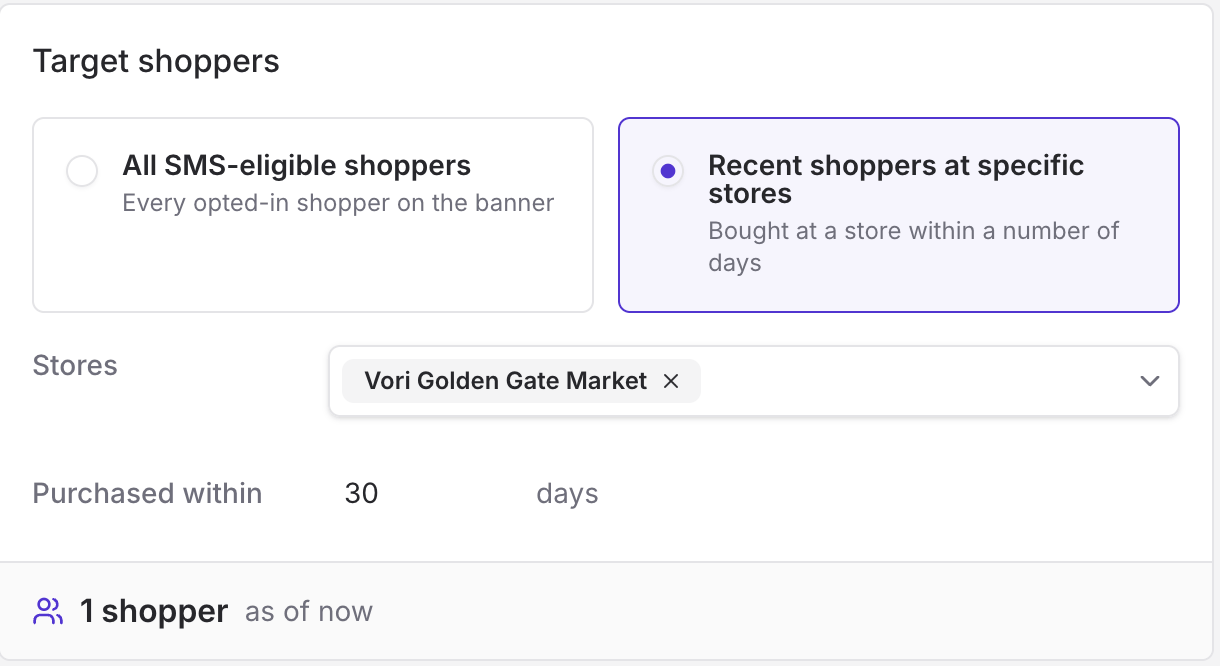
The shopper count shows who matches your selection right now. The number can change before the send date as shoppers make new purchases or opt in or out of text messages.
How to add a coupon to a custom campaign
You can add a coupon while creating or editing any custom or automated campaign.Coupon types
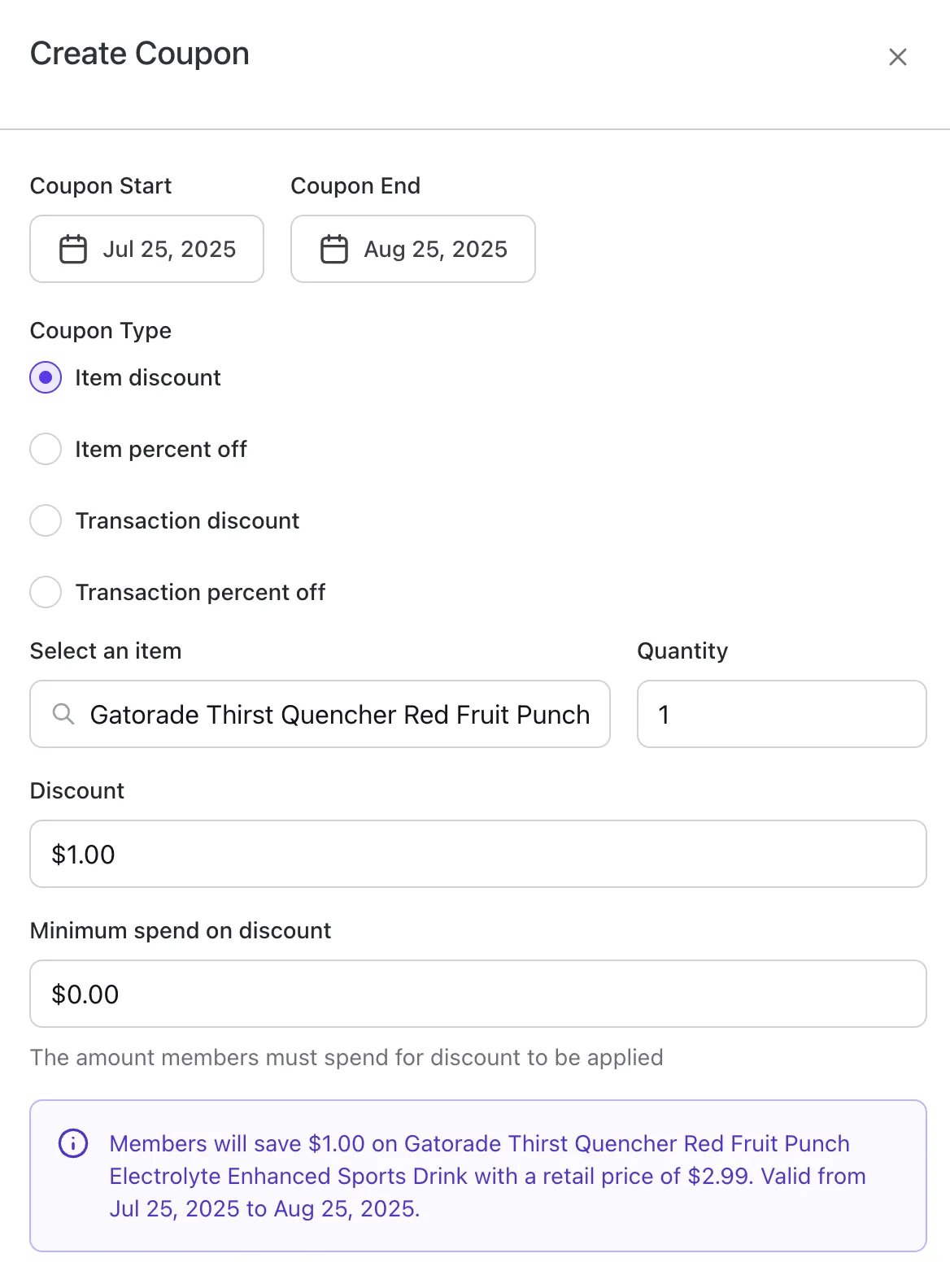
- Item discount: Takes a fixed dollar amount off one product.
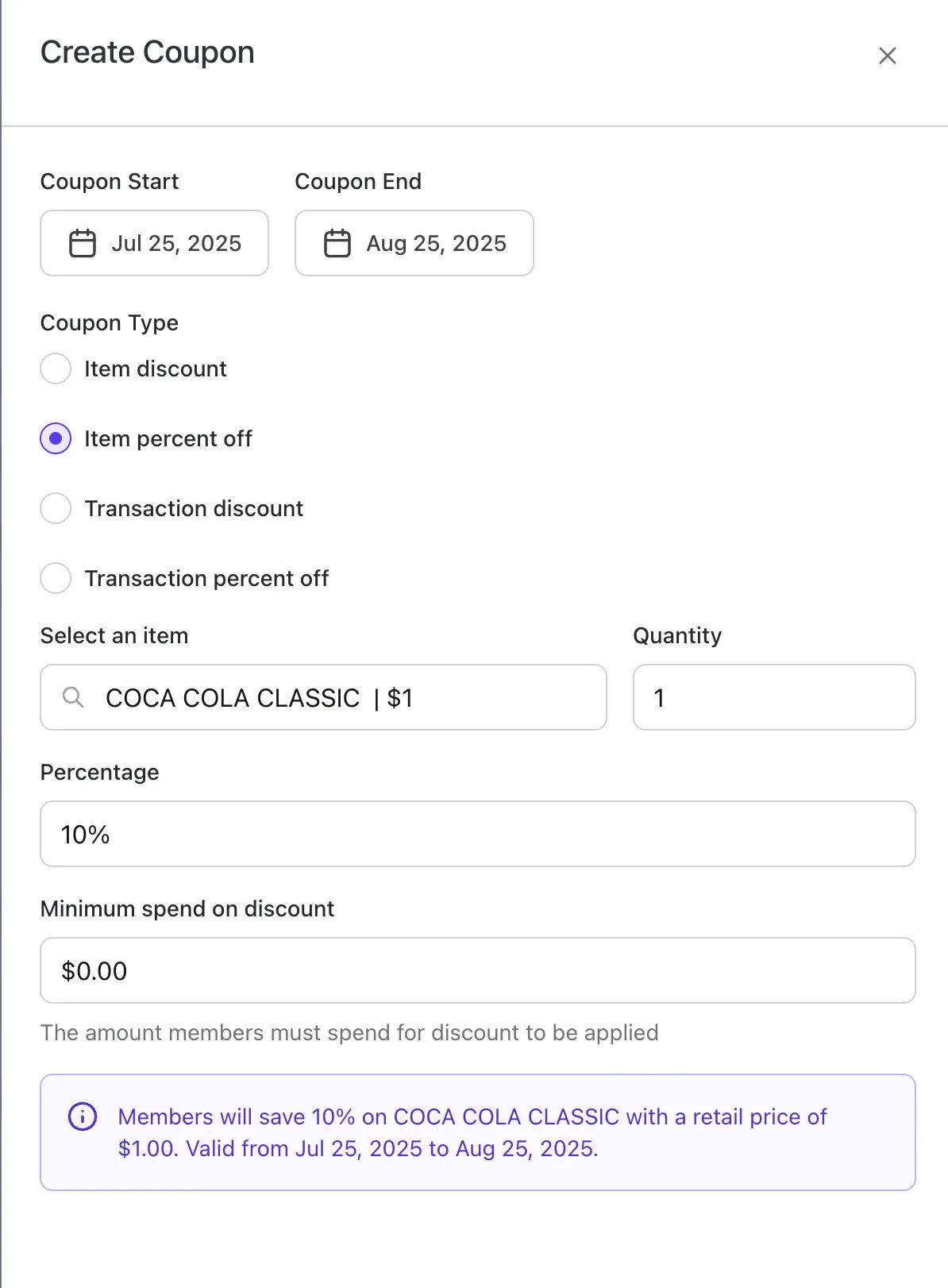
- Item percent off: Takes a percentage off one product.
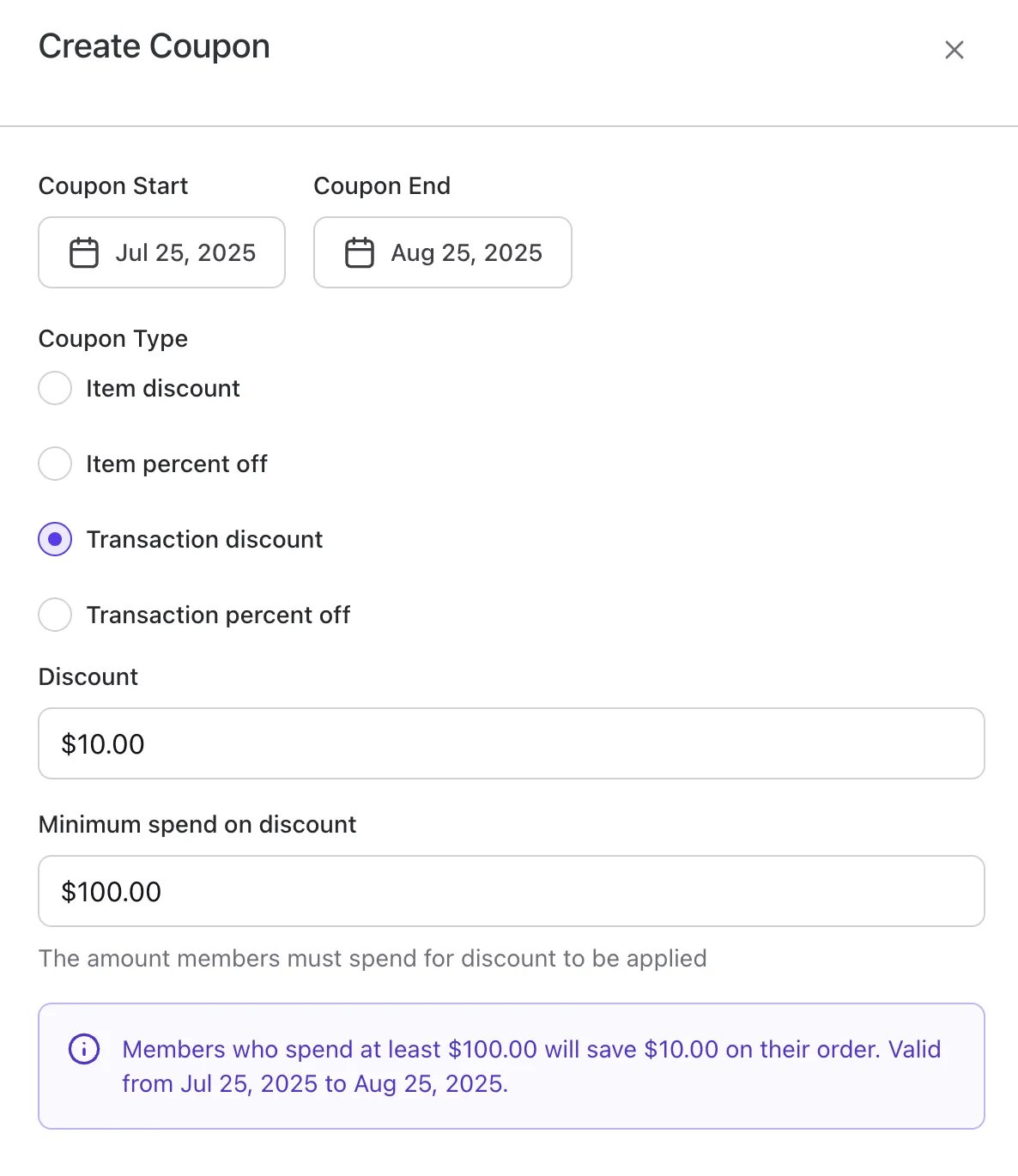
- Transaction discount: Takes a fixed dollar amount off the whole transaction.
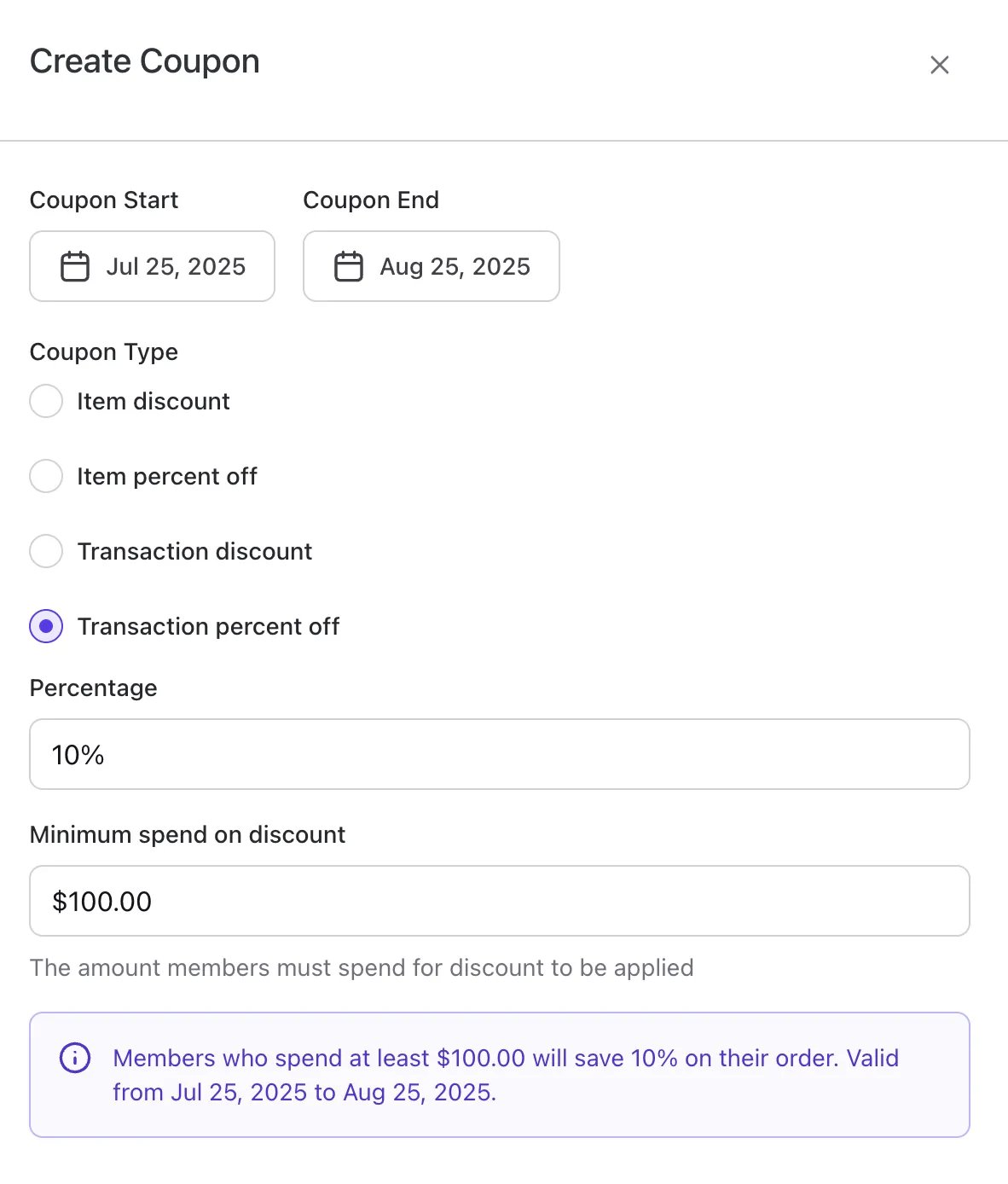
- Transaction percent off: Takes a percentage off the whole transaction.
Item discount
This coupon takes a fixed dollar amount off one product.- Select Item discount.
-
In the Select an item field, search for and choose the product.
Each campaign coupon applies to one product.
- Enter the Quantity of the item the discount applies to (usually “1”).
- In the Discount field, enter the dollar amount to take off the item’s price.
- Set the Coupon Start and Coupon End dates for when the offer is valid.
- (Optional) Set a Minimum spend on discount that a member must reach to use the coupon.
-
Click Save at the bottom of the campaign editor.
Item percent off
This coupon takes a percentage off one product.- Select Item percent off.
-
In the Select an item field, search for and choose the product.
Each campaign coupon applies to one product.
- Enter the Quantity of the item the discount applies to.
- In the Percentage field, enter the discount. For example, enter “25” for 25% off.
- Set the Coupon Start and Coupon End dates.
- (Optional) Set a Minimum spend on discount.
-
Click Save at the bottom of the campaign editor.
Transaction discount
This coupon takes a fixed dollar amount off the whole transaction.- Select Transaction discount.
- In the Discount field, enter the dollar amount to take off the transaction.
- Set the Coupon Start and Coupon End dates.
- (Optional) Set a Minimum spend on discount.
-
Click Save at the bottom of the campaign editor.
Transaction percent off
This coupon takes a percentage off the whole transaction.- Select Transaction percent off.
- In the Percentage field, enter the discount.
- Set the Coupon Start and Coupon End dates.
- (Optional) Set a Minimum spend on discount.
-
Click Save at the bottom of the campaign editor.
Good to know
- Opting out: Members who text “STOP” can opt back in at any time by texting “START” to the same number.
- Compliance: In the first message a member receives, include “Message & data rates apply. Text STOP to opt out.” This helps keep mobile carriers from flagging your messages as spam.
- Restricted products: You can’t promote restricted product categories, including alcohol (exceptions may apply), tobacco, cannabis, CBD, vapes and e-cigarettes, fireworks, kratom, prescription drugs, sweepstakes and lottery, firearms, and cryptocurrency. Breaking these rules can lead to your SMS campaigns being suspended.
-
Billing: Campaign messages are billed separately, once a quarter.
- SMS (text only): $0.01 per segment. A message longer than 160 characters is split into multiple segments, and each segment is billed.
- MMS (includes an image): $0.03 per message. Each MMS is billed as one message.
- You’re only charged for delivered messages. Failed or undelivered messages aren’t billed.