

Log In to Vori POS
To start a till session:-
Enter your unique 6-digit PIN.
- Each employee has a personal PIN for accurate reporting.
- Tap Open Till.
- Enter and confirm the Opening Till Amount.
Stores can configure tills to open with a preset amount. Learn more in the Back Office Till settings article.
Log Out of Vori POS
To safely end your till session:- Tap your Profile (Cashier Name) in the bottom-right corner.
- Tap Log Out on the pop-up window.
- Confirm by tapping Log Out again.
Closing A Till
To close your till:- Tap your Profile (Cashier Name) in the bottom-right corner of the screen.
- Tap Log Out on the pop-up window.
- Tap Close Till.
- If Require Till Counting on Close is enabled, you’ll be prompted to enter the final cash amount.
- If it’s disabled, the Expected Till Amount will auto-fill, the cash drawer will open, and you’ll be logged out immediately.
The Expected Till Amount is automatically calculated using:
- ➕ Starting till amount
- ➕ Cash transactions
- ➖ Cash back
- ➕ Pay-ins
- ➖ Pay-outs
Log In After a System Restart
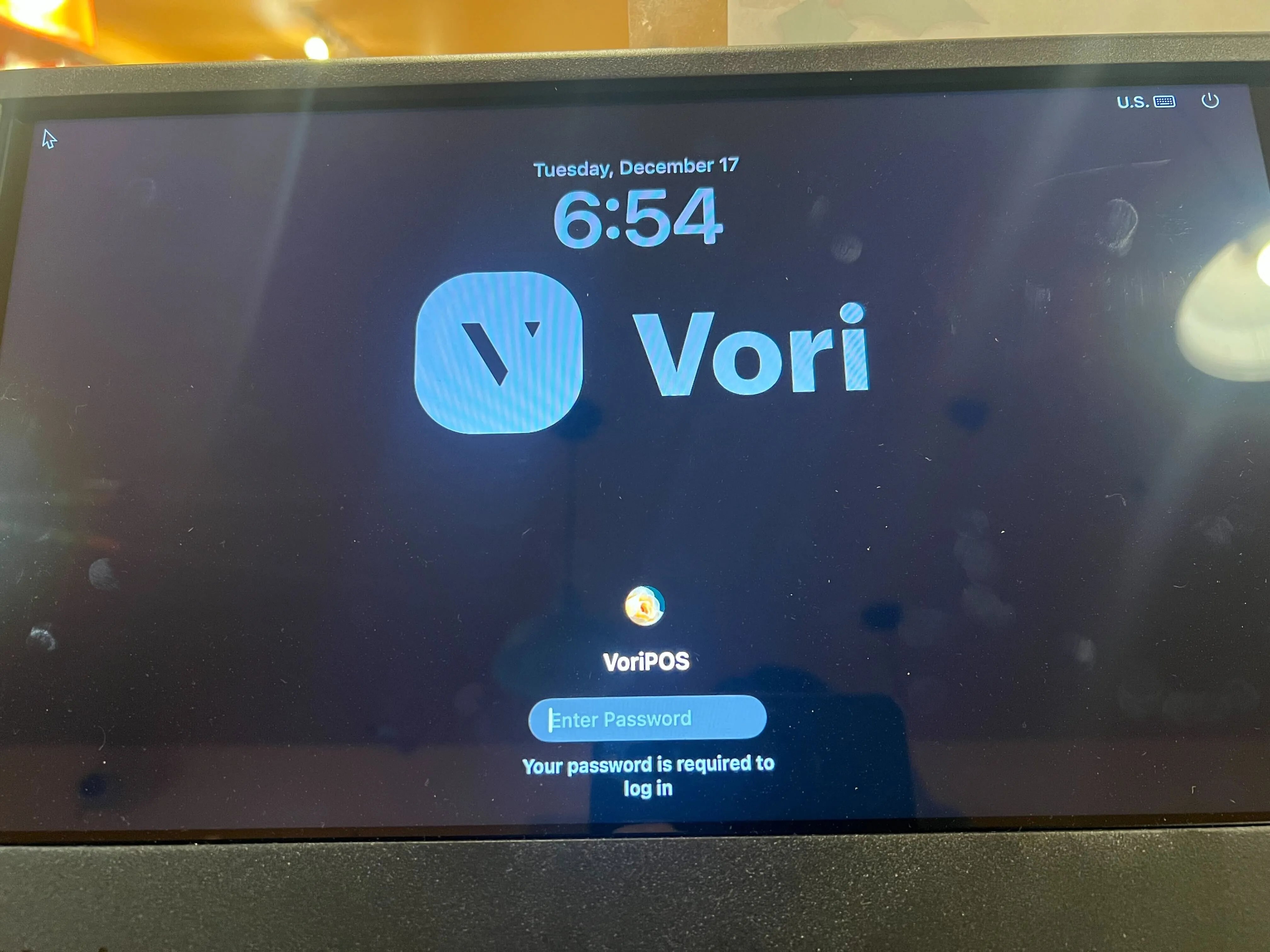
If the POS IPad is power-cycled or restarted:- You’ll see an admin password prompt on startup.
- Enter 654321 to unlock the device.
- The cashier login screen will appear.
Change the POS Auto-Logout Time
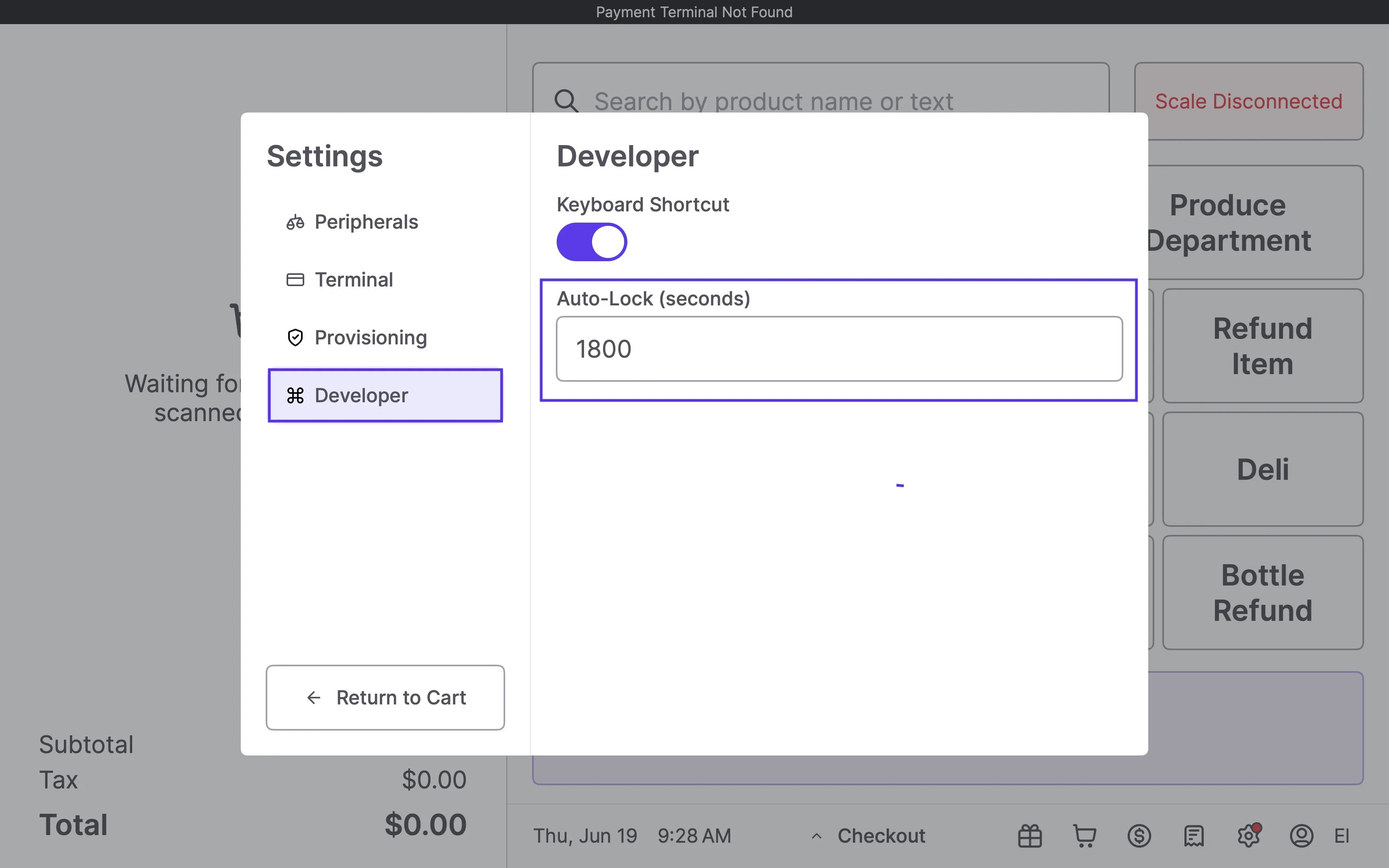
By default, the POS logs out a cashier after about 10 minutes of inactivity. You can adjust this time using the Developer Settings. To change the auto-logout duration:- On the POS screen, triple-tap the Date & Time Section.
- This will open the Settings menu. Tap Developer.
-
In the Auto-Lock field, enter the desired time in seconds.
-
Important: The minimum allowed time is 90 seconds. If you enter a number lower than 90, the system will still default to a 90-second lockout.
-
Important: The minimum allowed time is 90 seconds. If you enter a number lower than 90, the system will still default to a 90-second lockout.
-
Tap anywhere outside of the menu to close it.
- Note: There is no “Save” or “Confirm” button. Clicking out automatically saves the entry.
-
Restart the Vori POS app.
- The new time setting will not apply until the app has been fully restarted.
Troubleshooting
What if I can’t access Developer settings?- Confirm you’re triple-tapping the Date & Time Section at the top of the POS screen.
- If it doesn’t work, try restarting the device and trying again.
- Still stuck? Contact the Vori Support Team.