

The Inventory Card
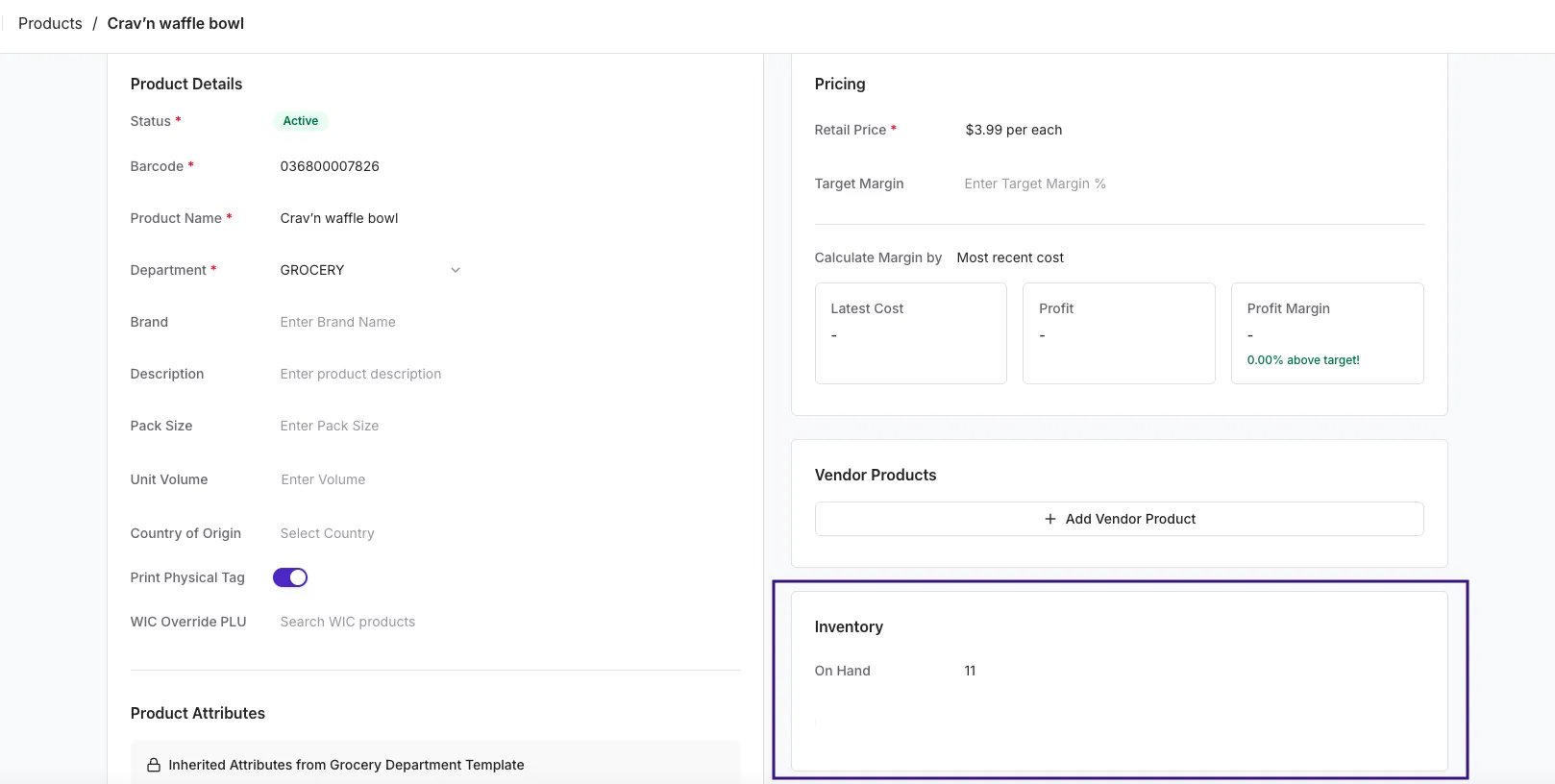
Navigate to any Product Details page and scroll to the bottom right to find the Inventory card.- On Hand: The current calculated quantity (Last Physical Count - Sales).
- Edit: You can manually edit this number directly in the box to establish a new baseline count.
Inventory History Tab
For a detailed audit trail of how your inventory count has changed over time on a specific product, click the Inventory tab at the top of the product page (located next to the Sales tab).
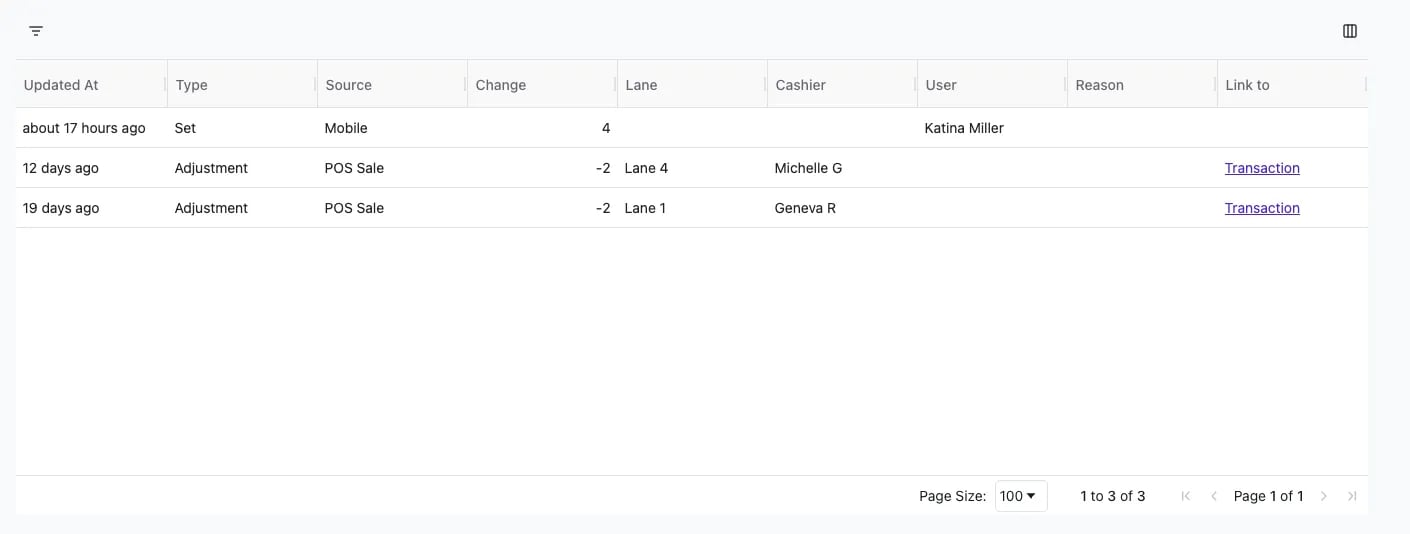
- Updated At: How long ago the inventory change occurred.
-
Type: The action taken.
- Set: A hard reset of the total quantity.
- Adjustment: An incremental change (+/-).
-
Source: Where the change originated.
- POS Sale: An automatic deduction after a sale at the register.
- Mobile / Web: An update made by a staff member on the app or Back Office.
- Change: The specific number added or subtracted.
- User / Cashier: Identifies who made the change. For manual updates, it shows the User; for sales, it shows the Cashier name.
- Reason: If items were removed for shrinkage, the reason (e.g., “Damage, Other”) will appear here.
- Link to: For POS Sales, click Transaction to view the specific transaction associated with that inventory deduction.