Overview and Navigation
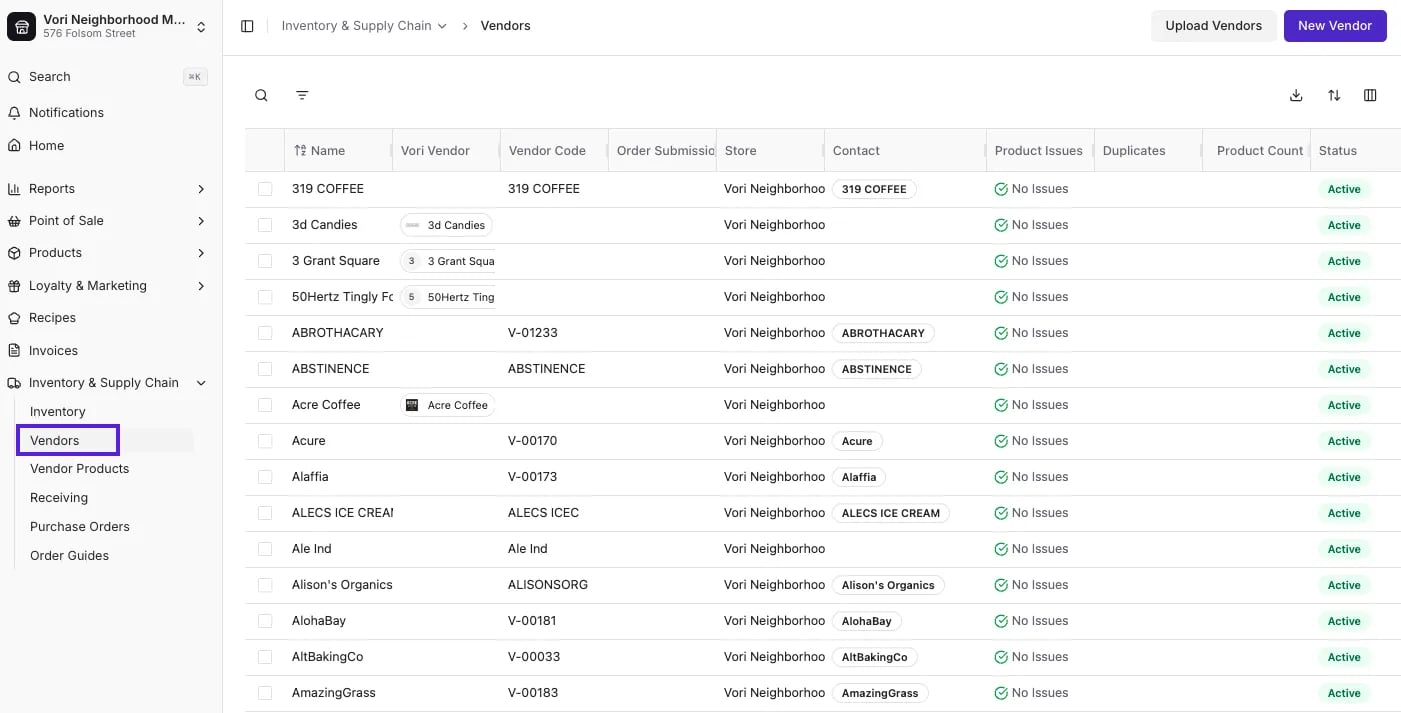
The Vendors page provides a high-level view of every supplier connected to your store. You can quickly spot duplicate vendors, check active status, and filter by specific criteria.
- Navigate to Inventory & Supply Chain in the left-hand menu.
- Click Vendors.
-
Use the Search Filters on the left to refine your list:
- Name: Search by vendor name.
- Vendor Code: Search by your internal code.
- Status: Filter by Is Active or Inactive.
- Product Issues: Quickly identify vendors with catalog errors.
- Duplicates: Find vendors that may need merging.
Create a New Vendor
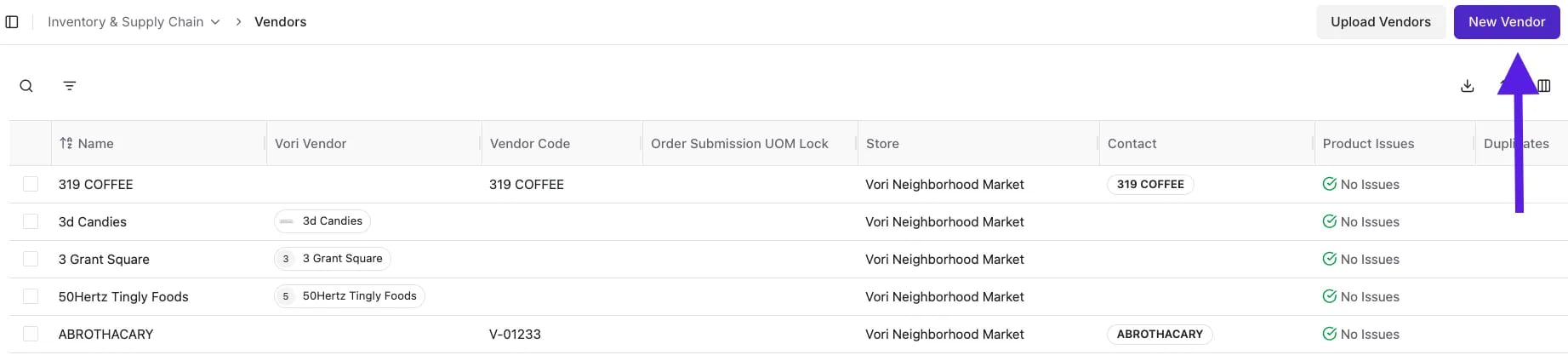
Adding a new supplier is fast and flexible. You can use Quick Create to get started immediately or Full Details to configure complex rules right away.- Navigate to the Vendors page.
-
Click the New Vendor button in the top right corner.
- Choose your setup method:
Option 1: Quick Create
Ideal for getting a vendor into the system fast.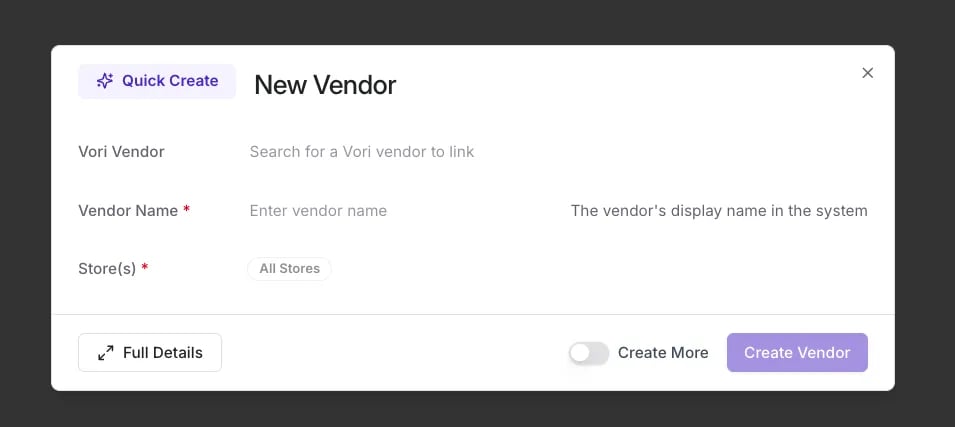
- Vori Vendor: Search for the Vori Network Vendor, the universal representation of a supplier shared across all retailers on the Vori network.
- Vendor Name: Enter the display name for the vendor.
- Click Create Vendor.
Option 2: Full Details
Best when you need to set up contacts, ordering schedules, and billing info immediately.-
From the “Quick Create” popup, click the Full Details button in the bottom left corner.
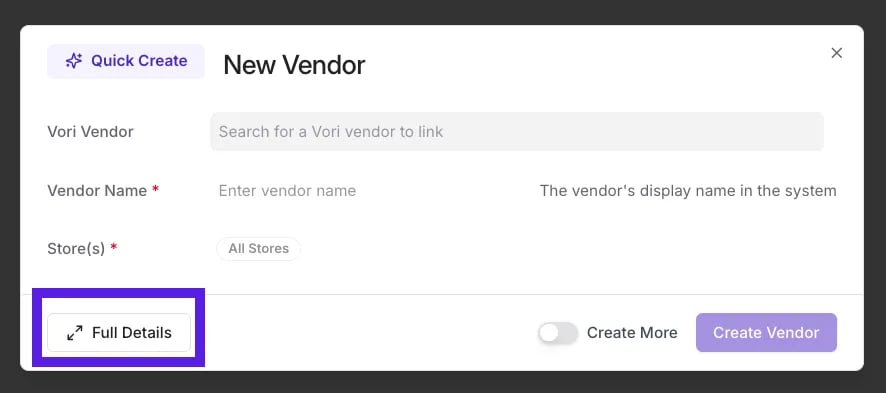
- This opens the full vendor editor where you can add Contacts, Ordering Rules, and Account IDs before saving.
Vendor Profile
The Profile tab is your command center for general vendor information.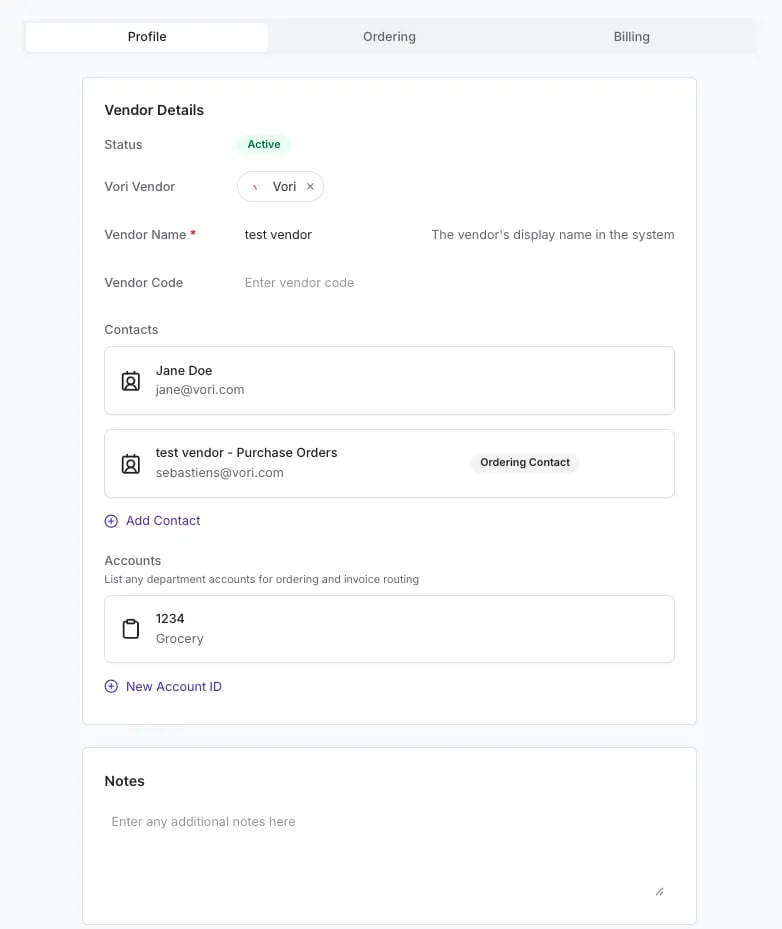
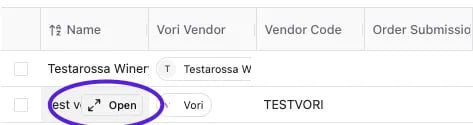
- Hover over the vendor’s name in the list and select Open.
- Select the Profile tab.
-
Update the following fields:
- Status: Choose between Active or Inactive.
- Vori Vendor: Search for the Vori Network Vendor, the universal representation of a supplier shared across all retailers on the Vori network.
-
- Vendor Name: Enter the display name for the vendor.
-
- Vendor Code: The identifier assigned to the supplier.
Managing Vendor Contacts
Ensure purchase orders go to the right people every time. You can manage multiple contacts for a single vendor and designate exactly who should receive order emails.- In the Profile tab, look for the Contacts section.
- Click Add Contact.
- Enter the contact’s Name, Email, and Phone.
- Important: Toggle on Ordering Contact if this person should receive purchase order emails automatically.
- Click Done.
You can have multiple Ordering Contacts. Vori will email all checked contacts when an order is submitted.
Edit Account Details
-
Scroll down to the Accounts section to assign Account IDs to specific departments.
- Click New Account ID.
- Enter the Account ID.
- Select the Department from the dropdown.
- Click Done.
- Use the Notes section to leave internal comments for your team.
Configure Ordering Rules and Schedules
Stop guessing delivery dates and minimums. The Ordering tab allows you to enforce rules that prevent costly mistakes before they happen.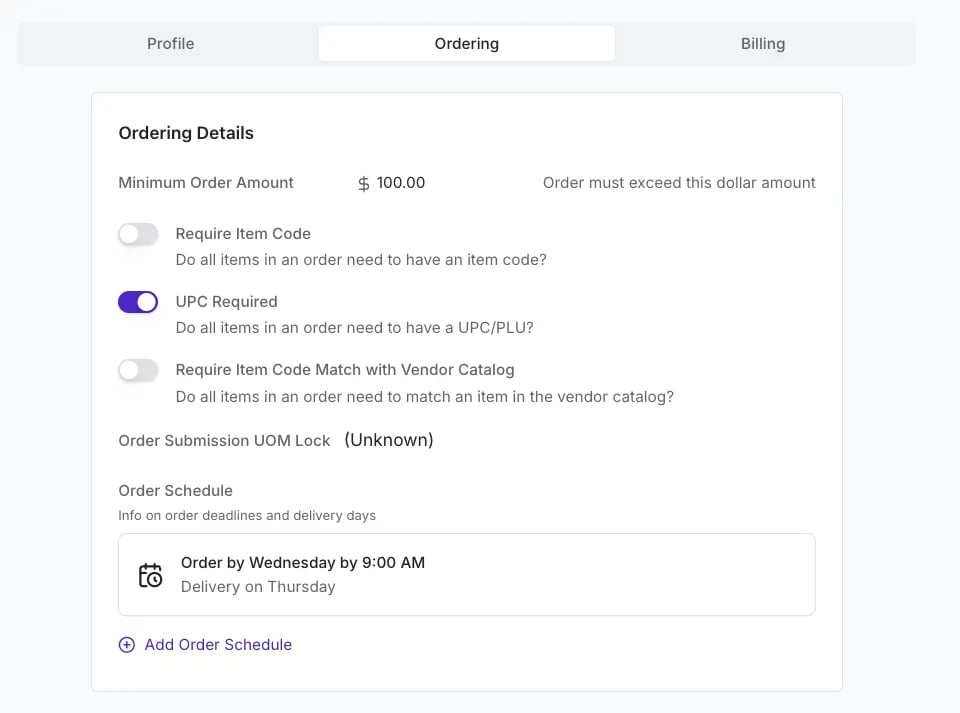
- Select the Ordering tab in the vendor panel.
- Minimum Order Amount: Enter a dollar value. The system will alert you if an order falls below this threshold.
-
Toggles:
- Require Item Code: Ensures every item on the order has a vendor item code. For vendors ordered through Vori EDI, every line also needs a barcode. Vori tries to resolve a missing item code automatically at submission and removes just that line if it can’t (or if the barcode is missing), so the rest of the order can still go out on time. See Understanding Missing Items on Vori EDI Orders.
- UPC Required: Mandates UPCs for all items.
- Require Item Code Match with Vendor Catalog: Strict validation against the catalog.
- Order Submission UOM Lock: Use the dropdown to restrict ordering units (e.g., force all orders to be in Cases or Eaches).
- Click Add Order Schedule.
- Select the Deadline Day and Deadline Time (e.g., Wednesday at 9:00 AM).
- Select the expected Delivery Day (e.g., Thursday).
- Click Done.
Billing Information
Keep your financial data organized by maintaining accurate billing addresses and tax IDs.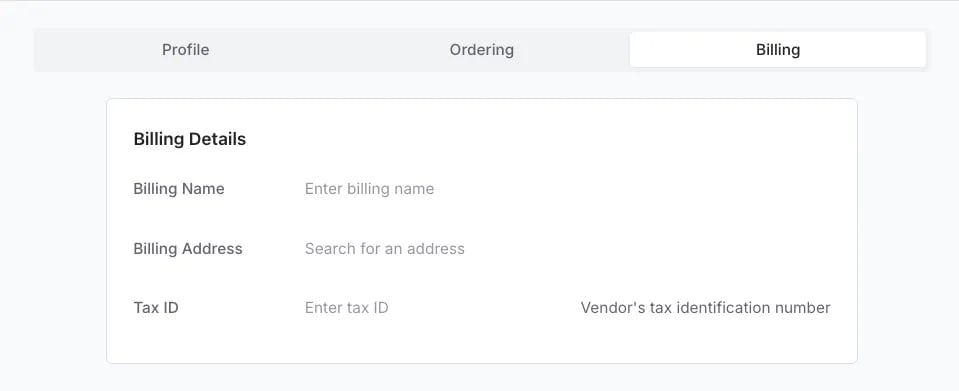
- Select the Billing tab.
- Enter the Billing Name and Billing Address.
- Input the vendor’s Tax ID.
- Changes save automatically when you click out of the field or close the panel.
Merge Duplicate Vendors
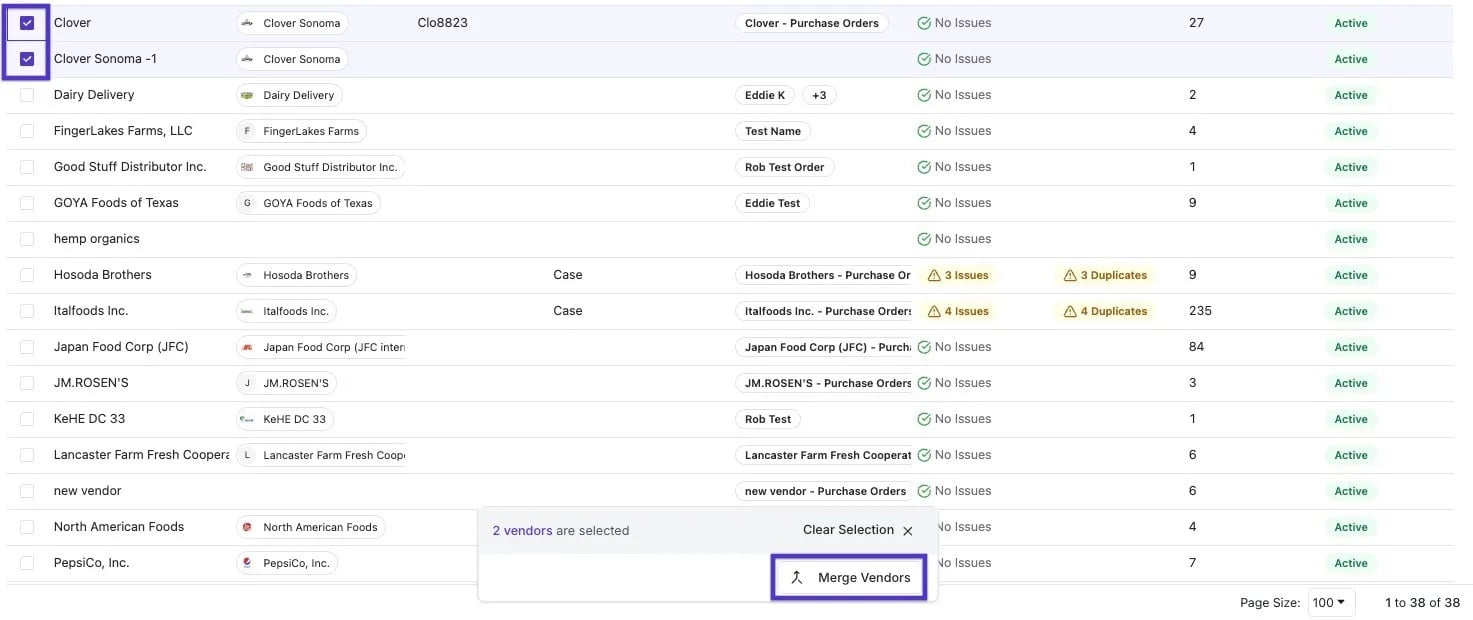
If you find duplicate vendors (e.g., “Dairy Delivery” and “Dairy Deliv”), merge them to keep your data clean. This ensures your purchase history and product catalogs are consolidated into a single, accurate record.- Click on Inventory & Supply Chain and navigate to Vendors.
- Locate the duplicates using the search bar or the Duplicates filter.
- Select the checkboxes next to the vendors you want to combine.
-
A menu will appear at the bottom of the screen. Click Merge.