

Where to Find House Accounts
To access House Accounts:- Log in to the Vori Back Office.
-
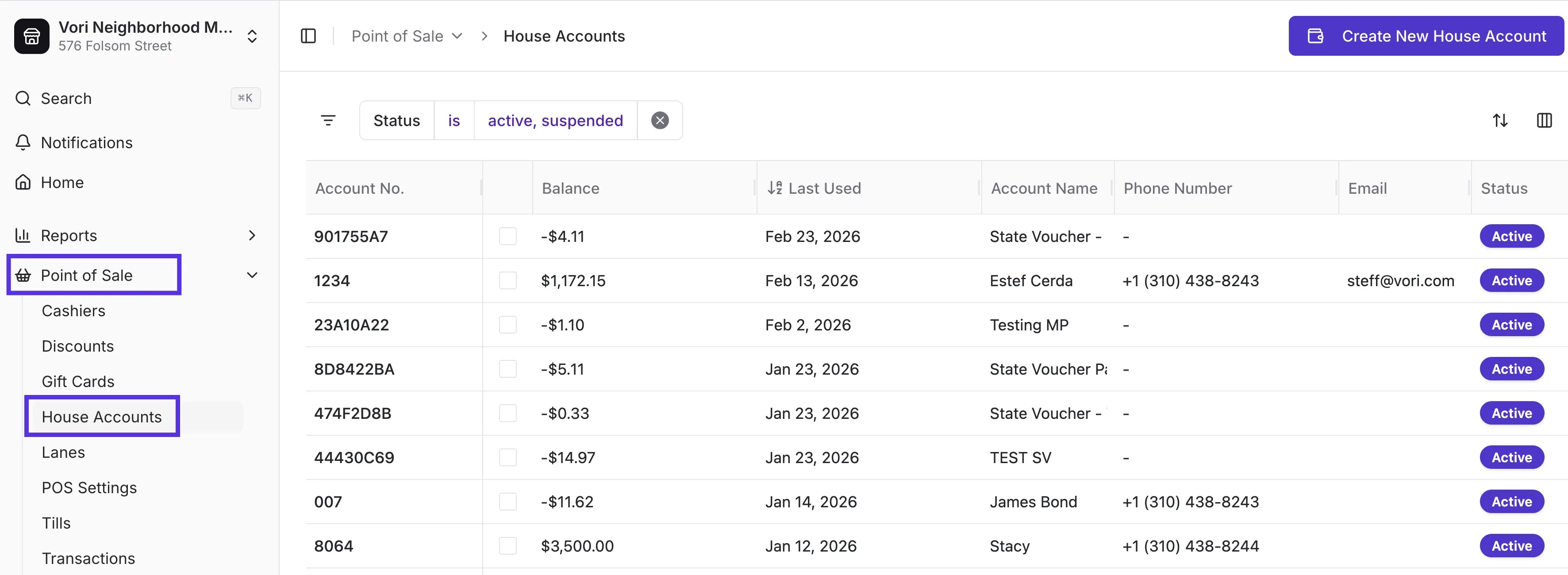
Go to Point of Sale in the left-hand menu, and select House Accounts.
-
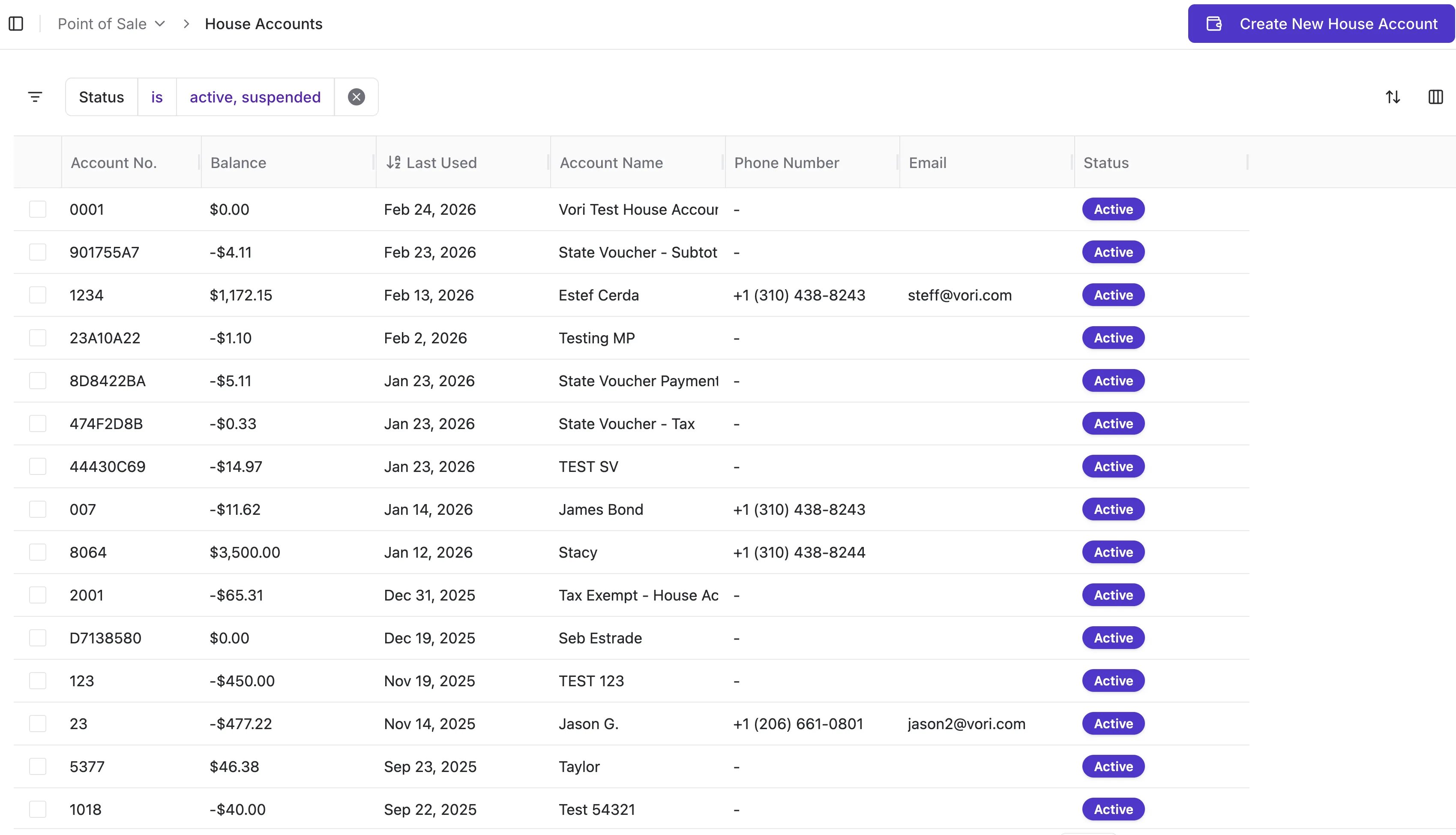
The House Account table includes House Account details:
- Account No.: Unique ID number for the account.
- Balance: Total accrued debit or credit. Balances typically run negative to reflect debt owed (e.g., -$99.00).
- Last Used: Date and time of the last transaction linked to the account.
-
Account Status: Controls visibility and usage at the POS.
Create a New House Account
- From the House Accounts page, click Create New House Account.
- Fill in all required fields marked with an asterisk (*).
- Click Create House Account to save.
Information like phone number and email is optional and can be added later.
Modify a House Account
Use Modify Balance when recording:- Payments made outside the POS
- Offline charges
- Manual adjustments
- Hover over the account and select Open.
- Click Modify Balance.
-
Choose one of the following:
- Add to Balance / Apply Payment → Reduces debt (positive number)
- Subtract from Balance → Adds debt (negative number)
- Enter a reason for the adjustment.
- Click Update Balance.
Manage Account Status
Control how and when accounts can be used.To Suspend or Restore:
- Open the account.
- Click Suspend Account (or Restore).
- Enter a reason.
To Deactivate:
- Open the account.
- Click Edit in House Account Details.
- Select Deactivate Account.
- Enter a reason.
Add Name and Address to Receipts & Statements
Want House Account details printed on receipts and statements? Use the Account Number field as a custom label.- Go to Point of Sale → House Accounts.
- Open the account.
- Click Edit.
- Replace the Account Number with the Account Name and Address.
- Click **Save Changes. **
- The bottom of POS receipts.
- The header of House Account statements.
Charge a House Account at the POS
At checkout:- On the Payment screen, tap Other
- Select House Account
- Search for or select the account
- Confirm the amount
- Tap **Confirm Amount **
House Account Statements & Reporting
-
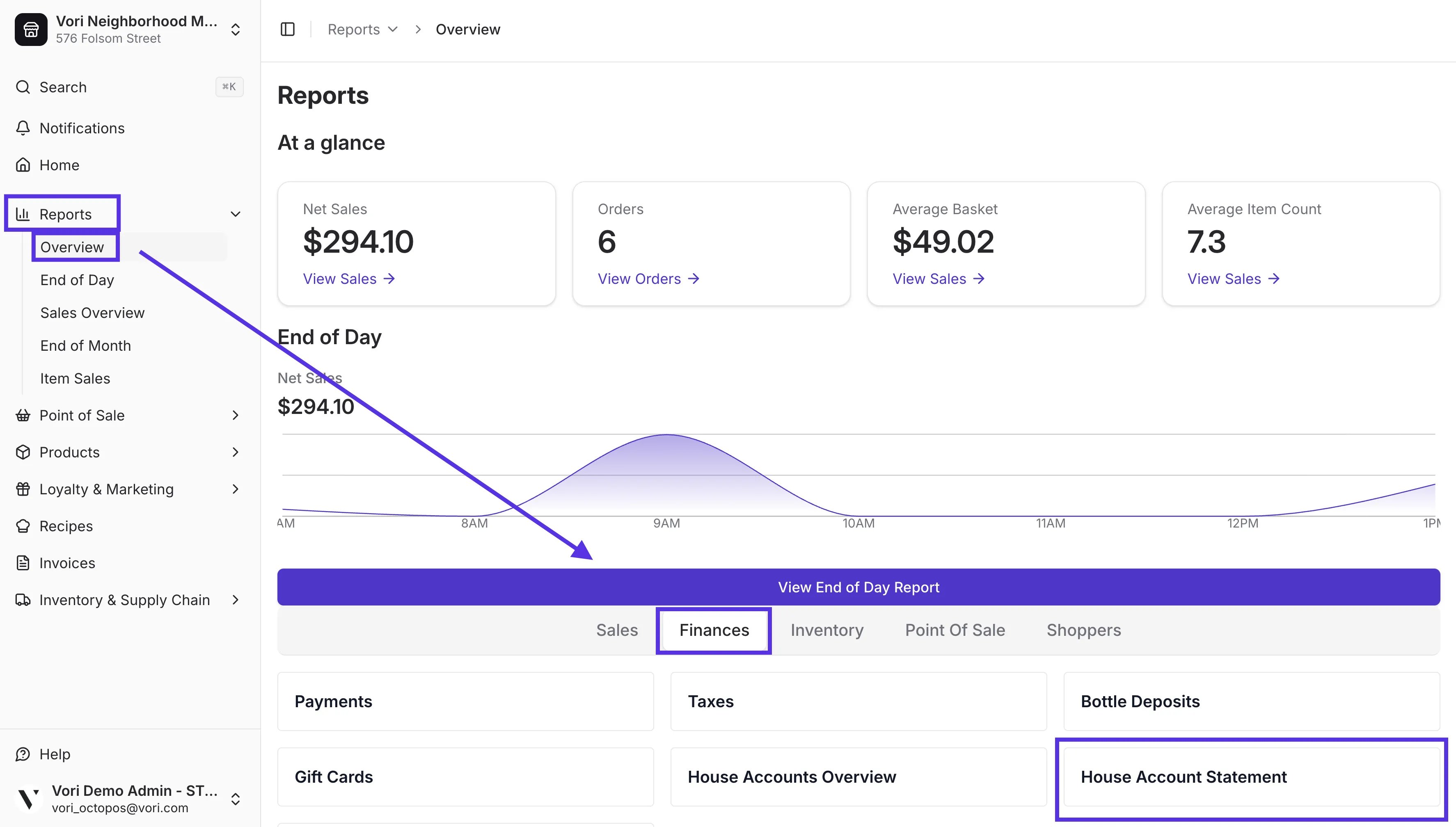
Statements: Go to Reports > Finances and click House Account Statement.
-
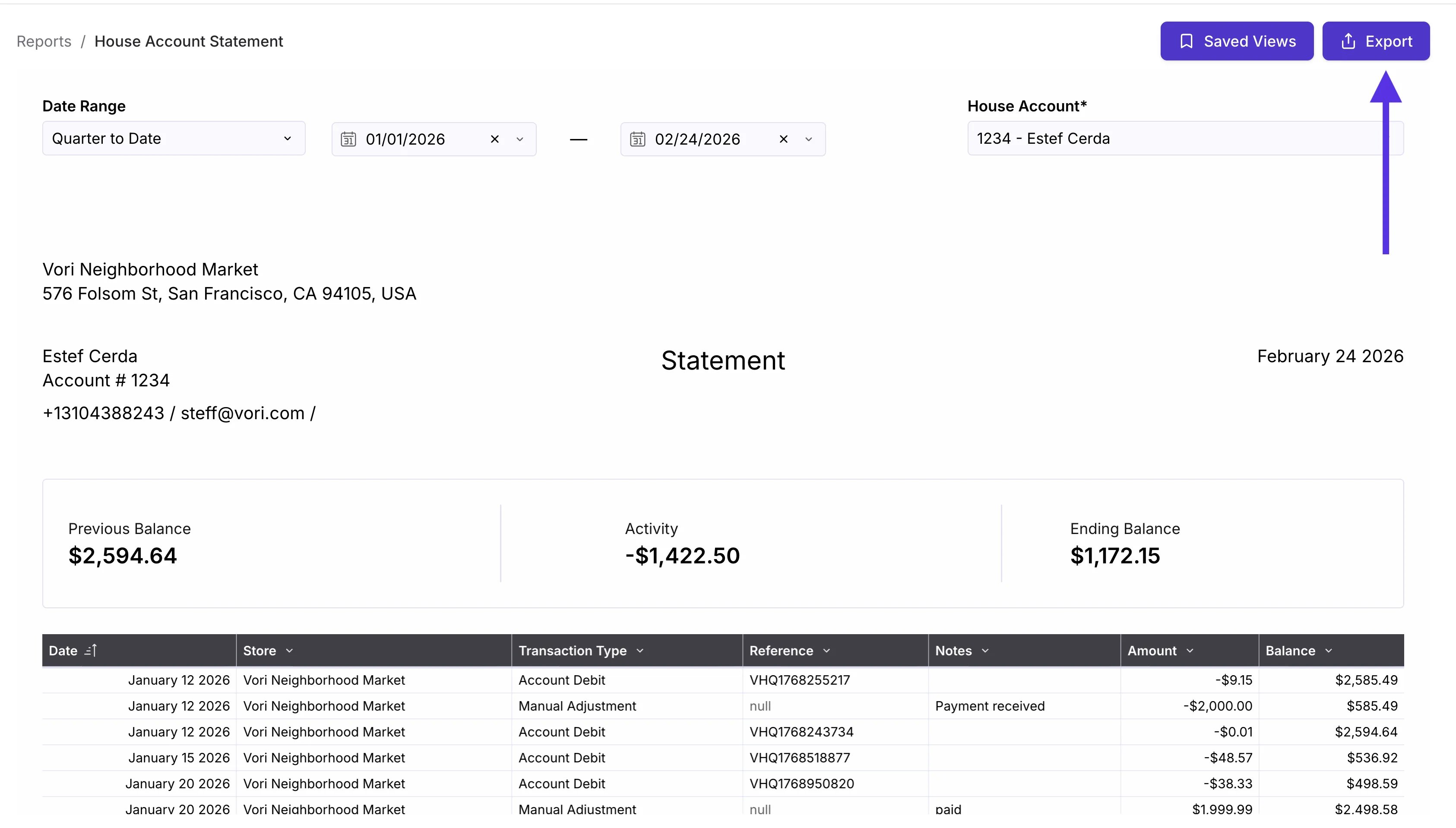
You can filter by date and account, then Export a copy to print or email to your House Account shopper.
-
You can filter by date and account, then Export a copy to print or email to your House Account shopper.
-
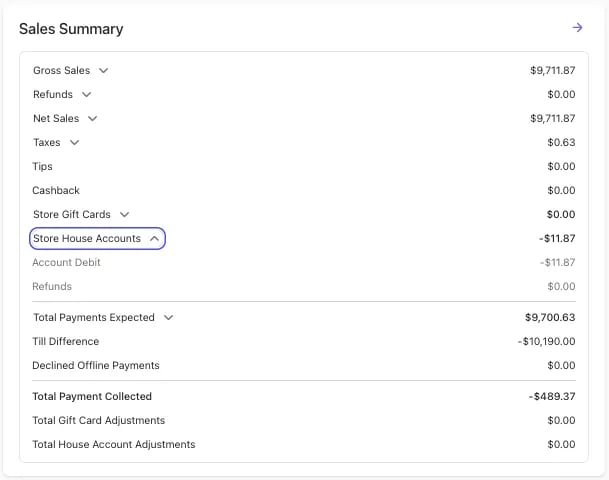
End of Day: Transactions appear in the End of Day Report and Sales Overview Report under **Store House Accounts.
 **
**