Documentation Index

Fetch the complete documentation index at: https://help.vori.com/llms.txt

Use this file to discover all available pages before exploring further.

Many grocery stores sell lottery tickets, including scratchers and draw games (like Powerball or Mega Millions). Vori gives you the tools to record lottery sales and payouts directly at the POS, so every dollar is accounted for and your reporting stays accurate.

Selling Lottery Tickets in Vori

Lottery sales fall into two categories: scratchers and draw games.

Scratchers

Scratch-off tickets with UPCs can be scanned and sold just like any other item. To make checkout faster:
  • Add the UPCs into your catalog through the Back Office or Vori OS app.
  • Confirm pricing is correct before tickets hit the floor. 81sPTBm-7PL

Draw Games (Powerball, Mega Millions, etc.)

Draw game tickets are printed from your state lottery terminal and typically don’t have standard UPCs. To ring these up
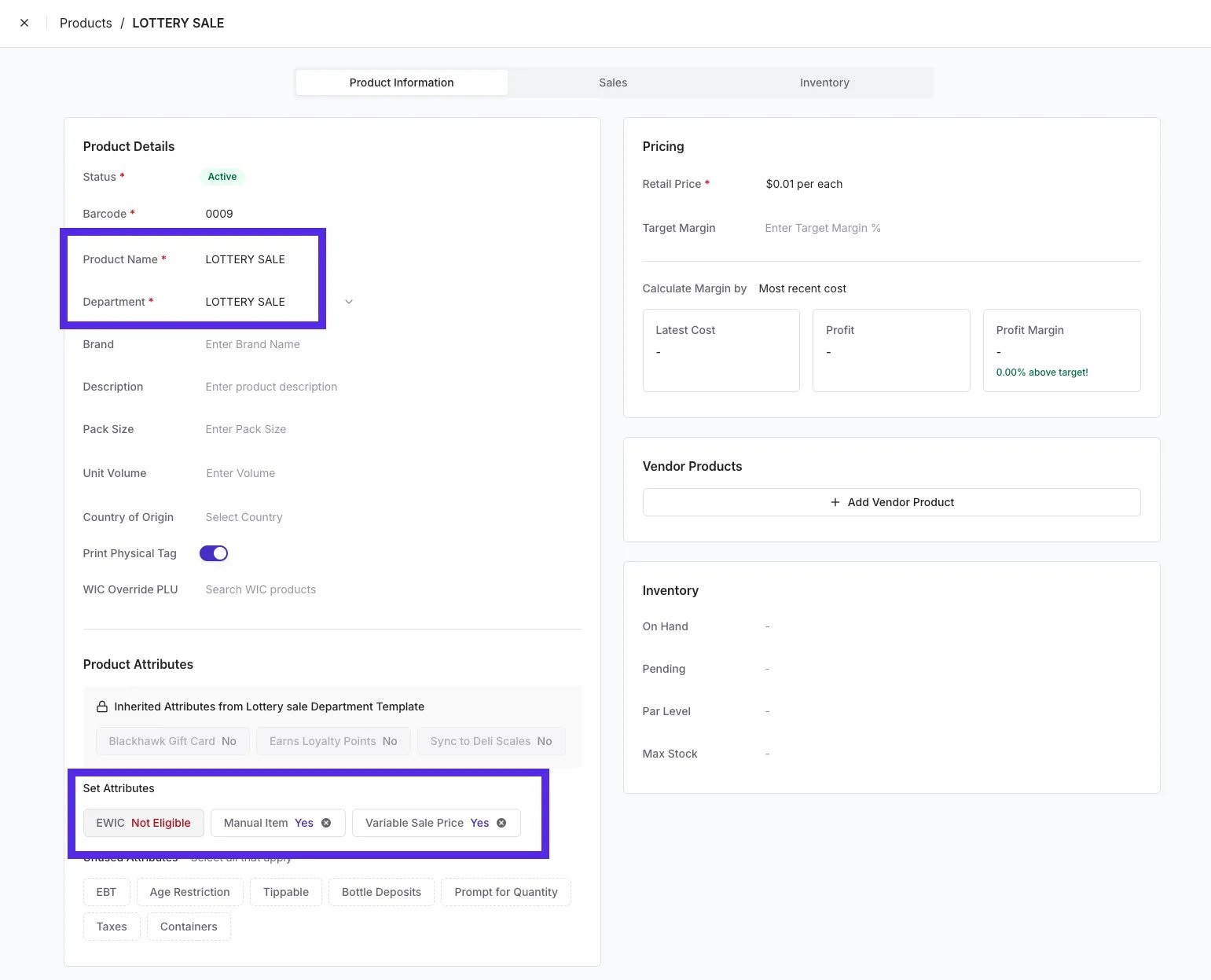
  • Create a custom product in the Back Office (for example, “Lottery - Sale”) with a manual variable price item. Your cashiers can select it quickly without slowing down the line. Screenshot 2026-02-20 at 3.51.57 PM

Validating Winnings

Before paying out any prize, you must validate the ticket using your official state lottery terminal. Vori does not:
  • Validate tickets
  • Confirm prize amounts
  • Determine winning status
Always confirm the win through your state’s required process before issuing cash.

Paying Out Lottery Winnings

For small prizes, you can pay the shopper directly from the till. To keep your drawer balanced and your accounting clean, lottery payouts must be processed using the Pay Out workflow — not as a refund. This ensures:
  • Your cash drawer stays accurate
  • Your Lottery vendor is properly credited
  • Lottery payouts remain separate from product returns

Before You Start

Make sure:
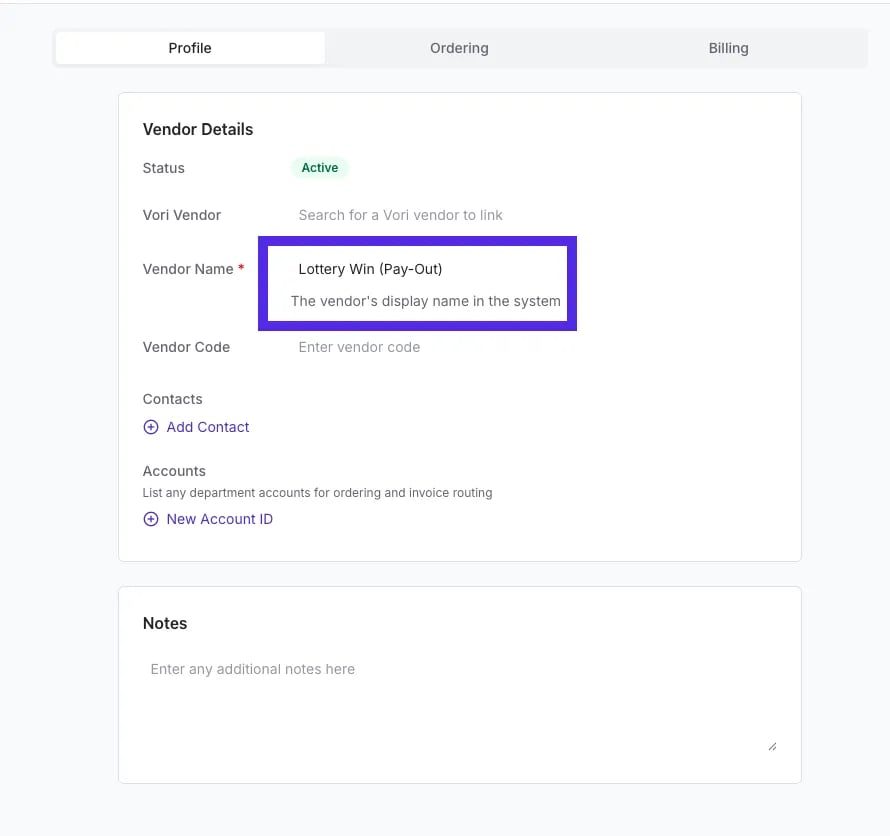
  • A vendor named “Lottery Win (Pay-Out)” should be created in the Back Office.
  • The cashier has permission to perform payouts.
Screenshot 2026-02-20 at 3.59.49 PM

Step-by-Step: Processing a Lottery Win Pay Out

  1. Validate the ticket using your official state lottery terminal.
  2. On the POS checkout screen, tap the arrow next to the total.
  3. Select Pay In & Pay Out.
  4. Tap Pay Out.
  5. Enter the winning amount (example: 25.00) and tap Next.
  6. Tap the Vendor dropdown and search for “Lottery.”
  7. Select Lottery Win (Pay-Out).
  8. Tap Confirm Pay Out.
  9. The drawer will open. Provide the shopper with their cash and tap Continue.
  10. Choose Print to provide a receipt or No Receipt to finish.
💡Tip: Set Clear Payout Guardrails We recommend creating a simple internal policy that outlines:
  • The maximum payout a cashier can issue (for example, $50).
  • When a manager approval is required.
  • How all payouts should be logged and reviewed.
You can enforce payout limits in the Back Office through POS Settings. See our guide, Customize Your POS Settings, for instructions.

Viewing Payout Activity in the Back Office

You can track all payout activity from the Reports section. To view payout history:
  1. Go to Back Office.
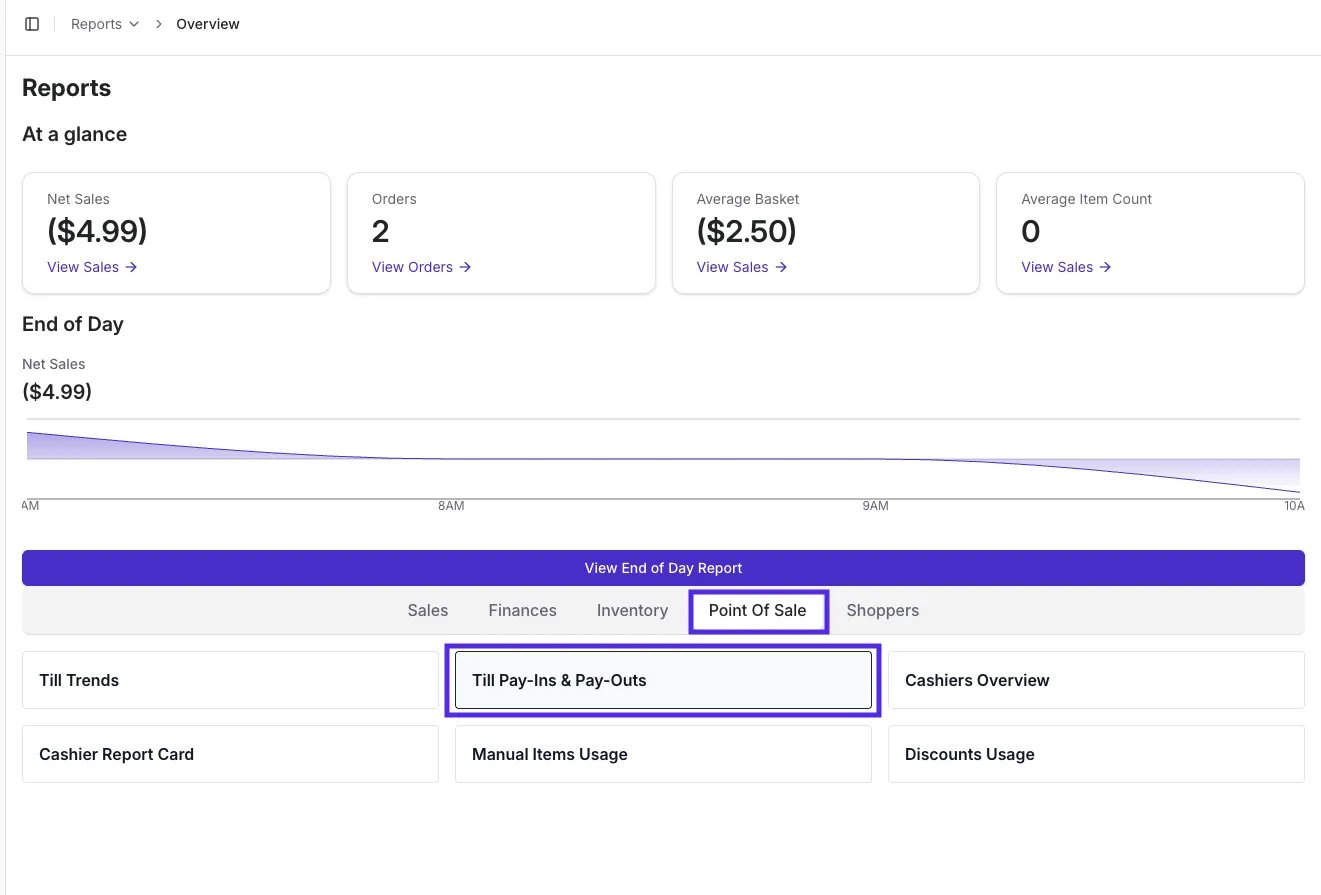
  2. Navigate to Reports > Point of Sale > Till Pay Ins and Pay Outs. Screenshot 2026-02-20 at 4.19.20 PM
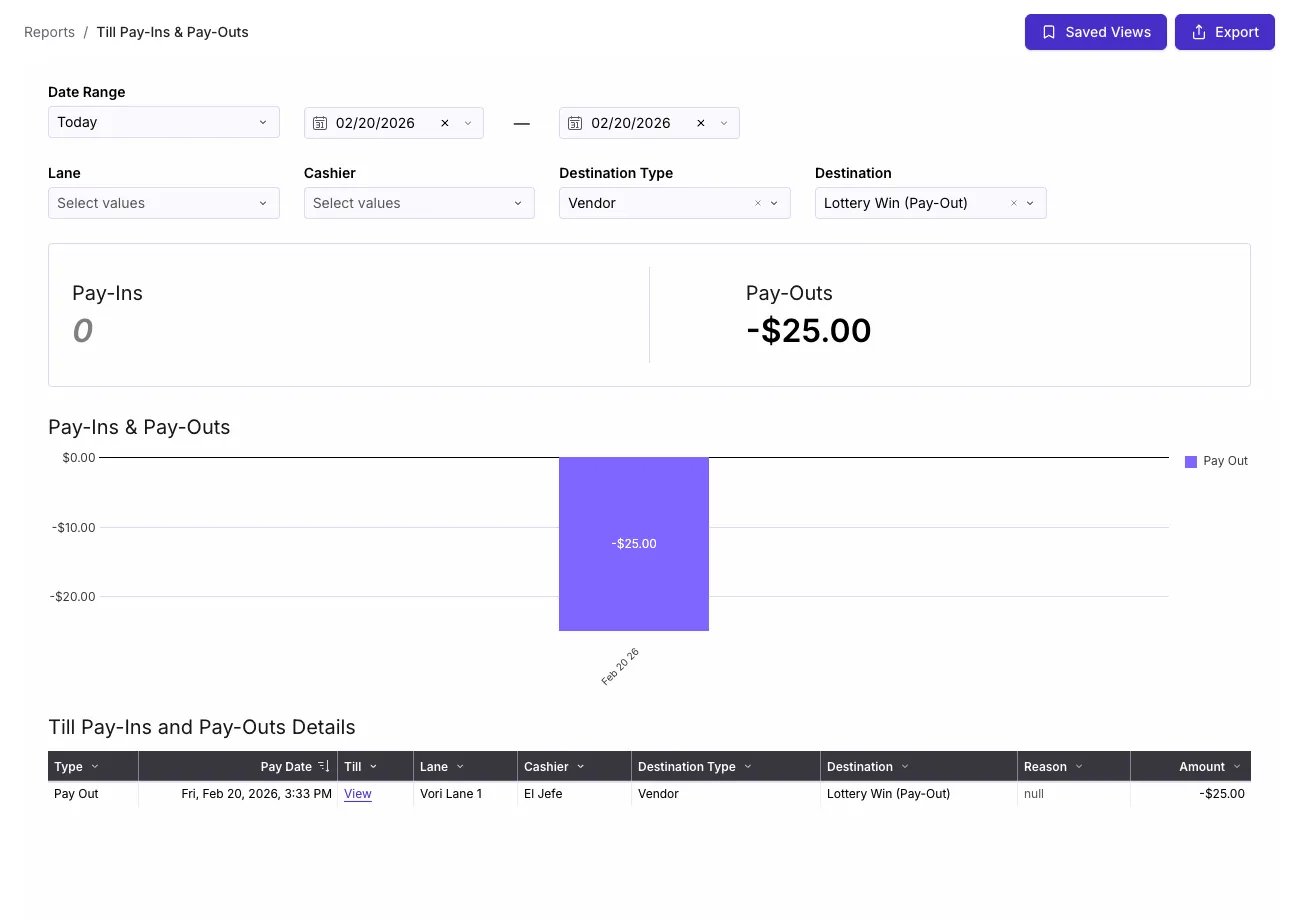
  3. Filter by destination type (Vendor) and destination (Vendor Name) to view recorded activity. Screenshot 2026-02-20 at 4.16.15 PM