

How to Use Price Check
-
From the POS home screen, tap the barcode scanner icon in the bottom navigation bar.
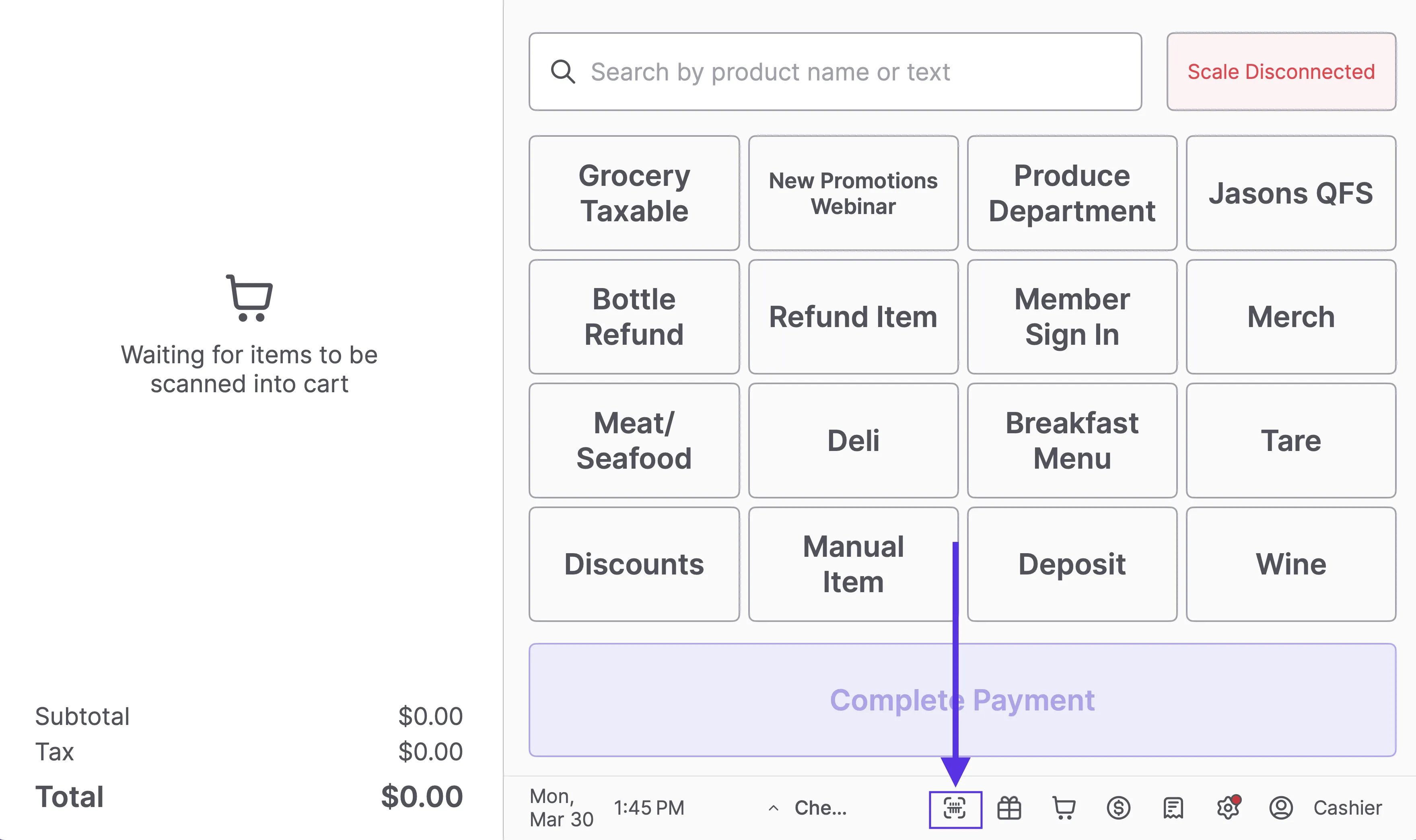
-
When the Price Check screen opens, scan the product barcode or enter the PLU.
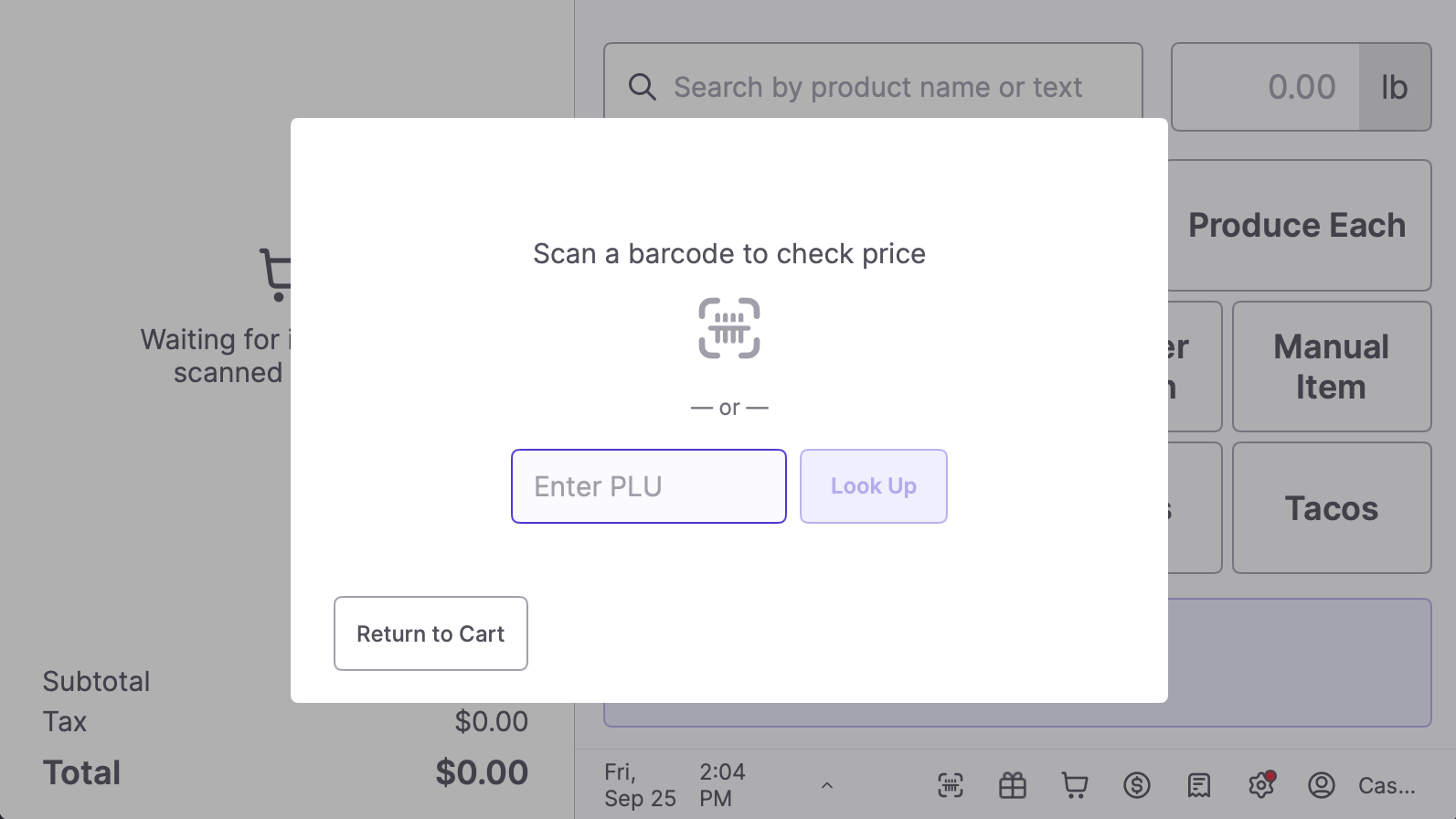
-
The product name, barcode, and current price will display on screen.
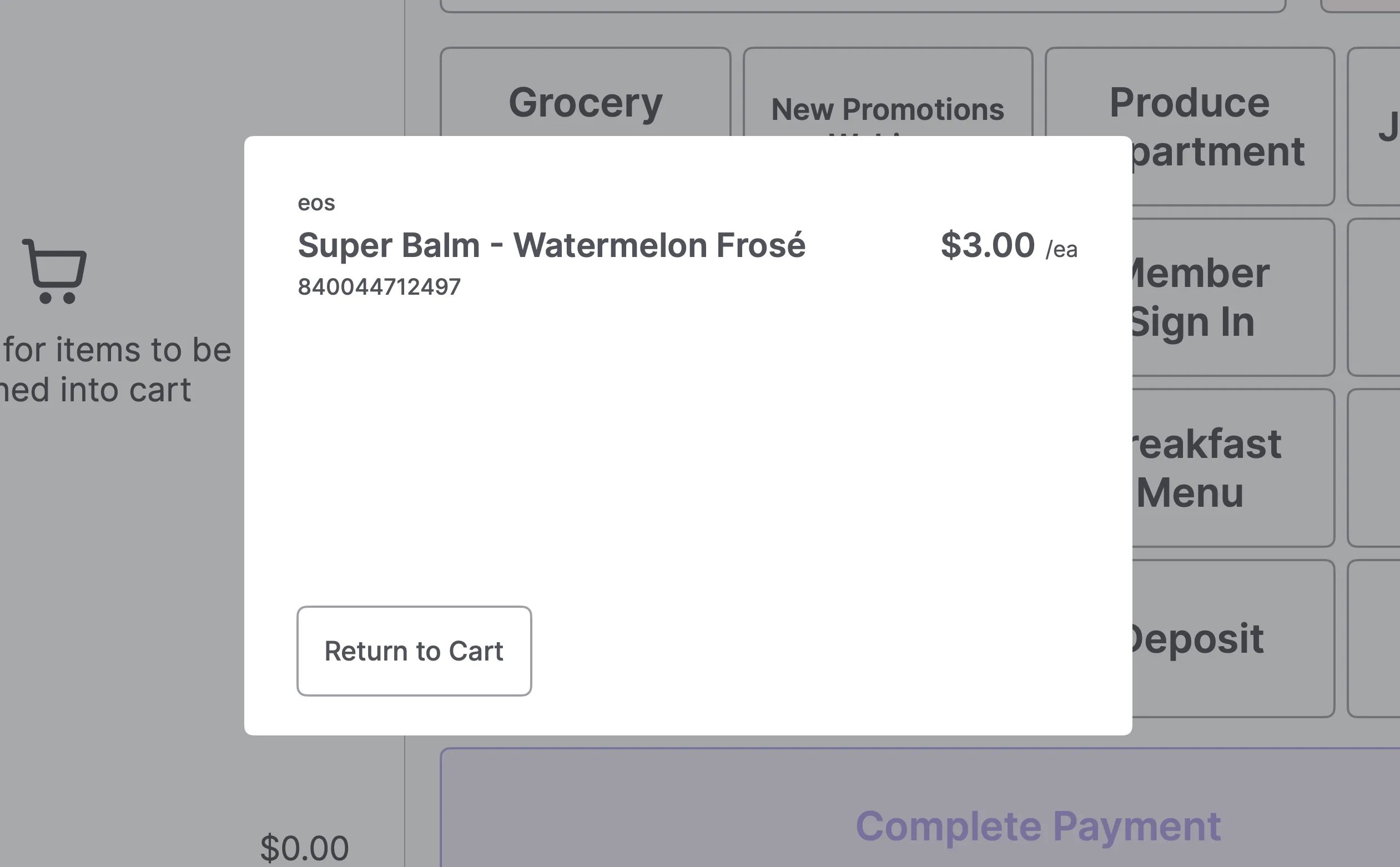
- Tap Return to Cart to go back to the active transaction.
Price Check opens as an overlay and does not affect any items already in the cart.
What Price Check Shows
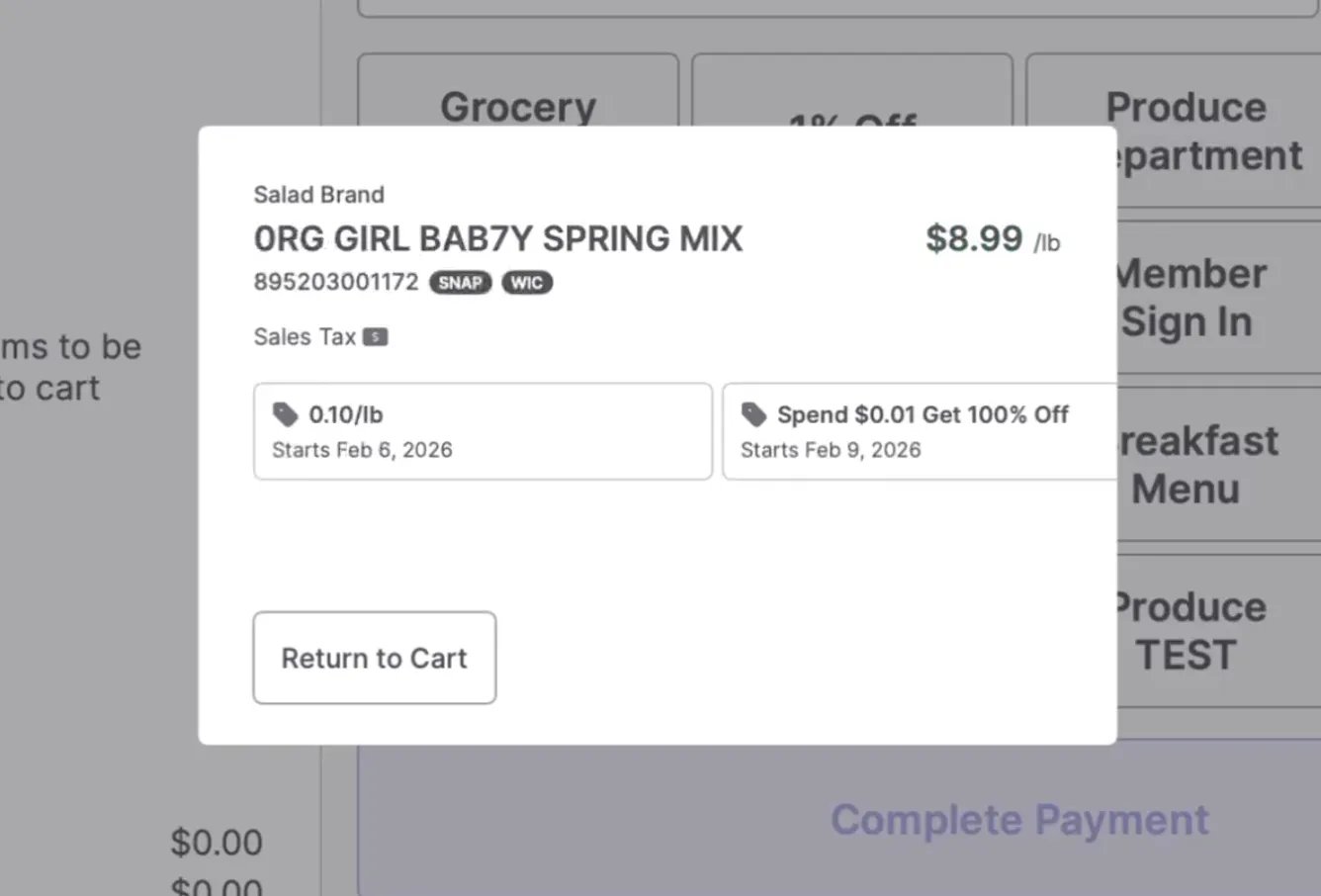
When you scan a product or enter a PLU, you’ll see:- Product name and brand
-
Current sell price — with the original price struck through if a promotion is active
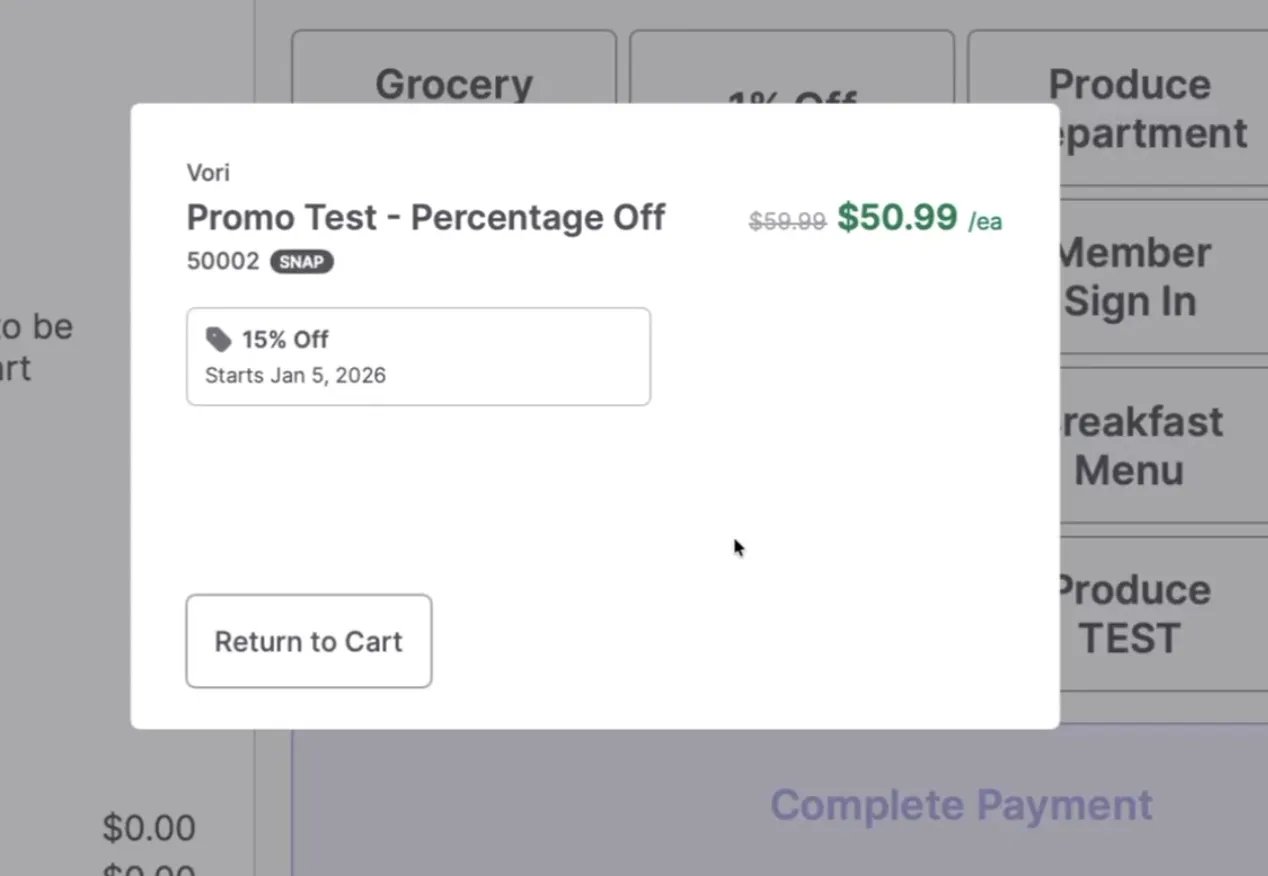
- Barcode (UPC) or PLU
-
SNAP and/or WIC eligibility — displayed as a badge next to the barcode when applicable
-
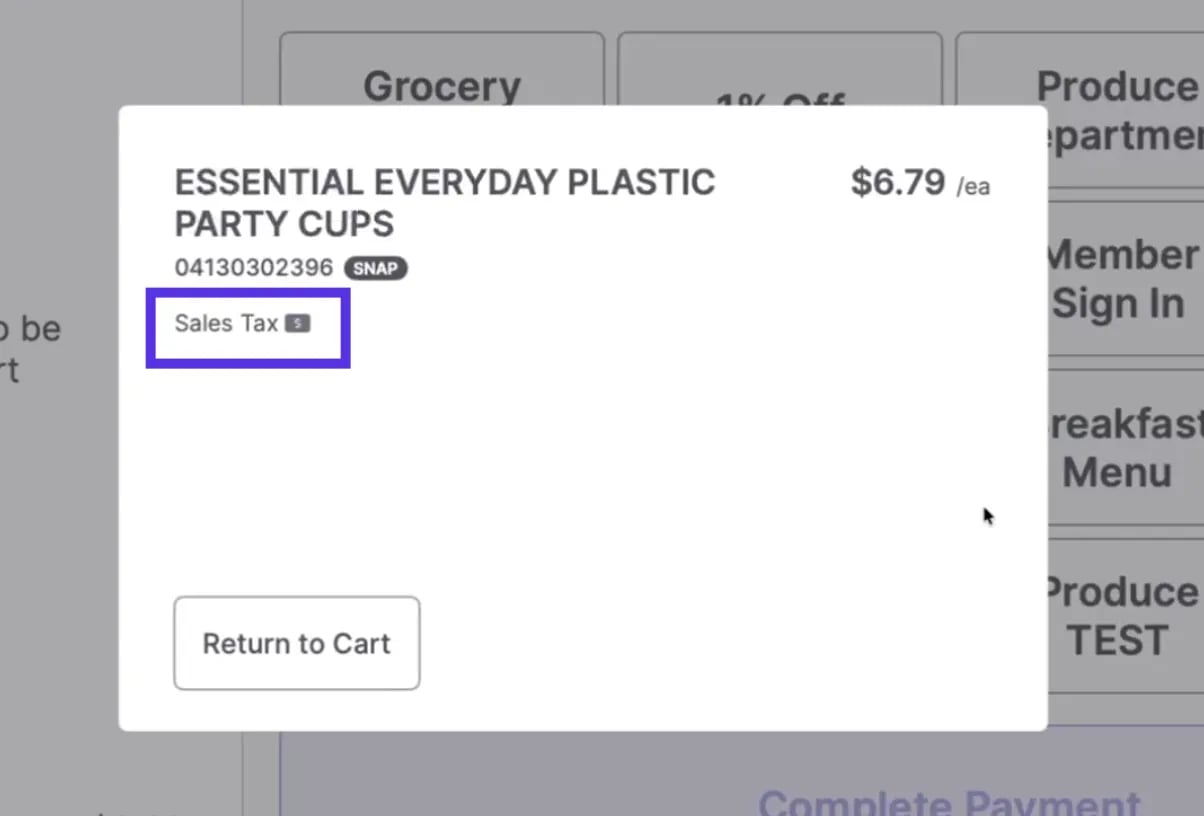
Sales tax status — shown when the product is taxable
- Active promotions — including the discount type, amount, and start date (or full date range for timed promotions)
If a product has multiple active promotions, each one will display as its own card so your team can see exactly what’s running.