

Vori tracks cost changes based only on matched vendor and product information. Fields like invoice number, date, or amount due don’t affect product pricing or reporting.
Step 1: Check the Invoice Preview or Original Scan
Start by reviewing the invoice preview in the Back Office—or compare it to your saved scan of the original invoice if available. This is especially helpful if there’s a delay between invoice upload and review. Look for:- Unexpected or incorrect vendor matches.
- Wrong Vendor Name
- Incorrect Store Name
- Inaccurate Address: Ship to Address or Bill to Address
- Products matched to the wrong catalog items.
- Wrong product code.
- Description
- UPC
- Missing or inaccurate costs.
Mapping errors do not affect how Vori tracks cost history for products—they only impact how the invoice displays in this view.
Common Upload Mistakes to Check For
If invoice mapping looks off, it often ties back to formatting issues in the uploaded scan. Check for:-
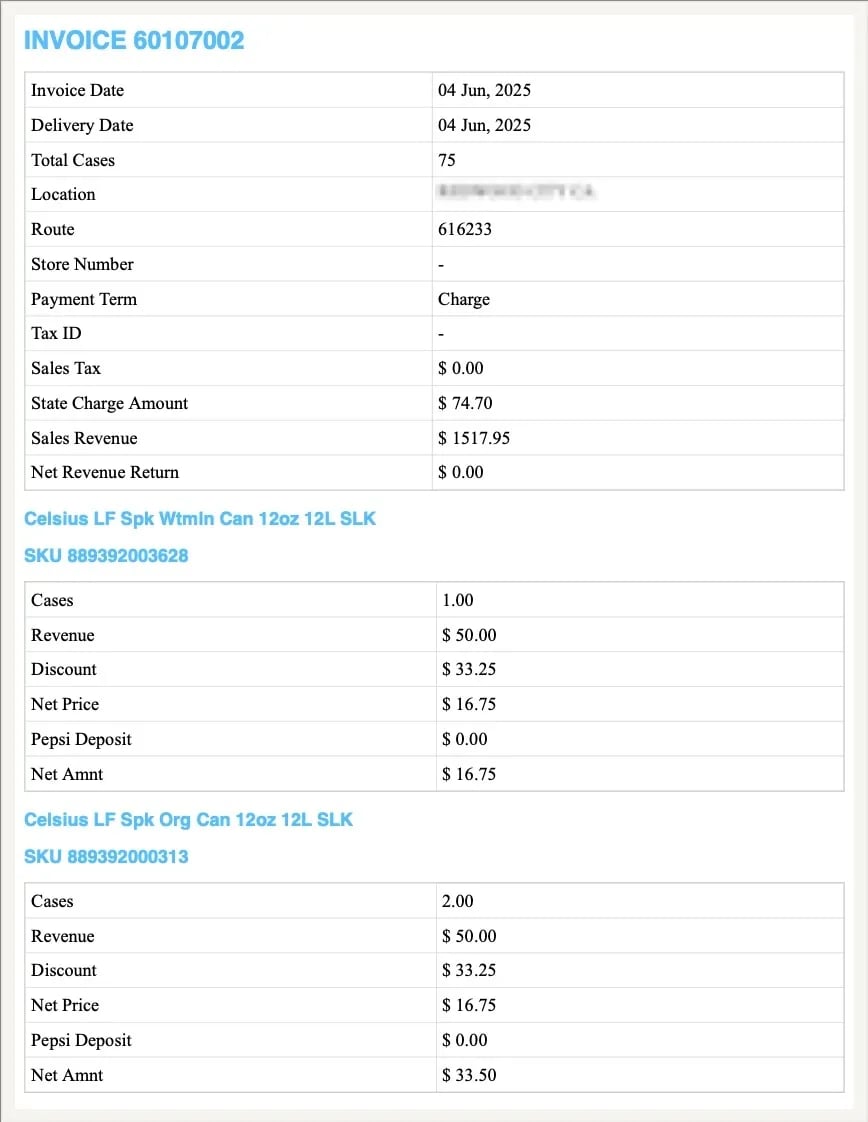
Missing vendor name or store address in the header.
- Handwritten invoices.
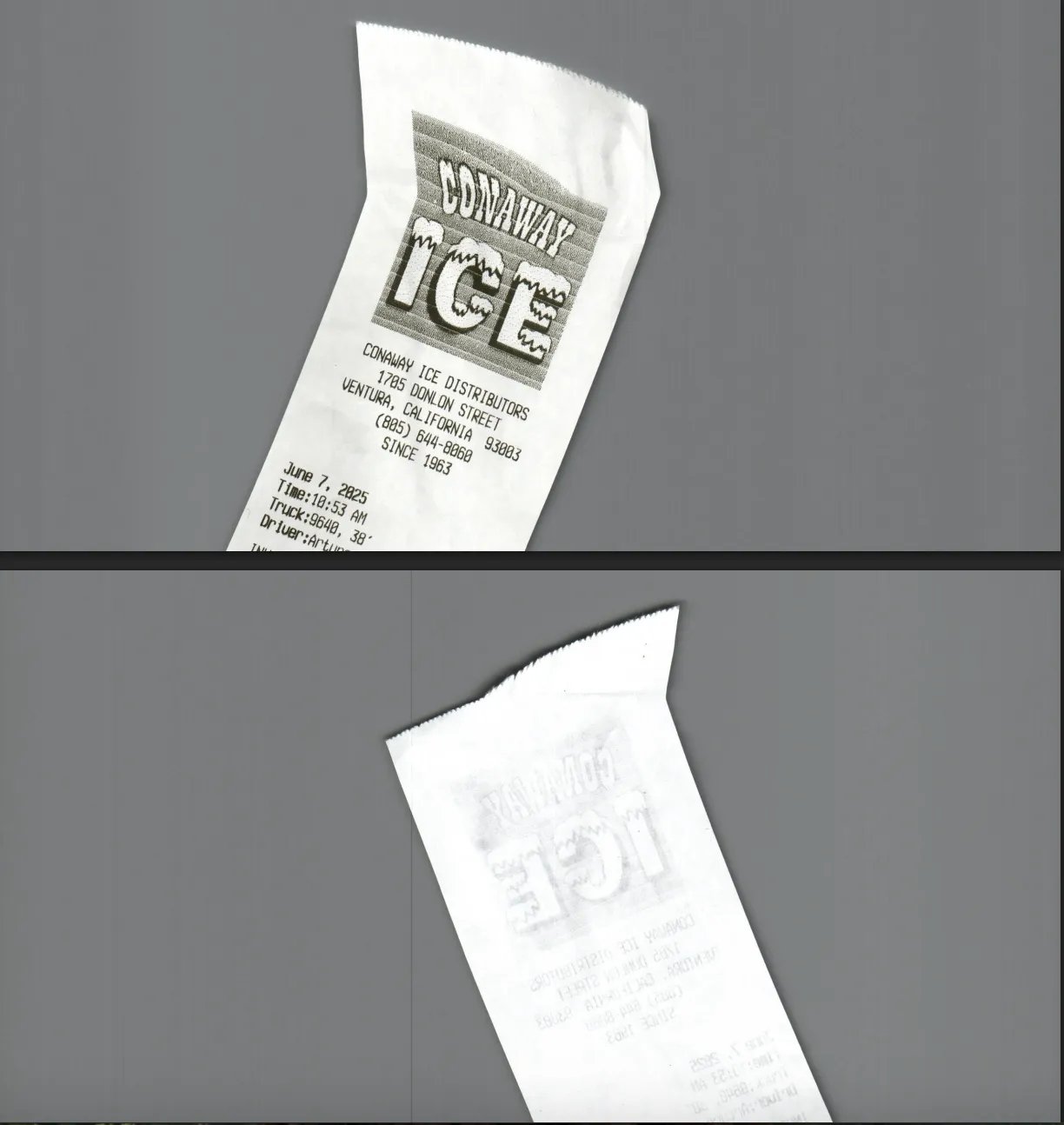
- Carbon copy paper scans that are faint or blurry.
-
Off-center or incomplete scans (e.g., page is cut off or crooked).
- Multi-page invoices are uploaded separately instead of in one session. If your invoice spans multiple pages, upload them together in the same session.
- Extra-long receipts (Extend Receipts) Extend may distort extra-long receipts due to how it adjusts aspect ratios, stretching the image to fit, which can blow out the formatting and make the invoice unreadable. Like handwritten invoices, we do our best to extract the correct data, but accuracy isn’t guaranteed.
- Invoices listing a sales rep (e.g., “John Smith LLC”) instead of the vendor.
Step 2: Review Vendor and Header Details
Vori maps invoices to vendors using the header info at the top of the invoice. Check that the invoice includes:- Vendor name or Ship From address
- Store name, Ship To, or Bill To address
- Product details like UPC, code, or description
Step 3: Correct Mismatched Products or Pricing
If line items are mapped incorrectly, you can manually fix them before finalizing. To correct a mismatch:- Search your catalog for the correct product.
- Check that the UPC or description matches.
- Use the invoice editor to remap or update the cost.
Step 4: Flag Recurring or Severe Issues
If the same issues keep happening or an invoice fails, reach out to Vori Support. Contact Vori Support if:- Most invoices from a vendor are mapping incorrectly
- Vendor or product details are consistently missing
- You’re unsure how to resolve a failed upload