

Access Ordering on VoriOS
- Log in to your store account on the VoriOS app.
- Tap Order from the menu.
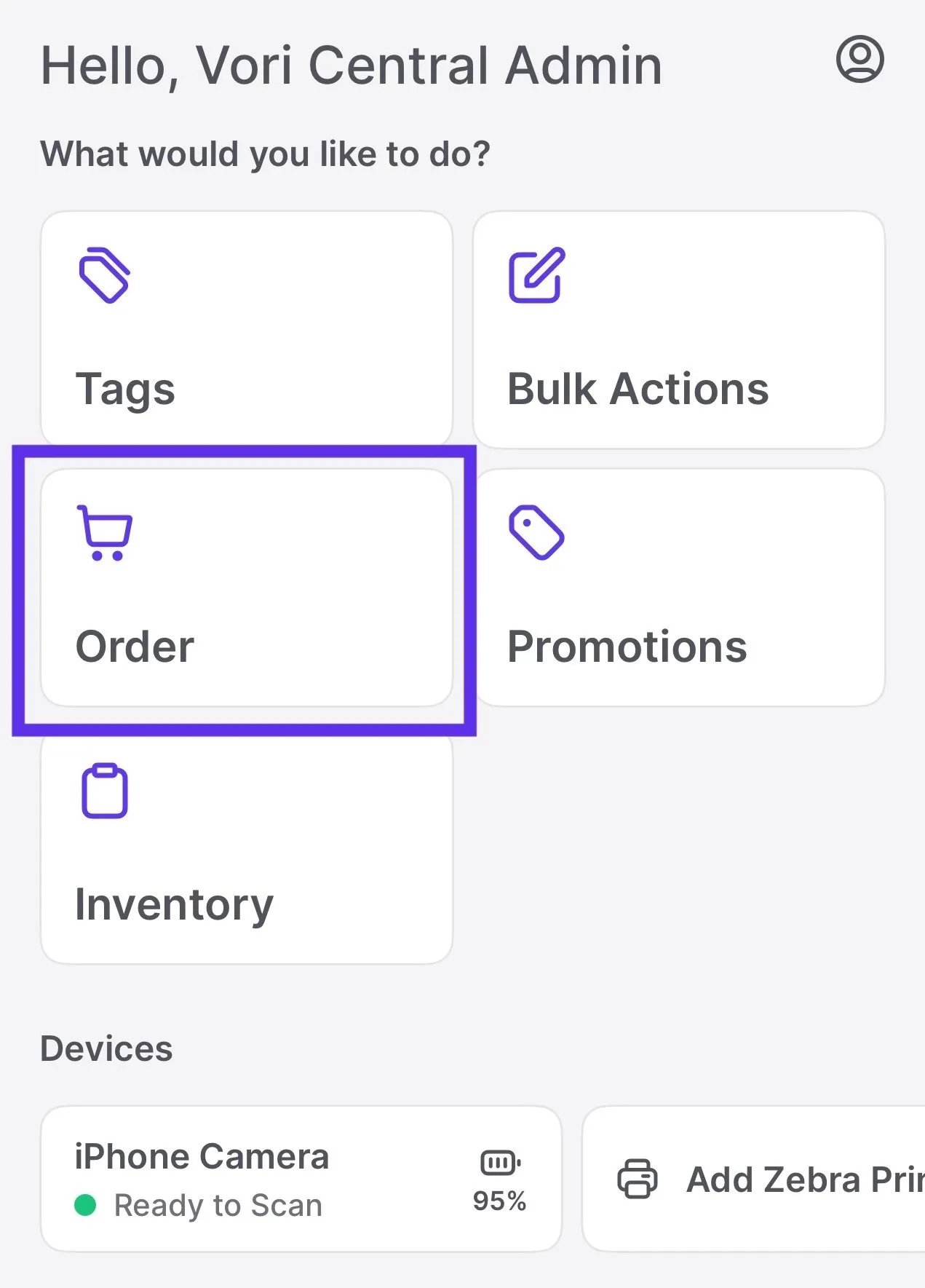
Start a New Order
Ready to place an order? Tap New Order to get started. You’ll be prompted to choose:- Single Vendor Order: Order directly from one vendor.
- Multi Vendor Order: Build a cart across multiple vendors by scanning or searching.
Order by department
Assign a department when you start an order to keep your team focused on the right products and catch anything that doesn’t belong. Why order by department Assigning a department, like Grocery, Produce, or Deli, helps your team stay focused on ordering for that area of the store. It’s especially useful when different people are responsible for ordering different departments. How to order by department- Tap New Order.
- Under Order Details, tap Department (Optional).
- Choose the department for this order.
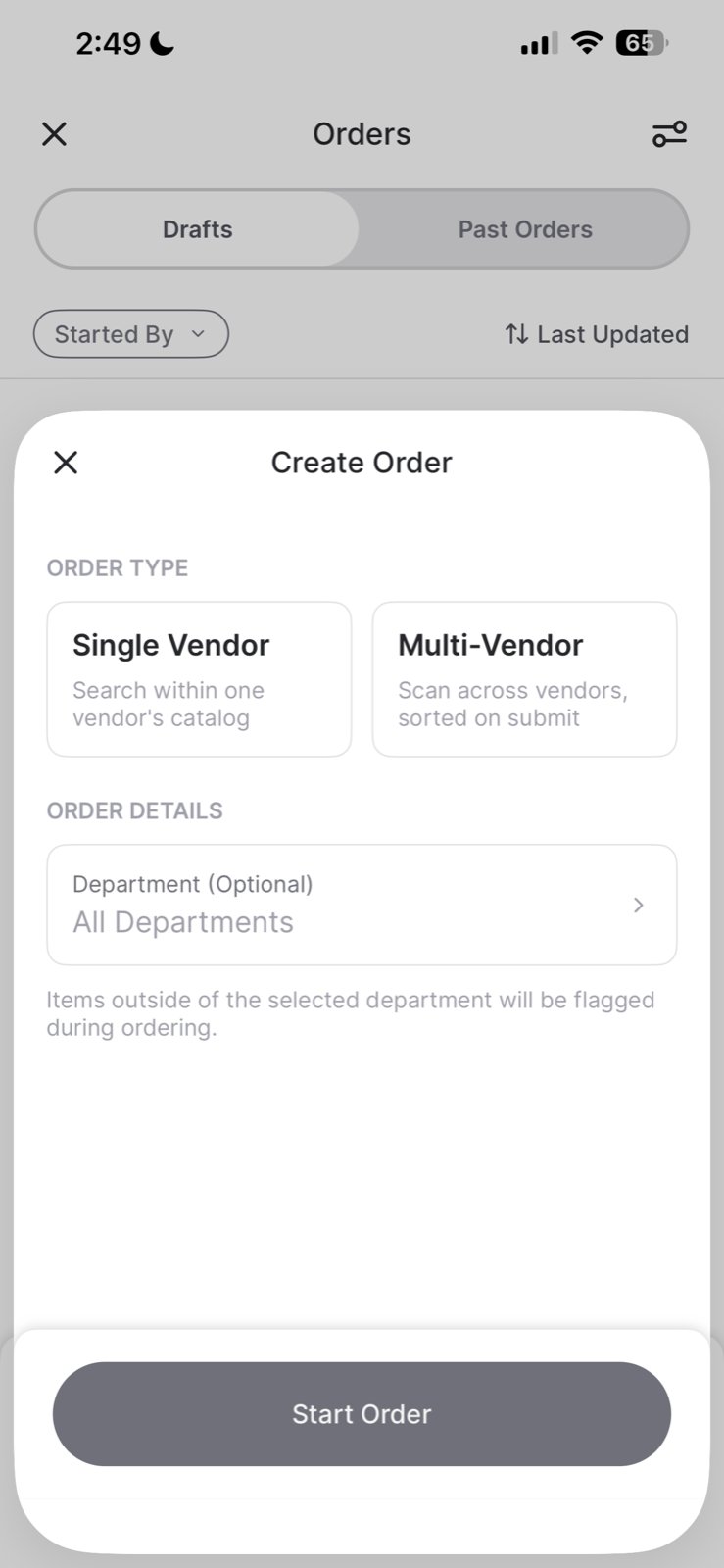
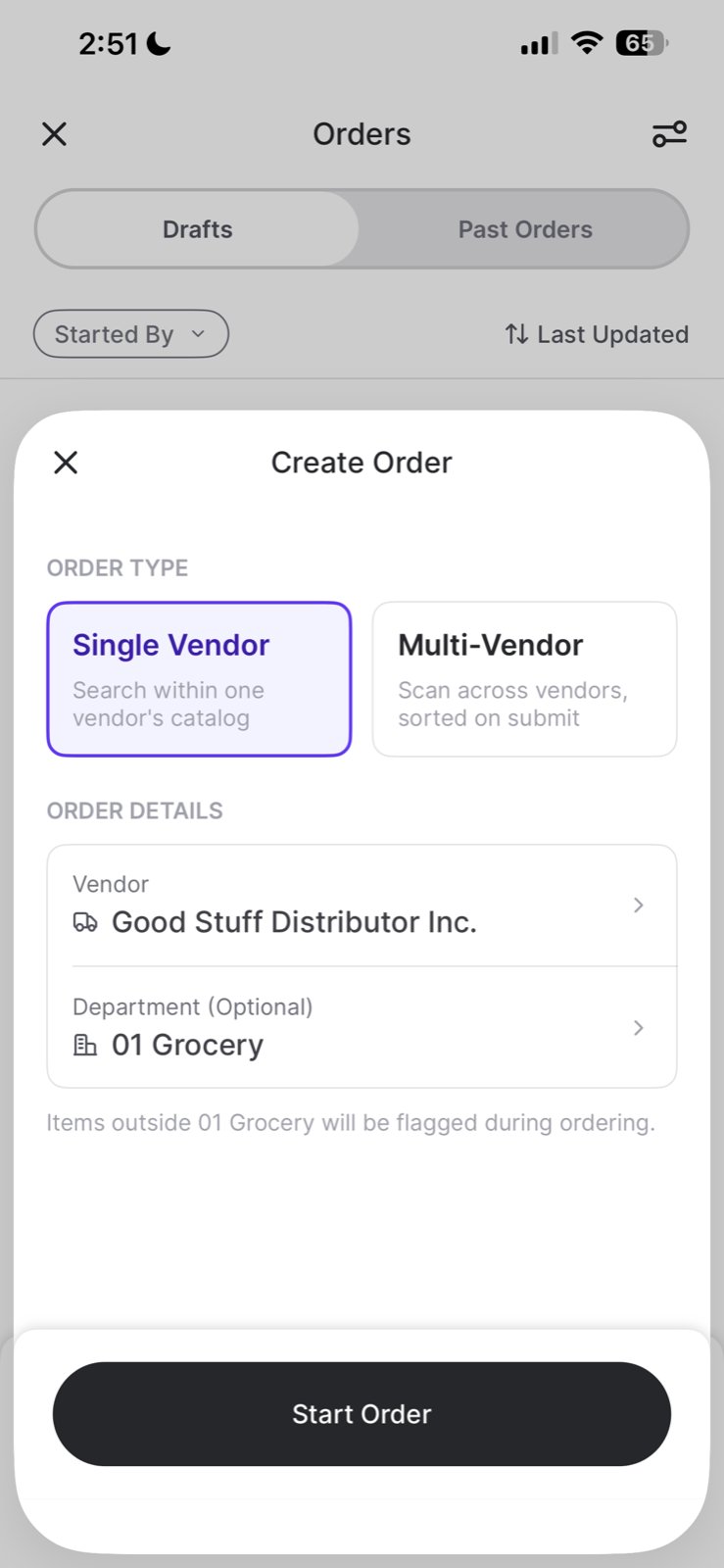
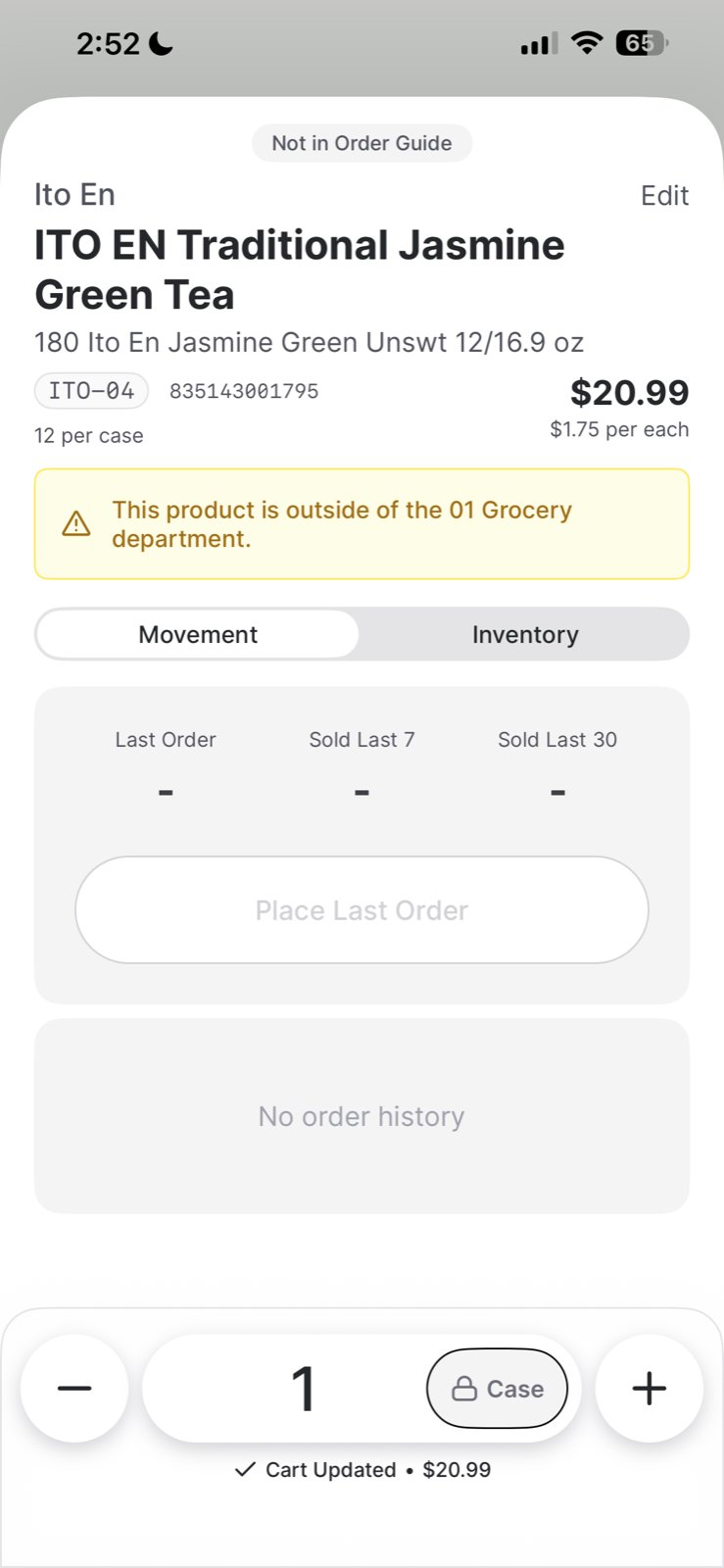
The flag is a heads-up, not a block — you can still add the flagged product to your cart.
Create a Single Vendor Order
Single Vendor Orders help streamline your ordering process when working with just one supplier. Once you’ve selected this option, follow these steps to start building your order:
- Tap Single Vendor Order.
- Select a vendor from your Vendor List.
- Scan a product or use the search bar to find a product by:
- Product name
- Item code
- Barcode
- Search within your store catalog (products you already carry).
- Search a vendor catalog (to discover new products).
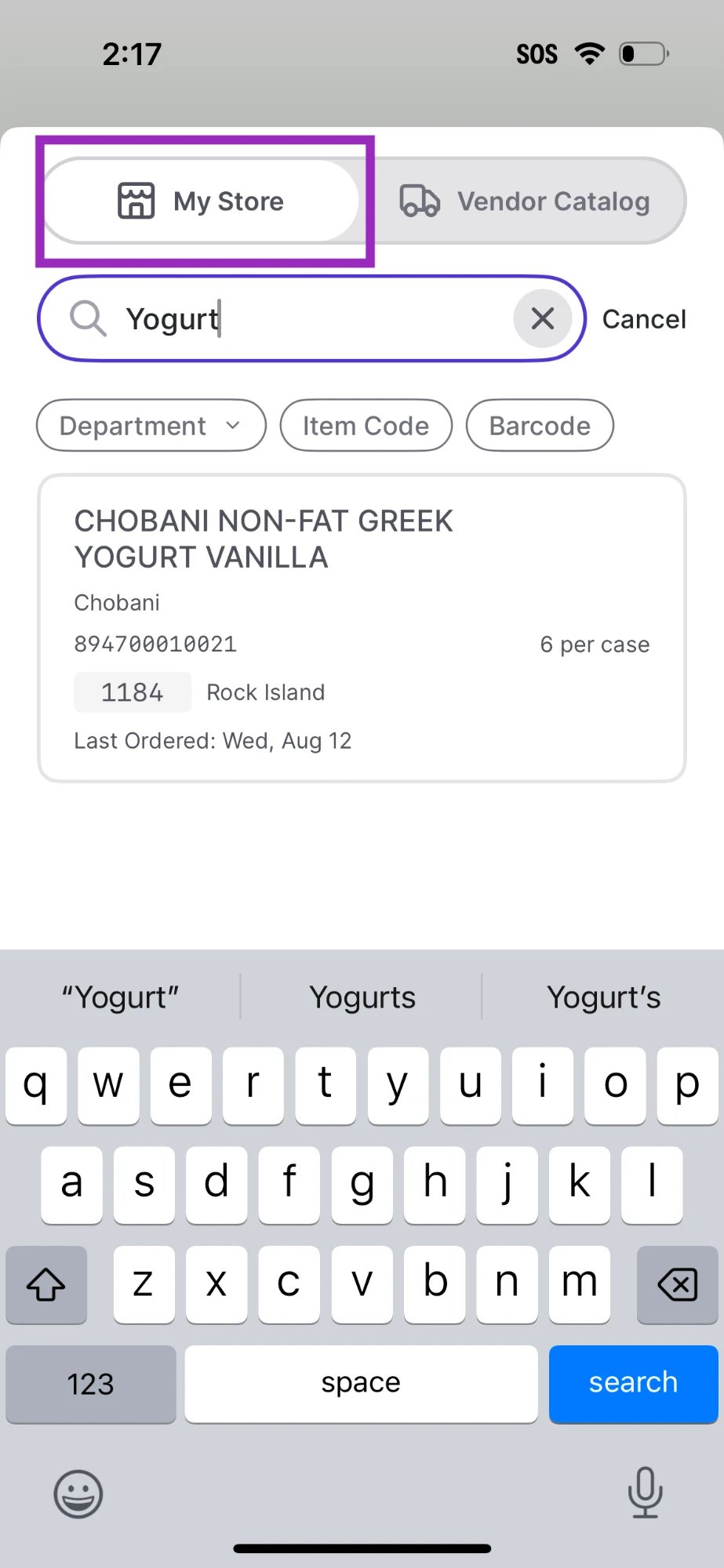
New products can be added even if they’re not in your current catalog.
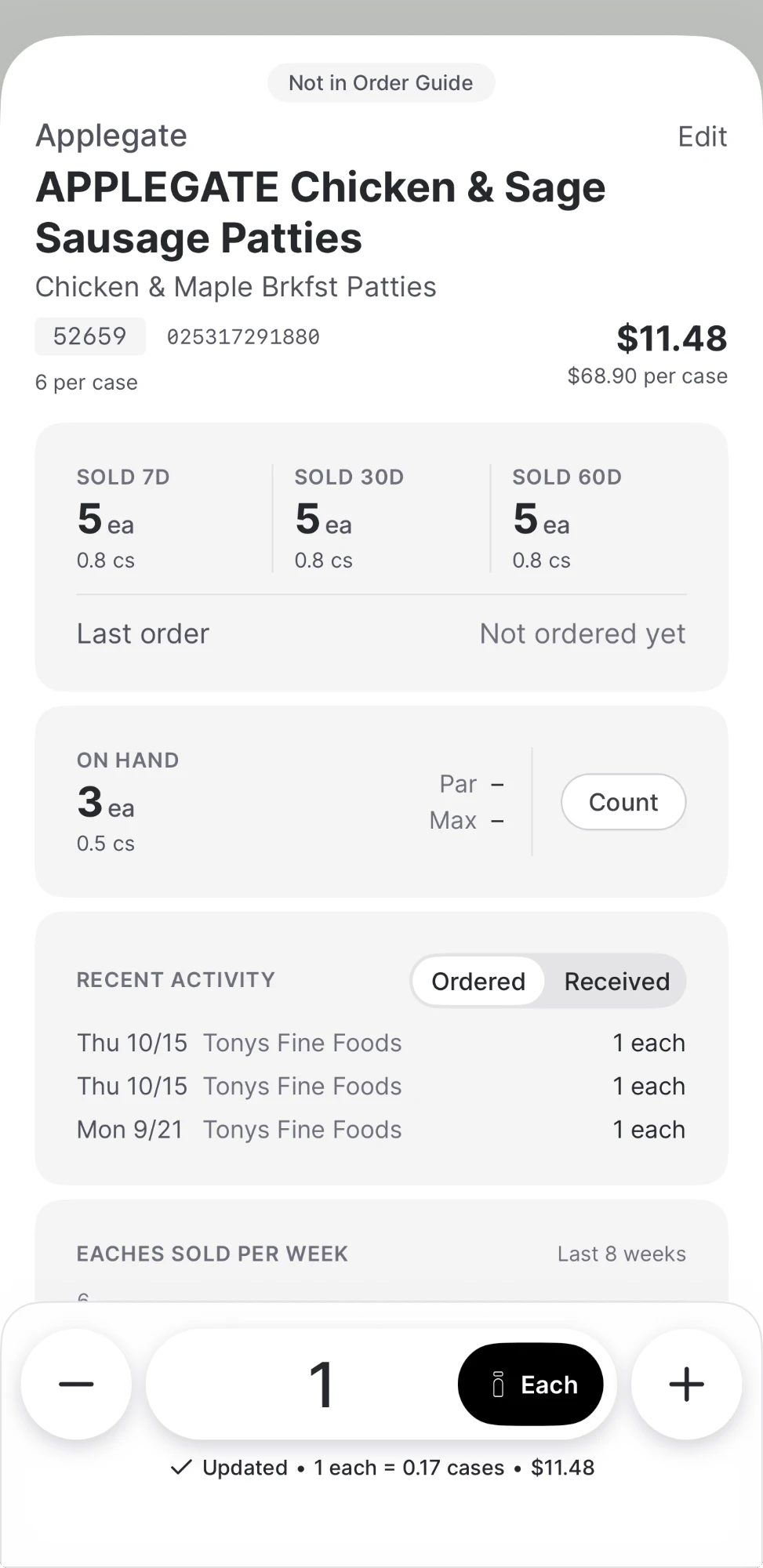
Product Order Details
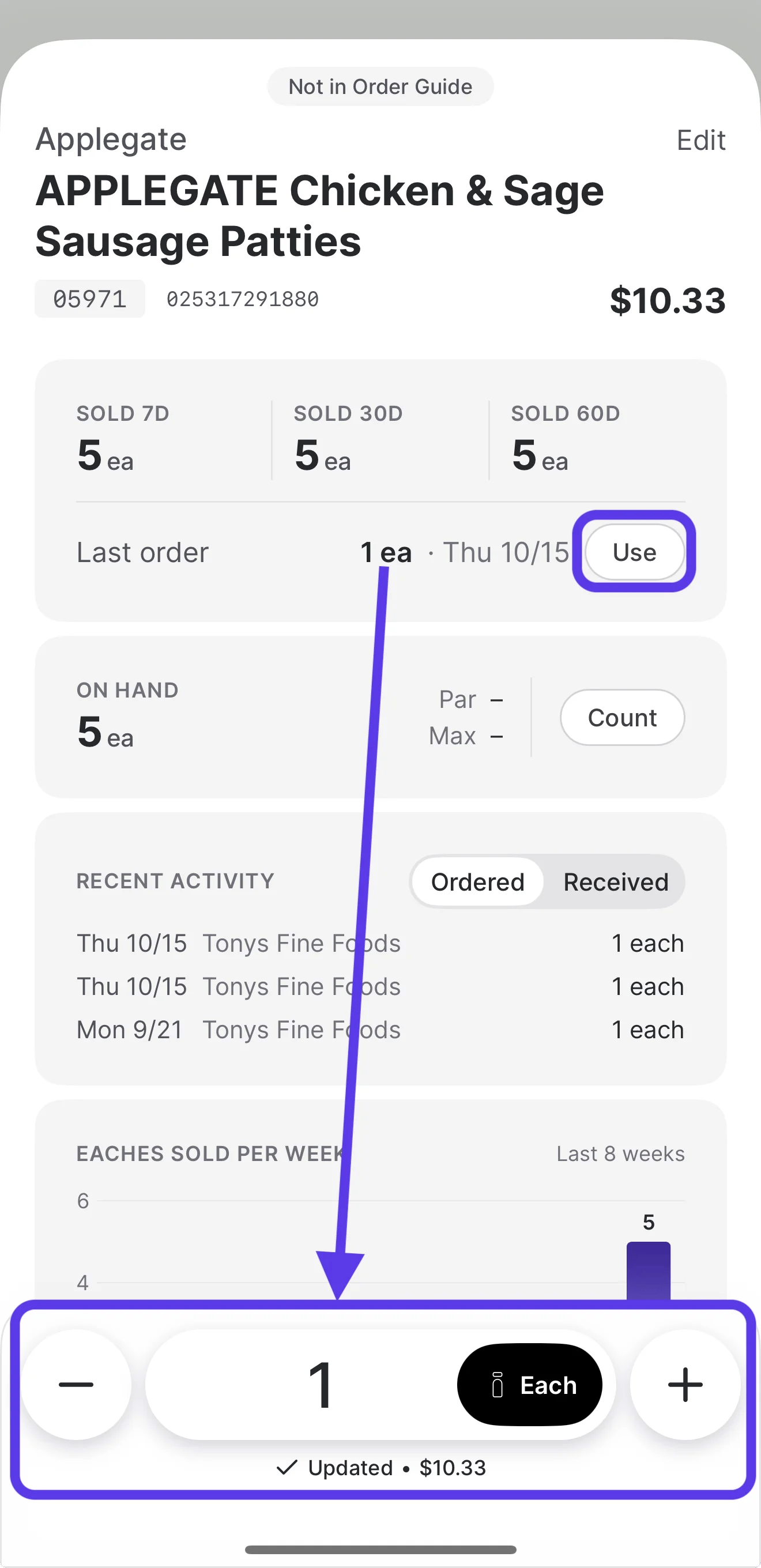
Once you select a product, the Product Order Details will appear with key details to help you make informed purchasing decisions.The product view shown below is the New Product View. To use it, turn on New Product View in Ordering Settings: from the Orders home screen, tap the settings icon in the top right, turn on New Product View, then tap Done.
- Item Info: Brand, name, barcode.
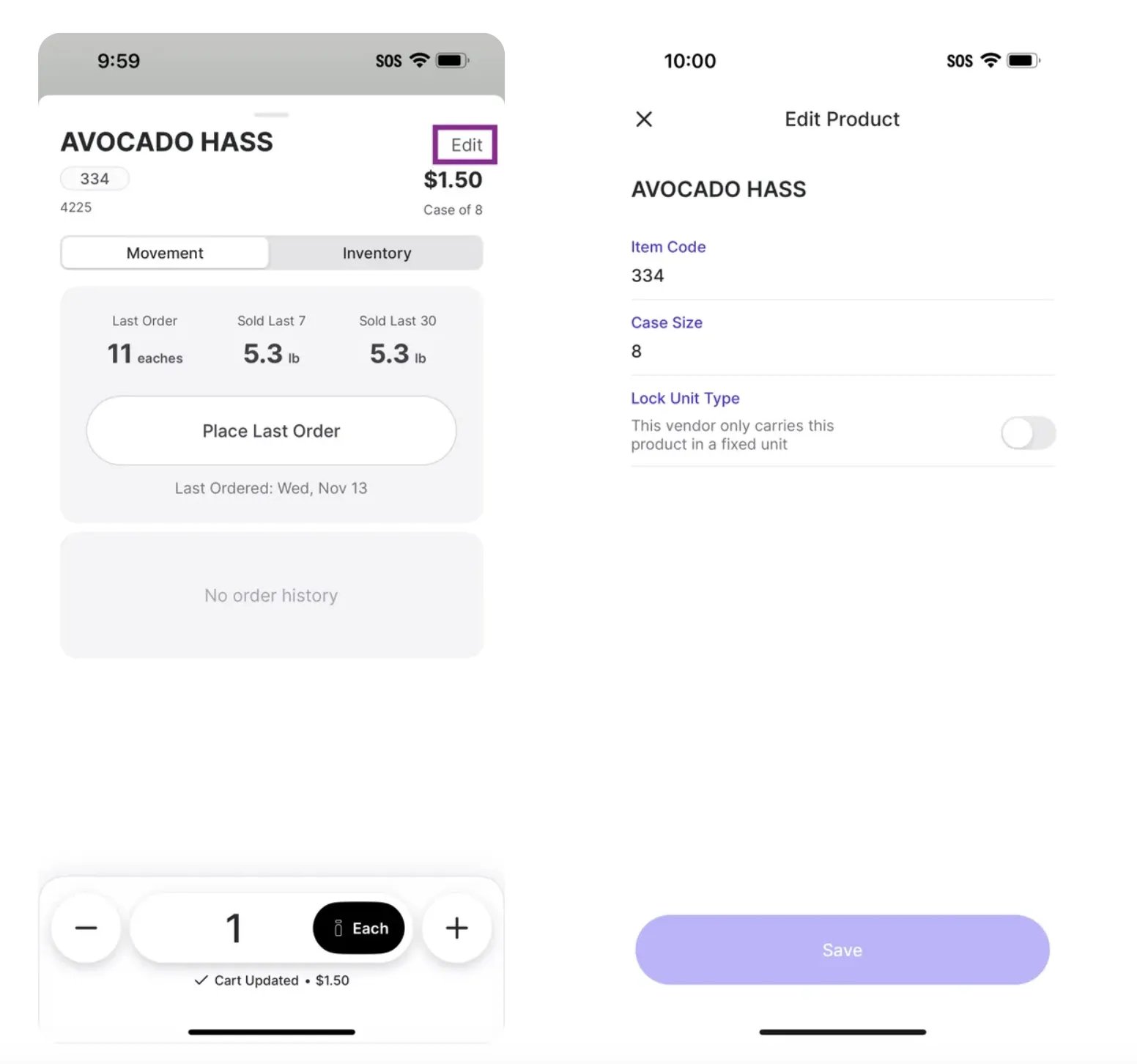
- Cost & Case Details: Vendor cost, case size, unit type.
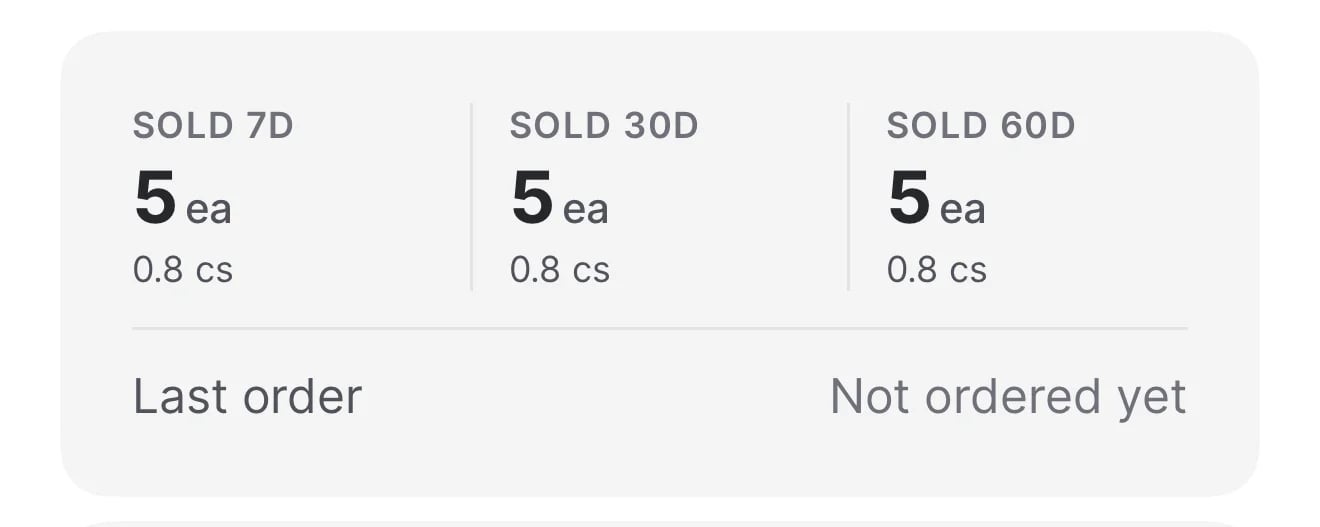
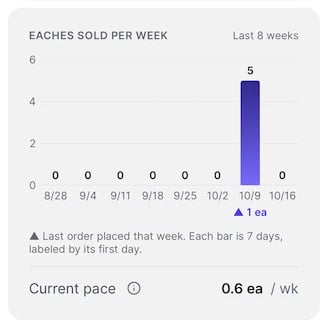
- Movement Data: Shows how many units of a product you’ve sold at the register.
- Movement helps you order what you need, based on sales, not habits.
- Inventory: Need to make a quick correction to your inventory? Sometimes you spot a mistake mid-order, like realizing your shelf count is 12, not 10. No problem, just tap Count, enter the new number, and tap Commit.
Tap Use next to Last order to instantly add the same quantity and unit type (case or each) from your last order—no need to re-enter anything manually. This is a fast way to reorder when your previous quantity worked well and you want to repeat it.
Update Order Quantity
You can set how much you’d like to order using the quantity and unit controls.- Use the + / – buttons to adjust order quantity.
- Toggle between Case and Each, depending on availability from the vendor.
The default unit type (case vs. each) matches your last order from this vendor.
- Remove products from the cart by swiping left and tapping the trash can, or select Edit from the top right corner.
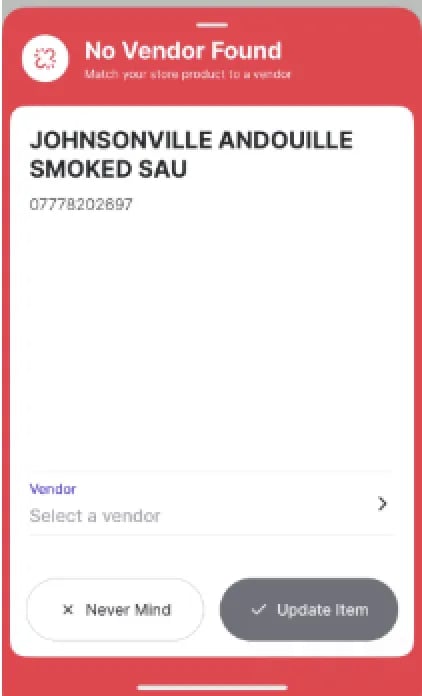
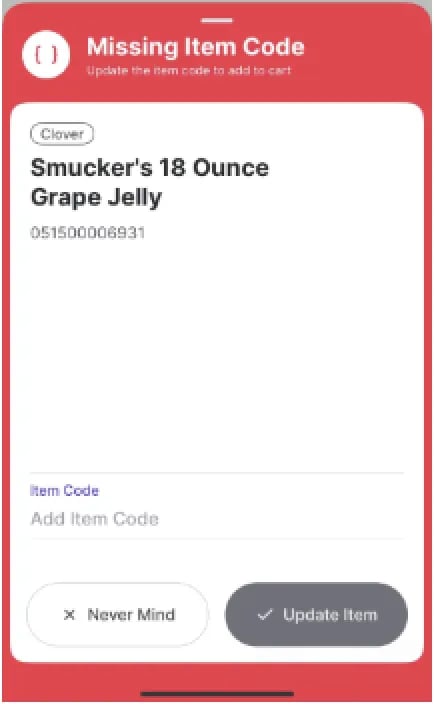
When a product is scanned during the ordering process:
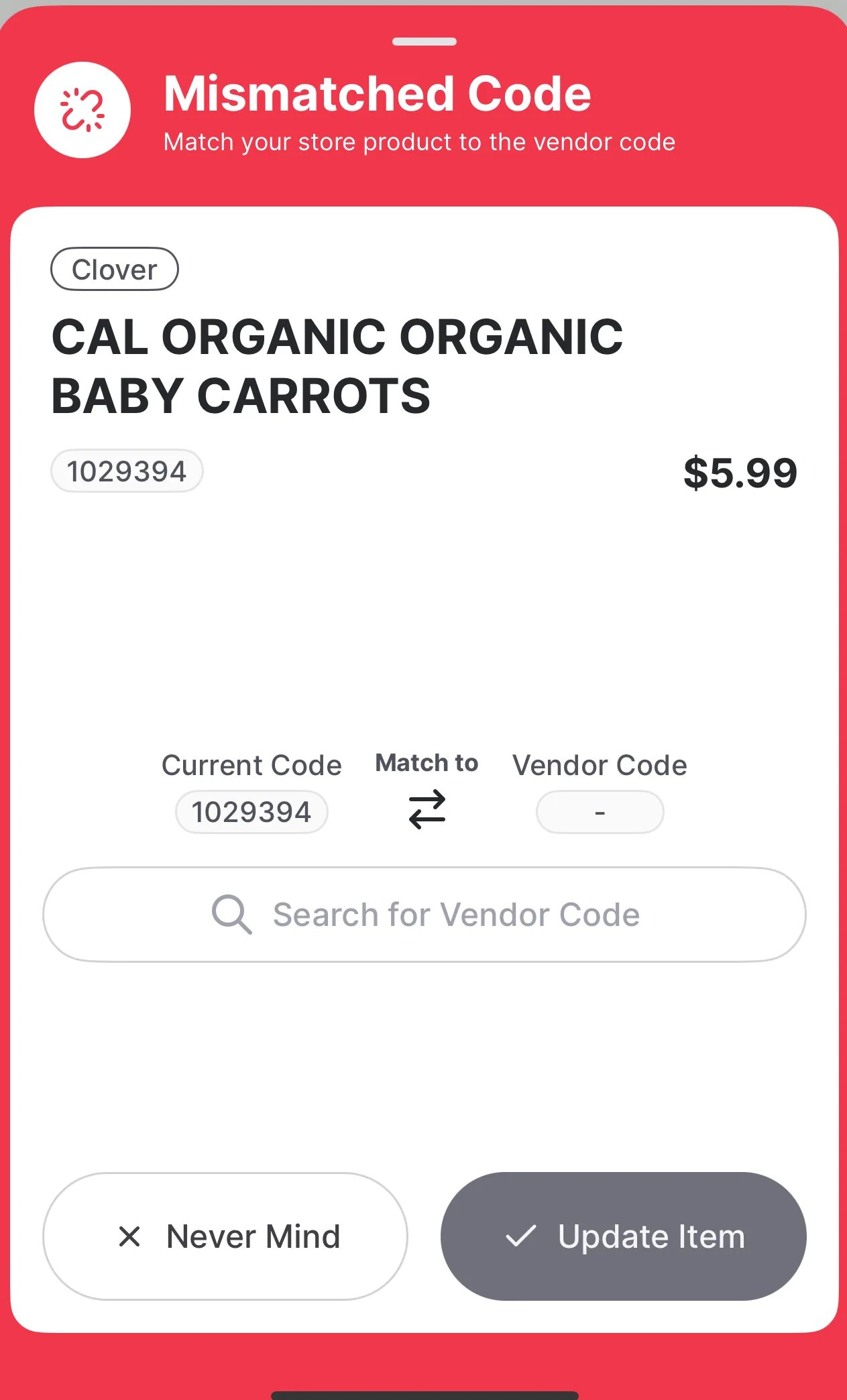
- If it’s not tied to a vendor, you’ll see a red No Vendor Found alert.
- If it’s missing an item code, you’ll see a Missing Item Code alert.
- If the store product is not matched to the vendor code, you’ll see a Mismatched Code alert.
Create a Multi Vendor Order
Use the Multi Vendor Order function to scan or search for products from multiple vendors without selecting one upfront. Just move through your store and add items as you go (aka “one-pass scan”). Vori will sort them by vendor at checkout.
- Tap Multi Vendor Order.
- Scan or search for multiple products.
Compare Vendors for the Same Product
If the product is available from multiple vendors:- A vendor toggle appears at the bottom of the product sheet.
- Tap each vendor to compare:
- Cost
- Case size
- Unit type
- Add the product to your cart from the selected vendor.
- Easily find the best deal without switching screens. This comparison uses your store’s own vendor data. Cost information is maintained by your team and is not actively updated by vendors. Prices may change based on:
- Manual updates by your team.
- Cost changes are reflected in vendor invoices.
- Easily find the best deal without switching screens. This comparison uses your store’s own vendor data. Cost information is maintained by your team and is not actively updated by vendors. Prices may change based on:
Want Vori to automatically select your preferred vendor when placing a Multi Vendor Order?
- Go to the Back Office and open the Product Catalog.
- Find the product and click the carrot ( ˅ ) button.
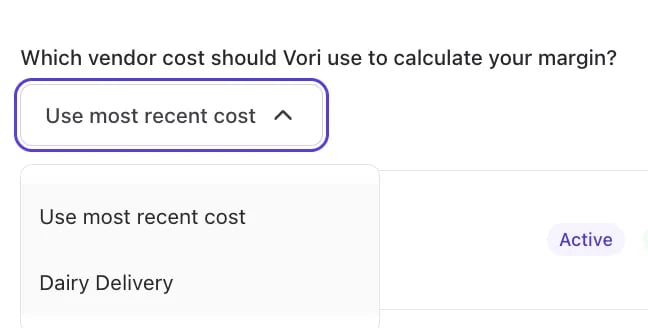
- Under Pricing, locate the field: “Which vendor cost should Vori use to calculate your margin?”
- Choose one of the following:
- Use most recent cost (default): This pulls from the latest invoice uploaded via the Cost Changes process.
- Select a vendor: Manually set a primary vendor for that product.
Cart Behavior
- Your cart automatically organizes items by vendor.
- You can tap into each vendor’s cart to review or edit.
Review and Place Your Order
When you’re ready to check out:- Tap Finish & Checkout.
If your cart total is below the vendor’s minimum order amount (set in Vendor Settings), you’ll see the Minimum Not Reached alert. You can either return to your cart to add more items or proceed with Ignore & Checkout (The vendor may not accept or fulfill the order if the minimum isn’t met). 
Checkout Screen
On the checkout screen, you’ll see:- Your store name.
- Account Number
- Use this field to select the correct vendor account number for this order. If your store uses different account numbers for specific departments (e.g., Produce, Grocery, Deli), choose the one that matches the products in your cart.
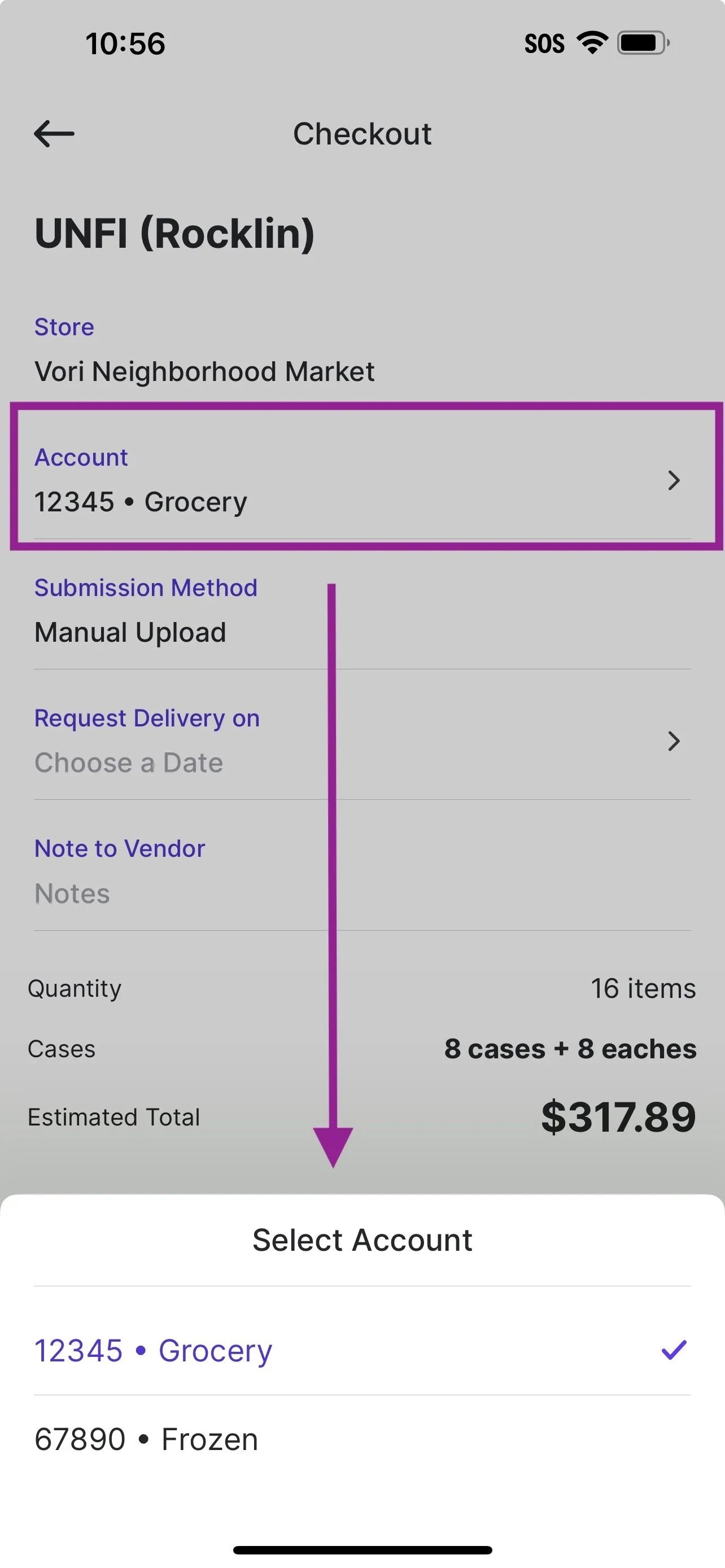
- Use this field to select the correct vendor account number for this order. If your store uses different account numbers for specific departments (e.g., Produce, Grocery, Deli), choose the one that matches the products in your cart.
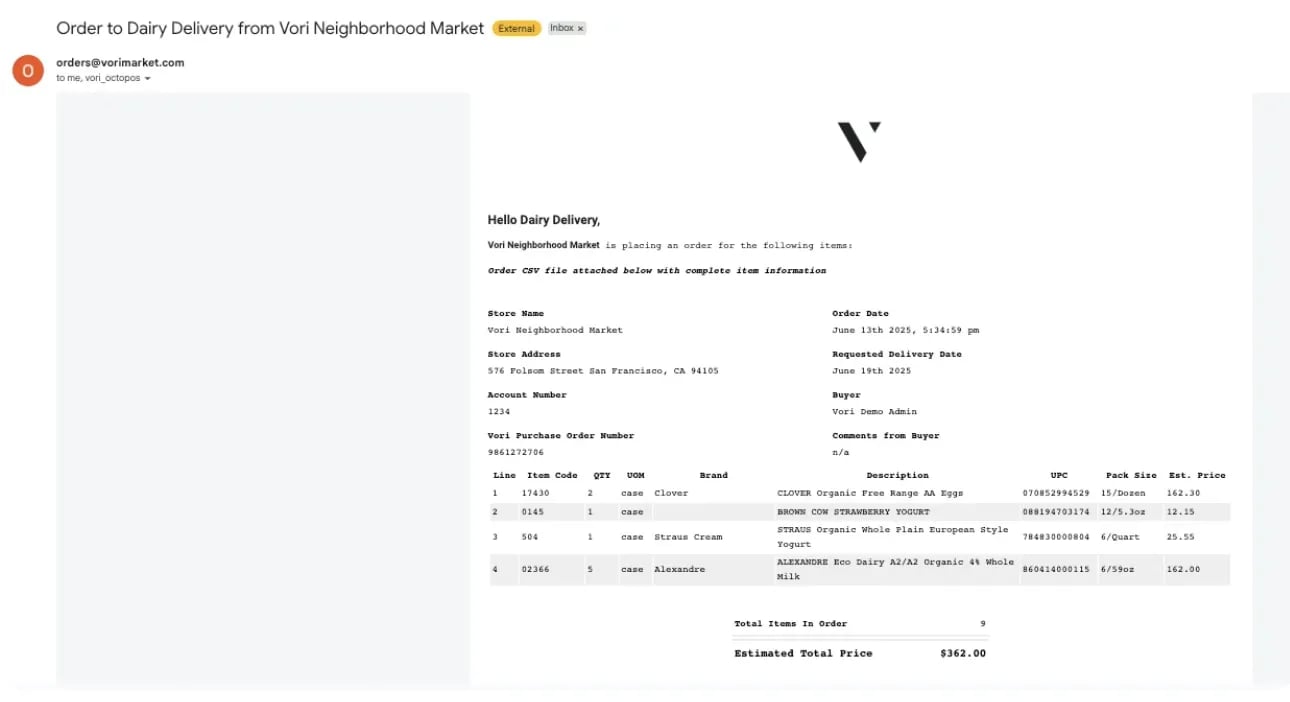
- Send Order To: Use this field to enter an email address, either your own or the vendor’s, if the order should be sent by email.
If you enter an email address in the Send Order To field during checkout, that recipient will receive an order confirmation email. This includes store details, order info, delivery date, buyer comments, and a CSV attachment. The confirmation email is automatically CC’d to the email address associated with the VoriOS login used to place the order.
- A delivery date picker.
- A notes field (optional).
- A Summary: Estimated total, item count, and quantity.
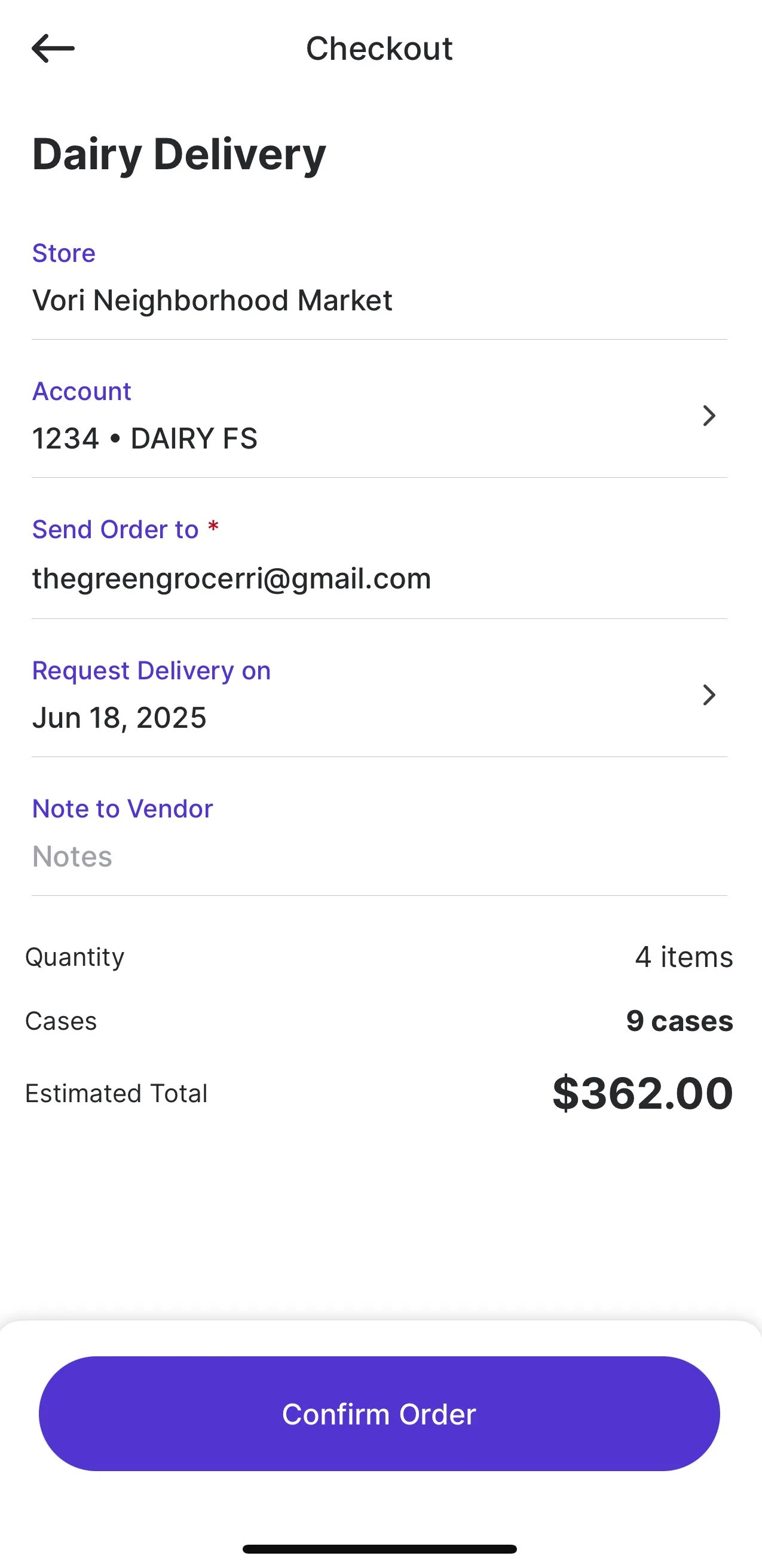
Be sure the email address and delivery date are correct before submitting.
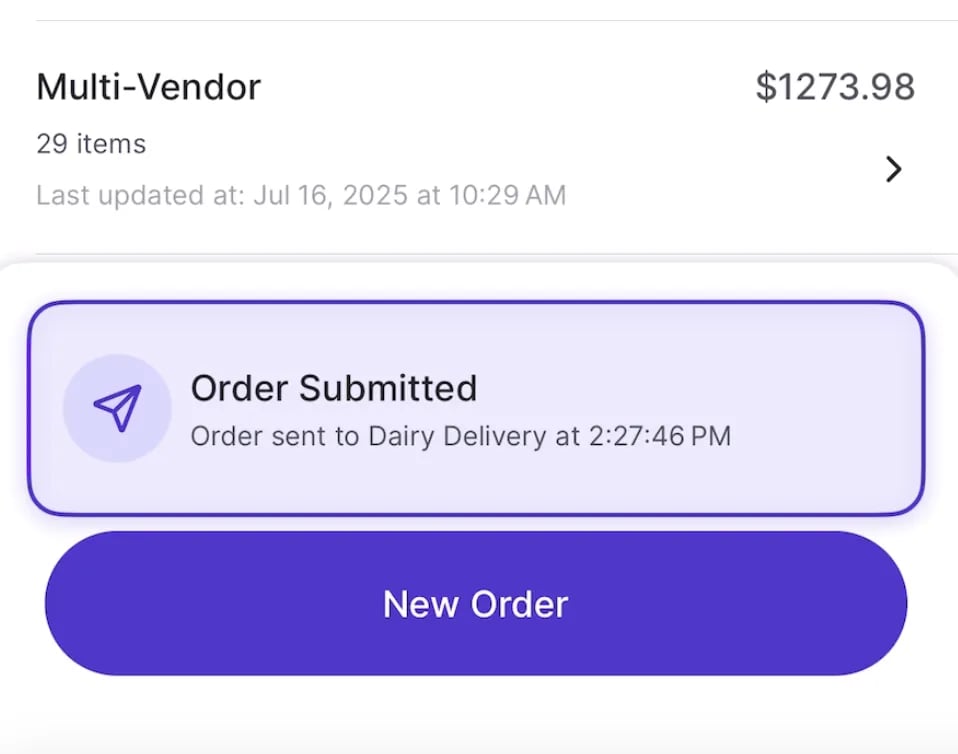
- Select Confirm Order to submit and leave the app open until you see the purple “Order Submitted” confirmation message on the Order Dashboard.
Special Note for UNFI Orders
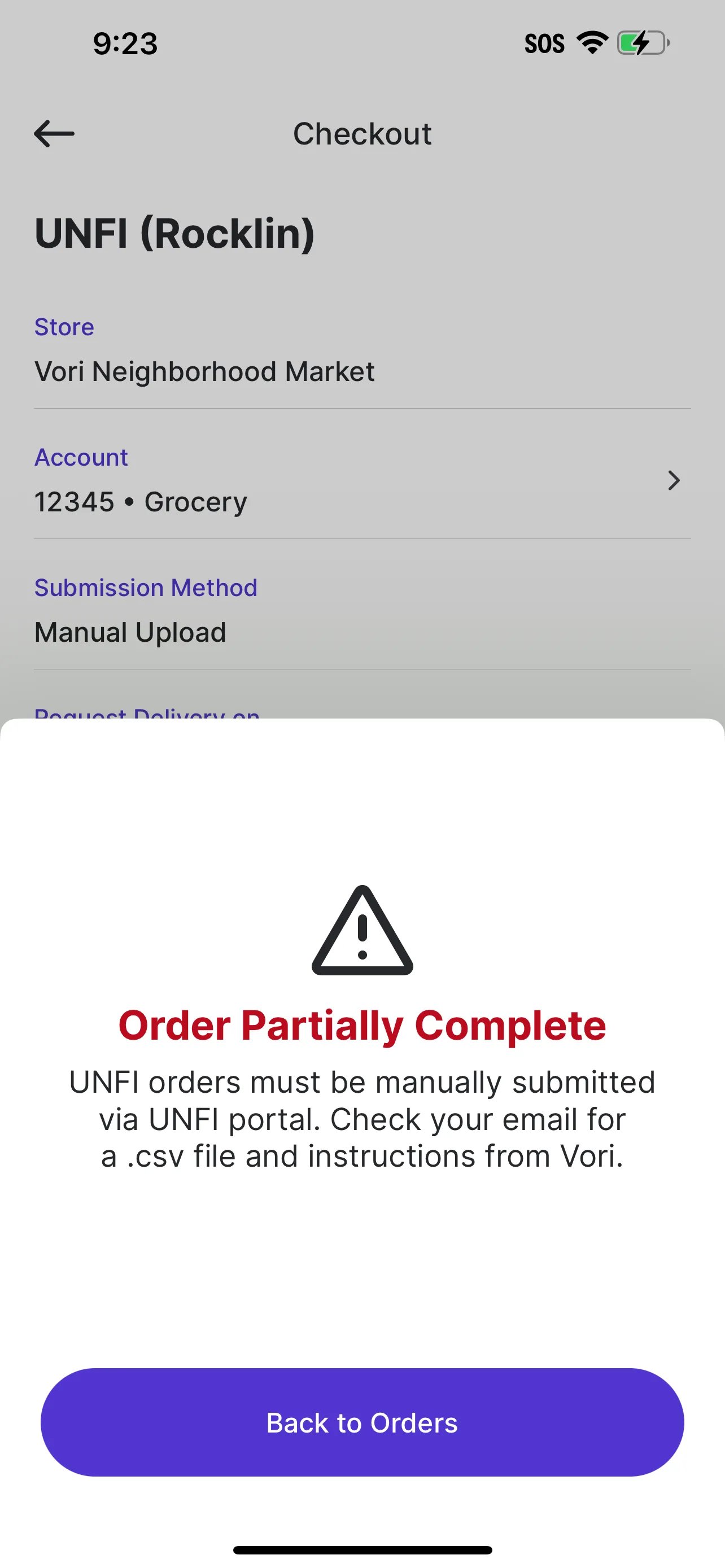
Some vendors, including UNFI and its subsidiaries (such as Tony’s and Supervalu), do not accept orders via email or direct EDI integration from Vori. Because of this, the Submission Method is automatically set to Manual Upload at checkout.- If the Submission Method is set to Manual Upload, check your email for the .csv file and follow the instructions provided by Vori.
- Do not open the CSV file. Opening it in Excel or another program may remove leading zeros from item codes.
- Simply download the file as-is.
- Drag and drop the CSV into the UNFI portal. No need to edit or remove columns.
View Your Orders
Visit the Order Dashboard to view draft and past orders. You can:- View Draft Ordersthat have not been completed. Archive draft orders by swiping left and tapping the trash can.
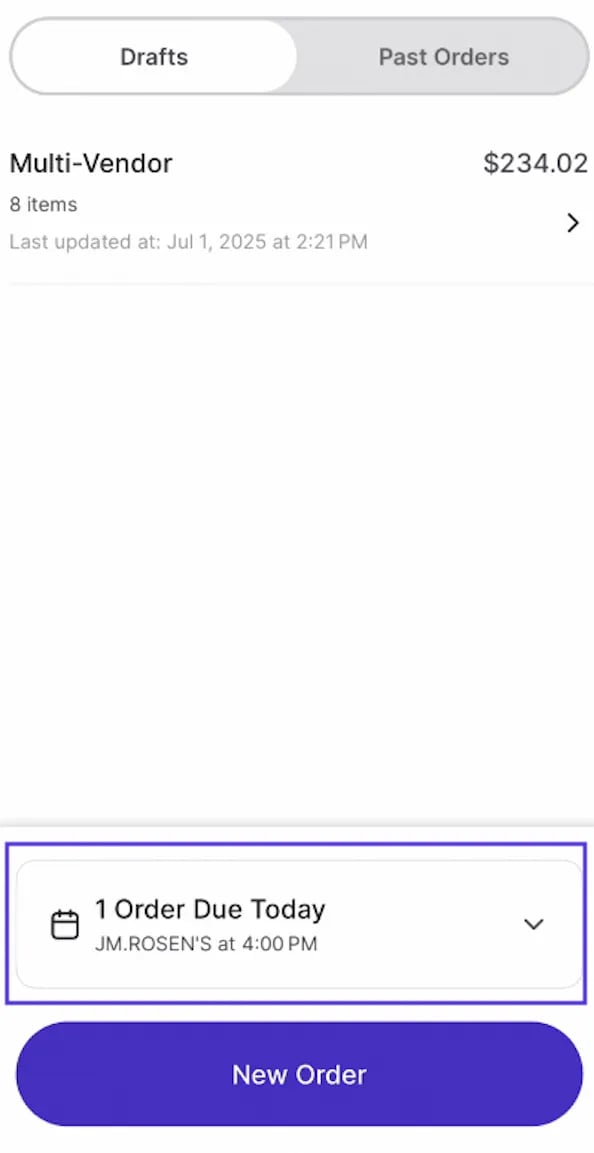
- Vendors with an order due that day, and no draft order started, will appear highlighted on the ordering screen for quick visibility.
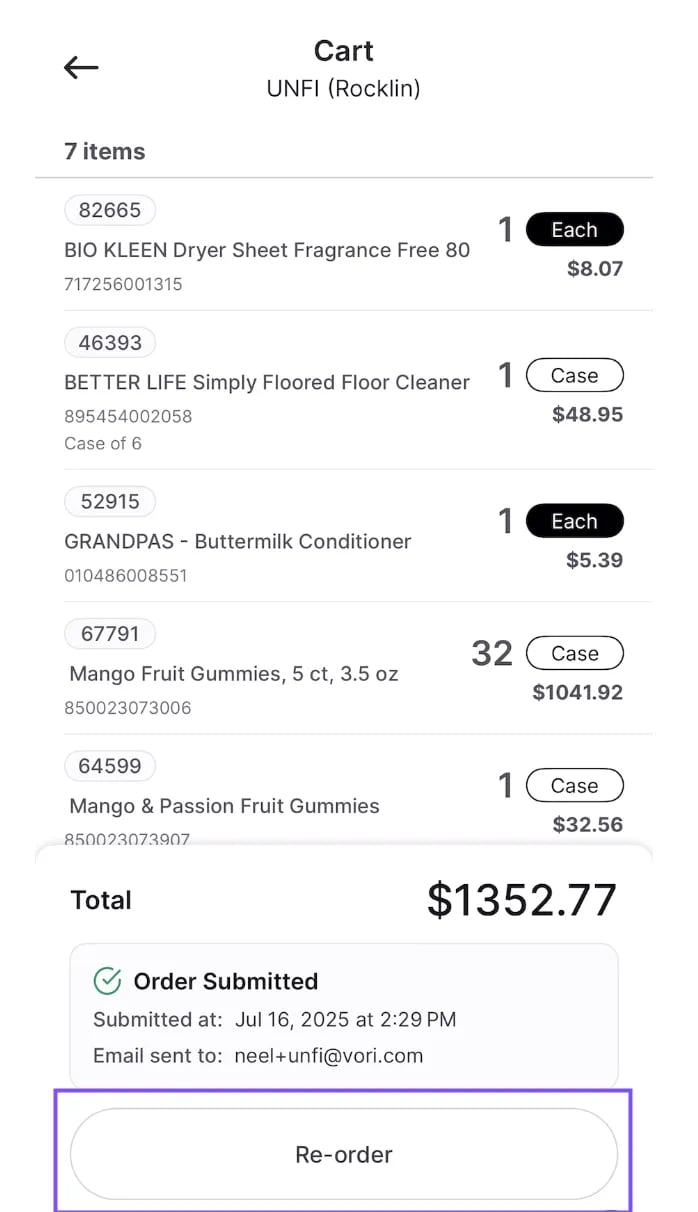
- You can view and tap into Past Orders to review item details, track submission time, and see who received the confirmation email. To quickly reorder, select a past order and tap Re-order to add all items, along with their quantities, unit types, and vendor associations, into a new cart without starting from scratch.
Ordering Settings
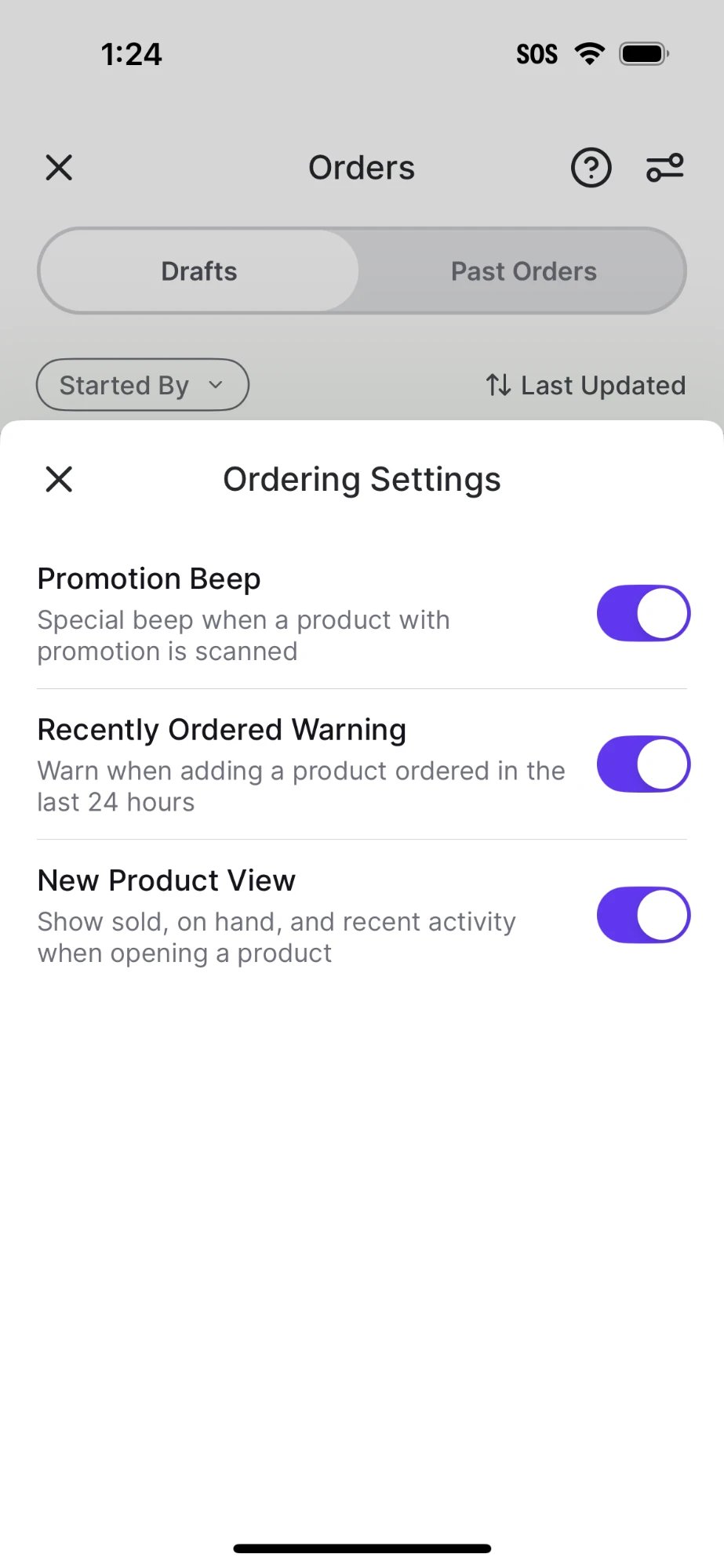
- Promotion Beep — when on, the scanner plays a special beep each time you scan a product that’s on promotion.
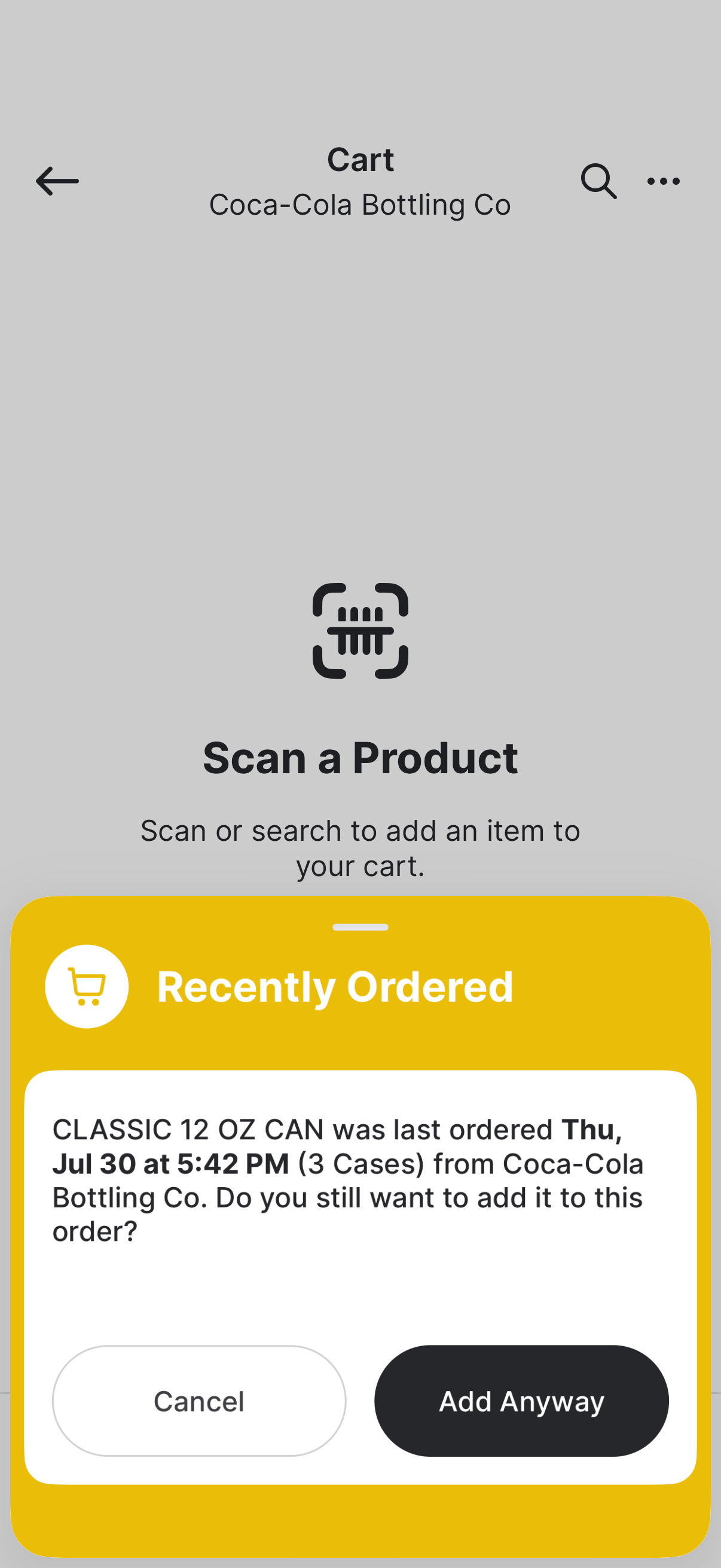
- Recently Ordered Warning — when on, a popup warns you when you add a product you already ordered in the last 24 hours.
- New Product View — when on, opening a product shows units sold, on hand, and recent activity. See Product Order Details.
Promotion Beep and Recently Ordered Warning are on by default. New Product View is off by default.
Troubleshooting
What if a vendor doesn’t appear?- Confirm the vendor is connected in the Vendors section of the Back Office site.
- Once an order is submitted, you cannot edit the email address tied to it.
- For small orders, we recommend redoing the order with the correct email.
- For large orders, contact Vori Support.
- Check which user you were logged in under when submitting the PO. Confirmation emails are automatically sent to the inbox of the signed in user.
- If you want to receive copies of every Purchase Order, make sure your email is added in the Vendor contact and toggle on Ordering Contact.